Change the status of many orders at once and see the incentives on an order
· 6 min read

You can tick quotes or orders in a list and change their status in one go. The order editor shows which incentives were applied to a quote or order, and its PDF can use any of your document templates. In the Action Hub you see the actions of your colleagues and the ones nobody has picked up yet.
New Features
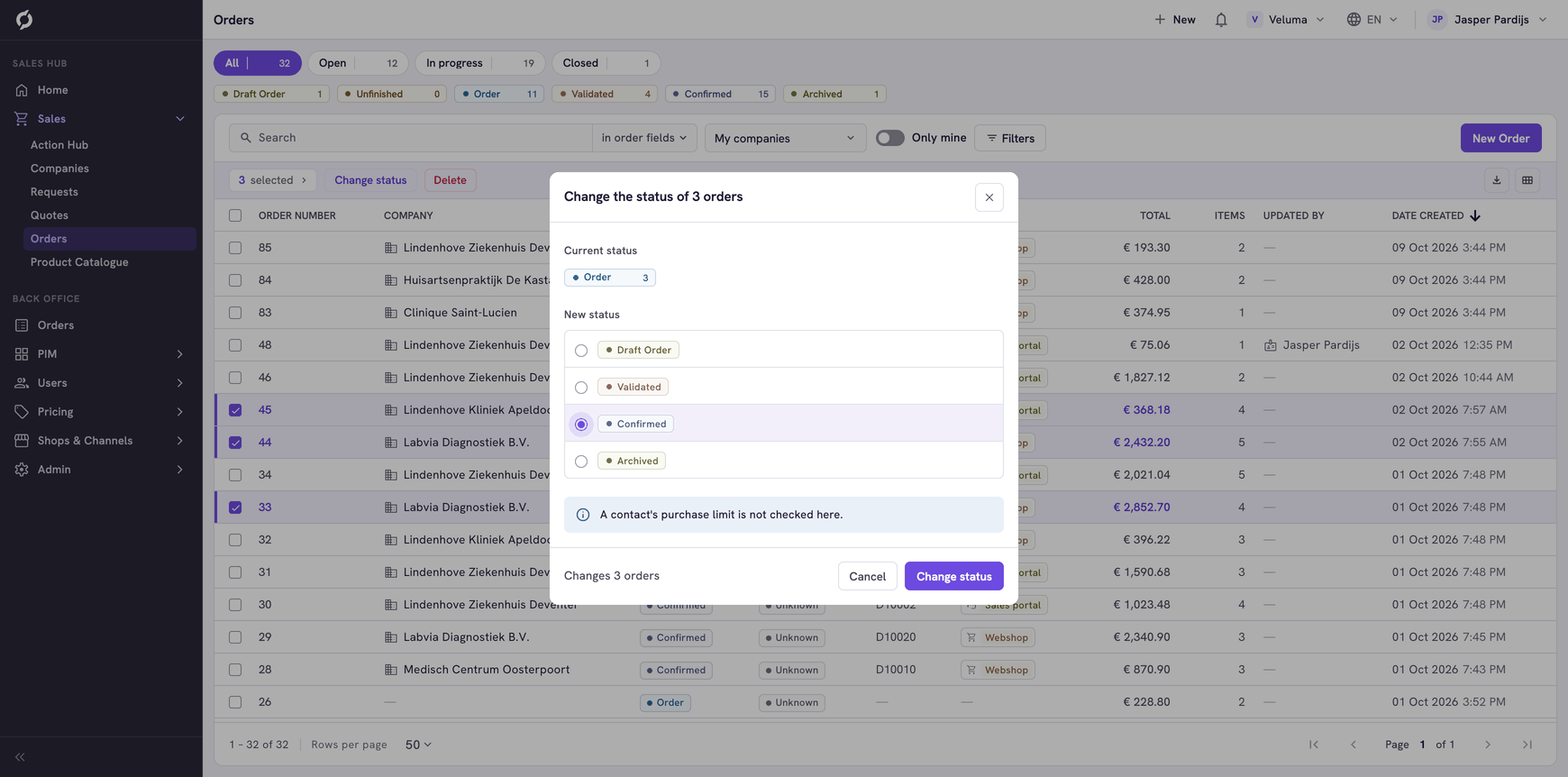
- Change the status of many quotes or orders. On the lists of quotes and orders, in the Sales Hub and the Backoffice, tick the quotes or orders and click Change status. The dialog shows the statuses they are in now and offers only the statuses that all of them can move to. Quotes or orders that cannot be changed stay ticked, and a message says why. You need Editor or Owner access to the Order Data role. See Change the status of several quotes or orders.
- See which incentives a quote or order got. The order editor has a new section, Applied incentives, below the product list. For each incentive it shows the name and what it did, such as 10% off or a bonus product. It also lists the lines the incentive matched. Open rule opens its business rule in a new tab. The section appears when incentives were applied, at checkout in the webshop or with Apply incentives. See See which incentives were applied.
- Pick the template of a PDF. PDF in the order editor opens the quote or order in its default document template. Choose another one under Template to view and download the document in that layout. Your choice does not change the emails: an email attaches the document set on its email template. See Download the PDF.
- See what your colleagues work on in the Action Hub. Everyone made way for three switches: Mine, Colleagues and Unassigned. Turn on one or more, each with its count. Colleagues needs the User management role. Unassigned on its own lists the actions nobody has taken under Up for grabs, and the column on the right and the Home page link to it. With the Roles & permissions role you can also filter on Owner, and a done action names the colleague who handled it. Handled today counts every action you handled, also one assigned to a colleague. See Use the Action Hub.
- Two-factor authentication can be required. Propeller can make two-factor authentication required for an environment. A Backoffice user of that environment who does not use it yet sets it up at the next sign-in, with a mobile number and a code by SMS, before any page opens. It then applies to every environment the user works in. With Owner access to the Roles & permissions role you can reset it for a colleague who lost their phone: open the colleague under Admin > Backoffice Users and click Reset two-factor authentication. See Enable two-factor authentication.
- Workflows on companies and contacts in the Backoffice. Under Admin > Agents, an agent can now be placed on the companies and contacts under Users, with Back office · Users · Companies, Back office · Users · Company, Back office · Users · Contacts and Back office · Users · Contact. The Workflows button then shows on those lists and pages. See Choose where the agent shows.
Improvements
- Filter on the source. The filters of the lists of requests, quotes and orders, in the Sales Hub and the Backoffice, have Source, for example Webshop or Sales portal. See Filter the list.
- Stock details from the catalogue. In the Product Catalogue of the Sales Hub, click Stock: on a product card to see the stock per warehouse, as on the product page. The product list of the PIM can show the columns Allocated stock, Free stock and Economic stock. See Read a product card and Read the stock.
- Date conditions say they use UTC. In a business rule, a condition on a time, a day, a month or a number of days from today says In UTC, not your local time. A time you type shows what it is here today, for example UTC · 17:01:25 here today. See Use a date in a condition.
- API keys are shown once. A new API key and the client secret of a new REST key show only once, right after you create them. The switch Show the key only once is gone from the dialogs. See API Keys.
- Signature salts stay hidden. An event action no longer shows its stored signature salt. Leave the field empty to keep it, type a new salt to replace it or click Remove salt. See Change or delete an event action.
Bug Fixes
- The email that Forgot your password? sends is in the language of the sign-in page. Before, it was in Dutch for everyone.
- A business rule you rename keeps its new name. Before, it could open again as Untitled rule and lose the name at the next save.
- A condition on Order current date in a business rule now matches orders, and a rule with a Before or After date condition opens in the Backoffice.
- Clusters can be moved in the products dialog of a category. Before, a move showed an error.
- A cell you copy from Excel and paste into a field of a product is no longer added to the product as an image.
- While a list loads, its grey placeholder rows can no longer be clicked. Before, a click opened an empty page.
- A link from one user to another, such as the owner of a favorite list, opens the page of that user. Before, the page kept the first user, and Save could overwrite the second user with the details of the first.
- Remove on a bundle in the order editor works. Before, it showed an error. This fix is on production since 6 November.