Send an email or a message when something happens
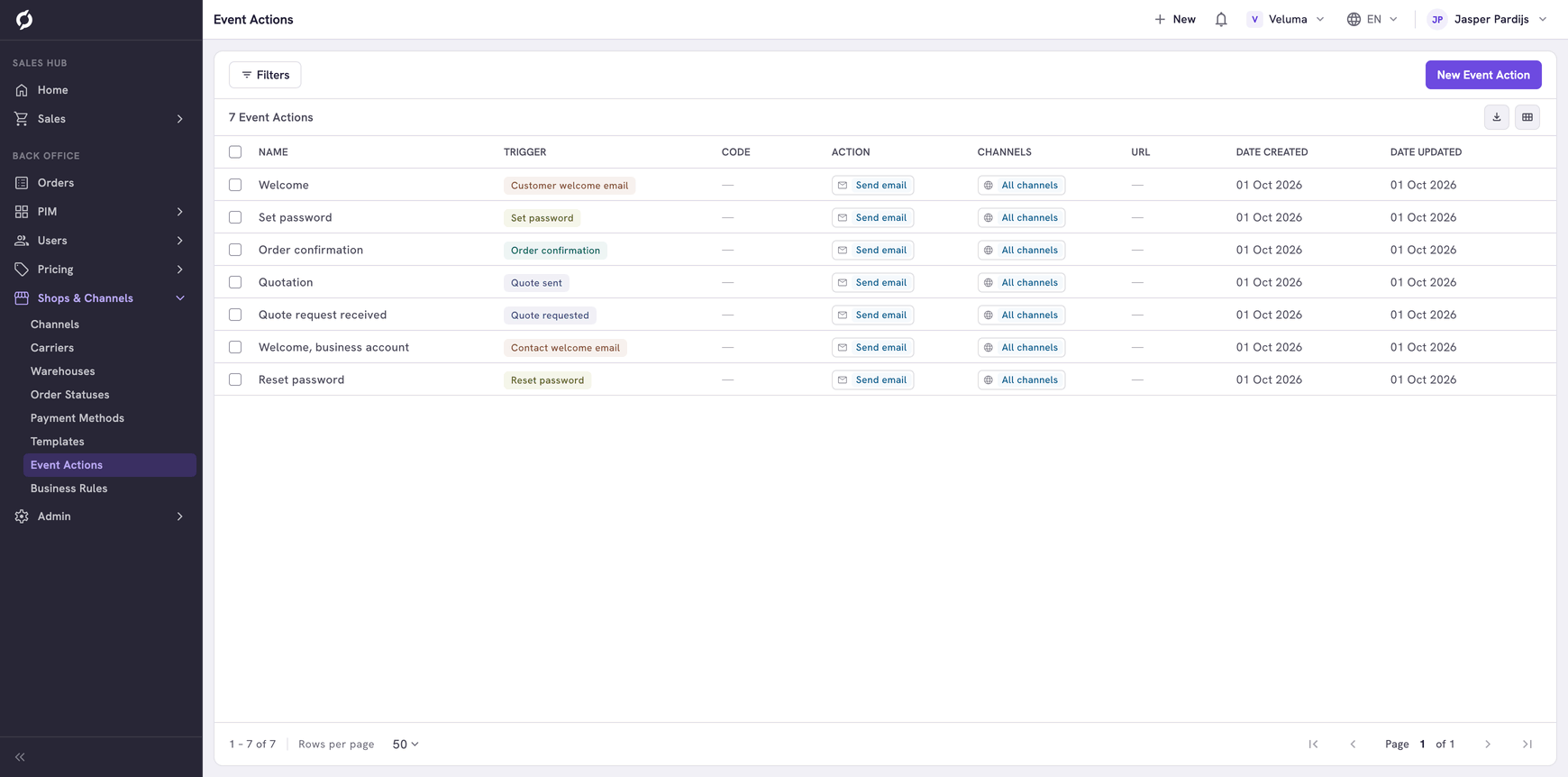
An event action says: when this happens, send that email. For example, when a sales rep clicks Send to client on a quote, send the email with the quote. An event action can also pass the event on to another system.
Before you begin
- You need Backoffice access and the Configuration role. To create or delete an event action you need Owner access.
- For an email you need an email template first. See Templates.
- Passing an event on to another system, the type Post to webhook, is work for a technical colleague.
Pick the trigger
The trigger is the moment the event action reacts to. These are the ones a business uses most.
| You want an email when | Trigger |
|---|---|
| A sales rep clicks Send to client on an order. A webshop usually asks for the same email after a customer places an order | ORDER_SEND_CONFIRMATION |
| A sales rep clicks Send to client on a quote | QUOTE_SEND |
| A customer sends a quote request | QUOTE_SEND_REQUEST |
| A contact or customer gets a webshop account, or you resend the invitation | SEND_INIT_PASSWORD |
| A contact or customer asks for a new password | SEND_RESET_PASSWORD |
| A new contact or customer should get a welcome | CONTACT_SEND_WELCOME_EMAIL, CUSTOMER_SEND_WELCOME_EMAIL |
| A purchaser asks approval for an order above their limit | CART_SEND_REQUEST_PURCHASE_AUTHORIZATION |
The other triggers react to every change of a kind of record. They are meant for connections with other systems, because an email on every change soon becomes too much.
| Trigger | Reacts when |
|---|---|
| ORDER_CREATED, ORDER_UPDATED, ORDER_DELETED | An order or a quote is created, changed or deleted. A status change is a change |
| COMPANY_, CONTACT_ and CUSTOMER_ with CREATED, UPDATED or DELETED | A company, contact or customer is created, changed or deleted |
| ORDER_BULK, COMPANY_BULK, CONTACT_BULK, CUSTOMER_BULK | Many records change at once, for example through an import |
| QUOTE_SEND_VALIDATION | A quote is sent to a senior account manager to check |
| CUSTOM_EVENT | Another system sends an event of its own, with a code |
Create an event action for an email
- Go to Shops & Channels > Event Actions and click New Event Action.
- Choose the Type Send email. The type cannot be changed later.
- Choose the Event Trigger.
- Type a Name.
- Click Select email template and pick the template.
- Click Save.
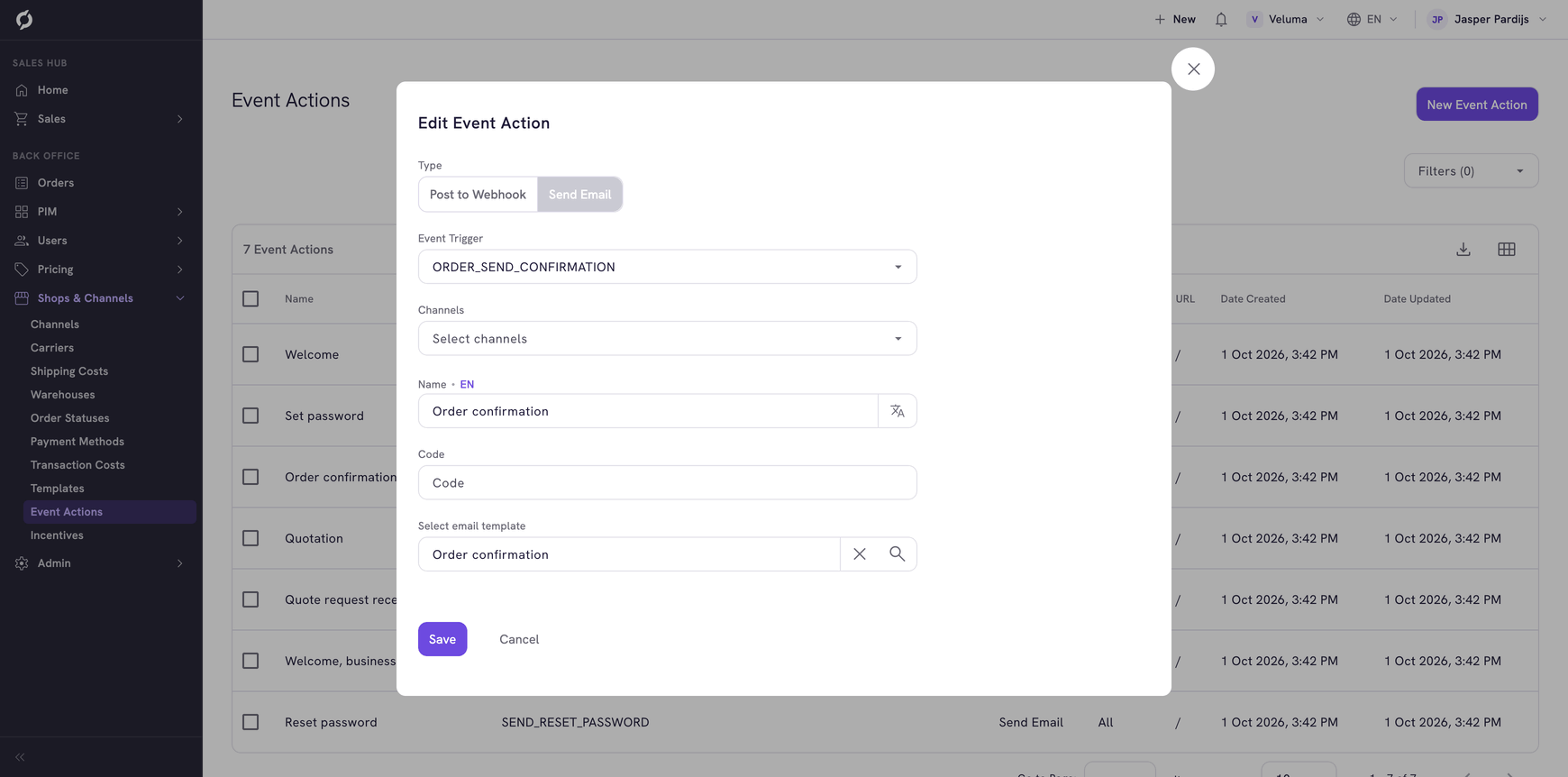
The event action works from the moment you save it.
Send another email per channel
Leave Channels empty and the event action works for every channel. Pick one or more channels and it only works for those.
Two event actions on the same trigger both go out. So with one action without a channel and one for your B2B channel, a B2B order gets both emails. Give each action its own channels when every order should get one email.
At most ten event actions work per trigger.
Pass the event on to another system
For the technical colleague who sets this up.
- Choose the Type Post to webhook and the Event Trigger.
- Type the Url that receives the event. It has to start with https.
- Under Security, type a Signature Salt, or a Basic Auth Username and Basic Auth Password. With a salt, every message carries a signature the receiver can check.
- Click Save.
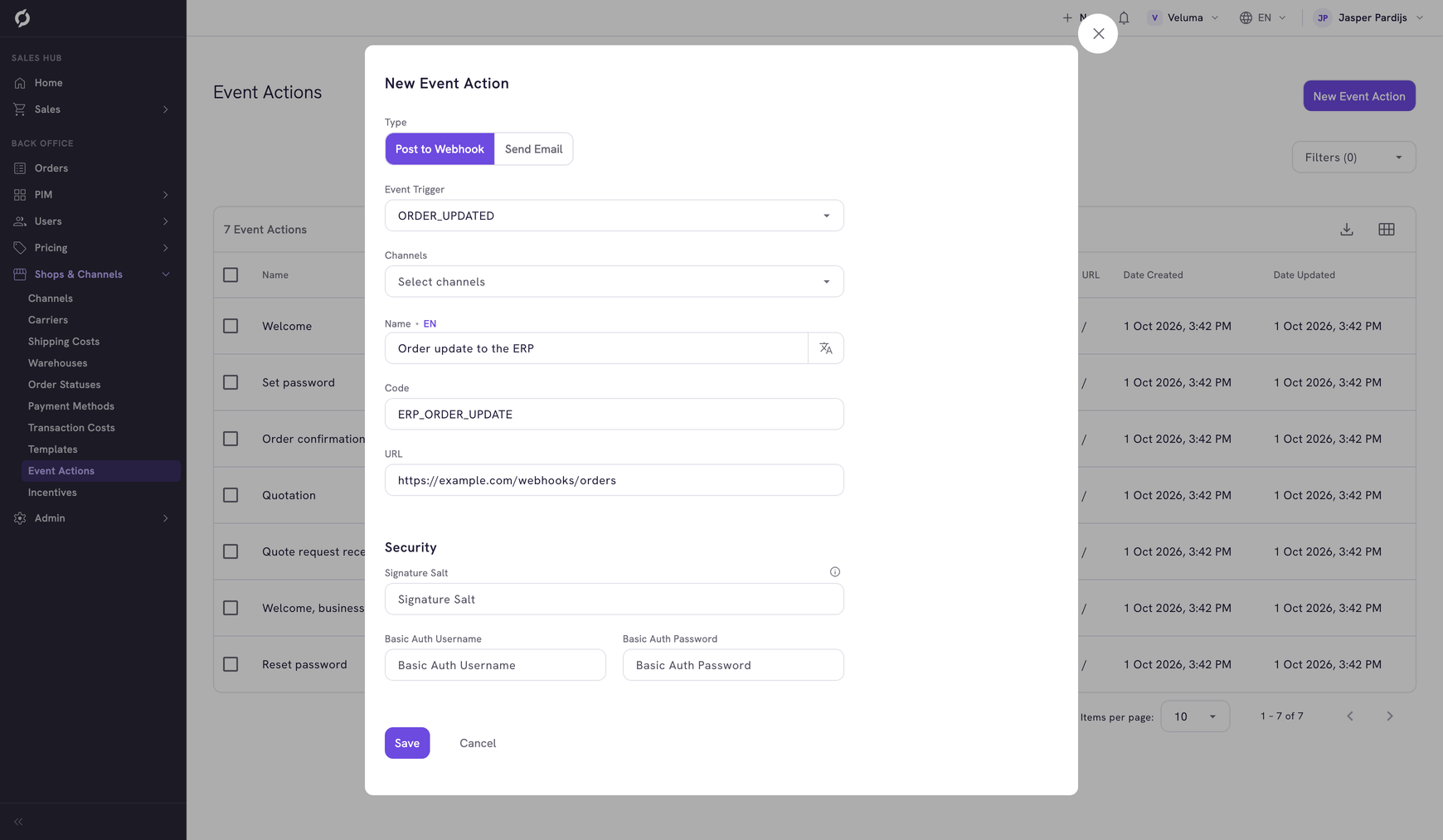
Code is only needed for the trigger CUSTOM_EVENT. It says which custom event the action reacts to.
Change or delete an event action
Click a row to change an event action. To delete, tick the rows, click Delete and confirm. After a delete the email no longer goes out.
Related pages
- Templates - the emails an event action sends
- How requests, quotes and orders work - what Send to client does
- Edit a contact or customer - the email of a webshop account