Manage payment methods
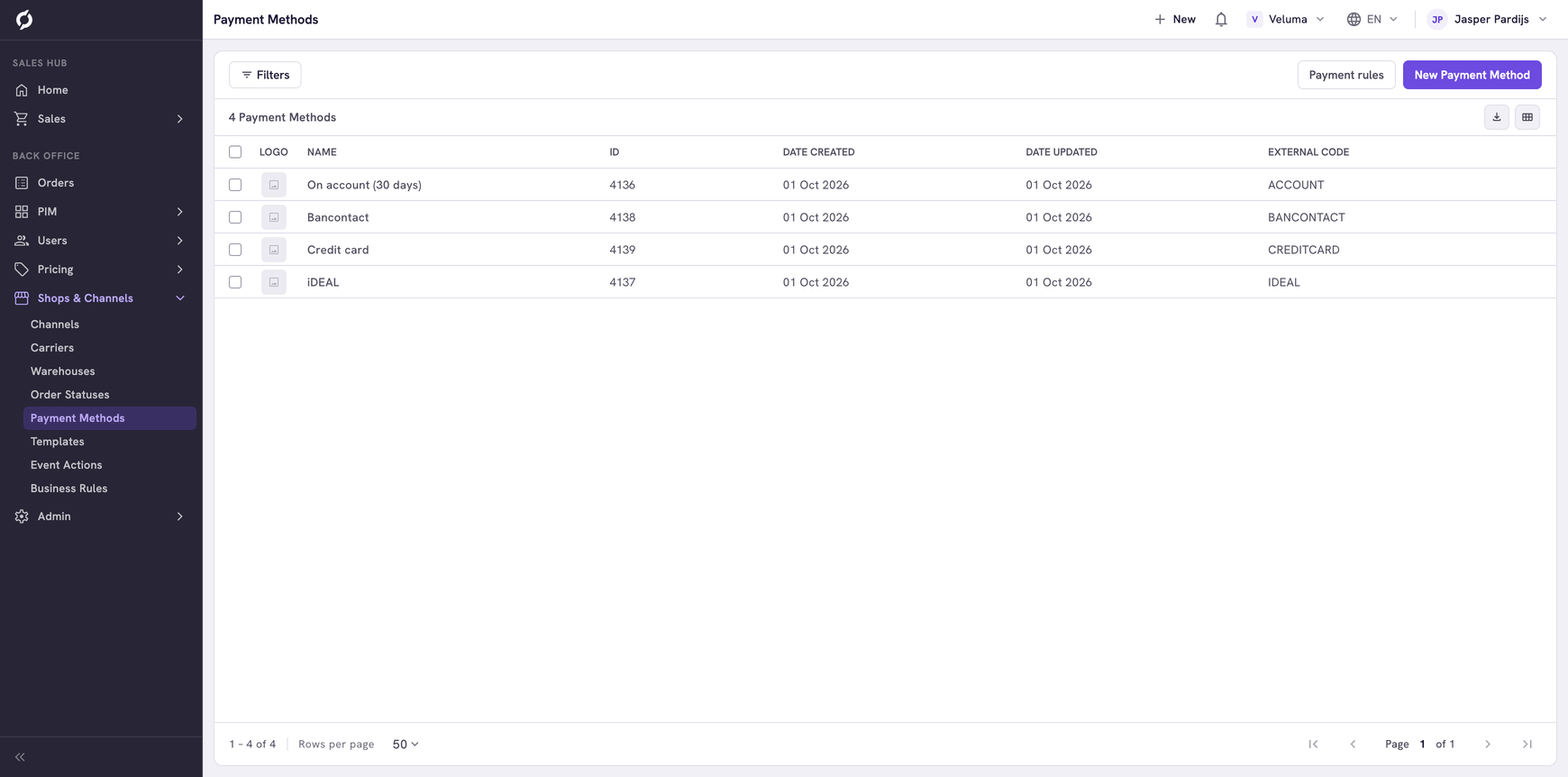
A payment method is a way a customer can pay, such as on account or with iDEAL. On this page you add your payment methods. A payment method rule decides which of them a customer can pick.
Before you begin
You need Backoffice access and the Shop & channel role. To create or delete a payment method you need Owner access.
Add a payment method
- Go to Shops & Channels > Payment Methods and click New Payment Method.
- Fill in the dialog and click Save.
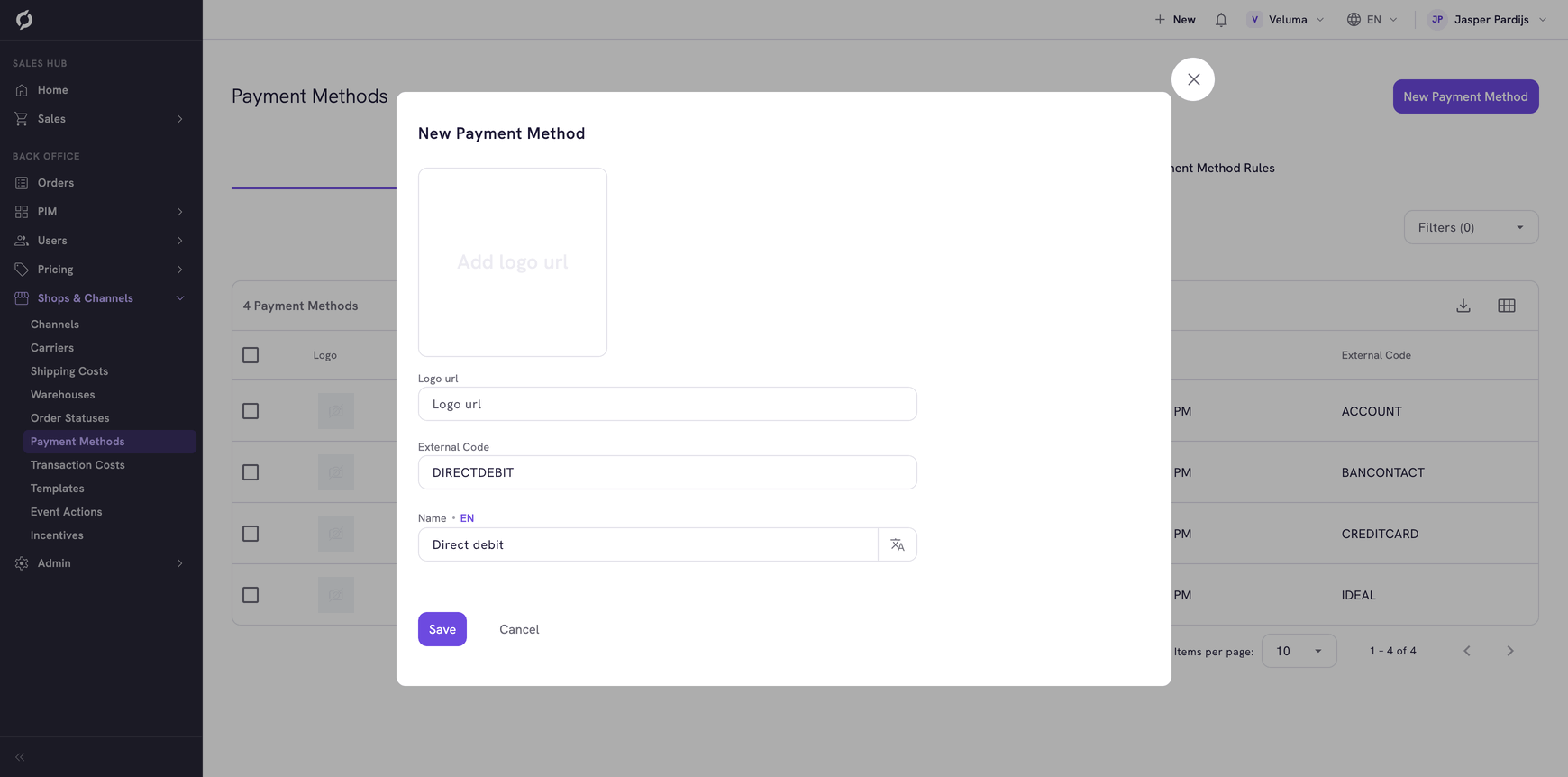
| Field | What it is | Required |
|---|---|---|
| Name | The name customers see, per language | Yes |
| External Code | The code of this payment method, in capitals with underscores between words. For example IDEAL or BANK_TRANSFER. Rules and connected systems know the payment method by this code | Yes |
| Logo url | The web address of the logo | No |
Choose the External Code with care. Business rules know the payment method by this code. The connection with your payment provider uses it too.
A new payment method cannot be picked yet. It only shows on a quote, an order or in the webshop when a payment method rule makes it selectable.
Decide which payment methods a customer can pick
Click Payment rules above the list. Business Rules opens on the payment method rules, where you decide which payment methods a customer can pick and for which orders. See Decide which payment methods a customer can pick.
To charge a fee for a payment method, see Charge a fee for a way of paying.
Change or delete a payment method
Click a row in the list to change it. To delete payment methods, tick them, click Delete and confirm.
A deleted payment method cannot be brought back. Take it out of the rules as well.