Use the Action Hub
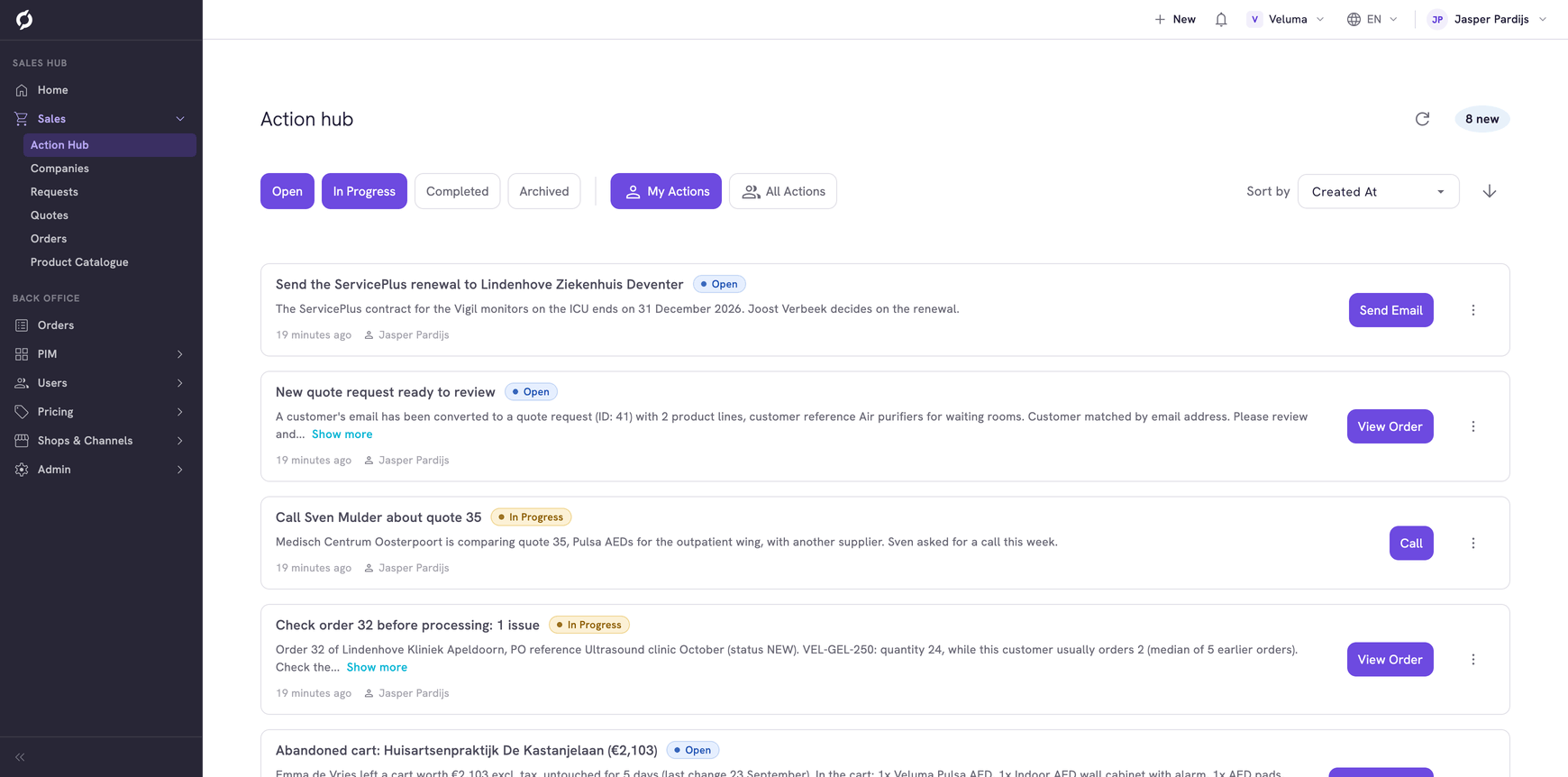
The Action Hub lists the actions that workflows and AI agents prepared for you: a customer to call, an order to check, a quote that is about to expire. You pick an action up, do what it asks and mark it as done.
Before you begin
You need Sales Hub access.
Actions only appear when your company set up workflows that create them. An empty Action Hub means none is set up yet. Ask the colleague who manages your Backoffice. A technical colleague who builds such a workflow can follow Send actions to the Action Hub in the developer docs.
Find your actions
- Go to Sales > Action Hub. You see the actions that are assigned to you and are open or in progress.
- Click All Actions to also see the actions of colleagues and the ones assigned to nobody. Click My Actions to go back.
- Use the buttons Open, In Progress, Completed and Archived to choose which statuses you see.
- Use Sort by to change the order, and the arrow next to it to turn it around.
The list shows 12 actions and loads more when you scroll down. The end of the list says how many actions are shown, with Load more to load the next ones. Click the refresh icon at the top right to check for new ones. The number next to it, for example "2 new", counts the actions in view that were created in the last hour.
Work on an action
- Read the action. Click its text to read all of it.
- Click the three dots on the right and click Pick Up. The action is now assigned to you and in progress, so your colleagues see that you are on it.
- Click the button of the action, for example View Order or Call.
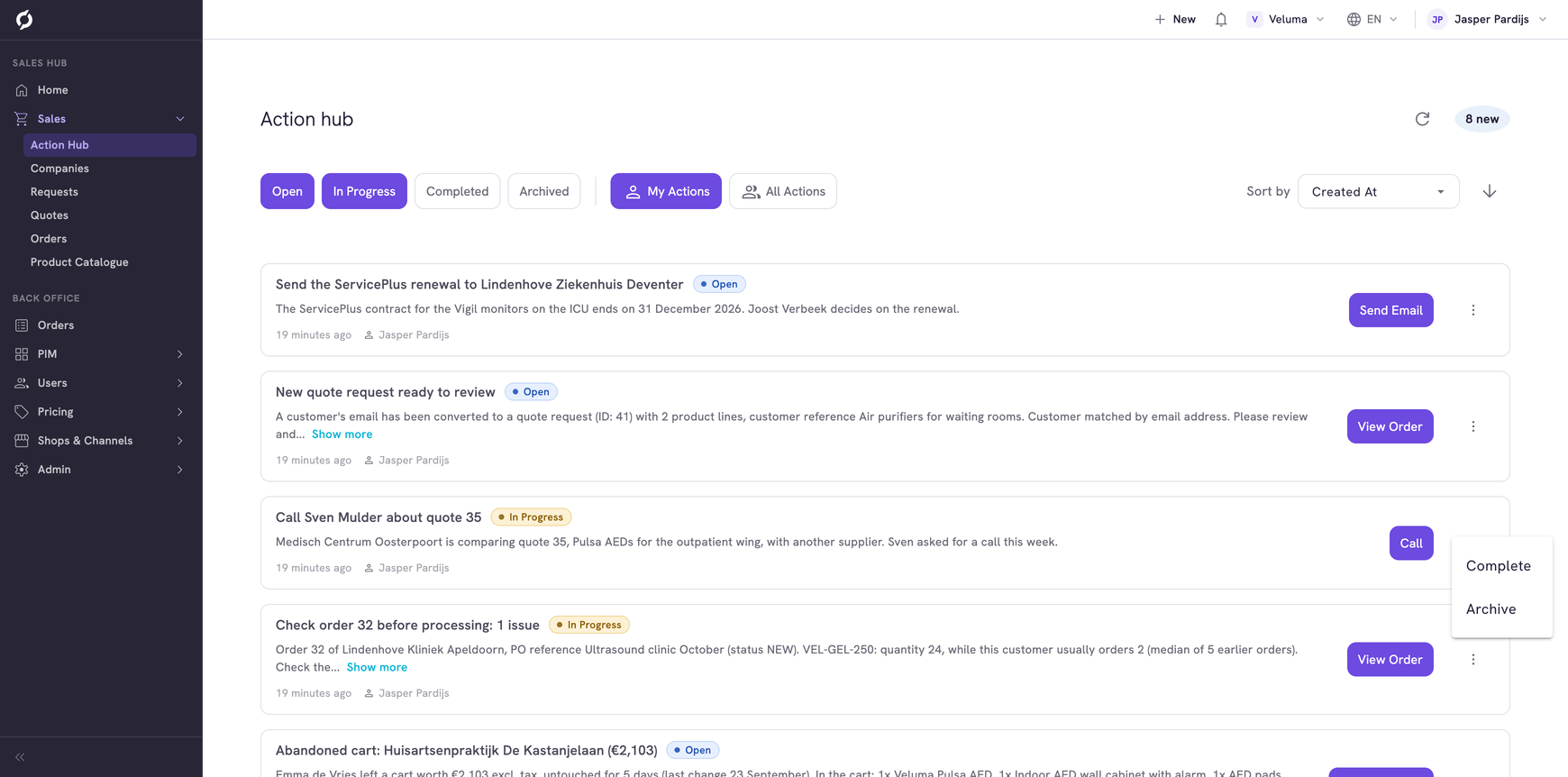
- When you did what the action asks, click the three dots and click Complete.
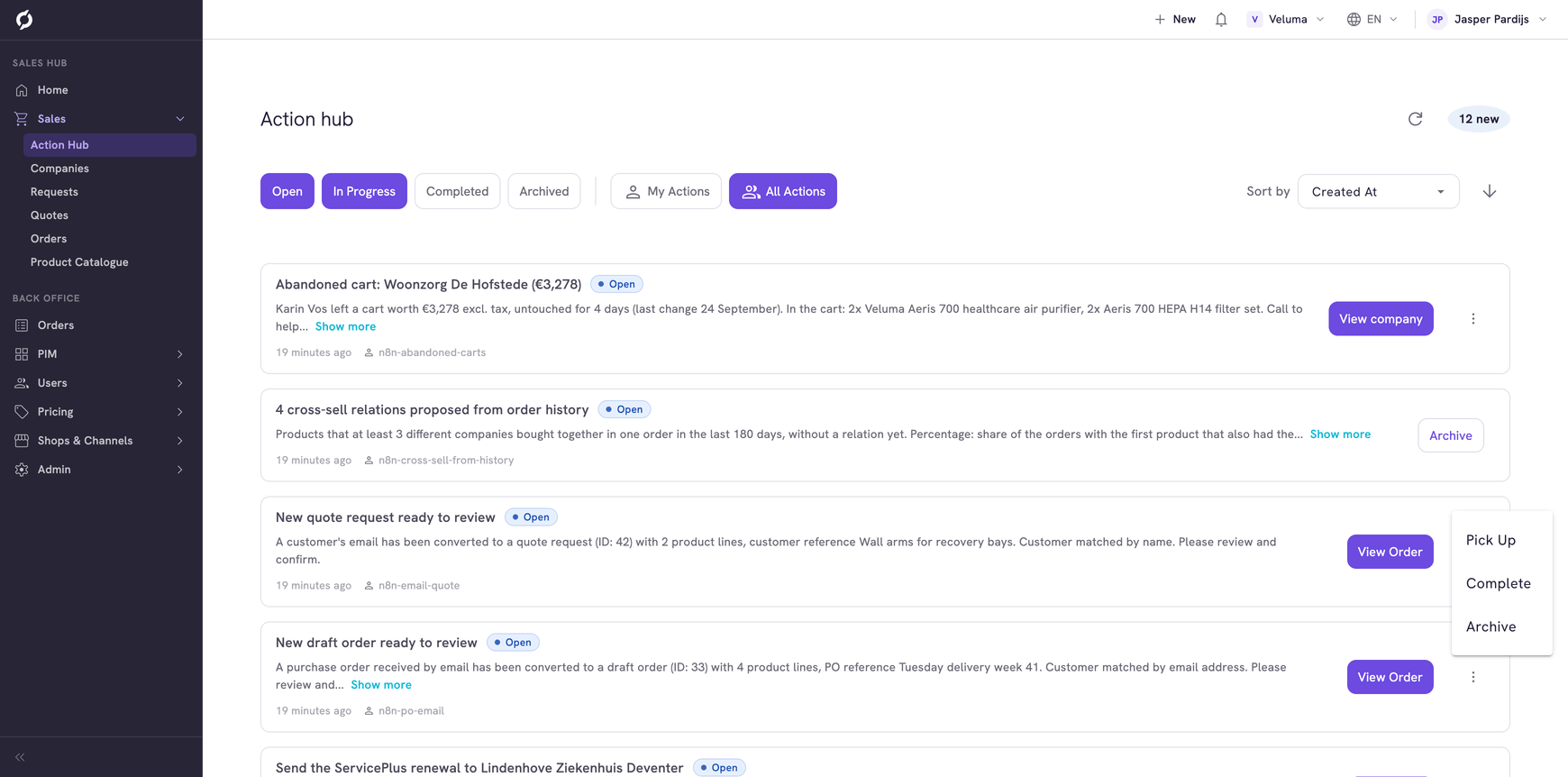
You can pick up any open action, also one that carries the name of a colleague. You can complete an open action without picking it up first. An action that is in progress can only be completed by the person it is assigned to.
| Button on the action | What it opens |
|---|---|
| View Order | The order, quote or request, in a new tab |
| View Company, View Contact, View Customer | The page of that company, contact or customer |
| View Product, View Cluster | The product in the Backoffice. You need Backoffice access and the Product Data role for that |
| Send Email | A new email to the person in your email program |
| Call | The phone app of your device |
| Open Link | A page outside Propeller, in a new tab |
A workflow can also give its button another name. An action without a button only informs you.
Clear away an action
Archive an action that needs no work. Complete is for work you did.
- Click the three dots on the action.
- Click Archive.
An action that only informs you, and a completed action, have an Archive button instead of the three dots.
Archived actions leave the list. To see them, click Archived at the top. To make an archived action open again, click Unarchive on it or in its three dots menu. It keeps the person it was assigned to.
Get notified about new actions
When an action is assigned to you, the bell in the top bar shows it, usually within a minute.
- Click the bell to open Notifications.
- Click a notification to open the Action Hub.
A notification counts as read once you click it or work on its action. Mark all as read clears them all.
Know the statuses
| Status | Meaning |
|---|---|
| Open | Nobody works on it yet |
| In Progress | Someone picked it up |
| Completed | The work is done |
| Archived | Cleared away |
Related pages
- Use the Home page - your first five actions
- Workflows & AI Agents - agents you start yourself
- Agent Hub - where the workflows that create actions come from