How requests, quotes and orders work
A request, a quote and an order are the same kind of record in Propeller. Its status decides which of the three it is, in which list it stands and what you and the customer can do with it. Read this page once and the other pages of this section fall into place.
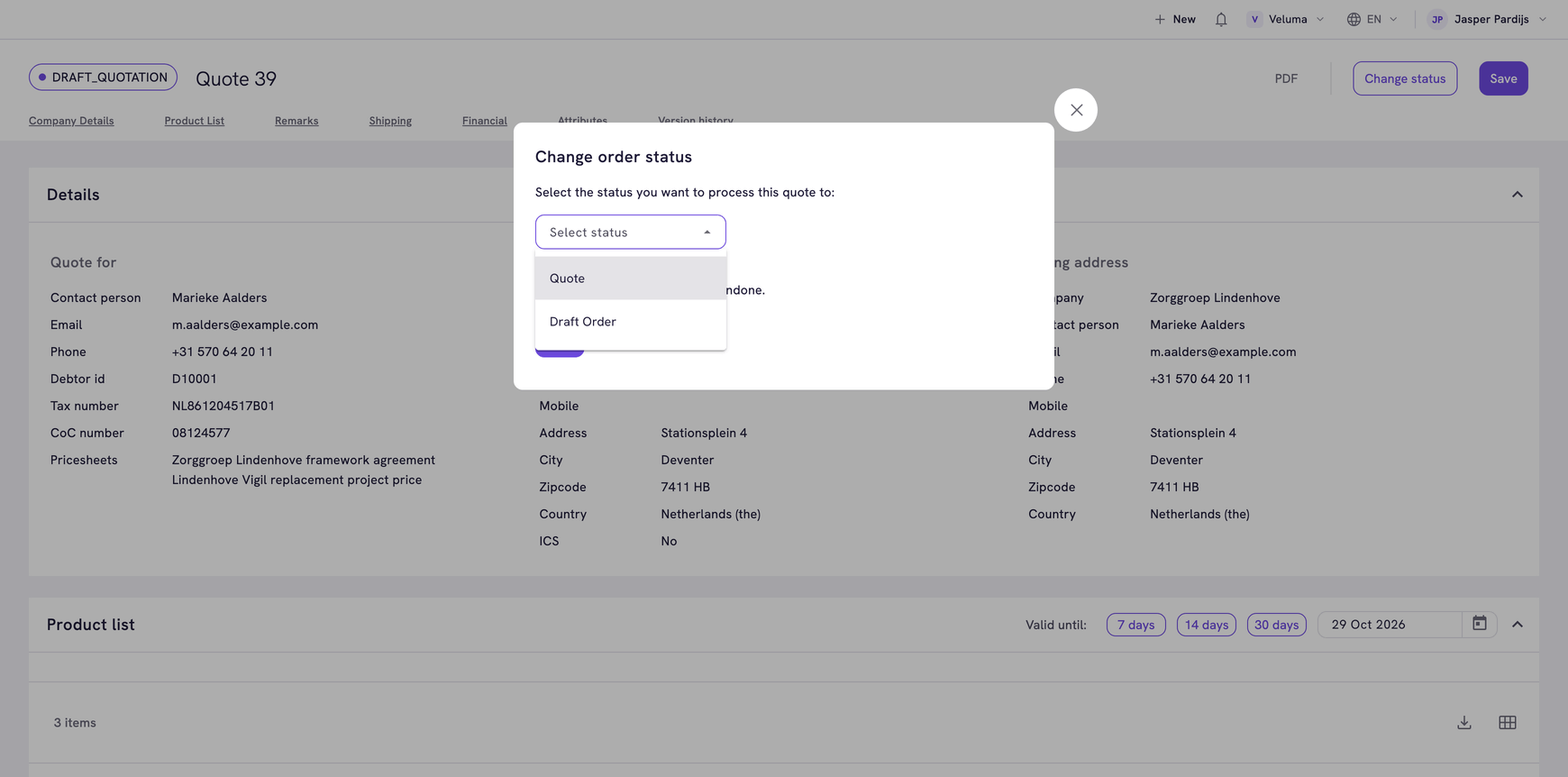
Follow the path from request to order
- A customer asks for a price. The request arrives under Sales > Requests, from the webshop or from a workflow that reads your mailbox. You can also skip this step and start a quote yourself.
- You turn the request into a Draft Quote. Now you can change products, prices and the date until which the quote is valid.
- You move the draft to Quote. The customer can see it from that moment, and you can send it by email.
- The customer agrees. You move the quote to Draft Order if you still want to change something, or straight to Order.
- The order moves on to Validated, Confirmed and in the end Archived.
A phone order skips the first three steps: you start with a Draft Order. See Create an order.
Know what each status means
These are the statuses of a standard environment. Your company can have added or renamed some, under Shops & Channels > Order Statuses.
| Status | Shown as | List | What it means | Customer sees it | You can edit it |
|---|---|---|---|---|---|
| Request | REQUEST | Requests | A quote request that waits for an answer | Yes | No |
| Rejected | REJECTED | Requests, tab Rejected | A request you declined | No | No |
| Draft Quote | DRAFT_QUOTATION | Quotes | A quote you are still preparing | No | Yes |
| Quote | QUOTATION | Quotes | A quote the customer can see | Yes | No |
| Draft Order | DRAFT_ORDER | Orders | An order you are still preparing | No | Yes |
| Order | NEW | Orders | A placed order, ready to be handled | Yes | Yes |
| Unfinished | UNFINISHED | Orders | An order that was started and never completed | Yes | No |
| Validated | VALIDATED | Orders | An order that was checked and approved | Yes | No |
| Confirmed | CONFIRMED | Orders | A confirmed order | Yes | No |
| Archived | ARCHIVED | Orders | A closed order, kept for the record | Yes | No |
The lists and the editor show a status by its code in capitals, the column Shown as. The Change status list and the Home page show its name. So the order you moved to Order carries the label NEW.
Finish with three buttons
Every quote and order is finished with the same three buttons at the top right of the editor.
| Button | What it does |
|---|---|
| Save | Stores your changes. The status stays as it is. A new quote or order is saved as a draft |
| Change status | Moves the quote or order to a next status. This saves your changes as well |
| Send to client | Sends the quote or the order confirmation to the customer. The button only shows on a status the customer can see |
Send to client asks Propeller to send an email. Which email that is, and which PDF goes with it, is set per environment under Shops & Channels > Event Actions. If no email is set up there, the customer receives nothing.