Quotes
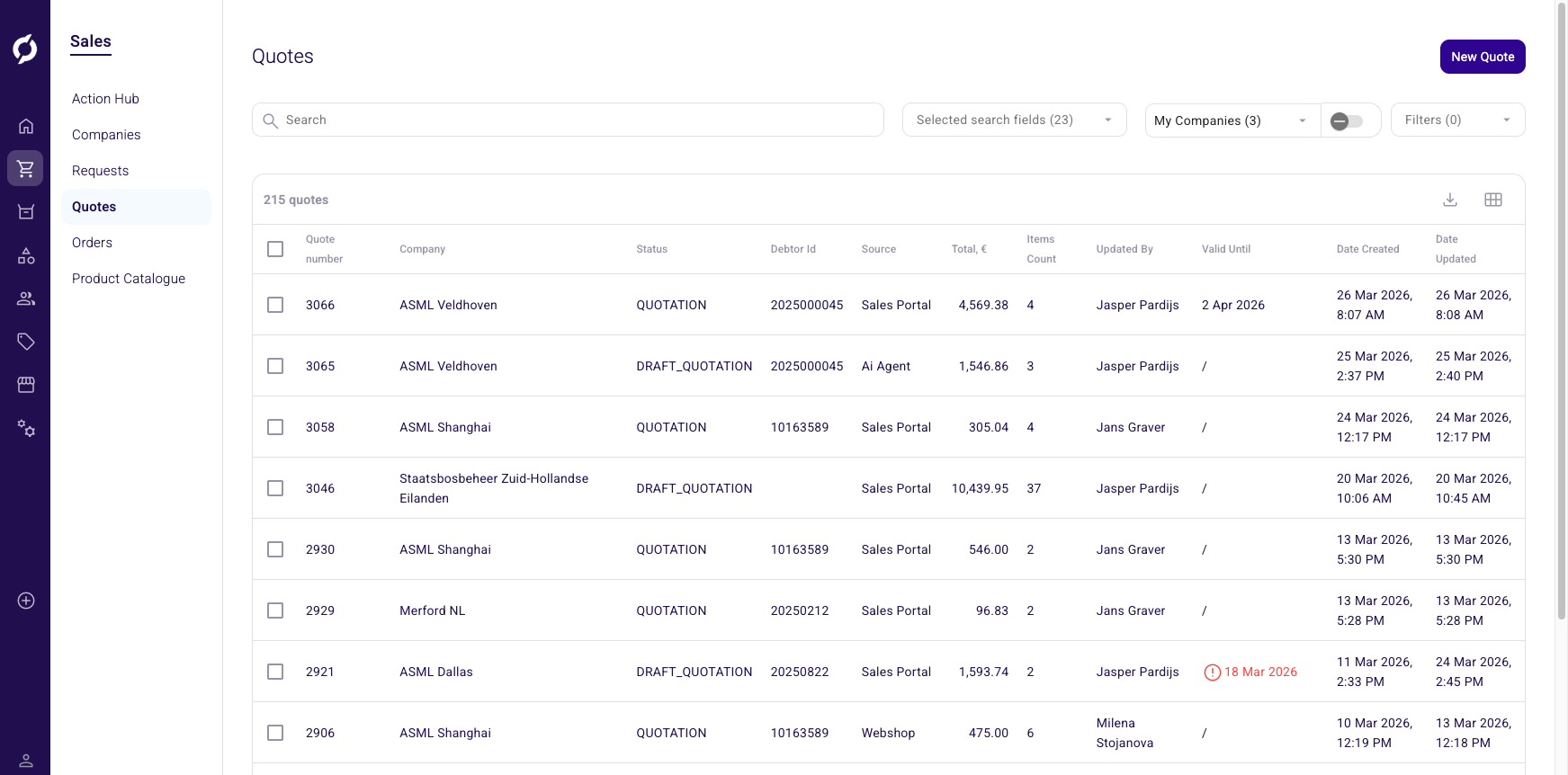
View, search and filter your sales quotations. From this list you can open existing quotes, create new ones or delete quotes you no longer need.
Before you begin
You need the Order and Sales roles to access this page.
Open the quotes list
Go to Sales > Quotes in the sidebar.
You see a table listing all quotes with a search bar, filters and pagination controls. The default sort is by date created (newest first) with 10 items per page. You can change the page size to 5, 25 or 100.
Click any row to open the quote in the editor.
Search for quotes
- Type your search term in the Search field. Results appear after a short delay.
- Use the Selected search fields dropdown to choose which fields to search. Available fields include ID, Debtor Id, Address First Name, Address Last Name, Company Address, Company Recipient, Recipient First Name, Recipient Last Name, Recipient Email, Remarks, Reference, Company Name and External Order Id.
Filter quotes
Click Filters to open the filter panel. The available filters are:
| Filter | Type | Description |
|---|---|---|
| User Id | Chip input (numeric) | Filter by user ID |
| Status | Multi-select | Filter by quote status |
| Date Created | Date range | Filter by creation date |
| Date Updated | Date range | Filter by last update date |
| Price | Min/Max numeric | Filter by total amount |
| Export statuses | Multi-select | Empty, Exported, Failed, Finished |
| Export Date | Date range | Filter by export date |
Filter by your companies
Use the My Companies dropdown and slider to show only quotes from your selected companies.
Table columns
| Column | Description | Sortable |
|---|---|---|
| Checkbox | Select quotes for bulk actions (Owner only) | No |
| Quote number | The unique quote ID | Yes |
| Company | Company name from the quote address | Yes |
| Status | Current quote status | Yes |
| Debtor Id | The debtor identifier | No |
| Source | Where the quote originated | No |
| Total, EUR | Gross total amount | Yes |
| Items Count | Number of line items | No |
| Updated By | Name of the last user who modified the quote | No |
| Valid Until | Expiry date (shows an Expired icon if past due) | Yes |
| Date Created | When the quote was created | Yes | | Date Updated | When the quote was last modified | Yes |
Sort the table by Valid Until to see which quotes are expiring soon or already overdue. This helps you follow up before a customer's quote lapses.
Additional columns (Status changed date, Remarks, References, Channel, Shipping method, Export status, Exported date, Export message) are available through the Table editor. Every column can be shown, hidden or reordered.
You can also add order attributes as columns, up to ten. Each listing keeps its own set. Attribute columns show values only, so you cannot sort or filter on them. See Attributes.
Delete quotes
Owner access is required.
- Select one or more quotes using the checkboxes.
- Click Delete.
- Confirm in the dialog.
Export and customize the table
- Click the Export button (download icon) to download the table as a CSV file.
- Click the Table editor button (grid icon) to show, hide or reorder columns.