Find and manage products
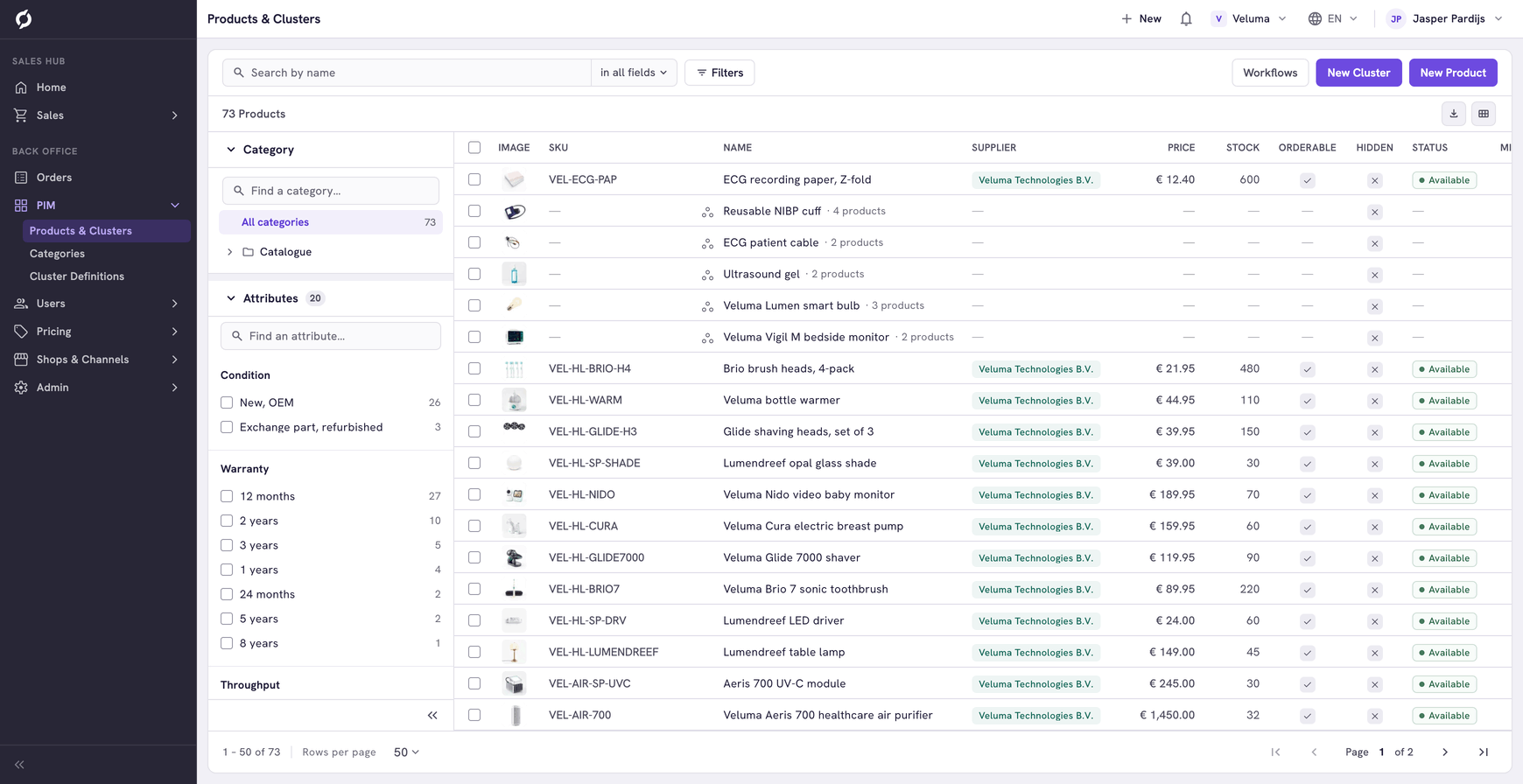
The Products & Clusters page lists every product and every cluster in your catalogue. A cluster is one product page with variants, such as sizes. From this list you find a product, create one or change many at once.
Before you begin
- You need Backoffice access and the Product Data role.
- To create or delete you need Owner access. To move products between categories you need Editor or Owner access.
Find a product
- Go to PIM > Products & Clusters. The products that were changed last are on top.
- Type at least two characters in Search by name. The search looks in all product fields, such as the SKU, the EAN code, the manufacturer and the supplier. Click in all fields next to it to search in fewer fields.
- Click a row to open the product or the cluster.
To narrow the list instead:
- Category at the left: click a category in the tree. You see the products of that category and of every category below it. Click the × on the category to clear it.
- Attributes at the left, below the category: tick a value of an attribute, for example a material. Each value shows how many of the products found have it.
- Filters at the top: narrow by SKU, codes, manufacturer, supplier, class, status, price, stock or whether a product is hidden.
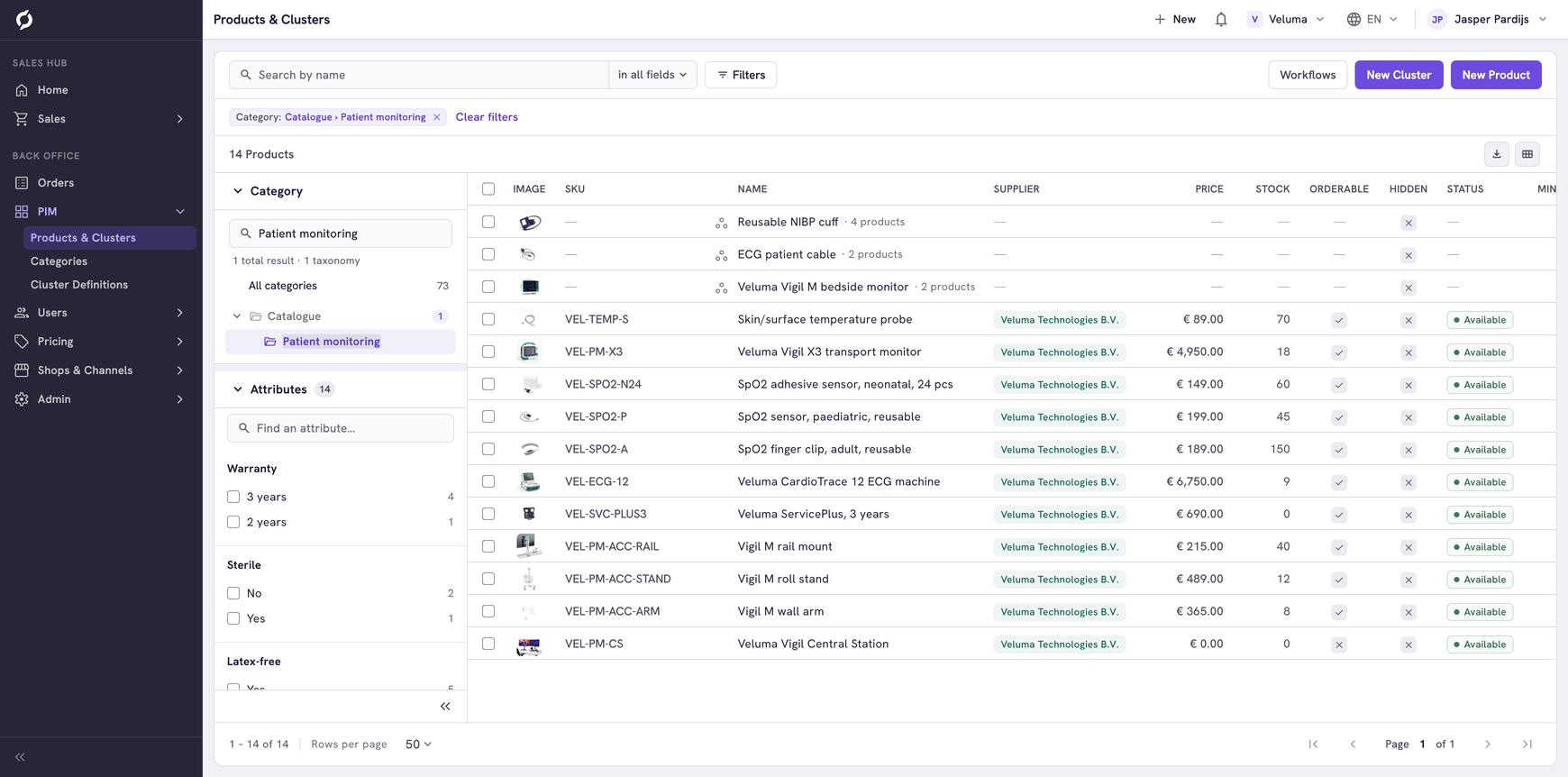
See Work with lists for columns and export.
Read the columns
| Column | What it shows |
|---|---|
| Price | The price of the product excluding VAT, without the discounts of a customer |
| Orderable | Whether the product can be put on an order |
| Is hidden | Whether the product is hidden from the webshop |
| Status | Where the product is in its life: Available, Not available, Phase out, Presale, Restricted or Out of stock |
| Min qty, Qty steps | The smallest quantity a customer can order and the steps in which it goes up |
A link icon on the image of a row means the product is linked to the category you are looking at. Its own category is another one. See Primary and linked categories.
Create a product
- Click New Product at the top right.
- Propeller creates the product straight away and opens it. See Create and edit a product.
A new product is not hidden and can be ordered from the first moment, at a price of 0. Set Hidden to Yes on the product while you still work on it.
To add many products at once, use Data Import.
Create a cluster
- Click New Cluster at the top right.
- Pick the cluster definition that says which choices the cluster offers.
- Propeller creates the cluster with one first product and opens it. See Clusters.
Change many products at once
Tick the products. The buttons appear above the table.
| Button | What it does |
|---|---|
| Move to category (max. 500) | Gives the products another category as their own category |
| Link to category | Shows the products in one more category. Their own category stays the same |
| Unlink items | Takes the products out of the category you are looking at. Only shows when you filter on a category, and does not work for the own category of a product |
| Move into cluster | Makes the products variants of an existing cluster |
| Delete | Deletes the products and clusters for good |
Deleting a cluster also deletes the products in it. To keep them, open the cluster first and move them out. See Clusters.