Create and manage shipments
A shipment records which products of an order went out, with its status and tracking code. An order can have several shipments, for example one per warehouse. You make and change shipments on the order, in the Backoffice.
Before you begin
- You need Backoffice access and the Order Data role. To create, change or delete a shipment you need Editor or Owner access.
- The order must be saved. A quote or a request has no shipments.
- Sales reps see the shipments of an order in the Sales Hub and cannot change them.
See the shipments of an order
- In the Back Office part of the menu, click Orders and open the order.
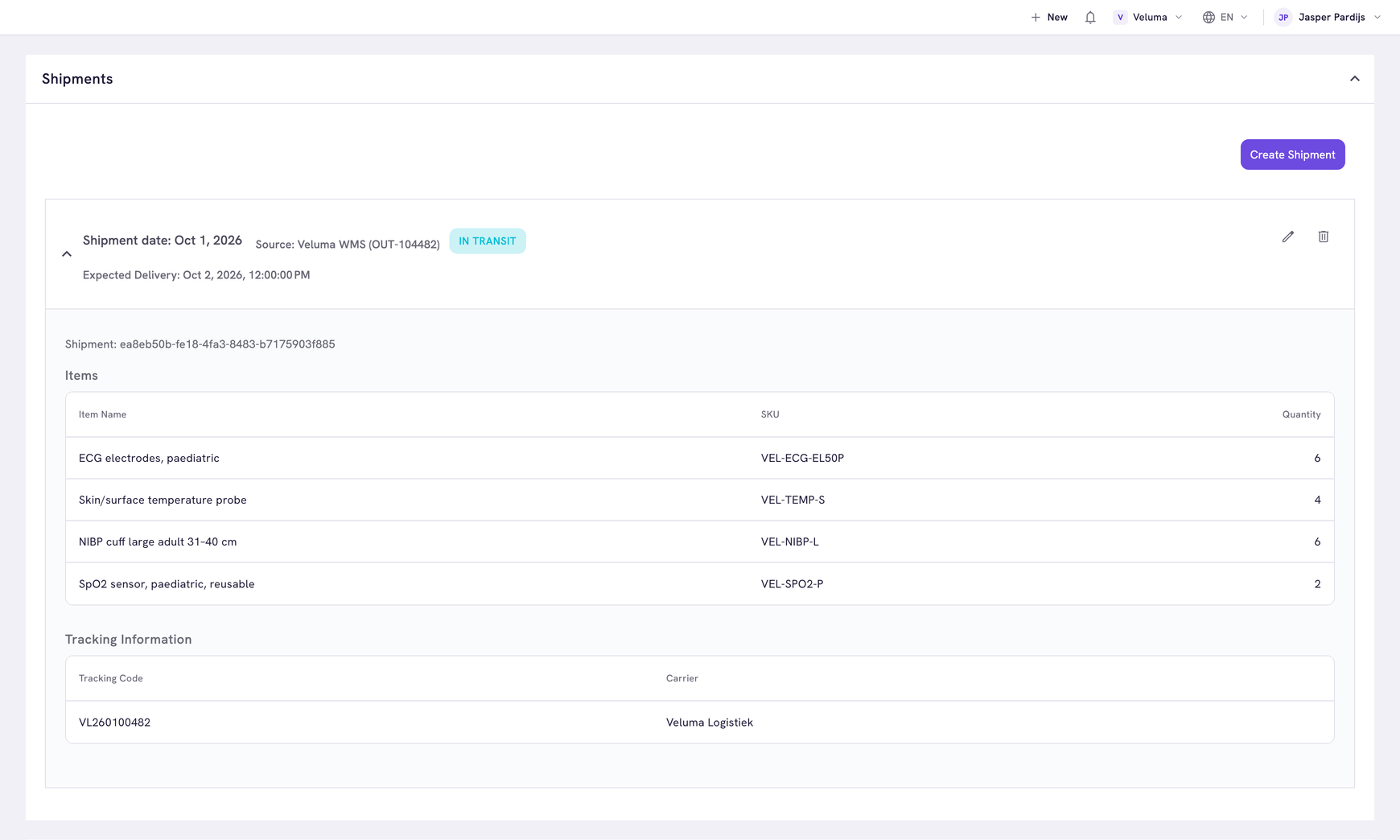
- Click Shipments under the title.
Each shipment shows its date, its status and the expected delivery date. Click the arrow in front of it to see its products and tracking codes.
Source names the system that made the shipment, for example your warehouse system. Such a system adds shipments by itself. A shipment you make by hand has no source.
Create a shipment
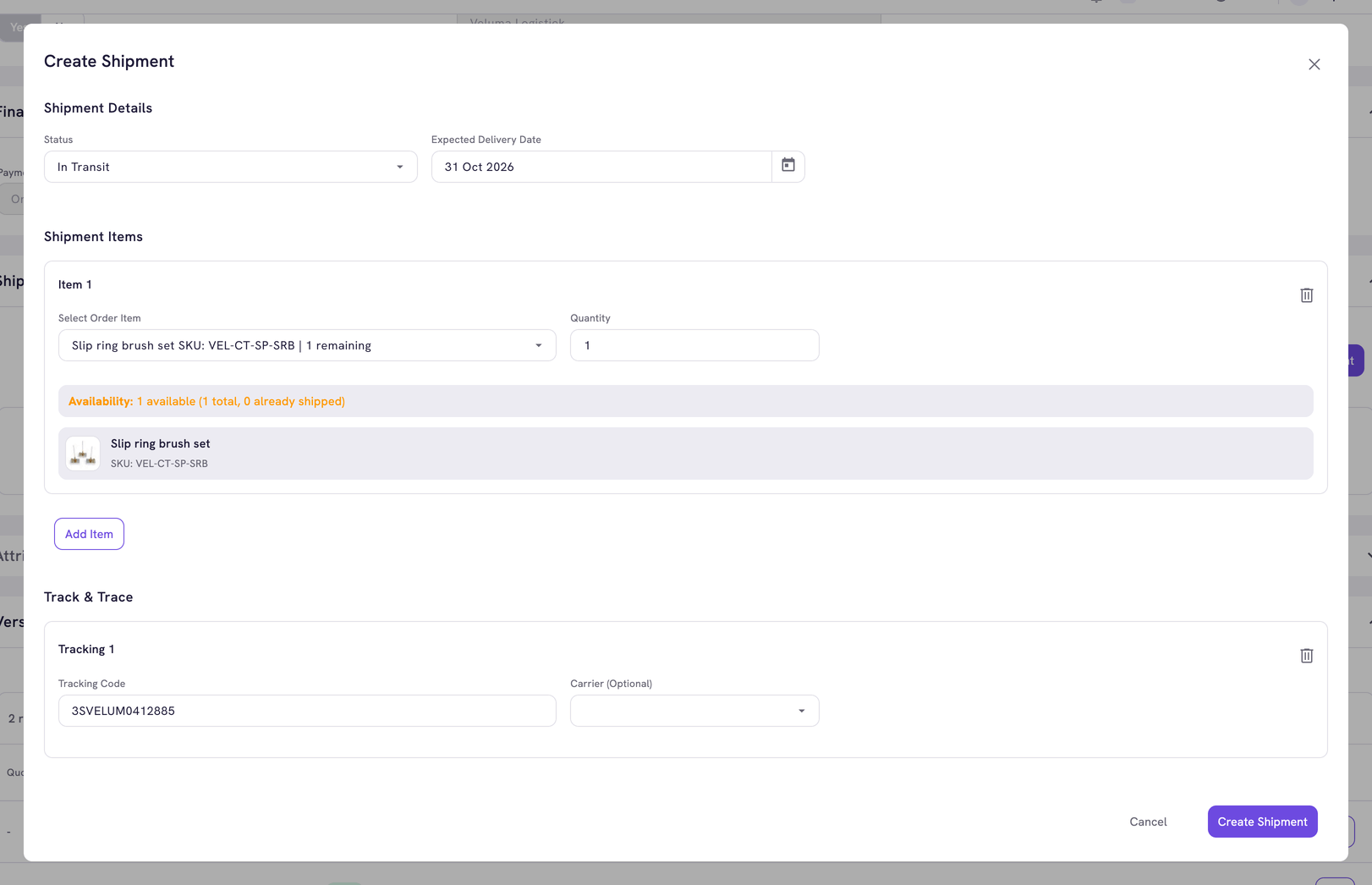
- In the Shipments section, click Create Shipment.
- Choose the Status and the Expected Delivery Date.
- Under Shipment Items, select a line of the order and type the quantity. The dialog shows how many pieces of that line are not shipped yet. Click Add Item for another line.
- Under Track & Trace, click Add Tracking and type the tracking code. Choosing a carrier is optional.
- Click Create Shipment.
The shipment shows on the order, also for sales reps. Propeller sends the customer no email about a shipment. Whether the customer sees it depends on your webshop.
A line you just added to the order can be shipped after you save the order.
Choose the status
| Status | Use it when |
|---|---|
| Created | The shipment is recorded and nothing happened yet |
| Processing | The warehouse is preparing it |
| In Transit | It is on its way |
| Out for Delivery | The carrier is delivering it today |
| Delivered | It arrived |
| Partially Delivered | Part of it arrived |
| Failed Delivery | The carrier could not deliver it |
| Exception | Something went wrong on the way |
| Canceled | The shipment will not take place |
The status does not change by itself. You change it, or the system that made the shipment does.
Change or delete a shipment
- To change one, click its edit icon, change the status, the date, the items or the tracking codes and click Update Shipment.
- To delete one, click its delete icon and confirm. A deleted shipment cannot be brought back.
Related pages
- Manage orders in the Backoffice
- Follow up on a quote or order - what a sales rep sees
- Carriers