Manage companies, contacts and customers
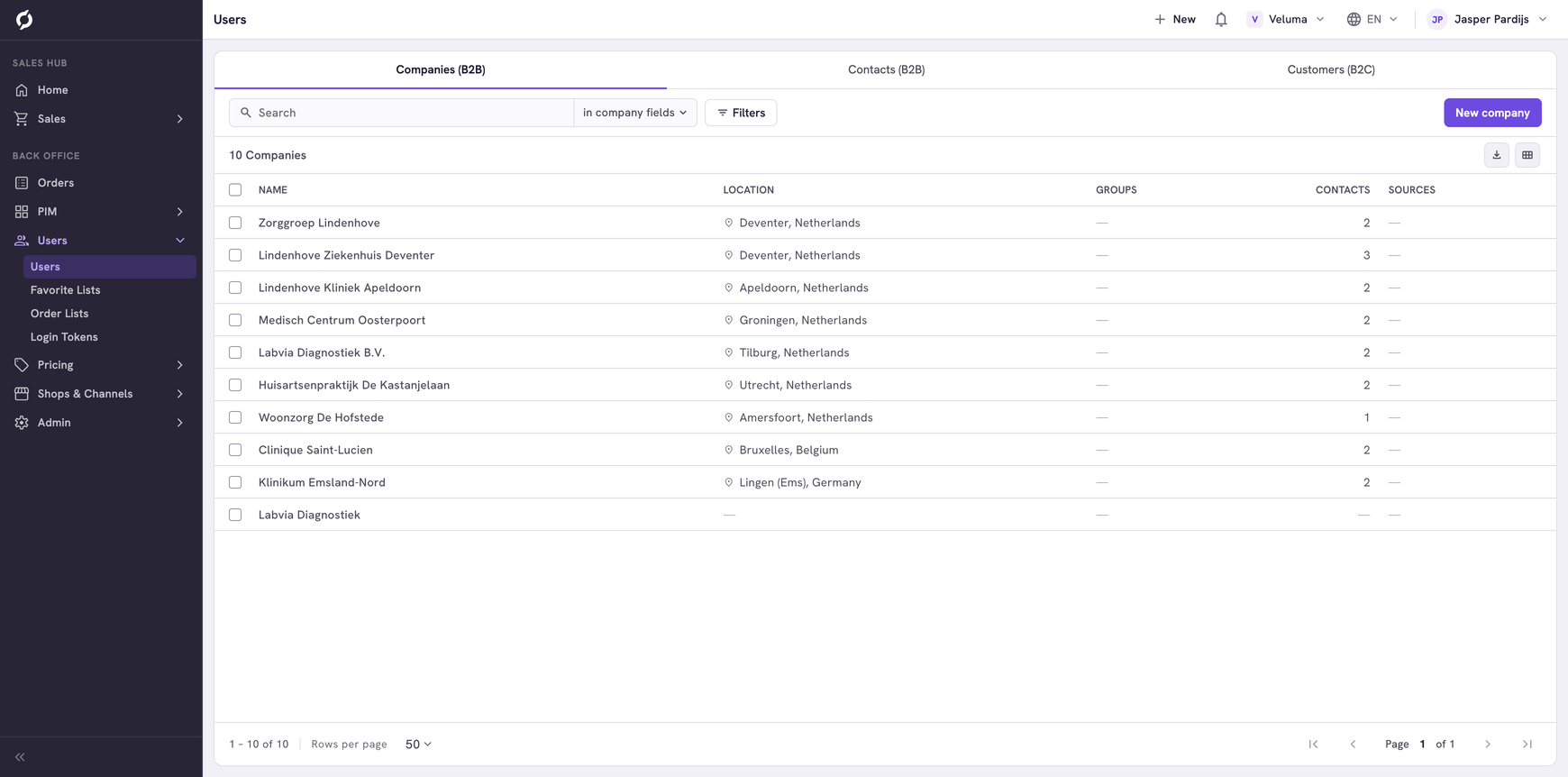
Under Users you keep the people and businesses that buy from you: companies, the contacts who order for them and private customers. Your own colleagues are not here. They are under Admin > Backoffice Users.
Before you begin
You need Backoffice access and the User management role. To create or delete you need Owner access.
Know the three kinds
| Tab | What it holds | Addresses | Webshop account |
|---|---|---|---|
| Companies (B2B) | A business that buys from you | On the company | No, its contacts sign in |
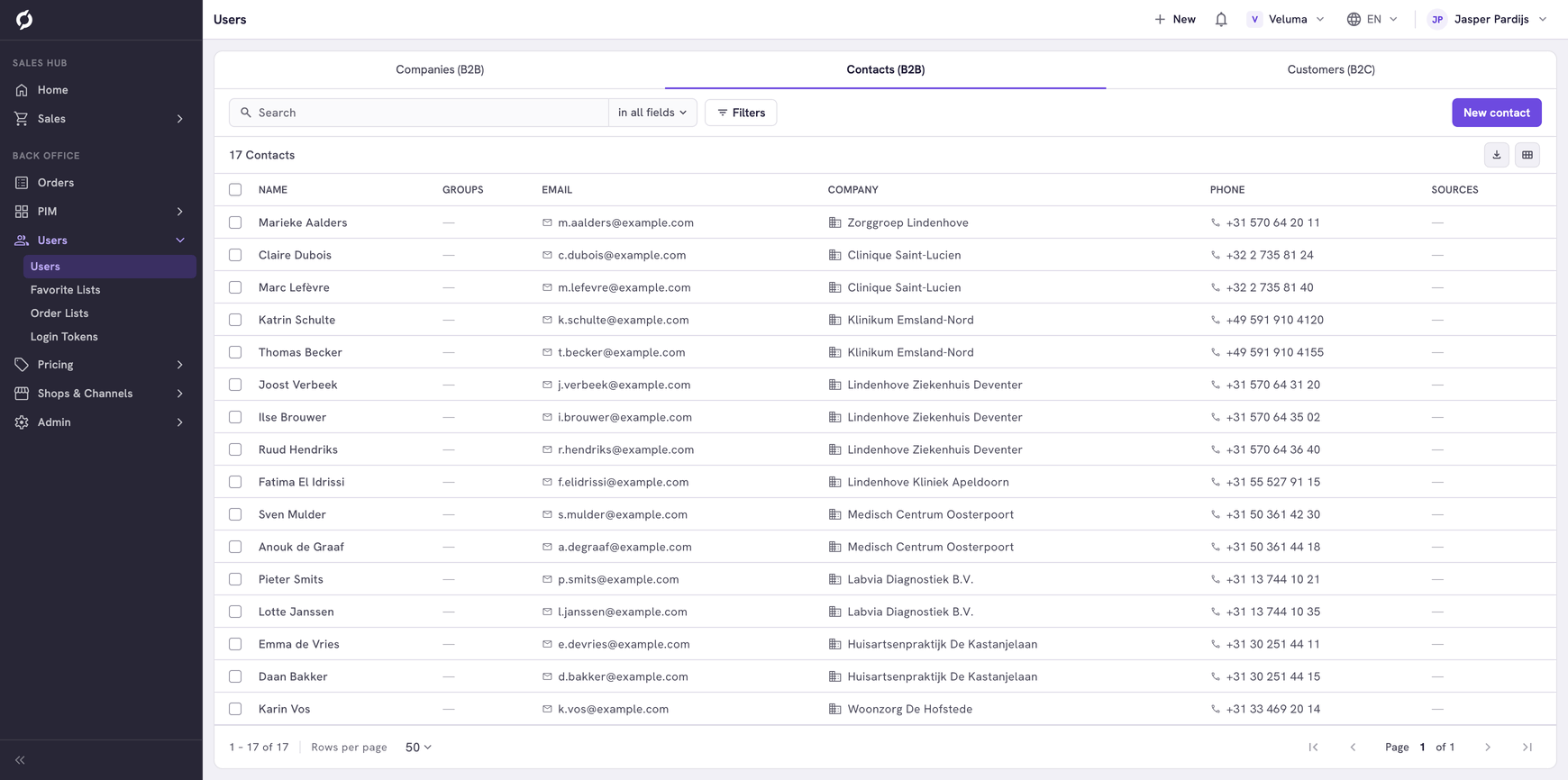
| Contacts (B2B) | A person who orders for a company | Uses those of the company | Yes |
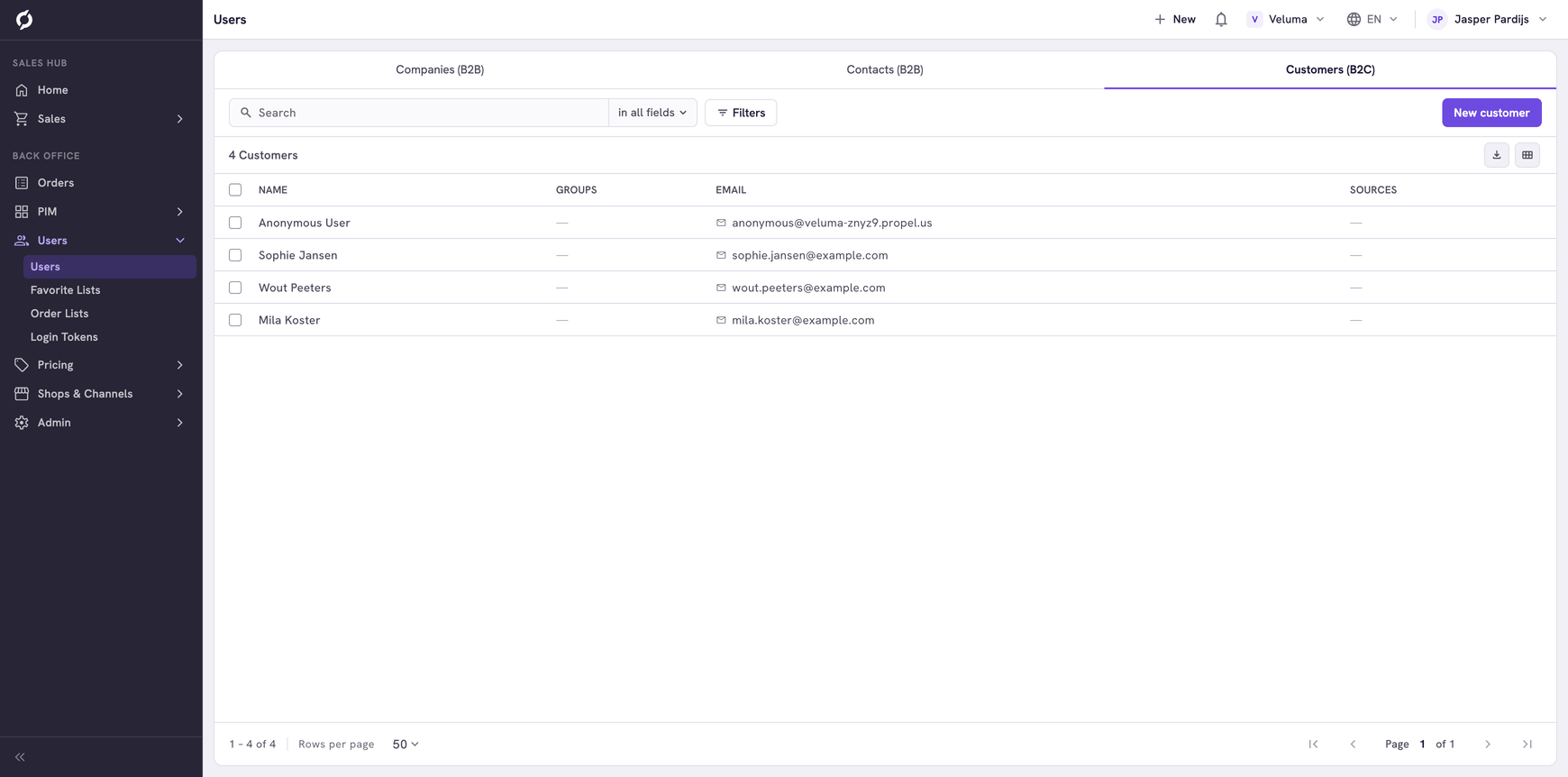
| Customers (B2C) | A private person who buys for themselves | On the customer | Yes |
A wholesaler usually works with companies and contacts. The Customers tab is for sales to private persons.
Set up a new business customer
Take these steps in order.
- Add the company on the Companies (B2B) tab. See Edit a company.
- Add its delivery and billing addresses.
- Add the contacts who order for the company.
- Give each contact a webshop account. See Edit a contact or customer.
- Assign the price sheet with the prices of this customer. See Price Sheets.
- If the customer may only order part of your catalogue, assign an order list. See Order Lists.
Find a company, contact or customer
- Go to Users > Users and click the tab you need.
- Type at least three characters in the search field. On the Companies tab the search looks in the fields of the company. Click in company fields next to the field to also search on a contact or an address.
- Click a row to open it.
See Work with lists for filters, columns and export.
| Column | What it shows |
|---|---|
| Groups | The tags of the company or person. A price sheet can be assigned to a tag |
| Sources | The system the record came from, for example your ERP |
Add a company, contact or customer
- Click the tab.
- Click New company, New contact or New customer at the top right.
- Propeller creates it straight away with a placeholder name and opens its page. Fill in the details and click Save.
To add many at once, use Data Import.
Delete a company, contact or customer
- Tick one or more rows.
- Click Delete and confirm.
A delete cannot be undone.
- A company can only be deleted when it has no contacts. Delete its contacts first or assign them to another company.
- A deleted contact or customer loses the webshop account as well. Their quotes and orders stay in Propeller, without a link to that person.