Limit what a customer can order
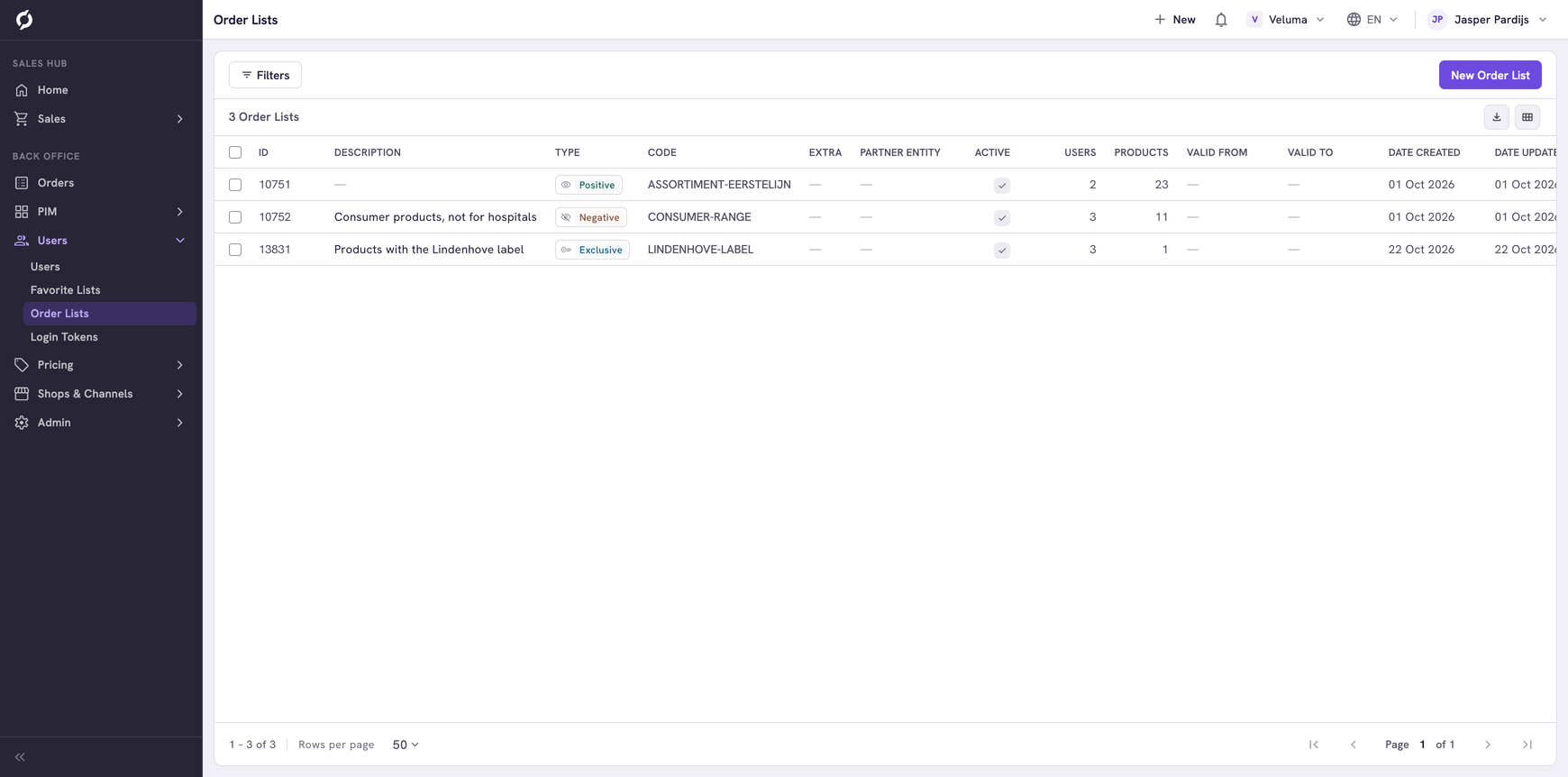
An order list decides which products a customer sees and can order. A positive list allows only the products on it. A negative list leaves out the products on it. An exclusive list gives its customers the exclusive products on it. You assign a list to companies, contacts or customers.
Before you begin
- You need Backoffice access and the roles Shop & channel and Product Data. To create or delete a list you need Owner access on Shop & channel.
- An order list is not a reorder list. For a list of products a customer buys often, use a favorite list.
Know what an order list does
A positive list is strict. A customer with a positive list sees only those products in the webshop and cannot order anything else. Do not use a positive list as a list of suggestions.
- A list only counts when Active is Yes and today lies between Valid From and Valid To.
- A customer with more than one list gets them added up: everything on their positive lists, minus everything on their negative lists. A product on a negative list is always left out.
- A list on a company counts for every contact of that company.
- A change takes effect within about a minute.
Create an order list
- Go to Users > Order Lists and click New Order List.
- Type a Code and a Description. The description is what you recognise the list by. There is no separate name.
- Choose the Type: Positive, Negative or Exclusive.
- Set Active to Yes when the list should count.
- Click Save.
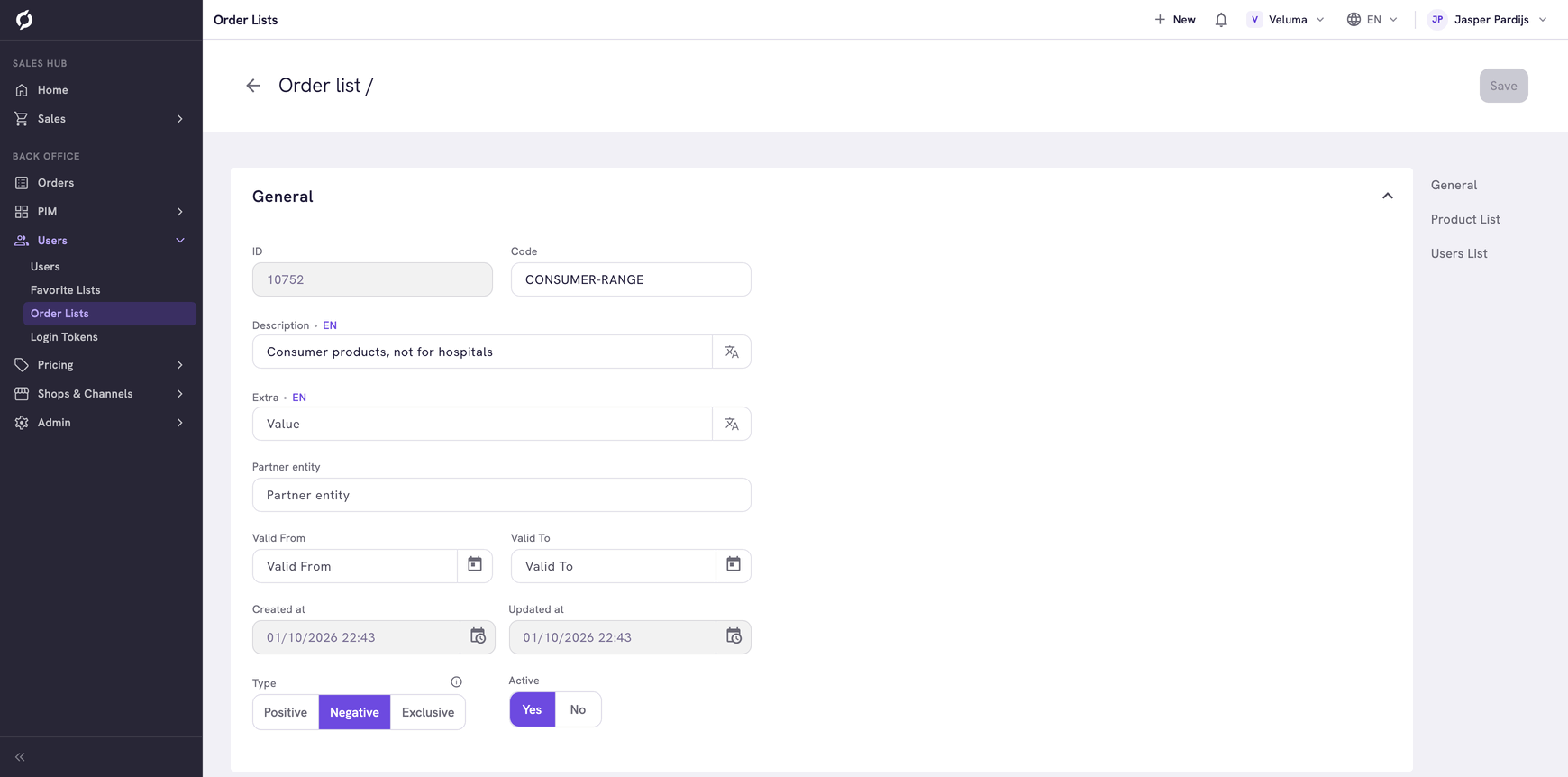
A new list has no products and no customers yet. Add both, or the list does nothing.
Add products to the list
- Open the list and go to the Products tab. Use the Clusters tab for products with variants.
- Click Add multiple products.
- Search and tick the products.
- Click the button at the bottom that counts them, for example Add 2 Products.
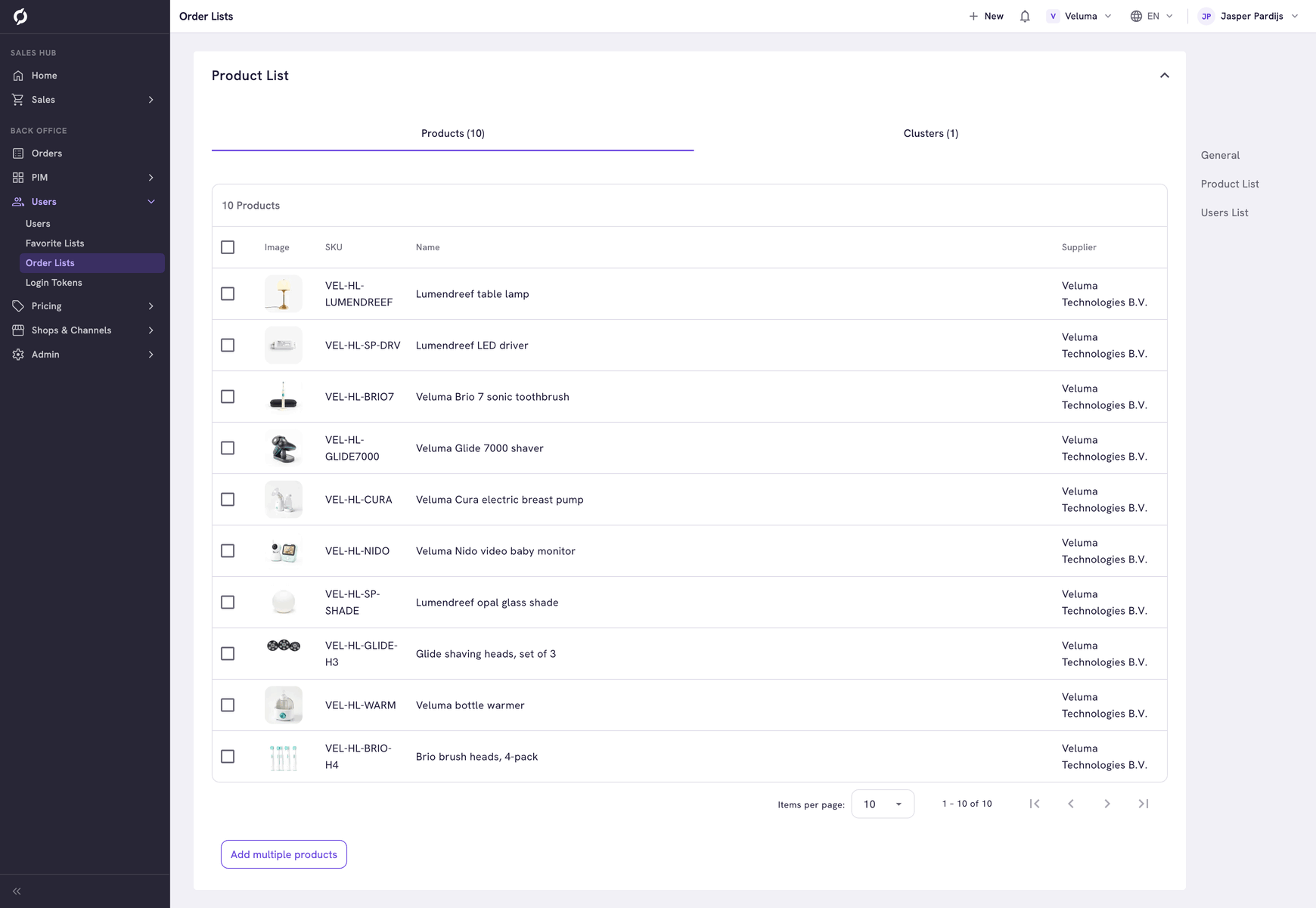
To take products off, tick them, click Remove selected products and confirm.
Assign the list to customers
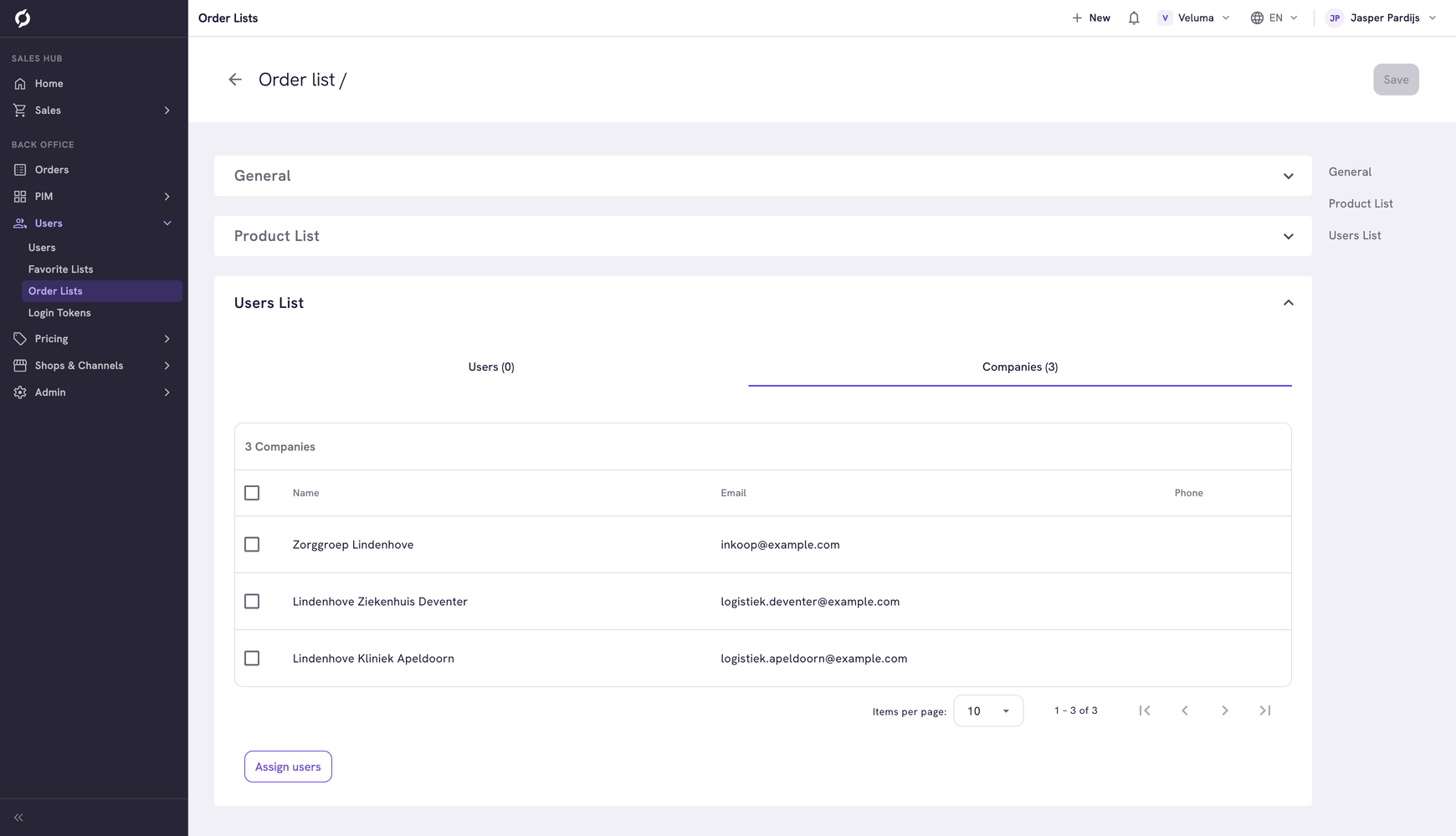
- In the Users List section, click Assign users.
- Click the tab Companies (B2B), Contacts (B2B) or Customers (B2C).
- Search and tick who the list is for.
- Click Add companies, Add contacts or Add users.
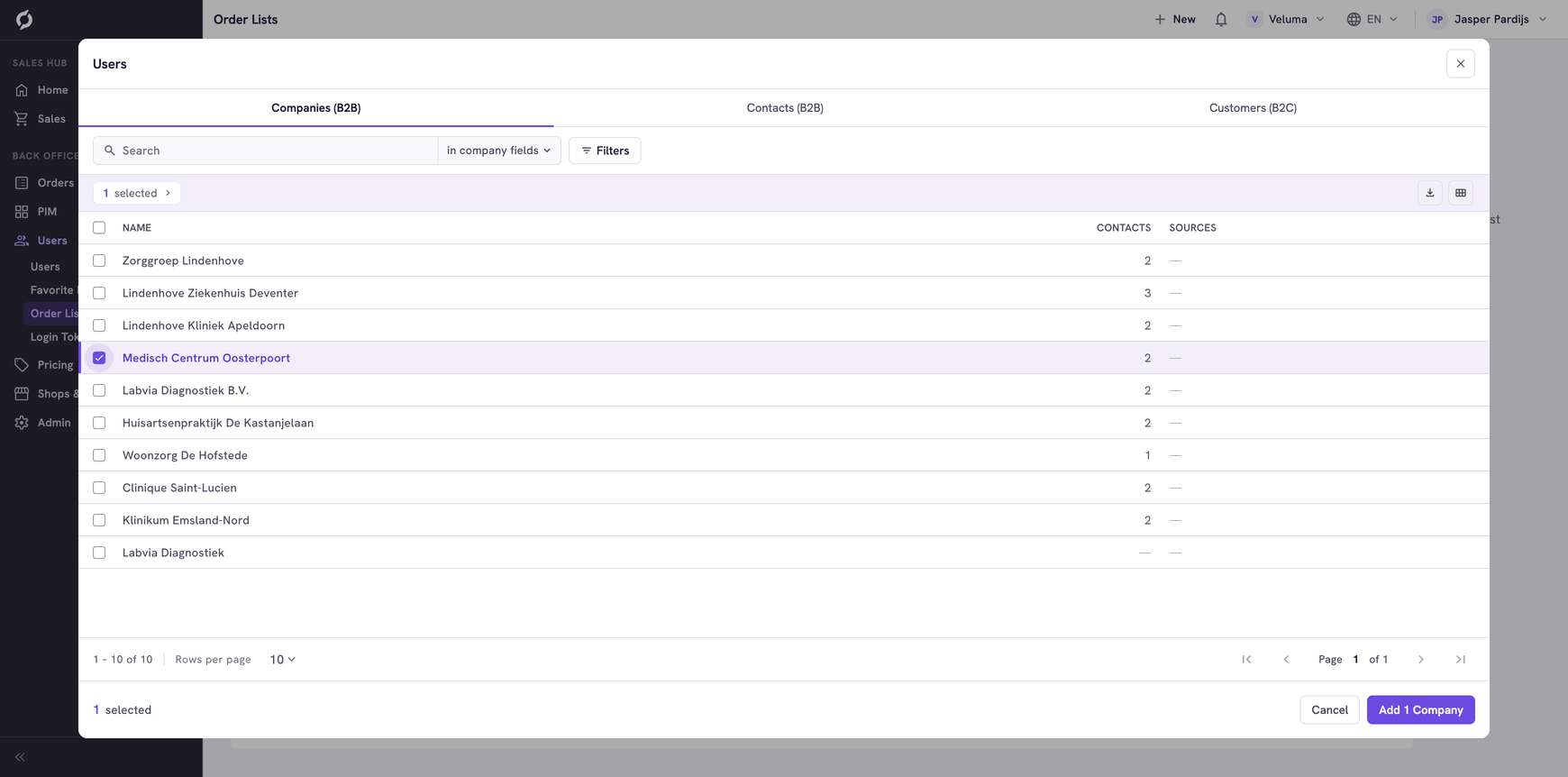
To take the list away from someone, tick the row, click Remove selected and confirm.
Check what the customer sees
- Go to Sales > Product Catalogue.
- Select the company and the contact in User context.
You now see the catalogue as that customer sees it. Select the contact as well as the company, because a list can sit on either.
Offer a product to some customers only
Only the customers on an Exclusive order list with an exclusive product can see and order it. The rest of their catalogue does not change. Use it for a product you make for one customer.
- Go to PIM > Products & Clusters and open the product or the cluster.
- On the Description tab, set Exclusive to Yes.
- Click Save.
- Create an order list of the type Exclusive with the product and assign it to the customers.
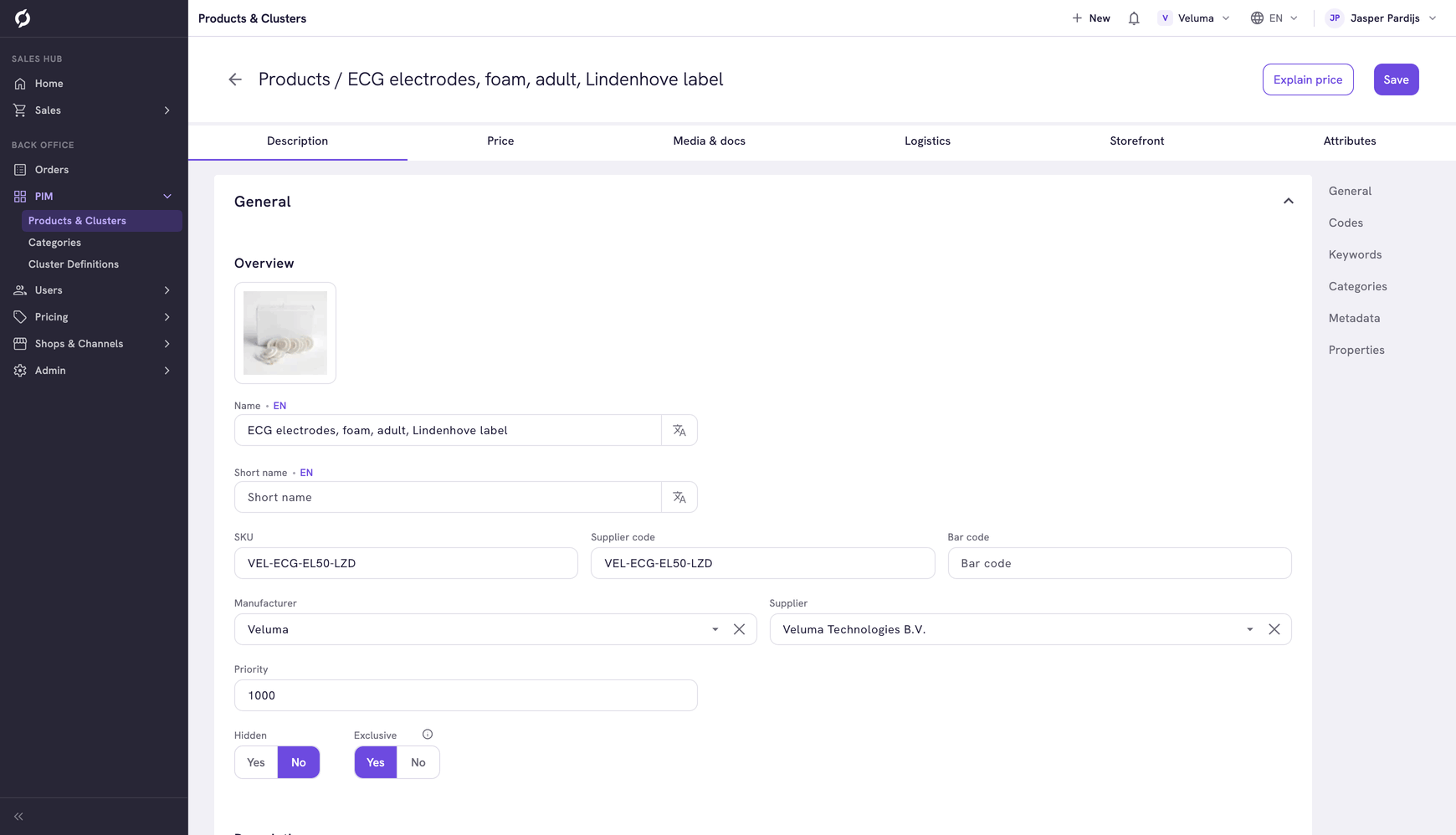
The info icon next to Exclusive says how many Exclusive order lists give the product to customers. It turns into a warning when nobody can see the product.
A product in a cluster follows the setting of its cluster.
Stop or delete a list
To stop a list for now, set Active to No and save. To remove it, tick it on the overview, click Delete and confirm. A deleted list cannot be brought back, and its customers see the whole catalogue again unless another list limits them.
Related pages
- Favorite Lists
- Product Catalogue - see the catalogue of one customer
- Edit a company - the lists of one company