Manage Backoffice users
A Backoffice user is a colleague who can sign in to Propeller. On this page you invite colleagues and decide with roles what each of them can open and change, in the Sales Hub and in the Backoffice.
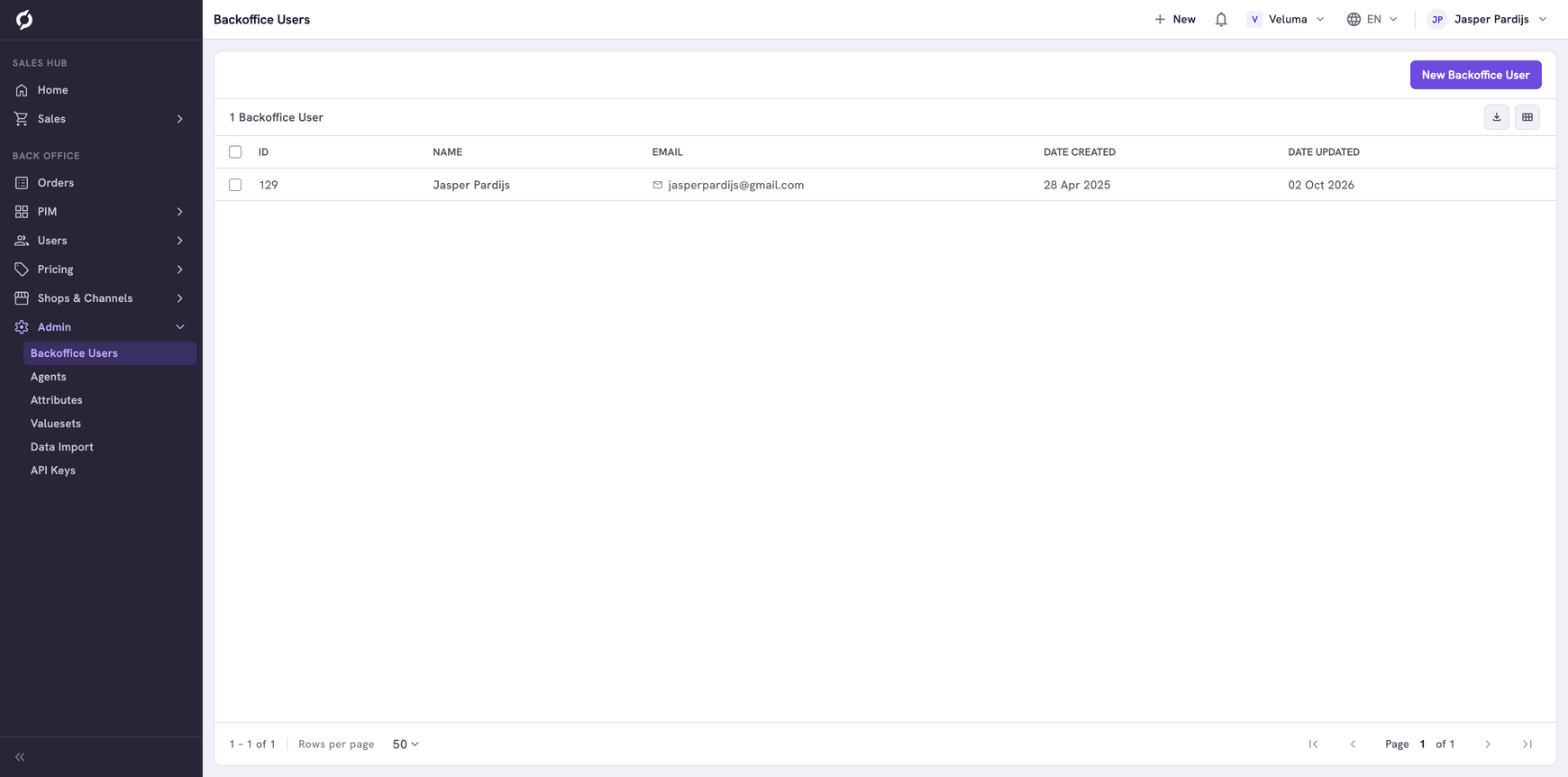
Before you begin
You need Backoffice access and the Roles & permissions role. To create or delete a user you need Owner access.
Invite a colleague
- Go to Admin > Backoffice Users and click New Backoffice User.
- Fill in the First name, the Last name and the Email. The email address cannot be changed later.
- Click Save.
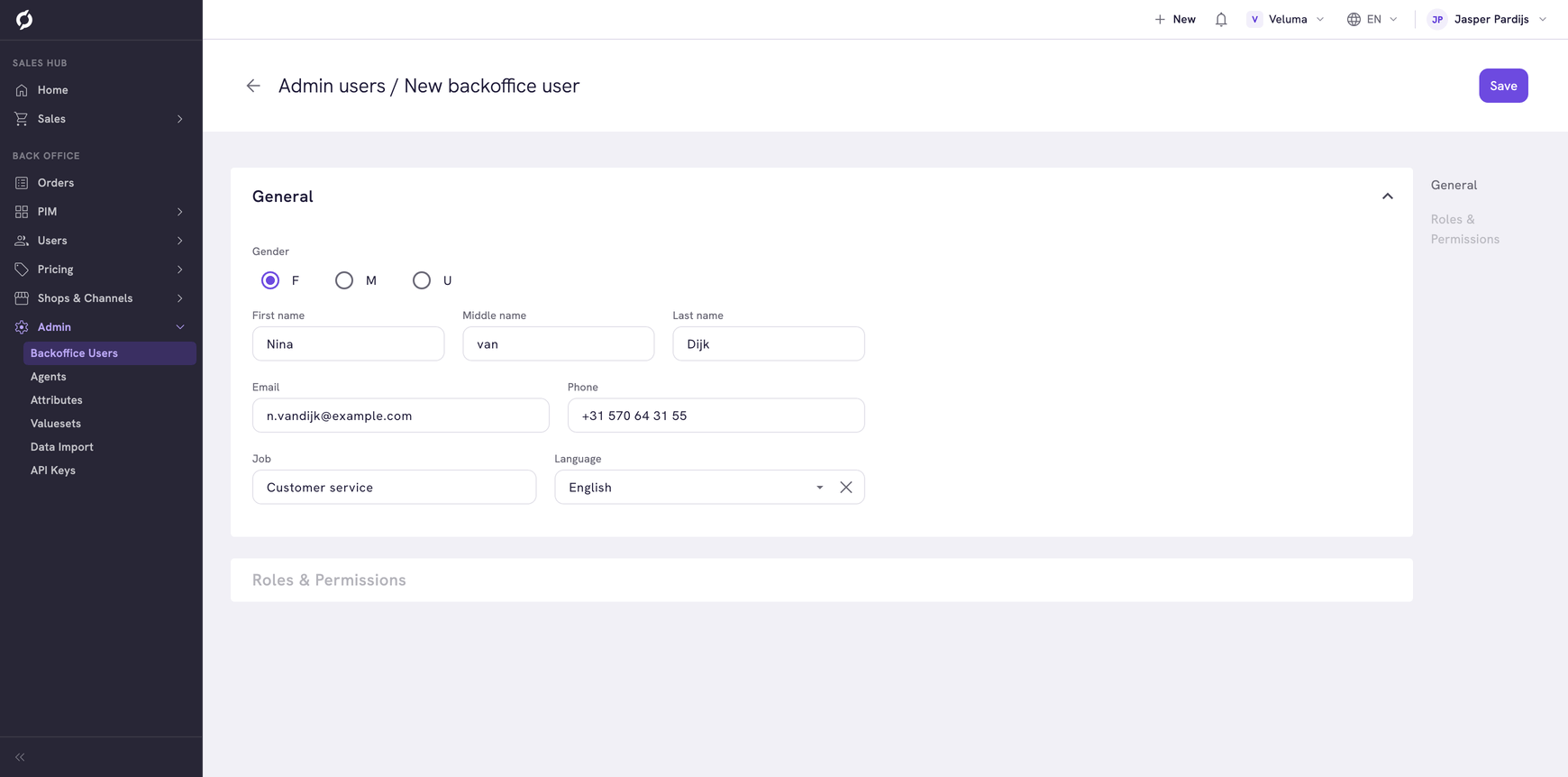
Propeller creates the user and sends an invitation by email, with a link to set a password. The page of the new user opens.
The colleague has no roles yet. Until you give roles, they can sign in and see almost nothing. So continue with the next section straight away.
If someone with that email address already has an account, for example in another environment, a message says so. Contact Propeller support to give that account access to your environment.
Give a colleague roles
- Open the user and click Roles & Permissions at the right.
- Click a preset, or switch roles on one by one.
- Click Save at the top right.
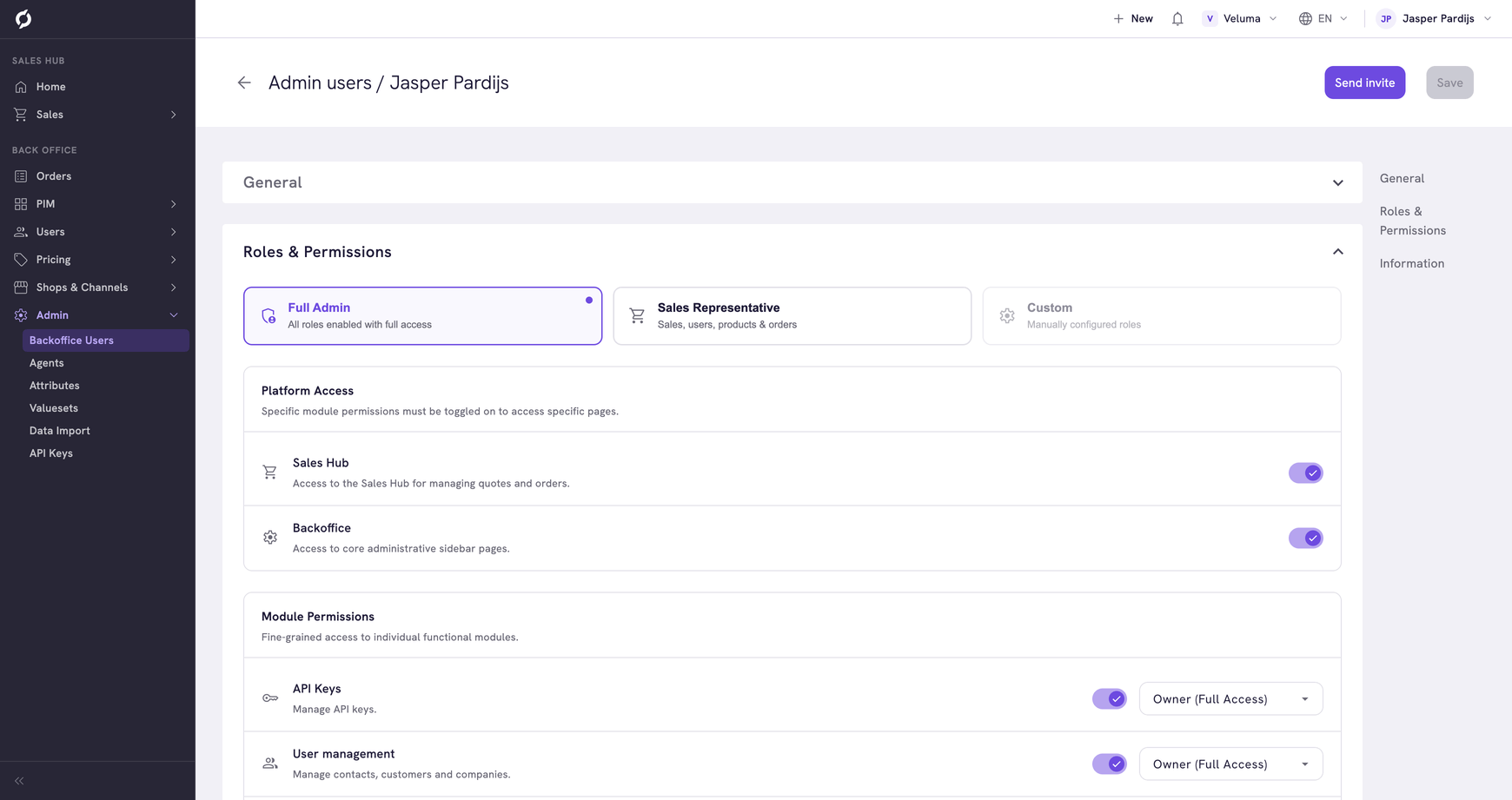
| Preset | What it switches on |
|---|---|
| Full Admin | Every role, with Owner access |
| Sales Representative | Sales Hub, User management, Product Data and Order Data, with Owner access. No Backoffice access |
A combination that matches neither preset shows as Custom.
Platform Access opens a part of Propeller: Sales Hub or Backoffice. Module Permissions open pages inside that part, each with an access level.
| Access level | The colleague can |
|---|---|
| Viewer | Look, and change nothing |
| Editor | Change what exists |
| Owner | Create, change and delete |
See Roles and permissions for which role opens which page.
Check what a colleague can open
Use this when a colleague says a page is missing.
- Open the user and go to Roles & Permissions.
- Click Menu Access Preview at the bottom.
- Point at a menu item. The roles it needs show next to it.
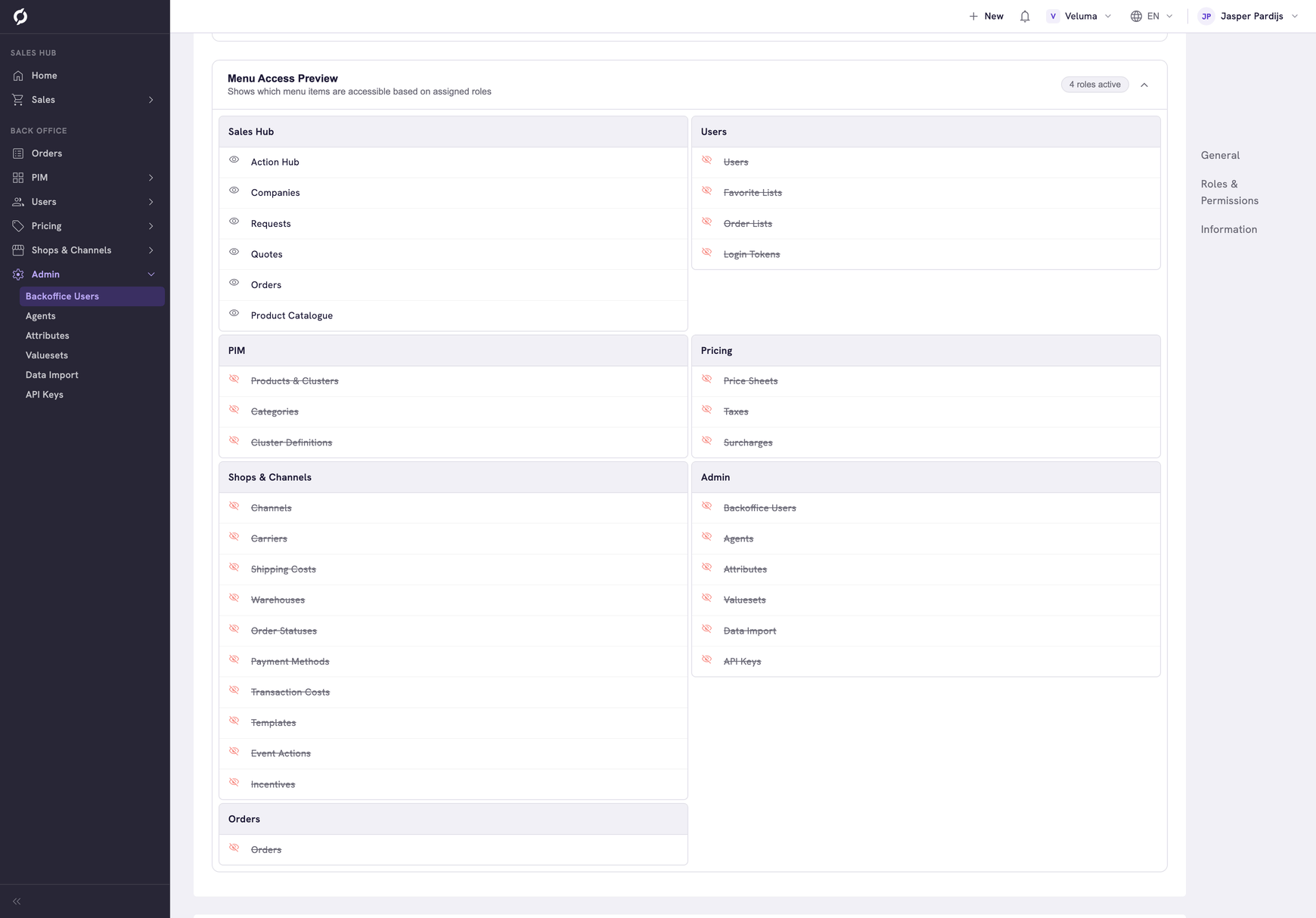
An item shows for the colleague when its platform role and all its module roles are switched on. The preview follows the switches at once, so you can try a combination before you save.
Send the invitation again
Send it again when the email did not arrive or the colleague forgot the password.
- Open the user.
- Click Send invite at the top right.
The email holds a new link to set a password.
Delete a Backoffice user
- Tick one or more users in the list.
- Click Delete and confirm.
The colleague loses access at once. This cannot be undone. Quotes and orders the colleague made stay.
Related pages
- Roles and permissions - which role opens which page
- Sign in to Propeller - what the colleague does with the invitation