Create and manage price sheets
A price sheet gives specific customers their own prices: a discount on a product, on a whole category or on a group of products. You assign the sheet to companies, contacts, customers or user groups.
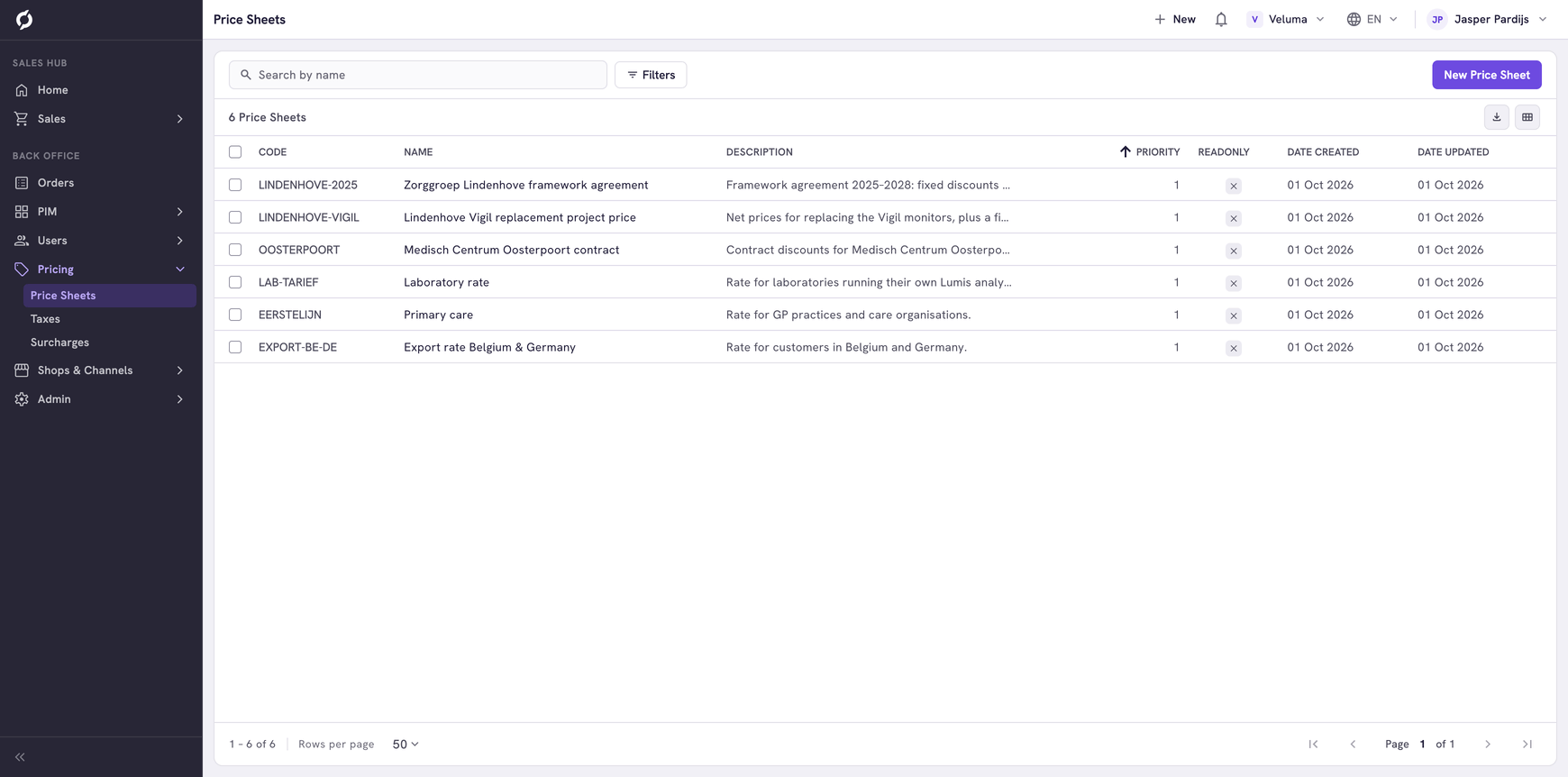
Before you begin
- You need Backoffice access and the Pricing role. To create or delete a price sheet you need Owner access, to change one Editor or Owner access.
- All prices and discounts exclude VAT.
- A price sheet goes before the bulk prices of a product. See Understand which price a customer gets.
Create a price sheet
- Go to Pricing > Price Sheets and click New Price Sheet.
- Fill in the Code, the Priority and the Name. The name can be 32 characters long.
- Click Save. The sections Discount and Users now show.
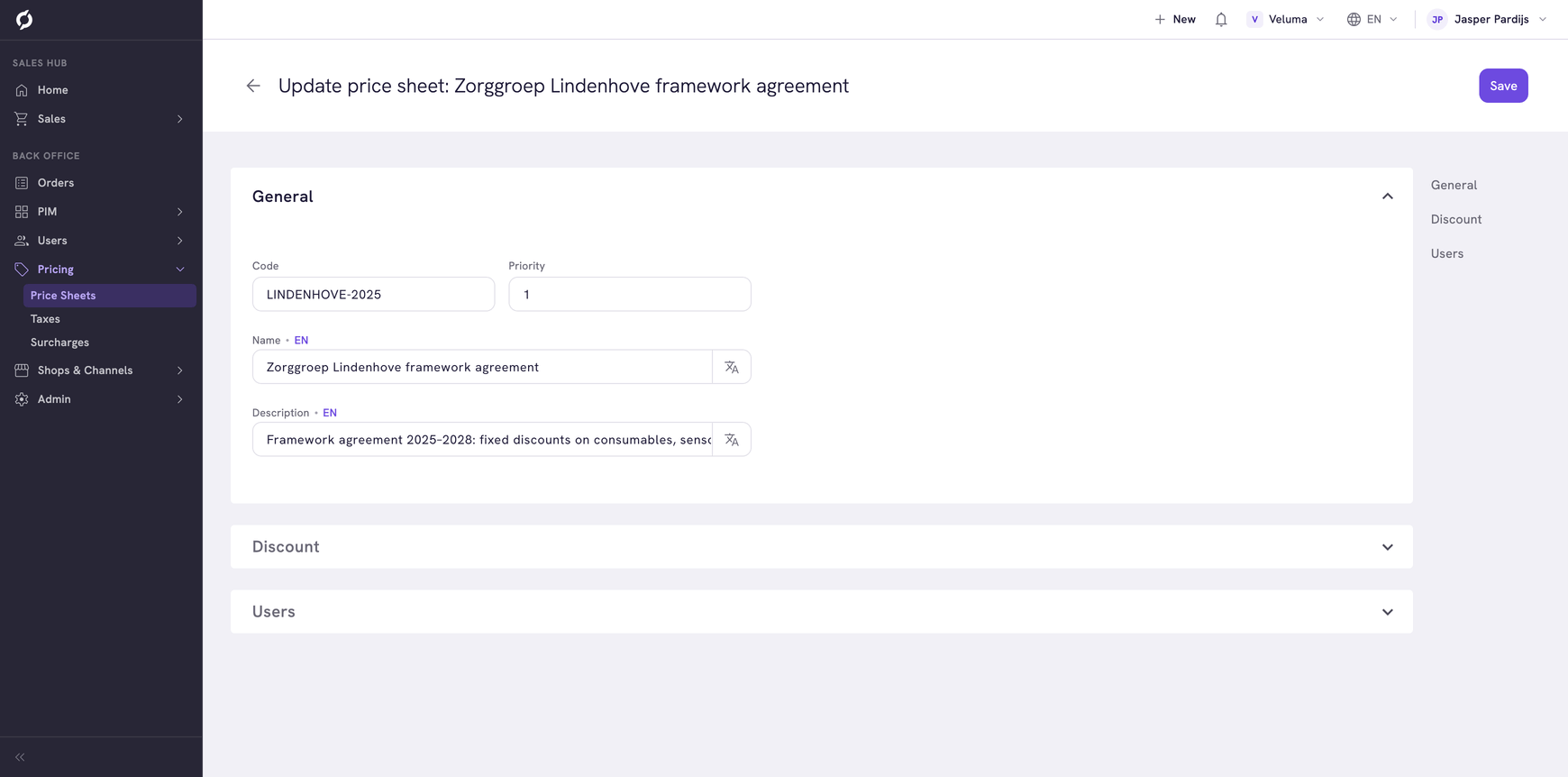
Give a contract with one customer a lower priority number than a general sheet, so the contract wins.
Add discounts
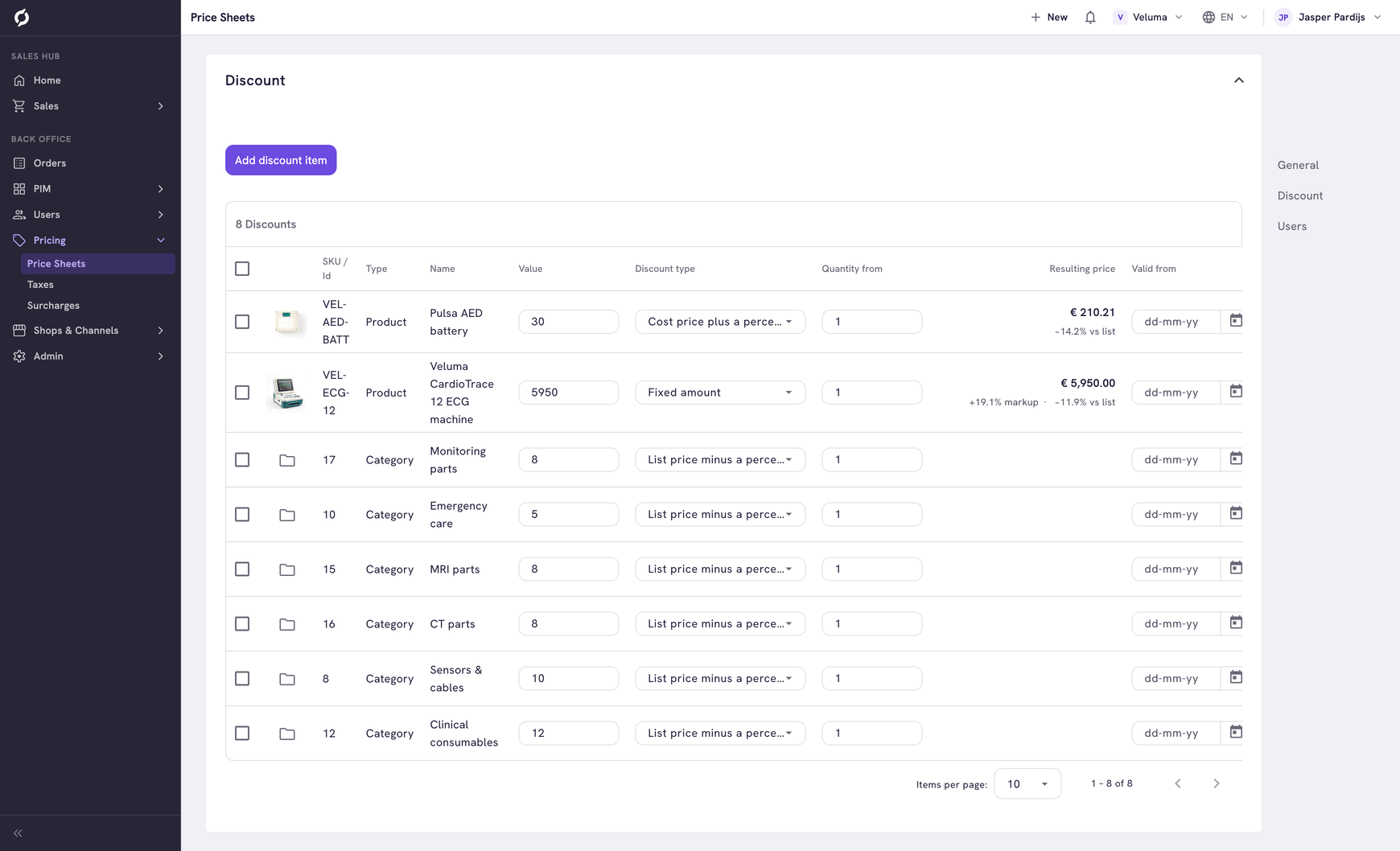
- In the Discount section, click Add discount item.
- Choose Category, Product or Price Group and pick what the discount is for.
- Fill in the row. A field is saved when you leave it.
| Discount type | What you type under Value |
|---|---|
| List price minus a percentage | The percentage off the list price |
| Cost price plus a percentage | The percentage on top of the cost price |
| Fixed amount | The price itself. Only for a product, not for a category or a price group |
| Field | What it does |
|---|---|
| Quantity from | The discount counts from this quantity |
| Valid from, Expires on | The discount only counts in this period |
A discount on a product shows its Resulting price: the unit price the customer pays, with the markup on the cost price and the difference with the list price. A warning shows when that price is below the cost price, when a missing cost or list price makes it zero, or when the product's own bulk price is lower at a quantity the line covers. Click the product name to open the product.
A discount on a category also reaches the categories below it. It reaches a product only through its primary category. See Primary and linked categories.
To remove discounts, tick them and click Delete.
Assign the price sheet to customers
In the Users section, open the tab for whom the sheet is meant.
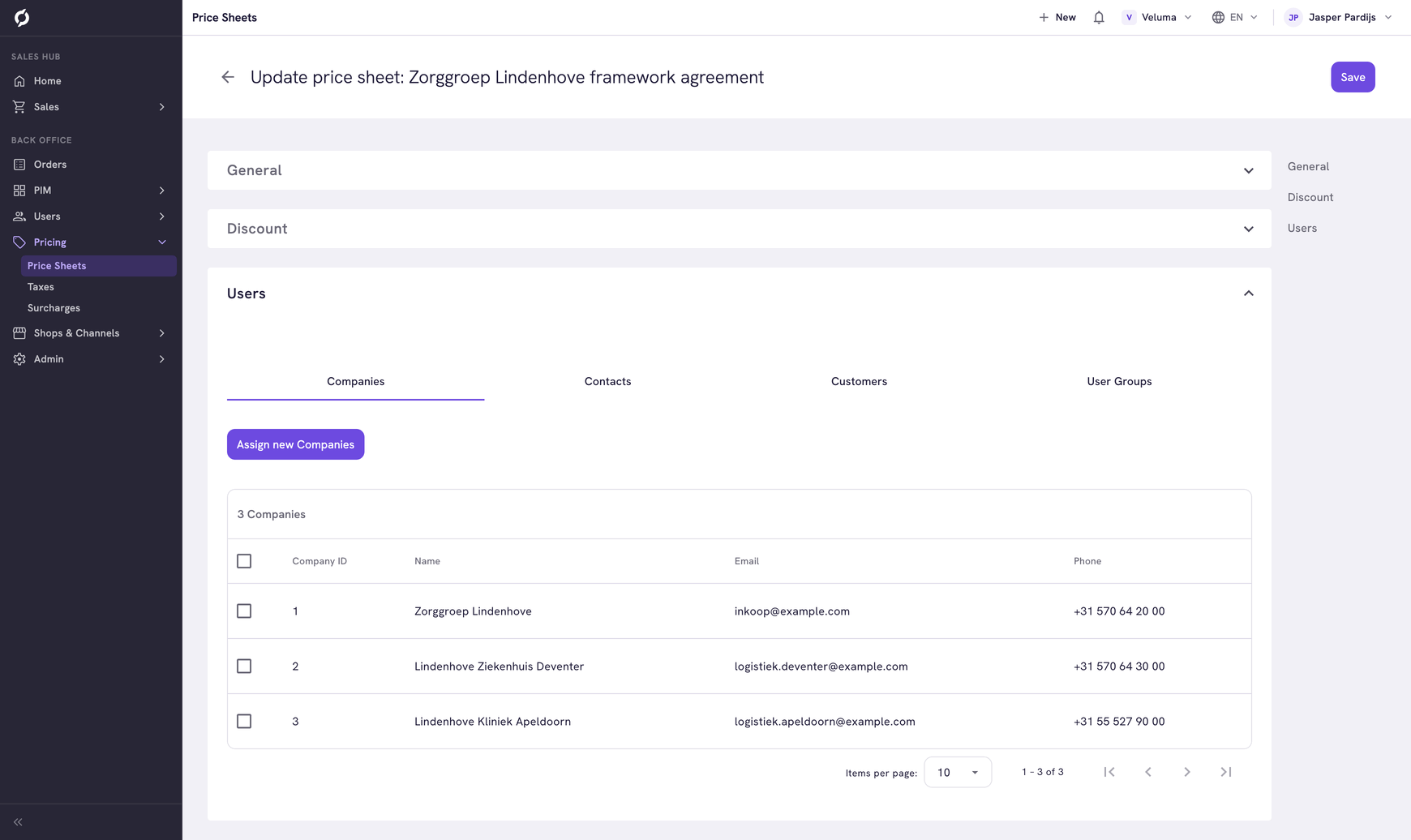
- Click Assign new Companies, Assign new Contacts, Assign new Customers or Assign new User groups.
- Tick the ones you want and confirm.
| Tab | Who gets the prices |
|---|---|
| Companies | Every contact of the company |
| Contacts | That one contact |
| Customers | That one private customer |
| User Groups | Everyone with that tag. A tag is the label in the Groups column of the Users page |
To take the sheet away, tick the rows and click Unassign selected.
When a price sheet cannot be changed
A sheet with Readonly on cannot be changed or deleted in the Backoffice. It comes from an import, usually from your ERP, so that the prices are kept in one place. You cannot switch Readonly on or off here.
Delete a price sheet
- On the list, tick one or more price sheets.
- Click Delete and confirm.
The customers of the sheet fall back to their other price sheets or to the list price.
Related pages
- Understand which price a customer gets
- Users - the customers you assign a sheet to
- Data Import - import price sheets and their discounts