Create and manage tax rates
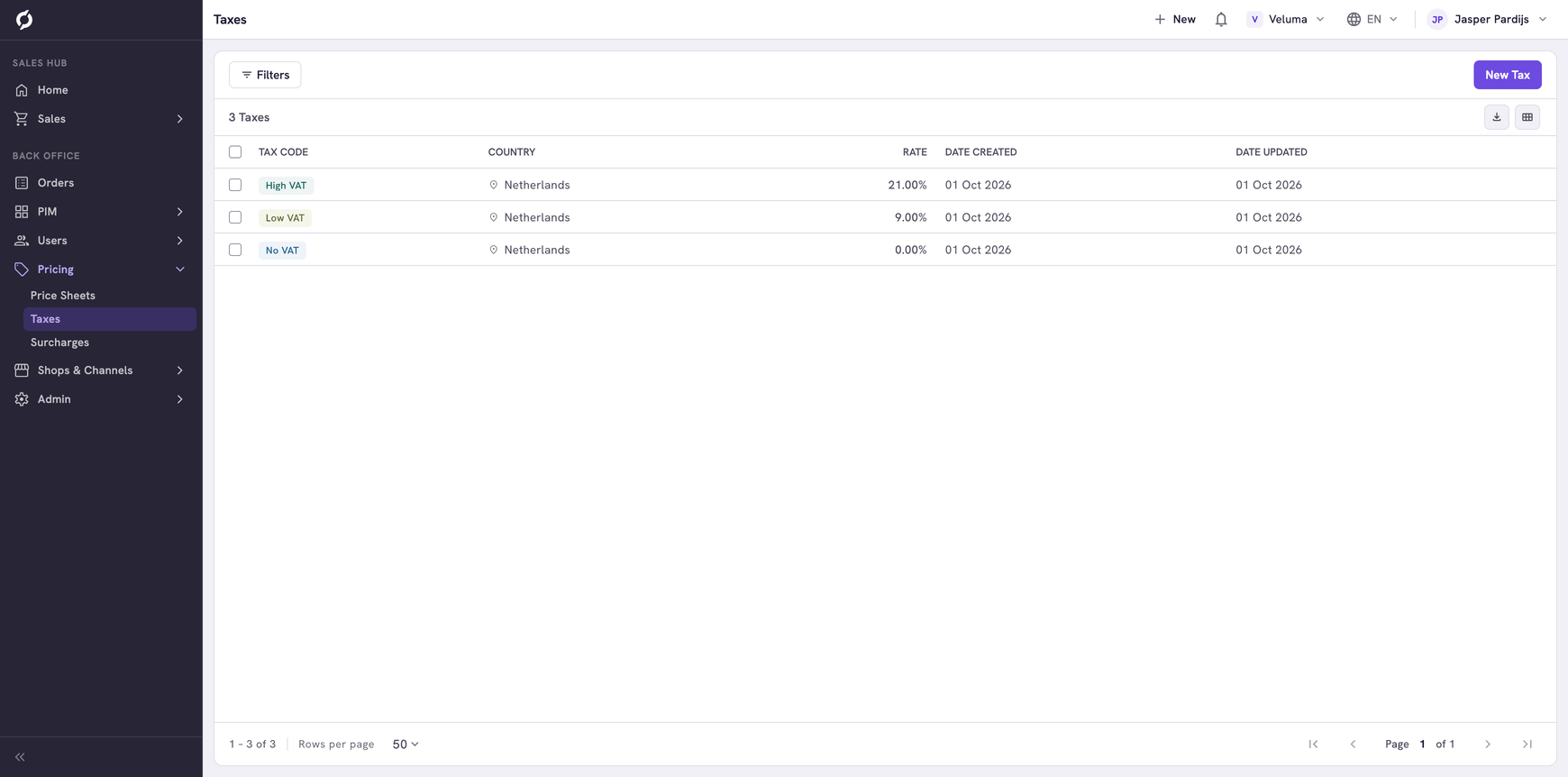
Every product has a tax code, for example High VAT. On the Taxes page you say which percentage that code stands for in each country you sell in.
Before you begin
You need Backoffice access and the Pricing role. To create or delete a tax rate you need Owner access.
Know how VAT is worked out
- A product carries a tax code. You set it on the Price tab of the product, with another code for some countries if needed. See Set VAT and extra fees.
- This page holds one row per tax code and country, with the percentage.
- On a quote or an order, Propeller takes the code of the product and looks up the percentage for the country of that order.
There are five tax codes: High VAT, Medium VAT, Low VAT, Custom VAT and No VAT.
Create a tax rate
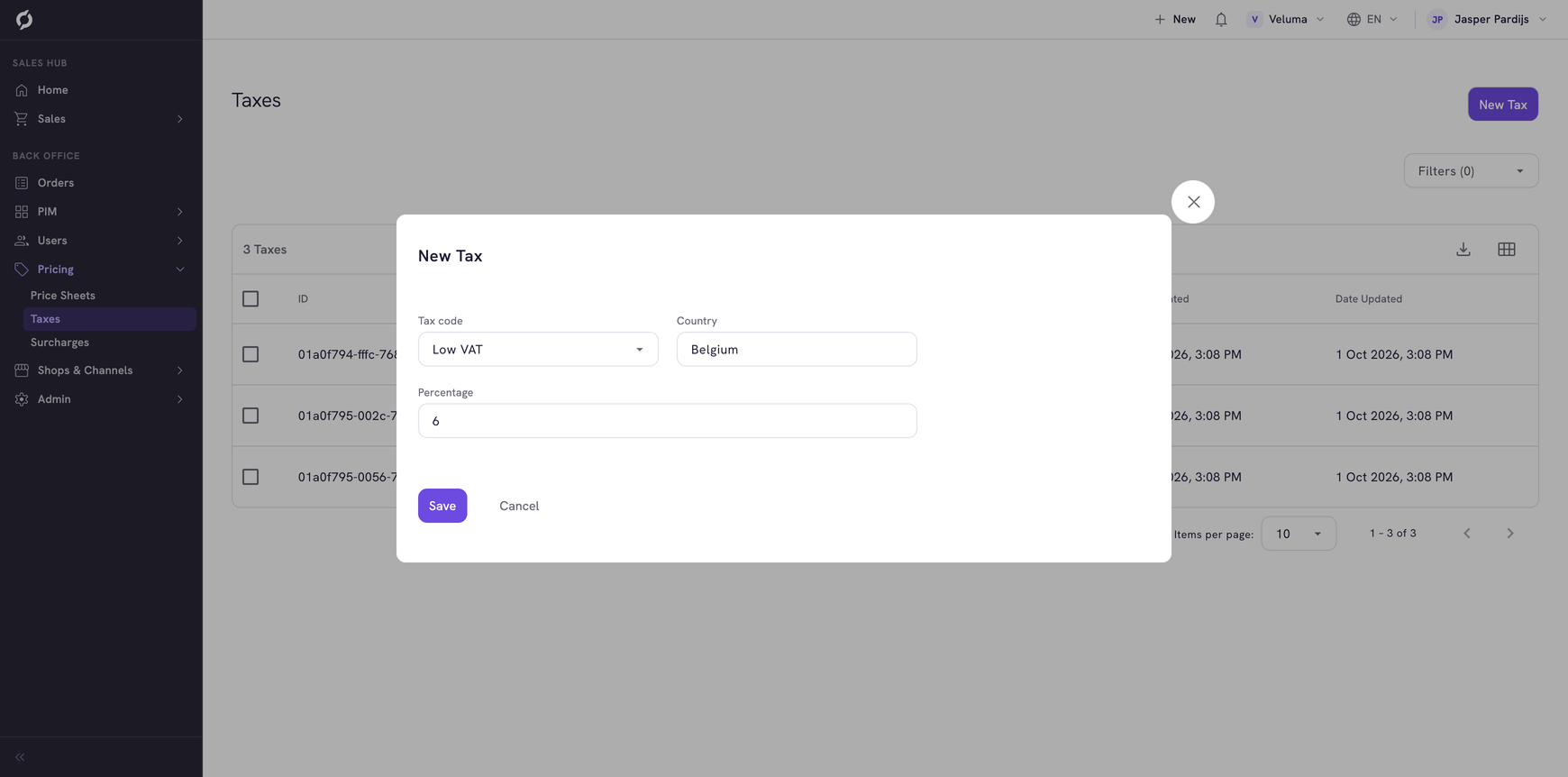
- Go to Pricing > Taxes and click New Tax.
- Select the Tax code.
- Search and select the Country.
- Type the Percentage, for example 21.
- Click Save.
Change a tax rate
Click a row in the list, change the tax code, the country or the percentage and click Save.
Delete a tax rate
- Tick one or more tax rates.
- Click Delete and confirm.
A deleted tax rate cannot be brought back. Products with that tax code have no percentage for that country until you add the rate again.
Short codes of the tax codes
The API uses a short code for each tax code. You meet it when a technical colleague talks about an integration.
| On the screen | Short code |
|---|---|
| High VAT | H |
| Medium VAT | M |
| Low VAT | L |
| Custom VAT | CUST |
| No VAT | N |