Manage orders in the Backoffice
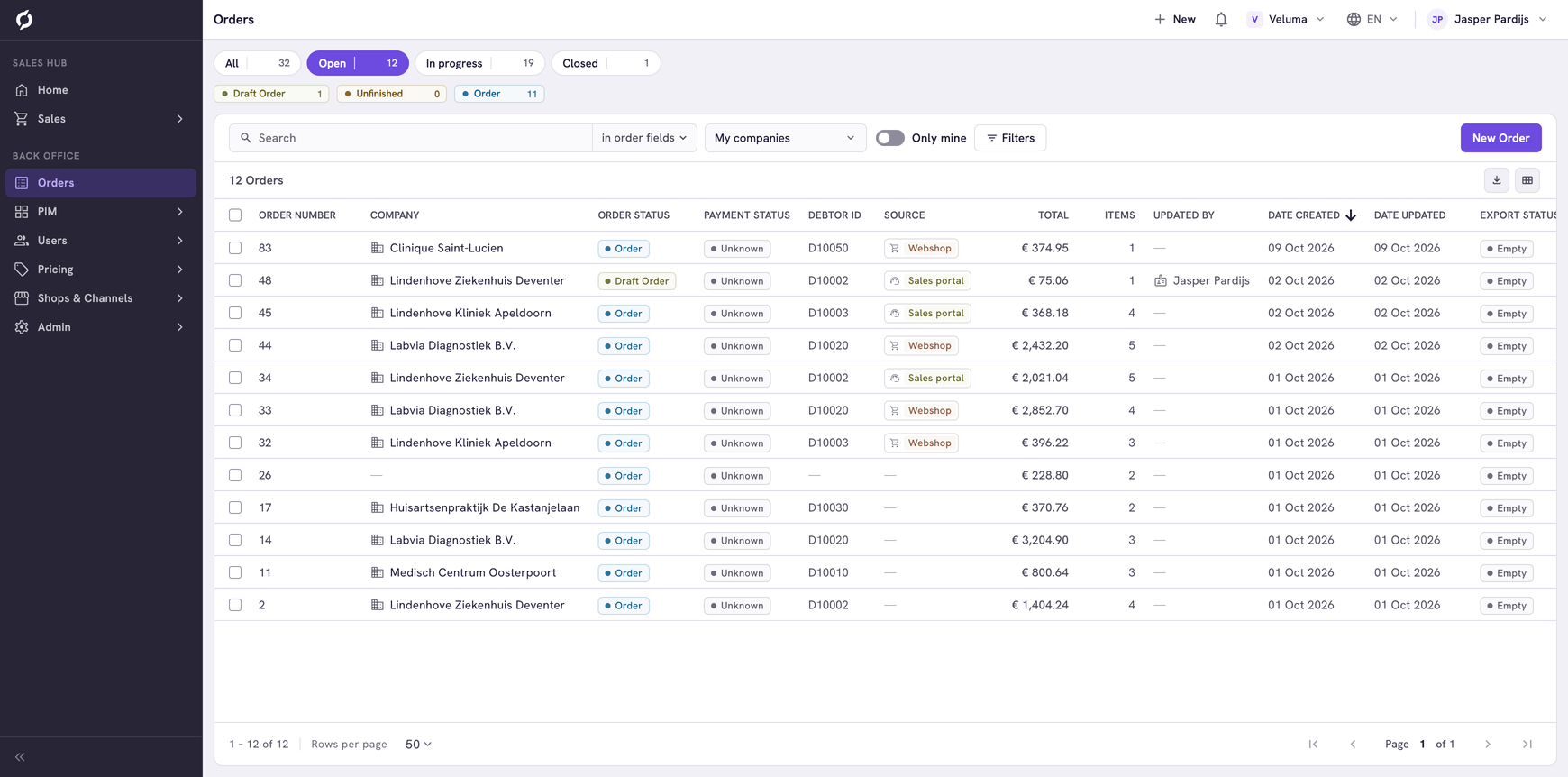
The Orders page of the Backoffice lists every order of your environment, grouped by status. Use it to follow orders through their statuses, to see which orders were passed on to your ERP and to record payment and shipments.
Before you begin
- You need Backoffice access and the Order Data role.
- To create or delete an order you need Owner access on Order Data and the User management role.
Choose this page or the Sales Hub
Both pages show the same orders and open them in the same editor. The Sales Hub is made for building quotes and orders. Use the Backoffice page when you need one of these:
- The export columns and Reset export fields.
- Payment method and Payment Status on the order, which are greyed out in the Sales Hub.
- The Source of the order.
- Creating, changing and deleting shipments.
- An order for a private customer, without a company.
Find an order
- In the Back Office part of the menu, click Orders.
- Click a group above the list, for example Open, to see the orders in its statuses. Each group shows its number of orders, and All shows every order.
- Click one or more statuses in the row below the groups to see only those. Show whole group shows the whole group again.
- Search on the order number, the company name, the debtor ID, the contact or the reference.
- Click a row to open the order in a new browser tab.
A group stands for an order status set. Statuses in no set are under Other, or under their own name when there is only one.
See Work with lists for filters, columns, export and My companies.
Read the columns
| Column | What it shows |
|---|---|
| Order status | The name of the status, for example Order or Validated. See what each status means |
| Payment status | Whether the order is paid. Unknown means nothing was recorded |
| Total, € | The total of the order excluding VAT |
| Export status | Whether the order was passed on to another system: empty, Exported, Finished or Failed |
| Export message | What that system reported, for example why an export failed. Point at a long message to read all of it |
| Shipment status | Not shipped, Partially shipped or Fully shipped. Add the column with the Table editor. Point at it to see how many shipments the order has and how many are dispatched |
Create an order
- Click New Order at the top right. The order editor opens in a new browser tab.
- Under Order for, click the search icon next to Contact person.
- On Companies (B2B), click the View contacts icon on the row of the company. Its contacts open in the same list.
- Click the contact and click Select Contact.
- Add products and finish the order as in the Sales Hub. See Create an order.
For a private customer, click Customers (B2C) in step 3, click the customer and click Select Customer. Back to companies takes you from the contacts back to the companies.
Record payment
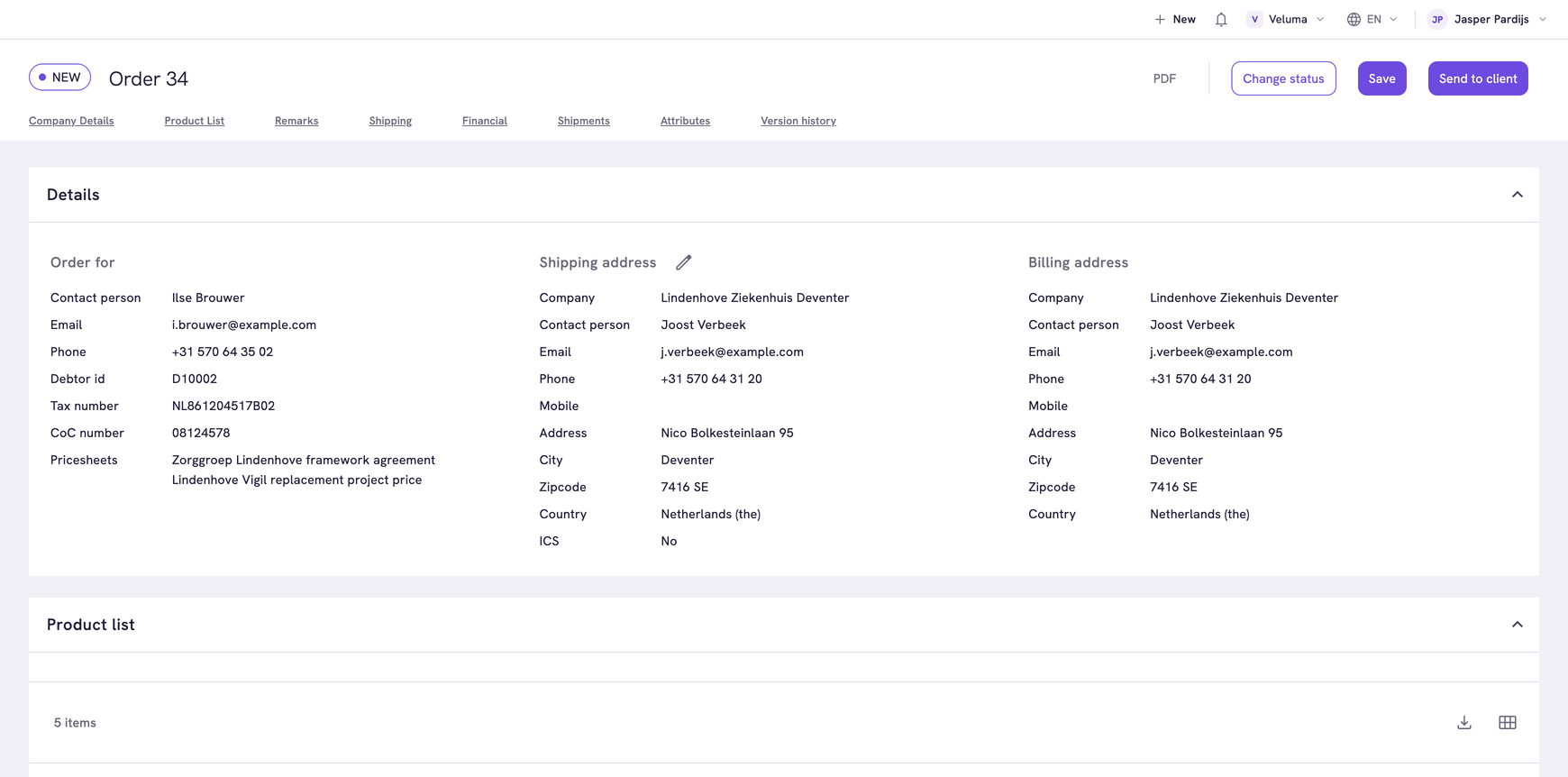
- Open the order and click Financial under the title.
- Choose the Payment method and the Payment Status.
- Click Save.
You can do this while the status of the order allows editing.
Handle orders that failed to export
The export status is set by the system that collects your orders, for example the connection with your ERP. Propeller only shows it.
- Filter the list on Export status, Failed. The Home page counts these orders under Export failures.
- Read the Export message and solve the cause, or pass it on to the colleague who manages the connection.
- Tick the orders and click Reset export fields. This empties the export status, the message and the date.
Whether an order is collected again after a reset depends on how your connection works.
Delete an order
- Tick one or more orders.
- Click Delete and confirm.
A deleted order is gone for good, with its lines, addresses and shipments. To cancel an order and keep it, change its status. See Cancel an order.
Related pages
- Shipments
- Use the order editor
- Order Statuses - the statuses and the groups of this page