Product Details

The product detail page lets you edit all aspects of a product, including descriptions, pricing, media, logistics and storefront relationships.

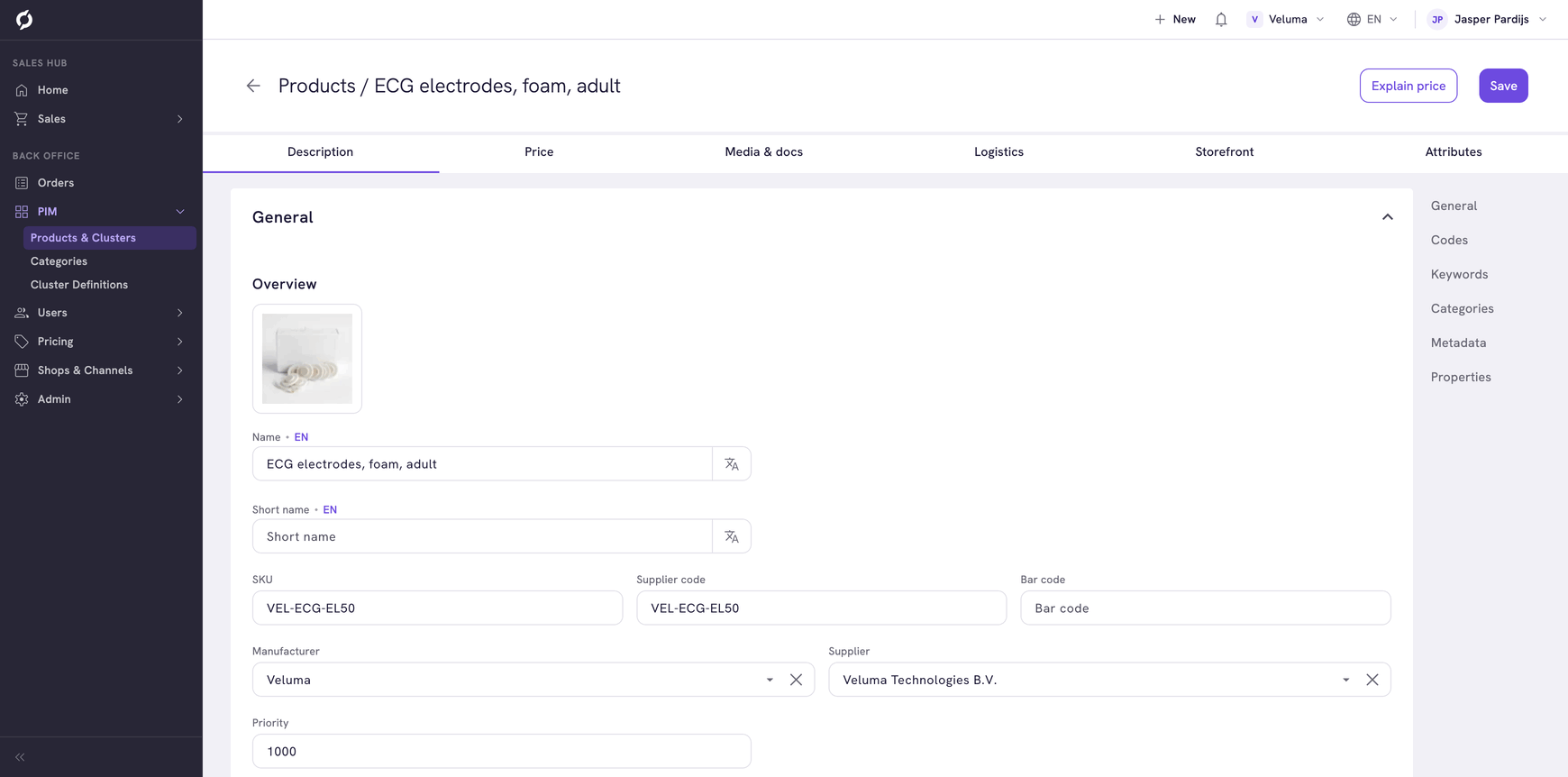
Product detail, Description tab

Before you begin

  • You need the Product role to view product details.
  • Editing product fields requires non-viewer access on the Product role.
  • Editing prices requires the Pricing role.

Open a product

Navigate to PIM > Products & Clusters and click any product row. The page header shows a Back button, an Explain price button and a Save button.

Edit product descriptions

On the Description tab, update the general product information. The right sidebar provides quick navigation to sections on this tab: General, Codes, Keywords, Categories, Metadata and Properties.

General fields

FieldDescription
NameProduct name (supports multiple languages)
Short nameAbbreviated product name
SKUStock Keeping Unit code
Supplier codeSupplier's product code
Bar codeBarcode or UPC
ManufacturerSelect from the manufacturer list
SupplierSelect from the supplier list
PriorityDisplay priority or sort order
HiddenToggle to hide the product from the storefront

Description fields

FieldDescription
Short descriptionBrief product summary with rich text formatting (localized)
DescriptionFull product description with rich text formatting (localized)

Codes

The Codes section contains general codes (article code, OEM code, bar code) and EAN codes. Click Add EAN code to add additional EAN codes to the product.

Keywords

In the Keywords section, enter search keywords and custom keywords for the product. Both fields support multiple languages using the language dropdown.

Manage categories

The Categories section shows the product's primary category path. Click the folder icon to change it.

The Product in multiple categories table lists all categories the product belongs to. You can:

  1. Click Link product to category to add the product to an additional category.
  2. Select categories and click Remove to unlink the product. You cannot remove the primary category.

Edit metadata

Fill in the Metadata title, Metadata description and Metadata canonical URL fields for SEO purposes. All fields support multiple languages.

Manage pricing

On the Price tab, configure product pricing. The right sidebar provides quick navigation to sections on this tab: Main price, Cost price, Packing, Quantities, Taxes & surcharges, Financial, Explain price and Bundles.

Product detail, Price tab

Set the main price

FieldDescription
Price perNumber of units this price covers
Unit priceList price per unit
Suggested priceManufacturer's suggested retail price
Store priceIn-store display price
Price display typeHow the price is shown (Default, From, On Request, Package and others)
Active price discountChoose between Net price, List price minus or Cost price plus

Add bulk prices

Click Add bulk price to create volume-based pricing tiers. Each tier includes:

ColumnDescription
From unitsMinimum quantity for this tier
Discount/PriceDiscount amount or tier price
Valid fromStart date
Valid toEnd date

Set the cost price

In the Cost price section, manage cost pricing for the product. The Bulk cost price table lets you define volume-based cost prices with columns for From units, Cost price, Date Created and Date Updated. Click Add bulk costprice to add a new tier.

Configure packing

In the Packing section, set the supplier code, OEM code, delivery package type, package unit, package unit quantity and package description. The package description field supports multiple languages.

Configure taxes and surcharges

Set the Default tax code (High VAT, Medium VAT, Low VAT, Custom VAT or No VAT). Use the Tax codes per country table to add country-specific overrides. Click Add tax code to add an entry for a specific country.

Product detail, Taxes and surcharges

In the Surcharges section, click Add surcharge to link surcharges to the product. Select surcharges and click Remove to unlink them.

Configure financial settings

In the Financial section, set the Price group and Telecom group for the product.

Simulate pricing

Use the Explain Price section to simulate pricing for a specific customer:

  1. Select a company, contact or customer using the search picker. You can also view the price as an Anonymous user to see the default price.
  2. Optionally adjust the Quantity.
  3. View the calculated price in the result box. When a company is selected, a breakdown table shows each applicable price rule with its priority, source, calculation type, discount and final price.

Explain price with company context

Manage bundles

In the Bundles section, you can group products into bundles that are sold together at a combined price. Each bundle shows its connected products with images, names and a total bundle price. Click Add bundle to create a new bundle.

Upload media and documents

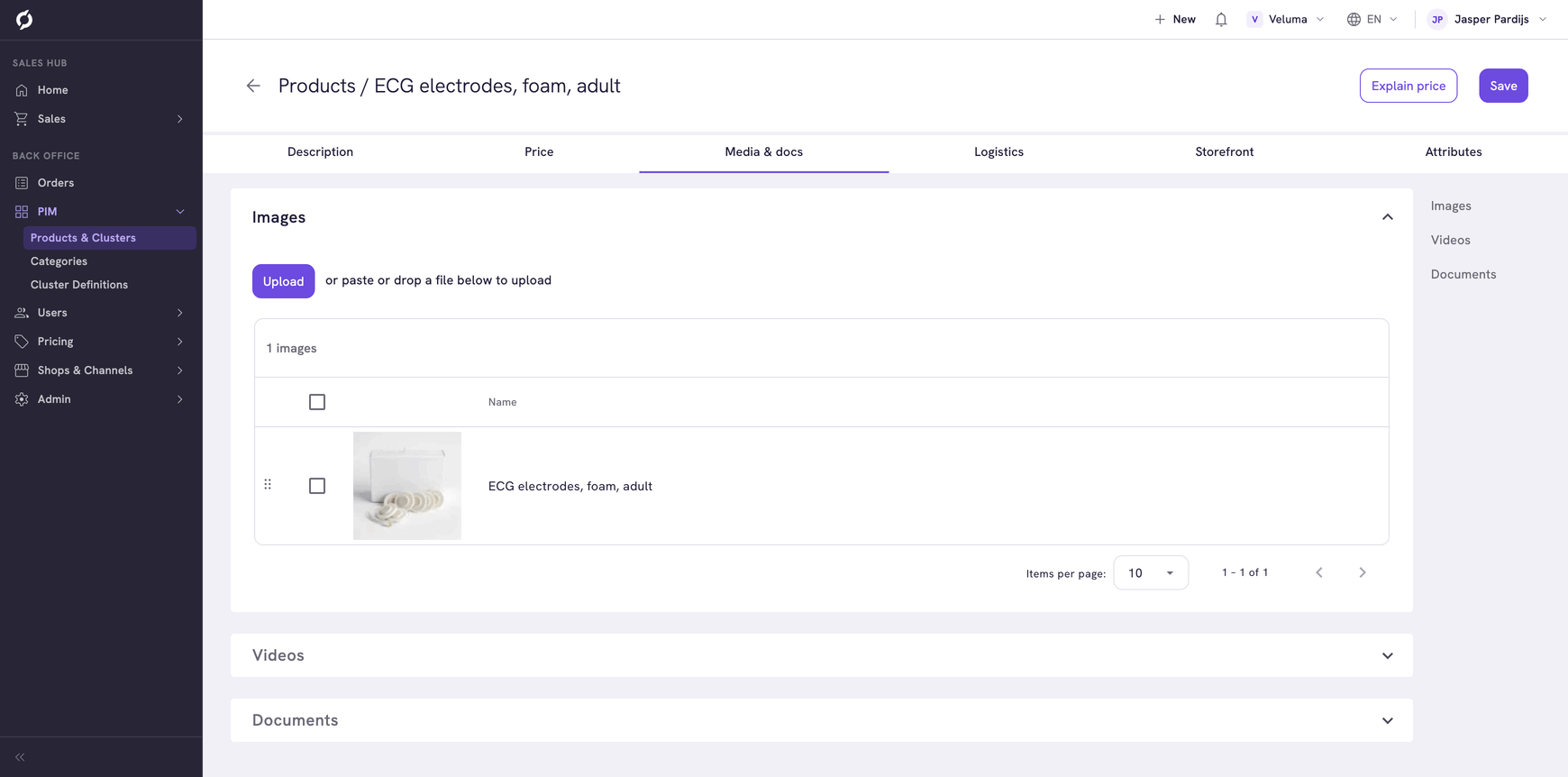
On the Media & Docs tab, manage images, videos and documents. The right sidebar provides quick navigation to: Images, Videos and Documents.

Product detail, Media and docs tab

Images

  • Click Upload or drag and drop files to upload. You can also paste from the clipboard.
  • Drag images to reorder them.
  • Click an image to edit its name, description and tags.
  • Select images and click Delete to remove them.

Videos

  • Click Upload and enter a YouTube or Vimeo URL with a name and description.
  • Drag to reorder, click to edit or select and delete.

Documents

  • Click the upload button or drag and drop files (PDF, Word, Excel).
  • Drag to reorder, click to edit or select and delete.

Manage logistics

On the Logistics tab, view inventory and set availability. The right sidebar provides quick navigation to: Local stock and Delivery.

Product detail, Logistics tab

Inventory

The inventory section displays the total inventory, local inventory and external inventory counts. Below, a warehouse table shows the breakdown per warehouse with columns for Warehouse Name, Warehouse Description, Inventory and Supplier.

Availability

FieldDescription
StatusAvailable, Not available, Phase out, Presale, Restricted or Out of stock
OrderableWhether the product can be ordered
Orderable from / toDate range when the product is orderable
Release dateWhen the product becomes available
Is product physicalWhether this is a physical or digital product
Return to supplierWhether the product can be returned

Manage storefront relationships

On the Storefront tab, set up cross-sell and up-sell relationships. Products are organized by type: Accessories, Alternatives, Related, Options and Parts.

For each type:

  1. Click Add products to open a product picker and add items to a group.
  2. Click Add product group to create a named subtype group.
  3. Edit group names inline.
  4. Select products and click Remove to remove them from a group.

Edit custom attributes

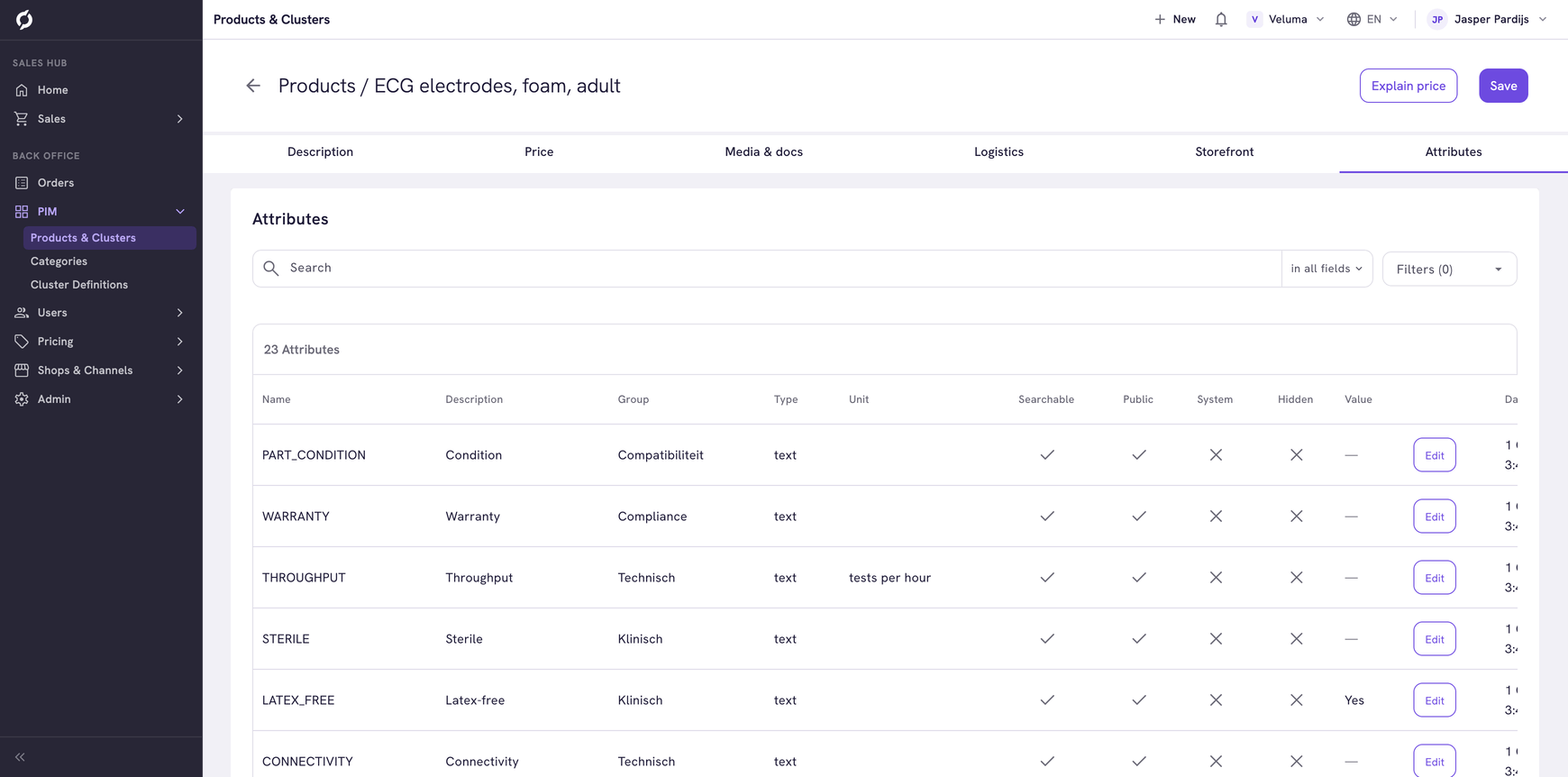
On the Attributes tab, manage custom product attributes defined in your attribute configuration. The tab displays a searchable table with columns for Name, Term, Type and additional fields. You can filter attributes using the Selected search fields dropdown and the Term languages filter. Click any attribute row to edit its value inline.

Product detail, Attributes tab