Set the prices of a product
The Price tab of a product holds its list price, its cost price, its prices for larger quantities and its VAT. On the same tab you check what one customer pays for the product.
Before you begin
- You need Backoffice access, the Product Data role and the Pricing role with Editor or Owner access.
- All prices on this tab exclude VAT.
Set the list price
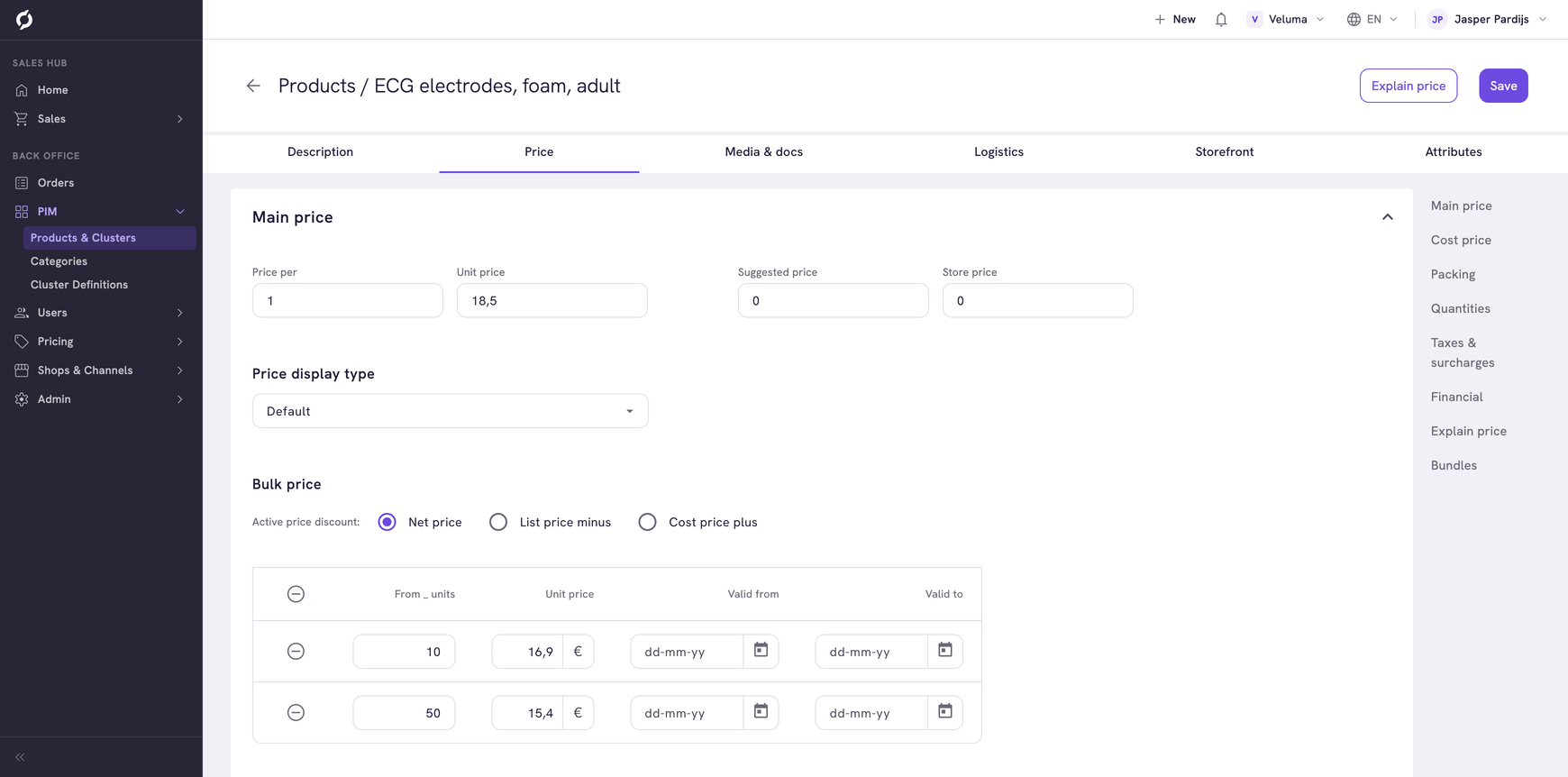
- Go to PIM > Products & Clusters, open the product and click the Price tab.
- Type the list price under Unit price.
- Click Save.
| Field | What it is |
|---|---|
| Price per | How many pieces the unit price covers. 1 is a price per piece, 12 a price per dozen |
| Suggested price | The price the manufacturer advises. A webshop can show it next to your price |
| Store price | The price in a physical shop, when it differs |
| Price display type | How a webshop presents the price, for example as a "from" price or as "on request" |
Add bulk prices
A bulk price is a lower price from a certain quantity.
- Under Bulk price, choose the Active price discount. It decides what you type in the table.
- Click Add bulk price and fill in the row.
| Active price discount | What a row holds | Example |
|---|---|---|
| Net price | The price per piece from that quantity | From 10 units: 62.00 |
| List price minus | A percentage off the unit price | From 10 units: 5% |
| Cost price plus | A percentage on top of the cost price | From 10 units: 20% |
Use Valid from and Valid to when a row should only count for a period.
Set the cost price
Under Cost price, click Add bulk costprice and type what you pay for the product. A cost price can differ per quantity and per period, like a bulk price. The Sales Hub uses it to show the margin on a quote.
Set the quantities a customer can order
Under Quantities, Minimum quantity is the smallest quantity a customer can order. Quantity steps is the step in which the quantity goes up, for example per 6.
Under Packing, the Package description says what one unit is, for example "box of 50". It shows next to the price.
Set VAT and extra fees
- Under Taxes & surcharges, choose the Default tax code, for example High VAT.
- If the product has another VAT class in some country, click Add tax code and pick the country and the code.
- To add a fee such as a recycling fee, click Add surcharge and pick it.
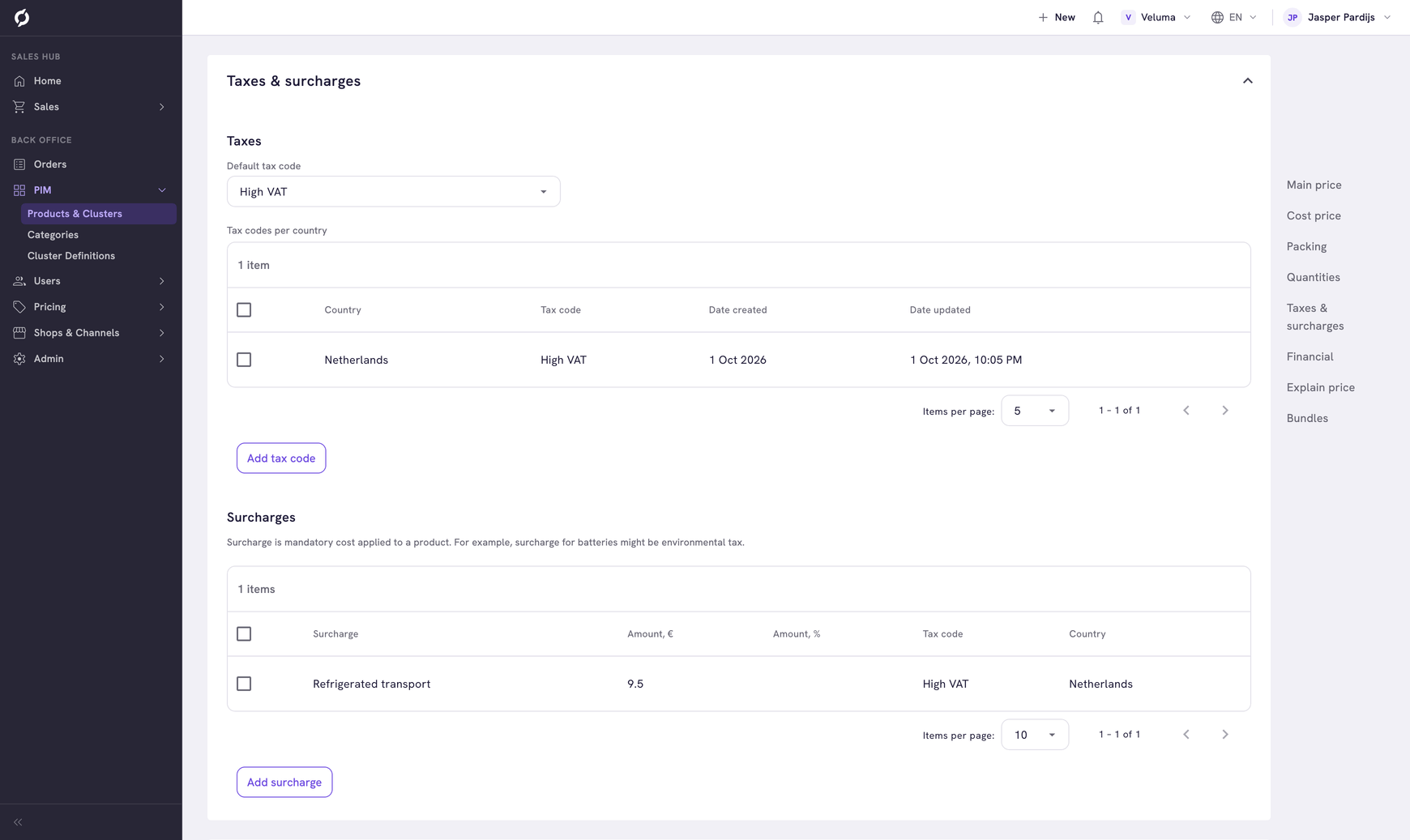
The percentage behind a tax code is set under Tax Rates. The fees themselves are made under Surcharges.
Put the product in a price group
Under Financial, the Price group lets a price sheet give one discount to a whole group of products. Turnover group is a label for your reports.
Sell products together as a bundle
Under Bundles, click Add bundle to sell this product together with others at one price. Each bundle shows its products and its price.
Check what a customer pays
- Go to the Explain price section, or click Explain price at the top right.
- Select a company, a contact or a customer. Choose Anonymous user for the price without a customer.
- Change the Quantity if you want and click Calculate.
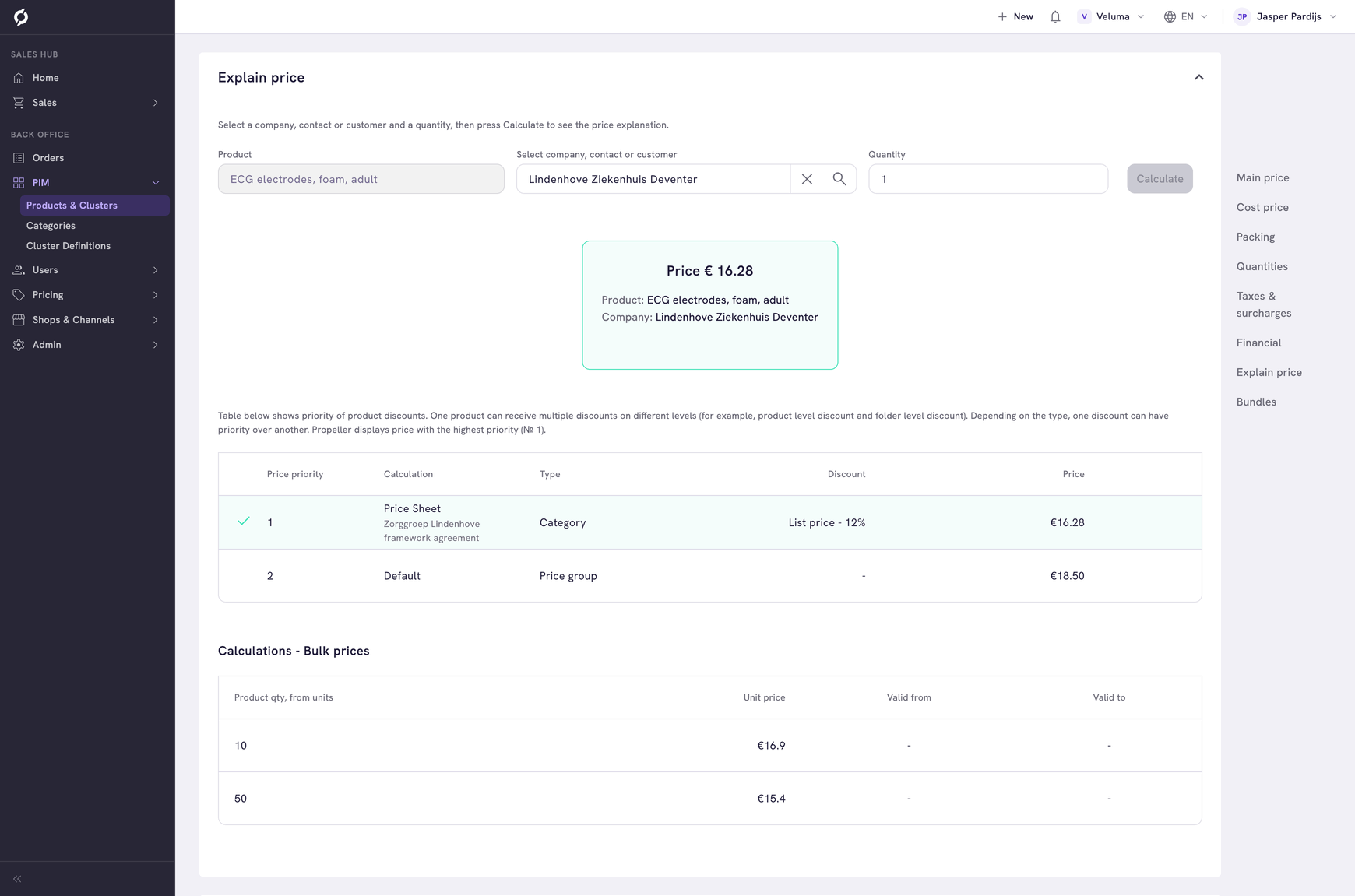
The table lists every price that applies, with the price sheet it comes from. The first row, with the tick, is the price the customer pays. See Understand which price a customer gets.
Related pages
- Create and edit a product
- Price Sheets - prices for specific customers
- Data Import - change many prices from a file