Set stock and availability of a product
The Logistics tab of a product shows how much stock there is and decides whether and when customers can order the product.
Before you begin
You need Backoffice access and the Product Data role. To change the settings you need Editor or Owner access.
Decide whether customers can order the product
- Go to PIM > Products & Clusters, open the product and click the Logistics tab.
- Under Availability, set the fields from the table.
- Click Save.
| What you want | What to set |
|---|---|
| Customers cannot order the product | Orderable to No |
| Customers can order it only in a period | Orderable from and Orderable to |
| Record when the product comes on the market | Release date |
| Record where the product is in its life | Status: Available, Not available, Phase out, Presale, Restricted or Out of stock |
| Customers do not see the product at all | Hidden to Yes, on the Description tab. See Hide or delete a product |
Two more fields describe the product. Is product physical tells goods you ship apart from digital products. Return to supplier says whether the product can be returned.
What a webshop shows for each of these settings depends on how your webshop is built.
Read the stock
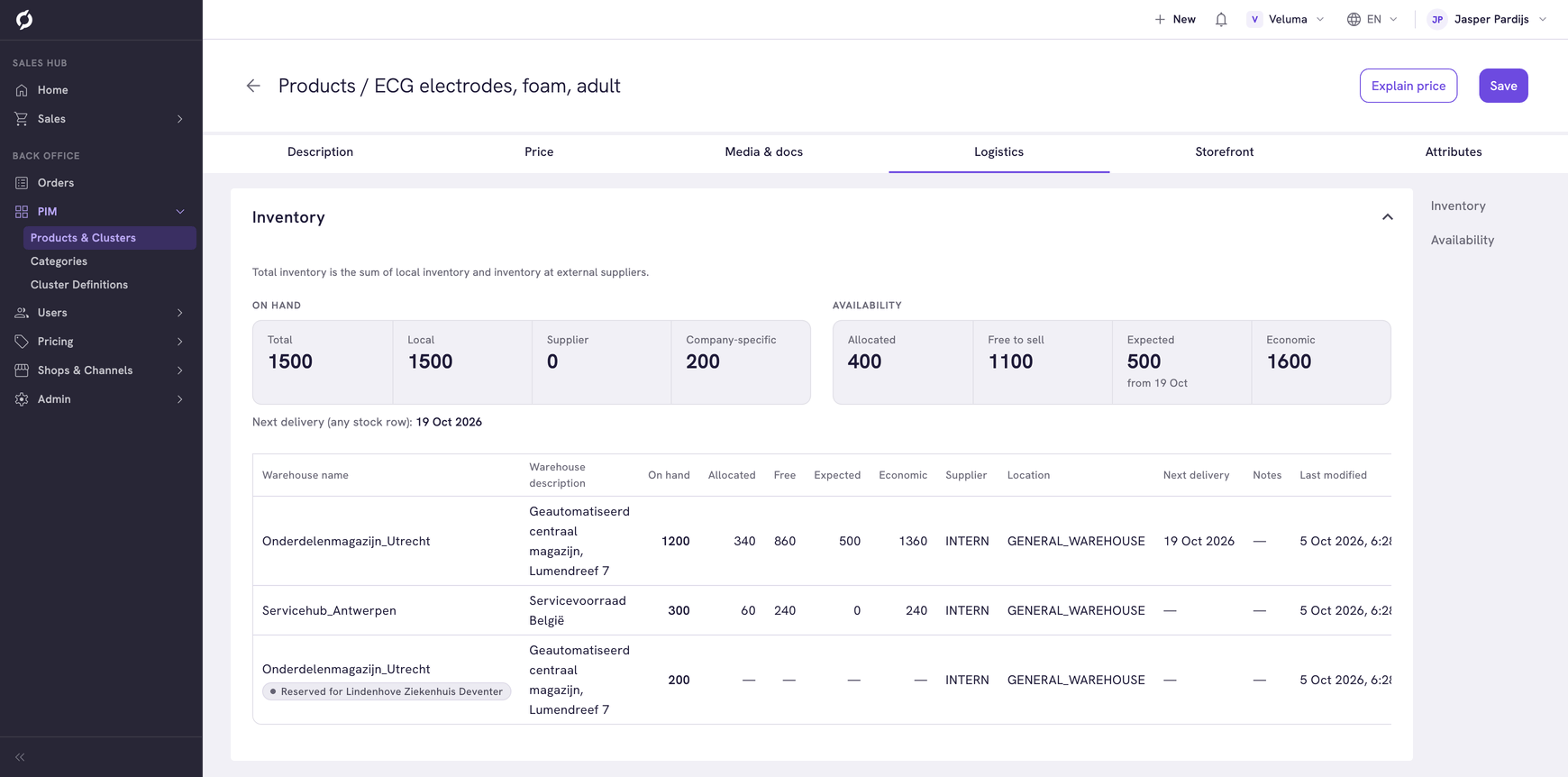
The Inventory section groups the totals under On hand and Availability.
| Under On hand | What it counts |
|---|---|
| Total | Local stock plus the stock at suppliers |
| Local | Stock in your own warehouses |
| Supplier | Stock that lies at a supplier |
| Company-specific | Stock that is reserved for one company. It does not count in the totals |
Availability shows four more figures when your stock data includes them. Point at a figure to read what it means.
| Under Availability | What it means |
|---|---|
| Allocated | Sold but not yet shipped |
| Free to sell | On hand minus allocated. A negative number means the product is oversold |
| Expected | Ordered but not yet received, with the date of the next delivery |
| Economic | On hand minus allocated plus expected |
When not every stock row has these figures, a note says how many rows the totals are based on. Next delivery (any stock row) gives the first date on which new stock is expected.
The table below has one row per warehouse and supplier, with the stock on hand, the same four figures, the supplier, the place in the warehouse and the next delivery. A row that is reserved for one company says Reserved for and the company name. Those rows come last and do not count in the totals.
You cannot change stock on this page. It comes from your ERP or warehouse system.