Create a cluster definition
A cluster definition says which choices a cluster offers, for example size and colour. It also says how each choice is shown. You make the definition once and use it for every cluster with the same kind of variants.
Before you begin
- You need Backoffice access and the Product Data role. To create or delete a definition you need Owner access, to change one Editor or Owner access.
- The attributes for the choices must exist, for example an attribute for the size. See Attributes.
Create a cluster definition
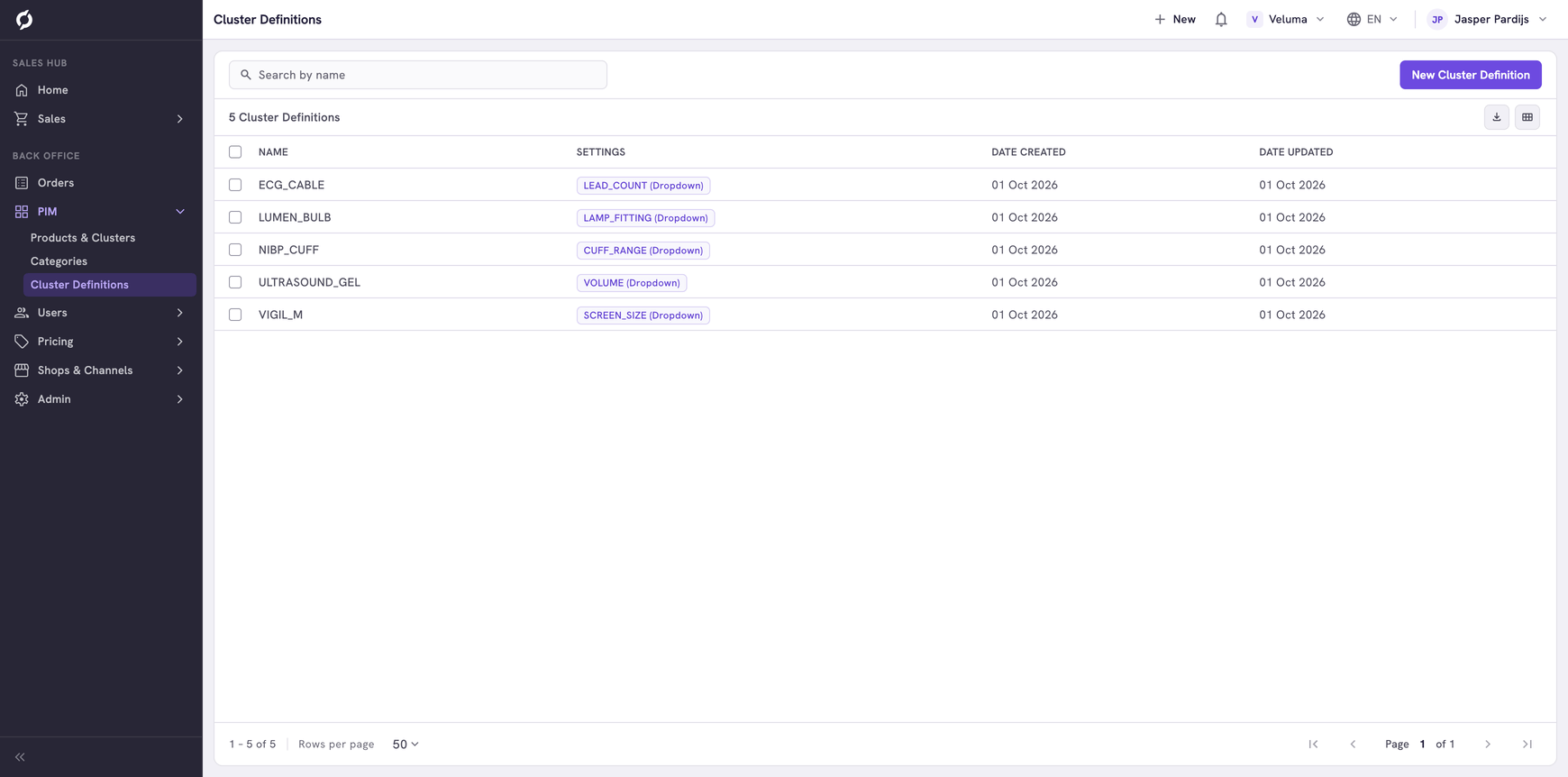
- Go to PIM > Cluster Definitions and click New Cluster Definition.
- Type a Name in capitals without spaces, with underscores between the words. For example MONITOR_SCREEN_SIZE. The name cannot be changed later.
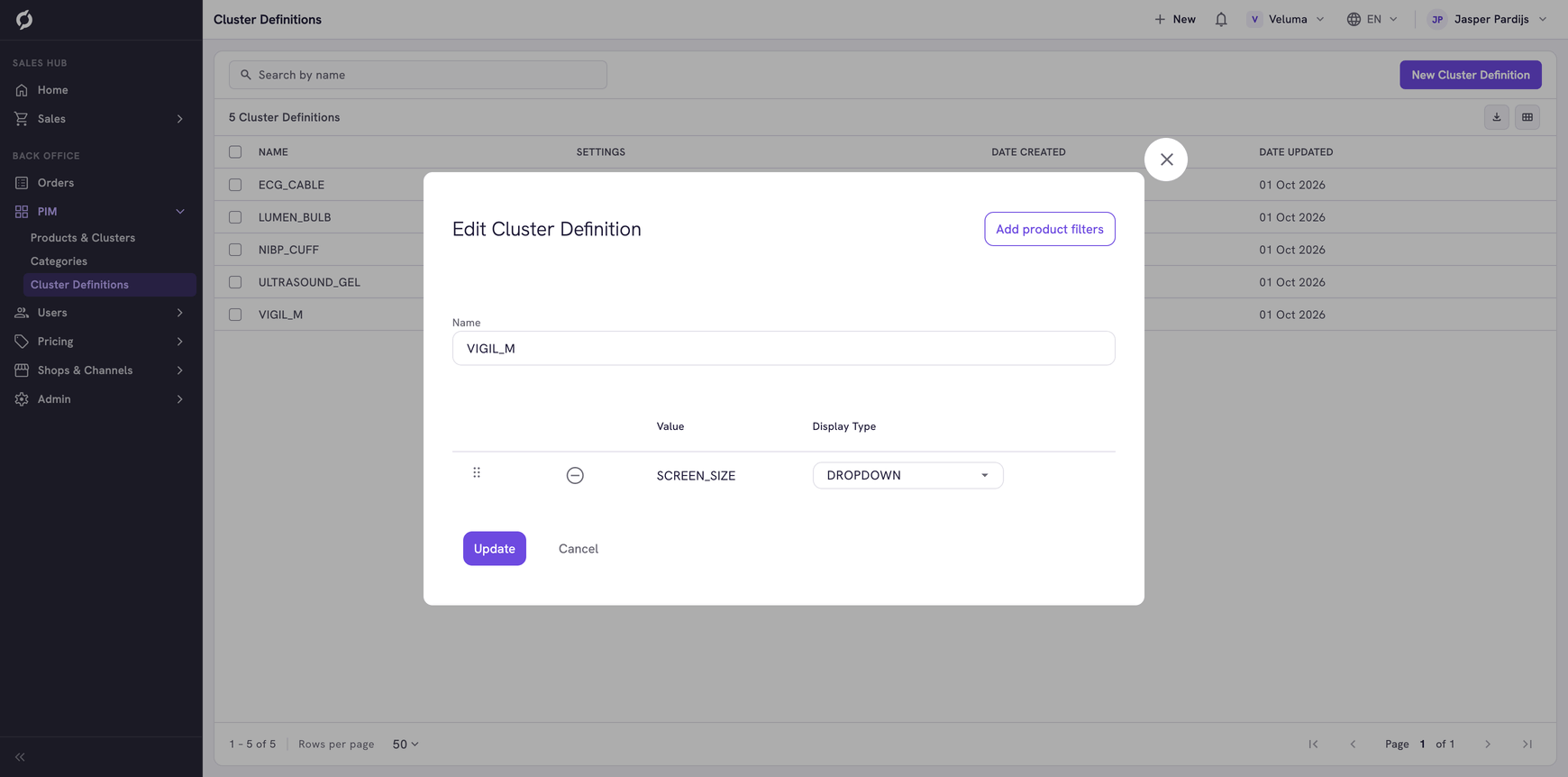
- Click Add product filters and pick the attributes the customer chooses on.
- Choose a Display Type per attribute.
- Drag the attributes into the order in which the customer makes the choices.
- Click Save.
| Display type | How the choice is shown |
|---|---|
| Radio | Tiles next to each other |
| Dropdown | A list that opens |
| Image | Tiles with an image |
| Color | Colour swatches |
The definition is ready to use. Pick it when you create a cluster. See Clusters.
Change a cluster definition
Click a row in the list. You can add or remove attributes, change a display type and change the order. Click Update to store the change. It counts for every cluster that uses the definition.
Delete a cluster definition
- Tick one or more definitions.
- Click Delete and confirm.
A definition that is still used by a cluster cannot be deleted. Give those clusters another definition first.
Related pages
- Clusters - create a cluster that uses a definition
- Attributes - the attributes a definition can use