Group variants in a cluster
A cluster shows several products as one, for example a bedside monitor in two screen sizes. The customer opens one product page and picks the variant. Each variant stays a normal product with its own SKU, price and stock.
Before you begin
- You need Backoffice access and the Product Data role. To add or change you need Editor or Owner access, to delete Owner access.
- A cluster needs a cluster definition. It says which choices the customer makes, for example the size. See Cluster Definitions.
Know the order of work
A cluster works when four things are in place, in this order.
- The attributes for the choices exist, for example an attribute Size. See Attributes.
- A cluster definition names those attributes.
- The cluster uses that definition and holds the products.
- Every product in the cluster has a value for each attribute, for example 12.1 inch on one product and 15.6 inch on the other. These values are the choices the customer sees.
Create a cluster
- Go to PIM > Products & Clusters and click New Cluster.
- Pick the cluster definition. Propeller creates the cluster with one first product and opens it.
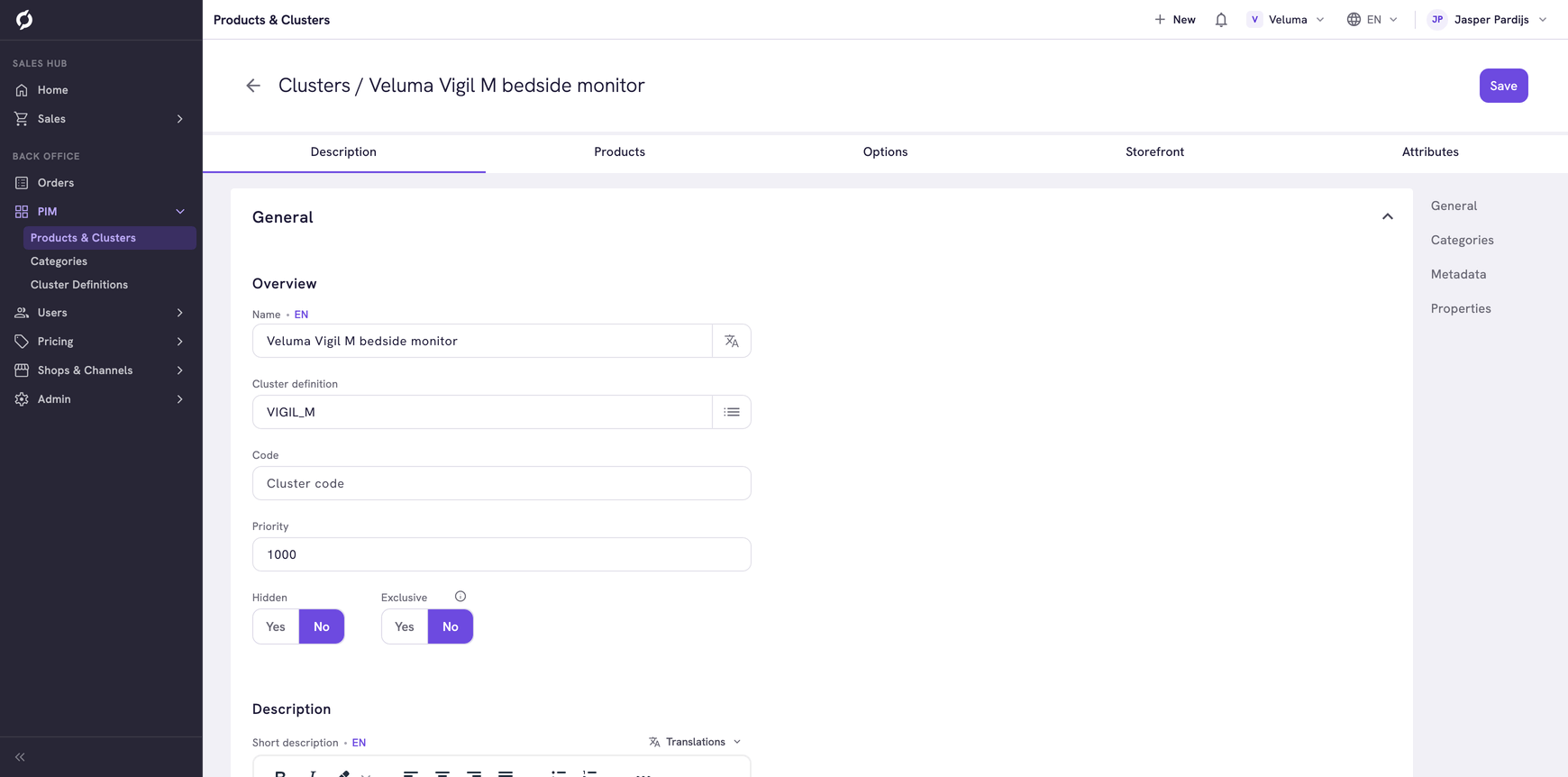
- On the Description tab, type the Name and the texts. Code is the product code of the cluster itself.
- Click Save.
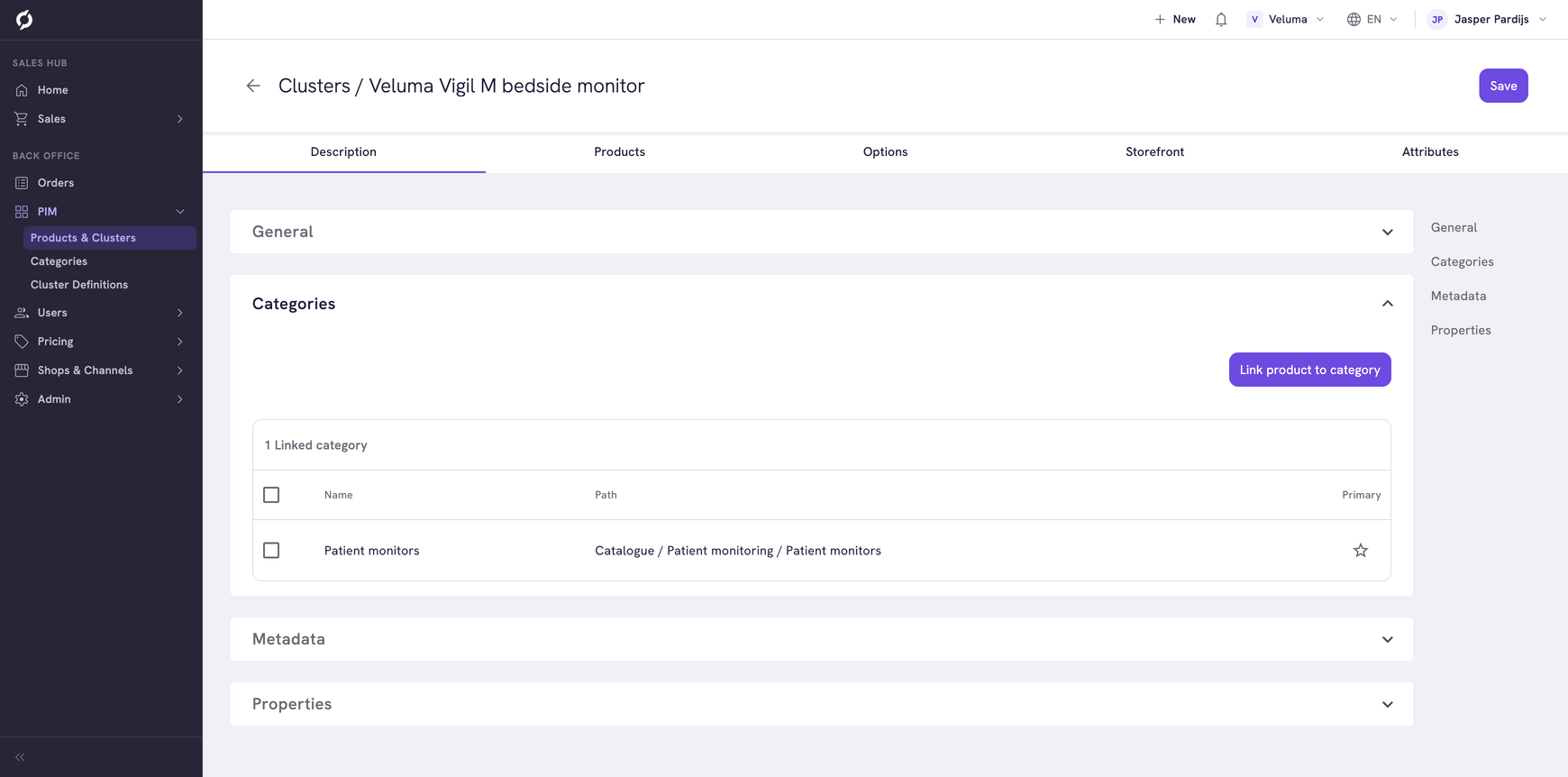
Like a product, a cluster has a category, a Hidden switch, an Exclusive switch and a Priority. The products in the cluster follow its Exclusive setting. See Create and edit a product.
Add the products
Open the cluster and click the Products tab.
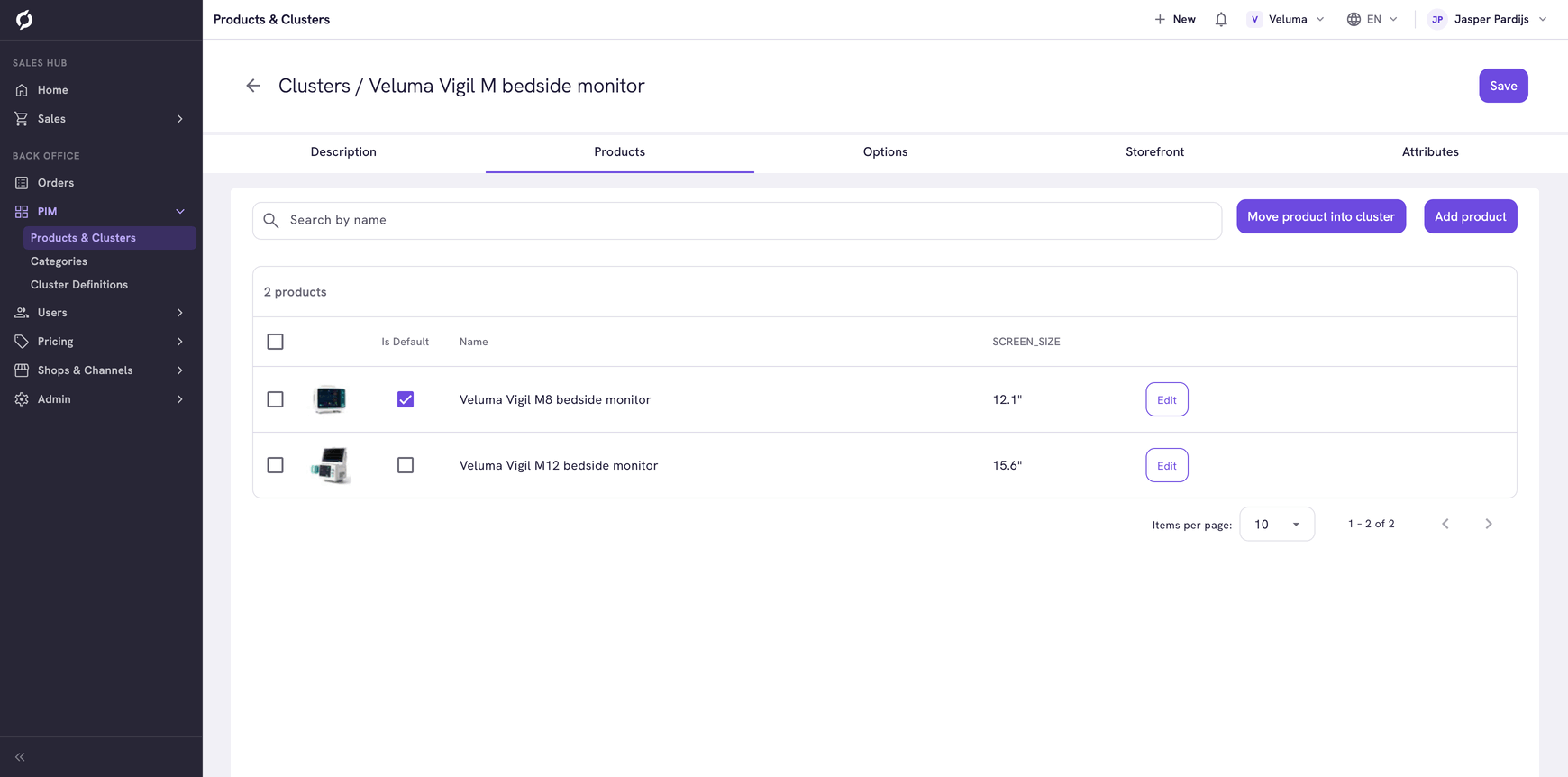
- Click Move product into cluster to add products that already exist. A product can only be in one cluster at a time.
- Or click Add product to make a new, empty product inside the cluster.
- Click Edit next to an attribute of a row and fill in the value for that product, for example its size.
- Tick Is Default on the product that shows first when a customer opens the cluster.
Drag a row to change the order of the products. Click a row to open the product itself.
Take a product out of a cluster
- Tick the product on the Products tab.
- Click Move out of cluster.
- Choose Move to category to keep it as a normal product, or Move to cluster to put it in another cluster.
Delete on this tab does not take the product out of the cluster. It deletes the product itself, for good. Use Move out of cluster when you want to keep the product.
The last product of a cluster cannot be deleted.
Offer extra options
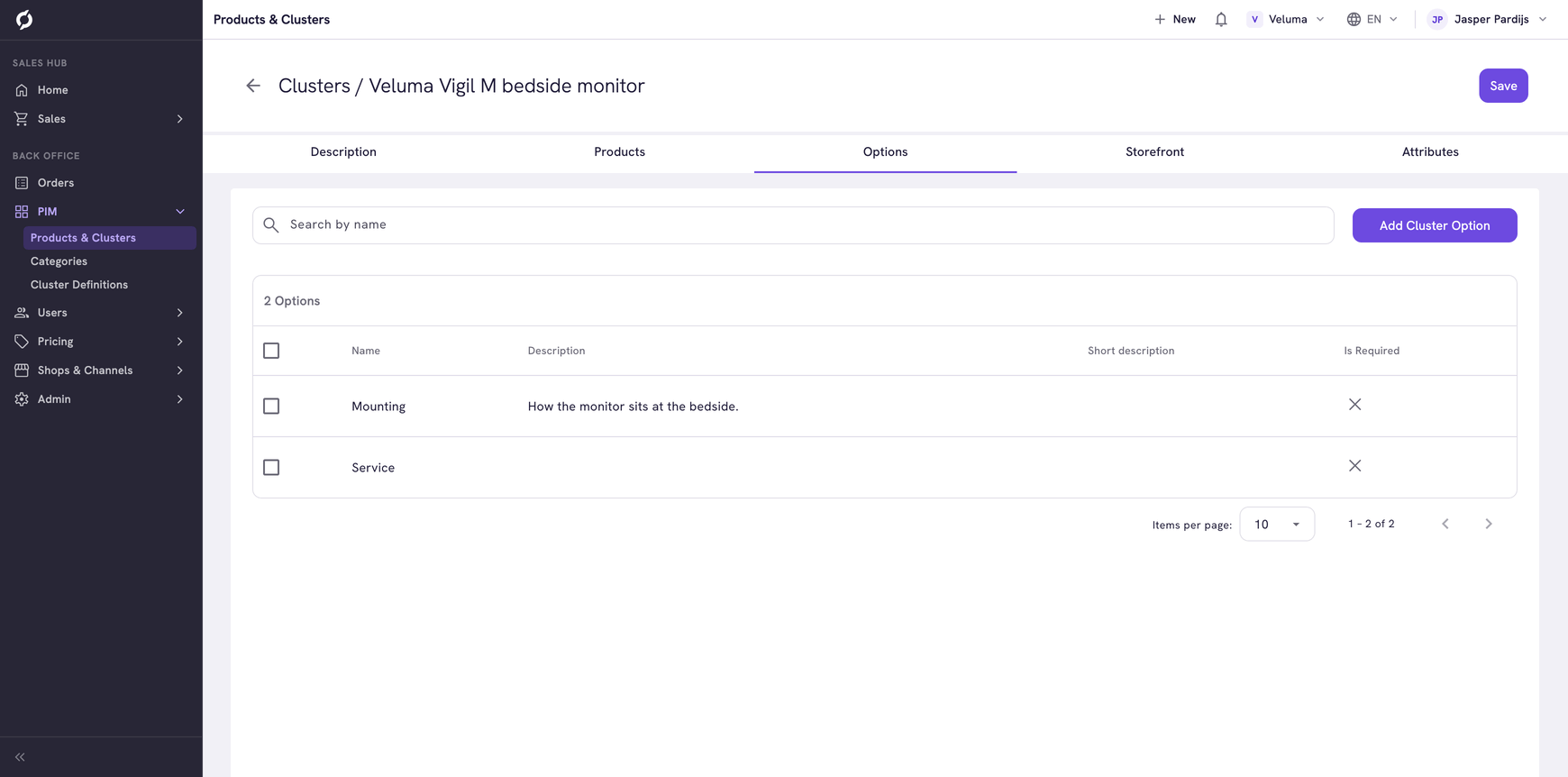
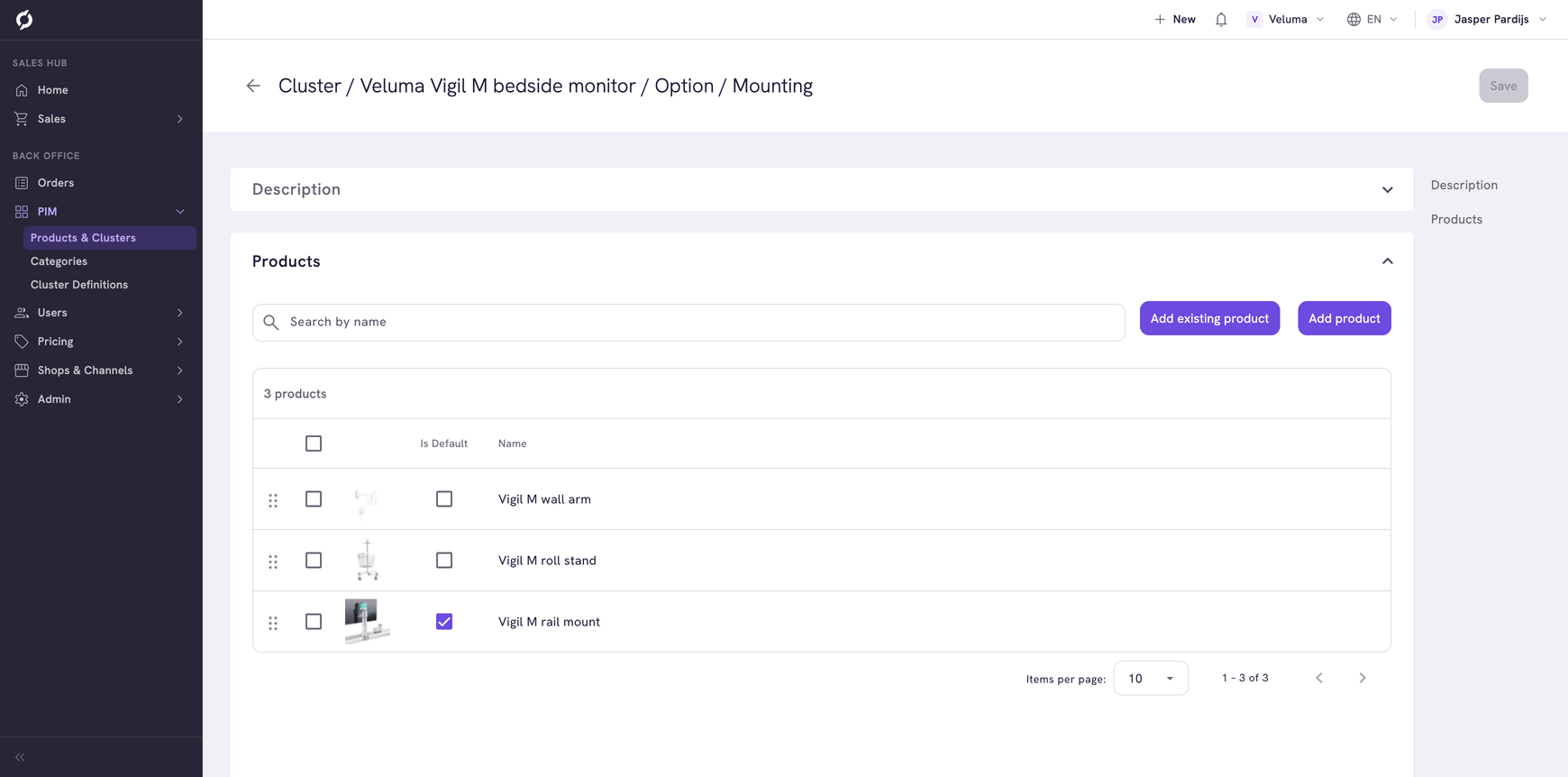
An option is an extra choice on top of the variant, for example a warranty of three or five years. Every choice of an option is a product with its own price.
- Click the Options tab and click Add Cluster Option.
- Type a Name and set Is Required to Yes if the customer has to choose.
- In the Products section of the option, click Add product and add the products the customer chooses from.
- Tick Is Default on the choice that is selected at the start.
Show accessories and alternatives with a cluster
On the Storefront tab you pick the products that are offered together with the cluster, in the same way as for a product. See Show accessories and alternatives with a product.
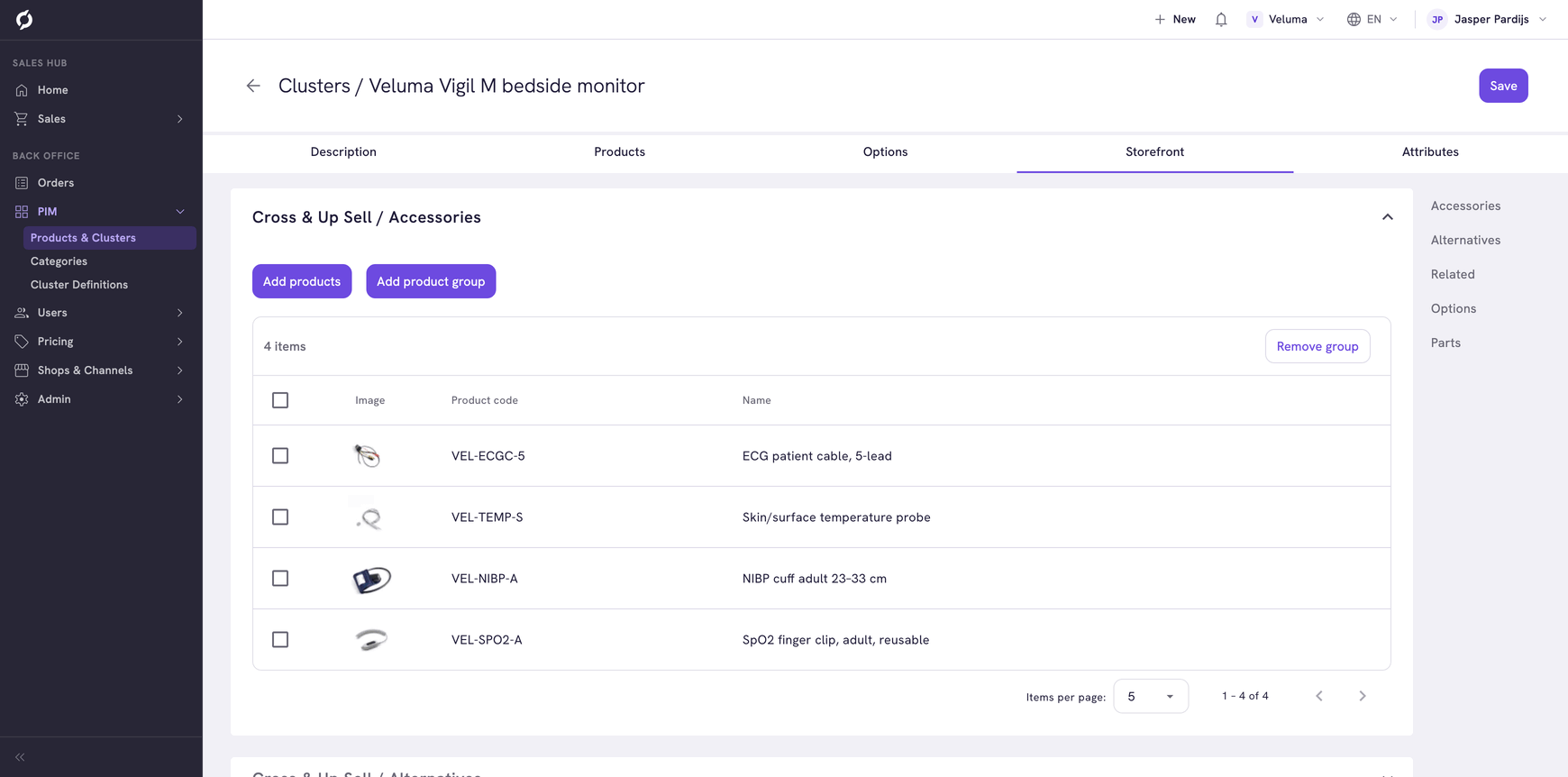
Set them on the cluster, not on its products. The Sales Hub shows the ones of the cluster only.
Delete a cluster
- Go to PIM > Products & Clusters and tick the cluster.
- Click Delete and confirm.
Deleting a cluster also deletes every product in it. Move the products out first if you want to keep them.
Related pages
- Cluster Definitions
- Find and manage products
- Product Detail Page - how a sales rep sees a cluster