Add your own fields with attributes
An attribute is a field your company adds itself, for example the material of a product, the region of a company or a project code on an order. You define the field here. Its value is filled in on each product, company or order.
Before you begin
- You need Backoffice access and the Configuration role. To create or delete an attribute you need Owner access.
- For a field with a fixed list of choices, make the list first. See Value Sets.
Decide three things first
These three cannot be changed after you save.
| Choice | What it is | Think about |
|---|---|---|
| Name | The code of the field, in capitals with underscores, for example PROJECT_CODE | Nobody outside the Backoffice sees it. Rules, imports and connections use it |
| Type | The kind of value | See the table below |
| Valueset | The list of choices, for the type Enum | The list has to exist already |
| Type | Holds | Elsewhere it is called |
|---|---|---|
| Text | A text, with a value per language | Text |
| Enum | One or more choices from a value set | List |
| Int | A whole number | Number |
| Decimal | A number with decimals | Number |
| Datetime | A date and time | Date |
| Color | A colour | Color |
Create an attribute
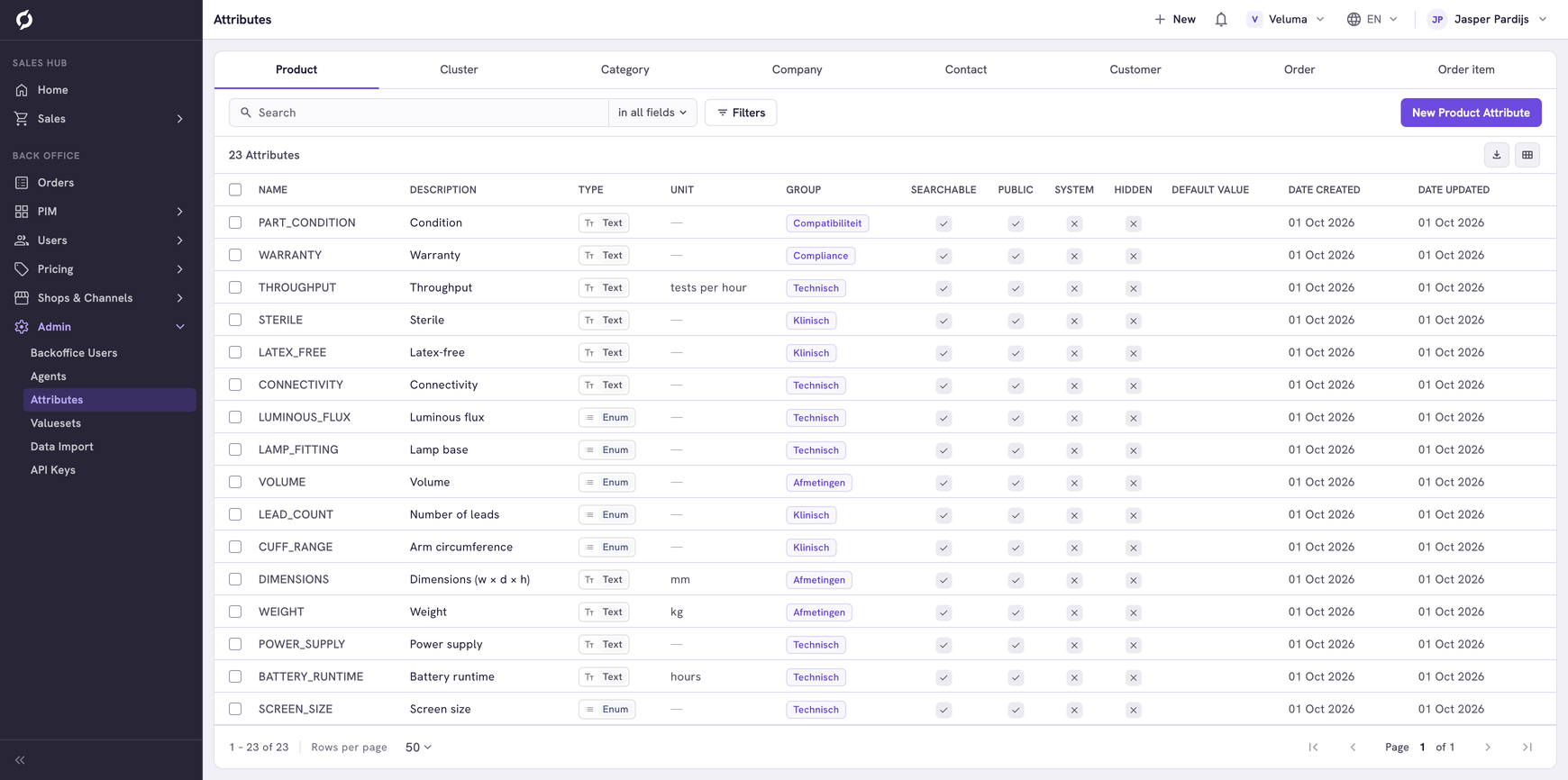
- Go to Admin > Attributes and click the tab of what the field is for: Category, Product, Company, Contact, Customer, Cluster, Order or Order item.
- Click the New button of that tab, for example New Product Attribute.
- Fill in the dialog and click Save.
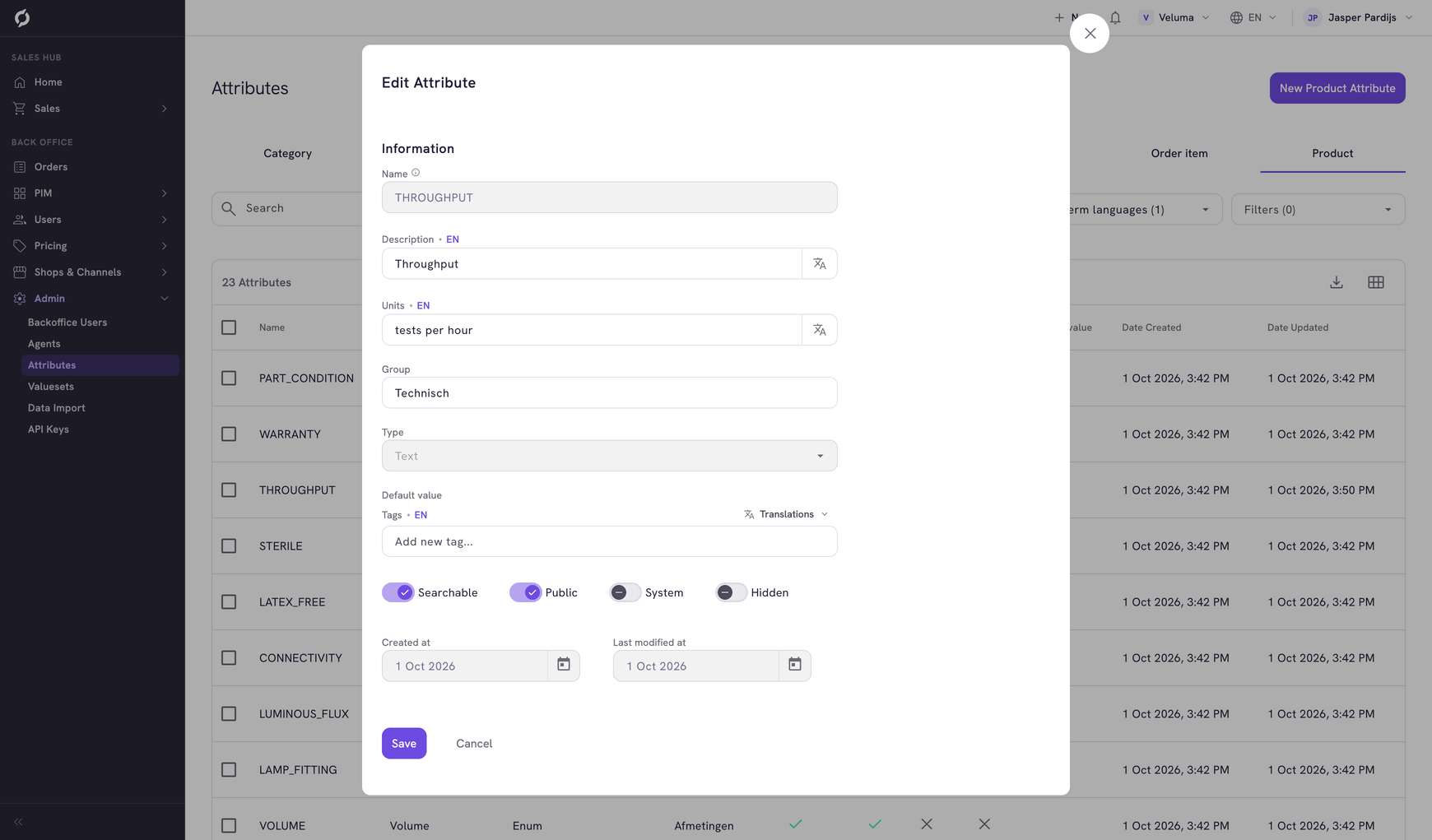
| Field | What it is | Required |
|---|---|---|
| Name | The code of the field. Cannot be changed later | Yes |
| Description | The label colleagues and customers read, per language | Yes |
| Units | The unit of a number, for example cm or kg | No |
| Group | A name to keep fields that belong together in one group | No |
| Type | The kind of value. Cannot be changed later | No |
| Default value | The value the field shows until someone fills it in. It is not saved on the record: business rules use it, while price sheets, search filters and integrations ignore it | No |
| Searchable | The field can be used as a filter. The Product Catalogue of the Sales Hub shows a filter for fields that are Searchable and Public | No |
| Public | The field shows to customers, for example in the specifications of a product | No |
| System | Only users with system access can see and change the field. Leave it off | No |
| Hidden | The field shows on no screen. For data that only a connected system uses | No |
Fill in the value
A new attribute is empty. You fill in its value where the record is.
A field that only has its default value shows it with a dashed Default tag. Point at the tag to read where the default counts. An attribute column in a list marks a default value too.
| Attribute of | Fill it in on |
|---|---|
| A product or cluster | The Attributes tab of the product or cluster |
| A category | The Attributes tab of the category |
| A company, contact or customer | The Attributes tab of that company or person |
| An order or an order line | The order editor. See Fill in your own fields on an order |
For many records at once, use Data Import.
Change or delete an attribute
Click a row to change an attribute. Name, Type and Valueset stay as they are.
To delete, tick the attributes, click Delete and confirm. Propeller refuses to delete an attribute that still has values. Empty those values first.
Related pages
- Value Sets - the lists of choices for the type Enum
- Cluster Definitions - use product attributes as the choices of a cluster
- Work with lists - show an attribute as a column