Fill in your own fields on an order
Your company can add its own fields to quotes and orders, for example a project code or a cost centre. Propeller calls such a field an attribute. This page shows where you fill them in, for the whole order and per line.
Before you begin
- You need Sales Hub access and the Order Data role.
- The fields must exist. A colleague adds them under Admin > Attributes, on the tabs Order and Order item. See Attributes.
Fill in a field of the order
- Open the quote or order and click Attributes under the title. The section lists every order attribute with its value.
- Click the attribute you want to change and fill in a value.
- Click Save at the top right.
A field you did not fill in shows its standard value. Click Set to default on a row to go back to that value.
Keep the fields you use most at hand
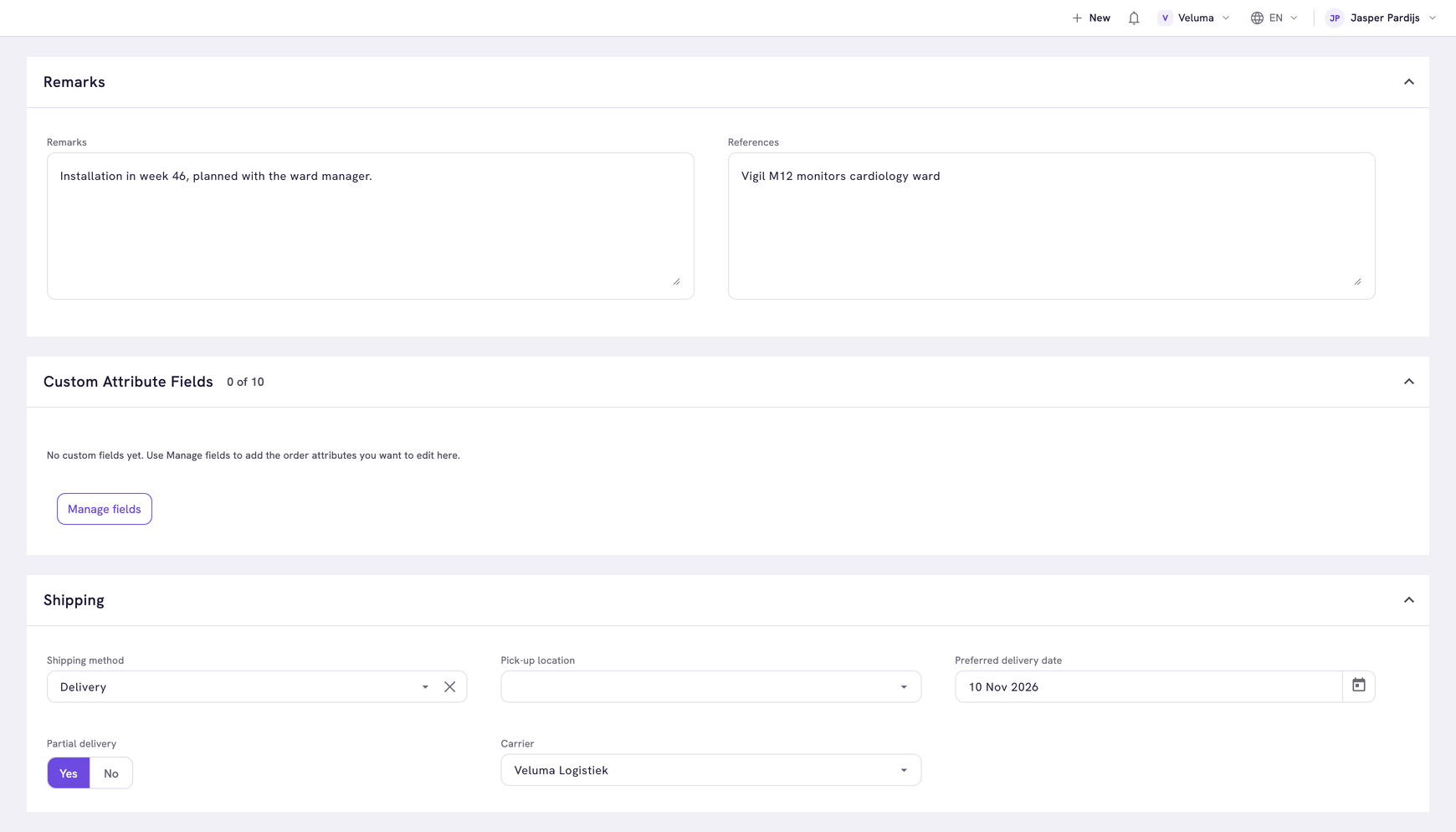
Fields you pin show as normal fields in the Custom Attribute Fields section, right under Remarks.
- Click Manage fields in the Custom Attribute Fields section.
- Choose the fields you want there, up to ten.
You can also click the pin on a row of the Attributes section.
Fill in a field per line
- Click the Table editor, the grid icon above the product list.
- Click Add attribute column and choose up to ten fields. Each becomes a column you fill in per line.
For fields you use less often, add the column Attributes instead. It gives every line a button that opens all fields of that line. Both ways also work on the lines of a cluster or a bundle.
On a quote or order whose status does not allow editing, you see the values and cannot change them.
Related pages
- Use the order editor
- Attributes - add the fields themselves