Use the order editor
Requests, quotes and orders all open in the same editor. This page explains its buttons, its price columns and its totals. For the steps, see Create a quote and Create an order.
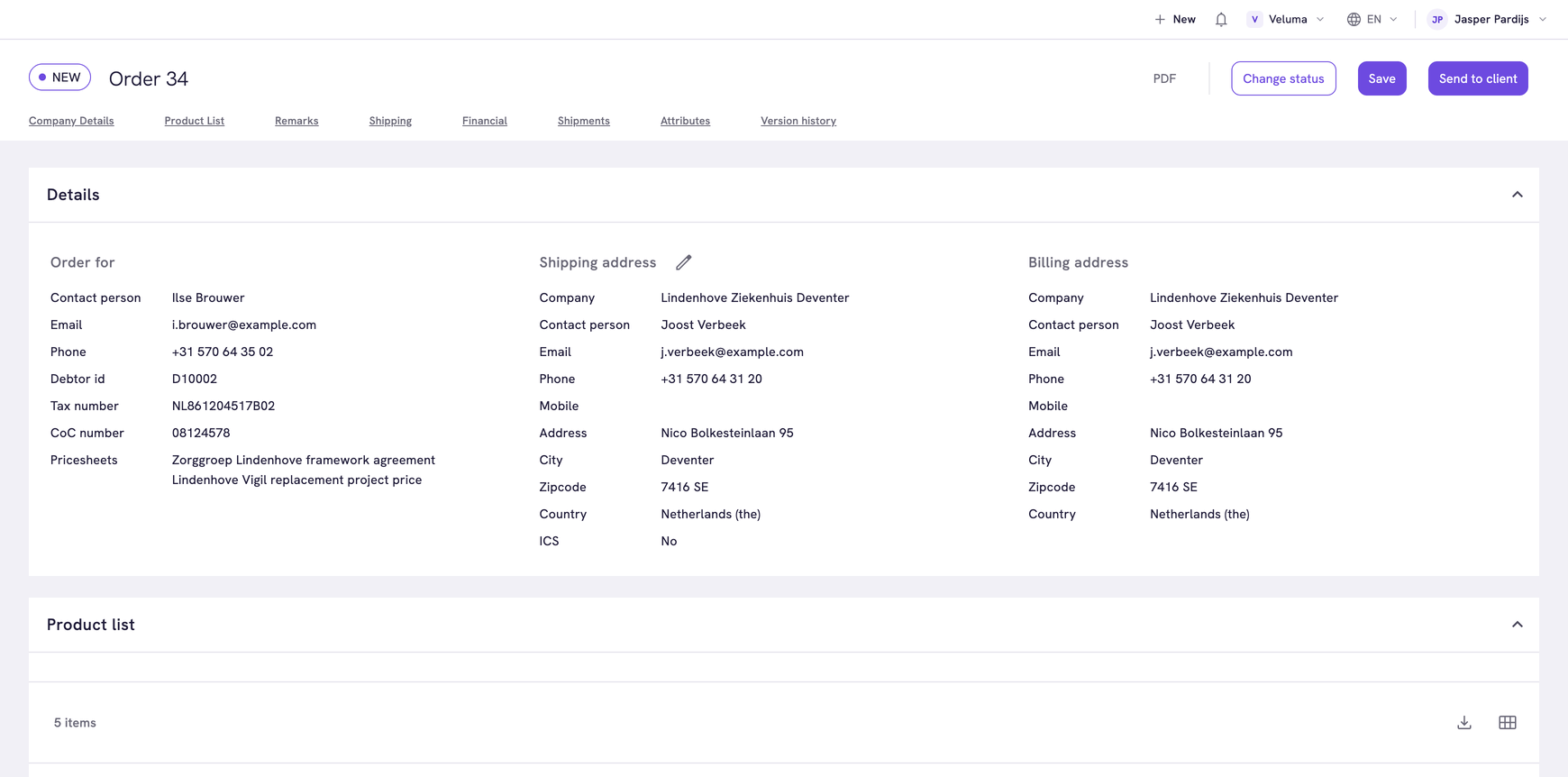
Find your way in the editor
The label in front of the title is the status. The links under the title jump to a section, for example Product List or Shipping.
A request opens read-only. Its Remarks section is called Notes from customer, and it has no Shipping and Financial sections.
Under Order for, Contact notes shows the notes your colleagues keep on the contact. Long notes are cut to three lines. Click Show more to read all of them. See Keep notes on a contact.
Use the header buttons
| Button | What it does | When you see it |
|---|---|---|
| Opens the quote or order as a PDF you can download | Greyed out until the first save. Not on requests | |
| Change status | Moves the quote or order to a next status and saves your changes | Greyed out when no next status is set up |
| Save | Stores your changes. The status stays the same | Hidden when the status does not allow editing |
| Send to client | Asks Propeller to email the quote or the order confirmation | Only on a status the customer can see. Not on requests |
| Workflows | Opens the AI agents for this page | Only when your company set up agents |
Read the prices on a line
The prices on a line are per piece and exclude VAT. The numbers below come from the first line of the quote in the image.
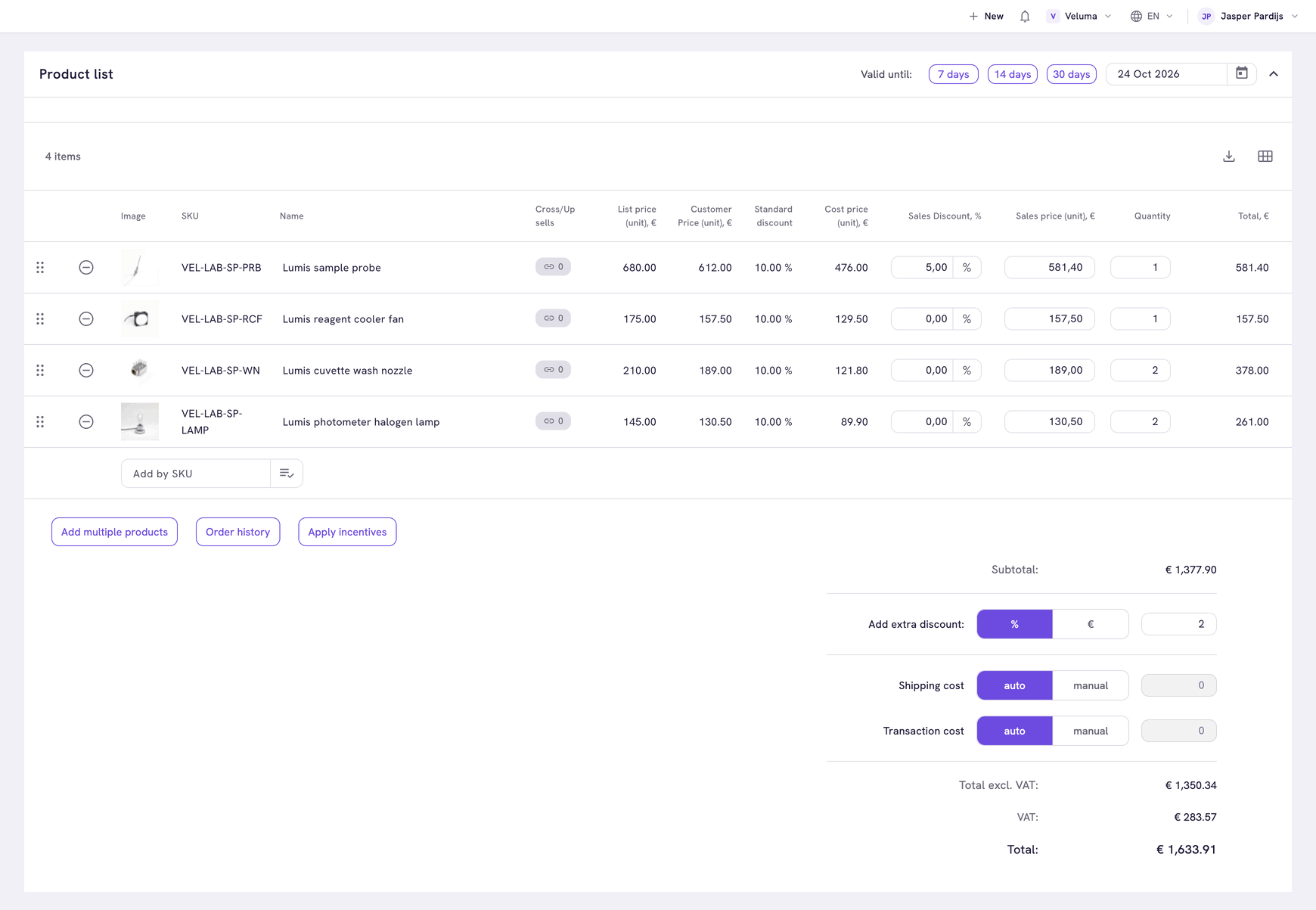
| Column | First line | What it is |
|---|---|---|
| List price (unit) | 680.00 | The standard price of the product |
| Standard discount | 10.00 % | How far the price of this customer lies below the list price |
| Customer Price (unit) | 612.00 | What this customer normally pays |
| Cost price (unit) | 476.00 | What your company pays for the product |
| Sales Discount, % | 5,00 | Your own discount on this line, taken off the customer price |
| Sales price (unit) | 581.40 | What the customer pays on this quote |
| Total | 581.40 | Sales price times quantity |
Click the Table editor, the grid icon above the list, to add more columns.
| Extra column | What it is |
|---|---|
| Sale Margin | The margin as a percentage of the sales price. Type a margin and the sales price is worked out for you |
| Total discount | The discount against the list price, all discounts together. Type one and the sales price is worked out |
| Sales Markup, % | The markup on top of the cost price. Type one and the sales price is worked out |
| Margin amount, € | What the line earns: the line total minus the cost price times the quantity. A free bonus line shows a negative amount. A dash means the line has no cost price or no price. Point at the dash to see which |
Cost price, Sales Markup and Margin amount do not show when your environment hides cost prices.
A sales price worked out from a percentage is rounded to the price decimals of your environment, so the percentage can differ slightly: 33.02% after you typed 33%.
Check the totals
| Line | What it is | You can change it |
|---|---|---|
| Subtotal | The sum of the lines | No |
| Add extra discount | A discount on the whole quote or order, as a percentage or an amount | Yes |
| Shipping cost | Worked out by the shipping cost rules | Yes, switch to manual |
| Transaction cost | Worked out by the transaction cost rules | Yes, switch to manual |
| Total excl. VAT | The amount the list pages show as Total | No |
| VAT | The VAT on that amount | No |
| Total | What the customer pays, VAT included | No |
In the image the subtotal is € 1,377.90. The extra discount of 2% brings the total excluding VAT to € 1,350.34.
A warning icon at Total excl. VAT means the amount is above what this contact may order without approval. See Change the status of a quote or order.
Apply incentives
Apply incentives runs the promotions of your environment on this quote or order, for example a free product from a certain quantity.
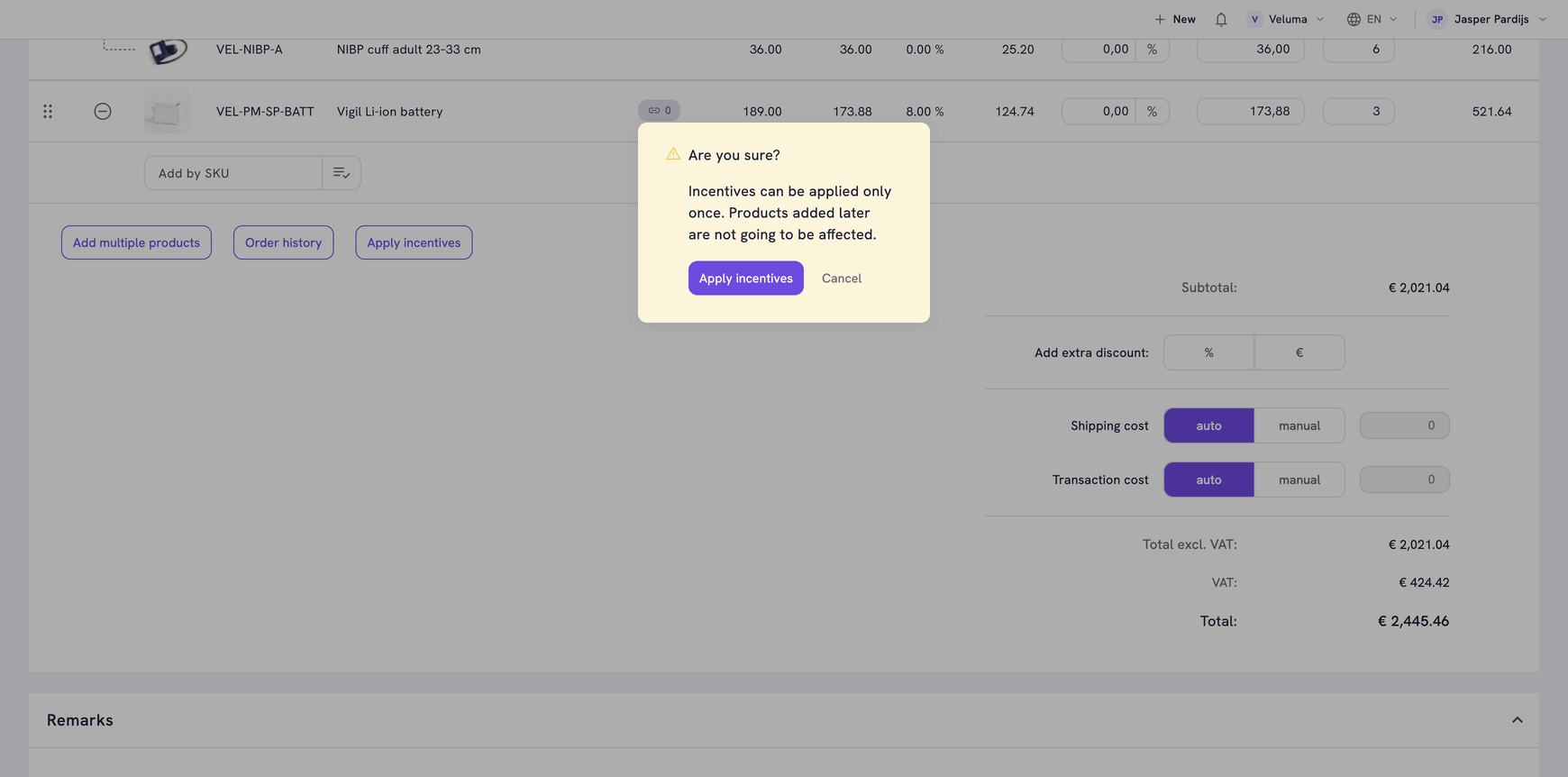
You can do this once per quote or order. Products you add afterwards are not looked at, so add every product first.
Leave the editor
Close the browser tab to leave. If you go to another page with changes that are not saved, Propeller asks whether to Save, Discard or Cancel.