Follow up on a quote or order
After a quote is sent or an order is placed, you come back to it: to see whether it was shipped, to download its PDF or to look up what changed. You do all of that in the order editor.
Before you begin
You need Sales Hub access and the Order Data role.
See whether an order was shipped
- Go to Sales > Orders and click the order.
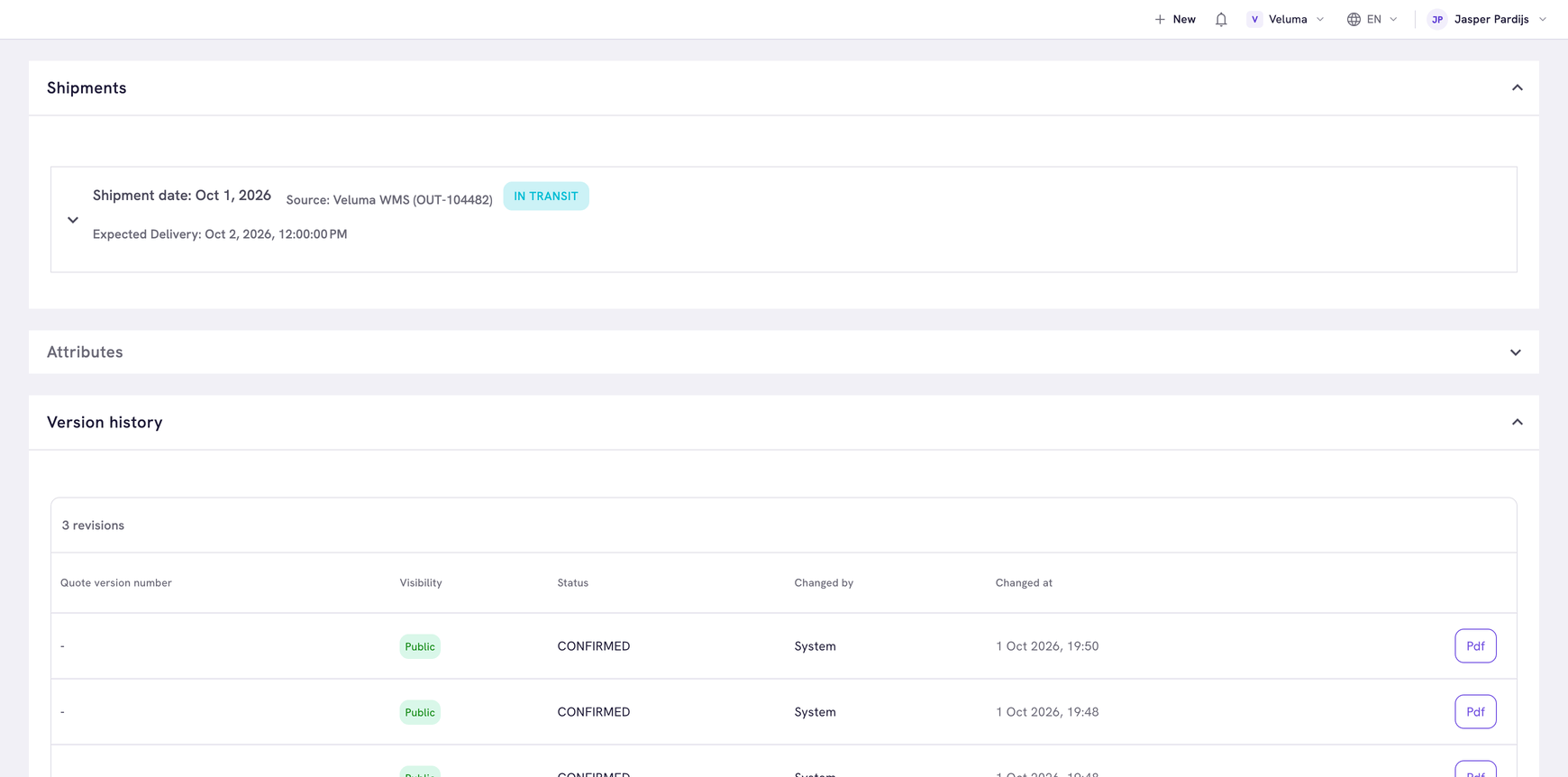
- Click Shipments under the title.
Every shipment of the order shows its date, its status and the expected delivery date. A status is for example In Transit. Source says which system or supplier made the shipment.
Click the arrow in front of a shipment to see which products it holds and its tracking code.
To see this for every order at once, add the Shipment status column to the list of orders with the Table editor. It says Not shipped, Partially shipped or Fully shipped. A shipment counts once it is on its way, not while it is only created or being processed. See Choose the columns.
You cannot add or change a shipment here. That is done in the Backoffice, see Shipments.
Download the PDF
- Open the quote or order.
- Click PDF at the top right. A preview opens.
- Click Download PDF.
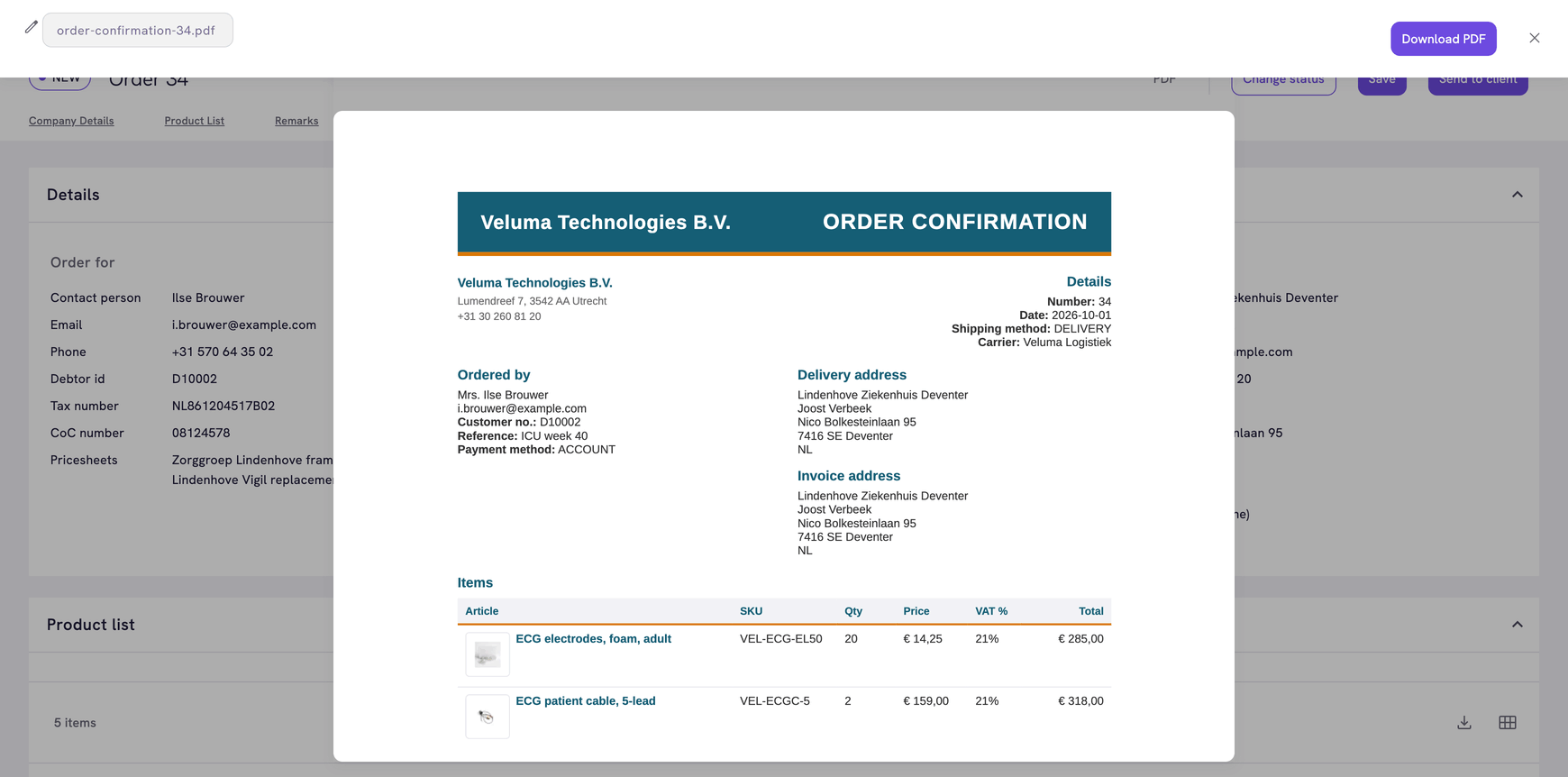
The button is greyed out on a new quote or order until you save it. A request has no PDF.
Look up an earlier version
Click Version history under the title. The table lists every saved version with its number, its status, who changed it and when.
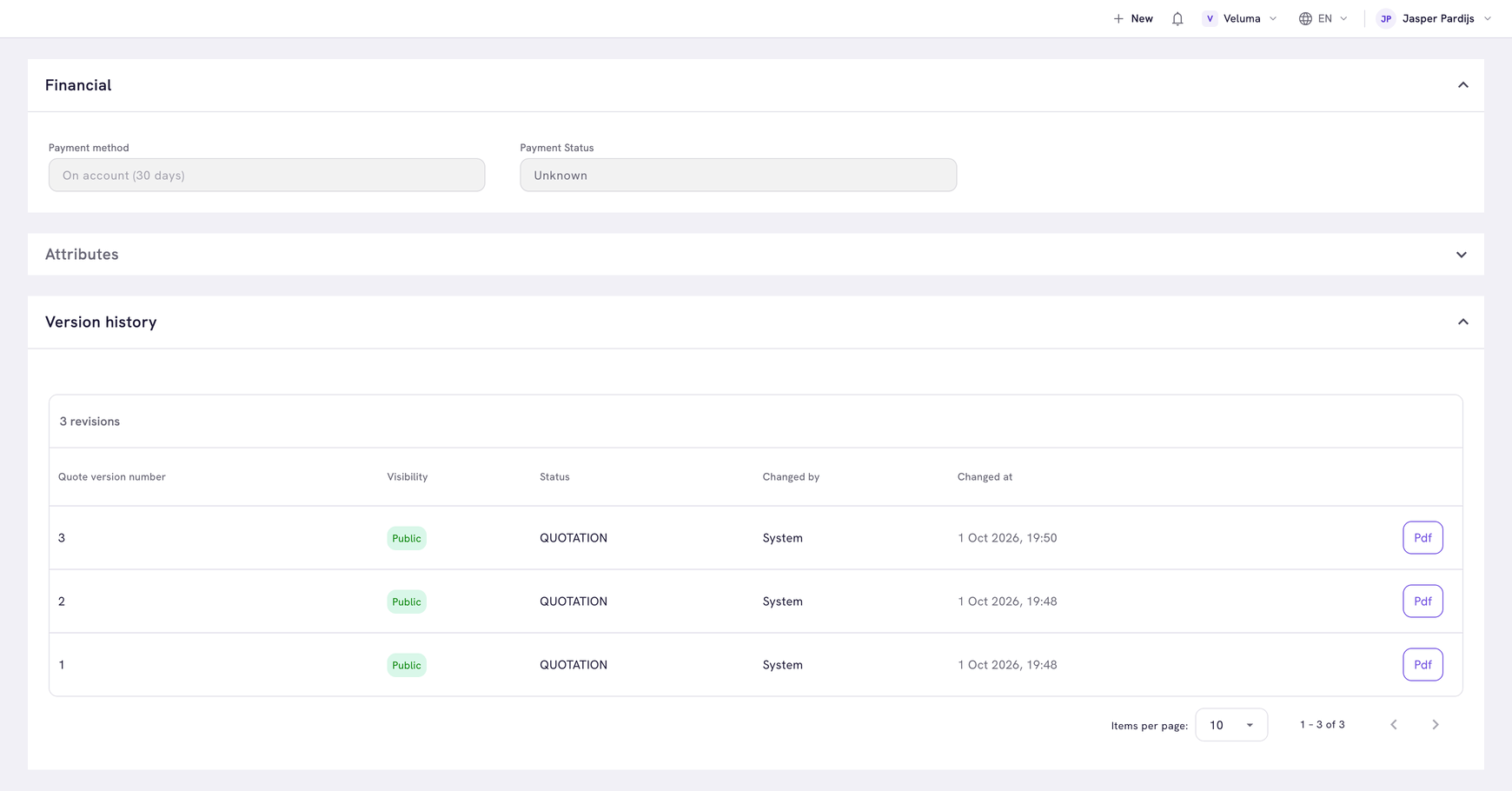
- Click Pdf on a row to open that version as a PDF.
- The visibility of a version is Draft, Public or Invalid.
- On a quote you can make a public version invalid, when your environment allows that.
Download the files of an order
When another system attached files to a quote, an order or a request, the editor shows a Secure Attachments section with the files. Click the download icon on a row.
You cannot add a file yourself. Without files the section does not show.
Related pages
- Change the status of a quote or order
- Use the order editor
- Shipments - create a shipment in the Backoffice