Look up products and customer prices
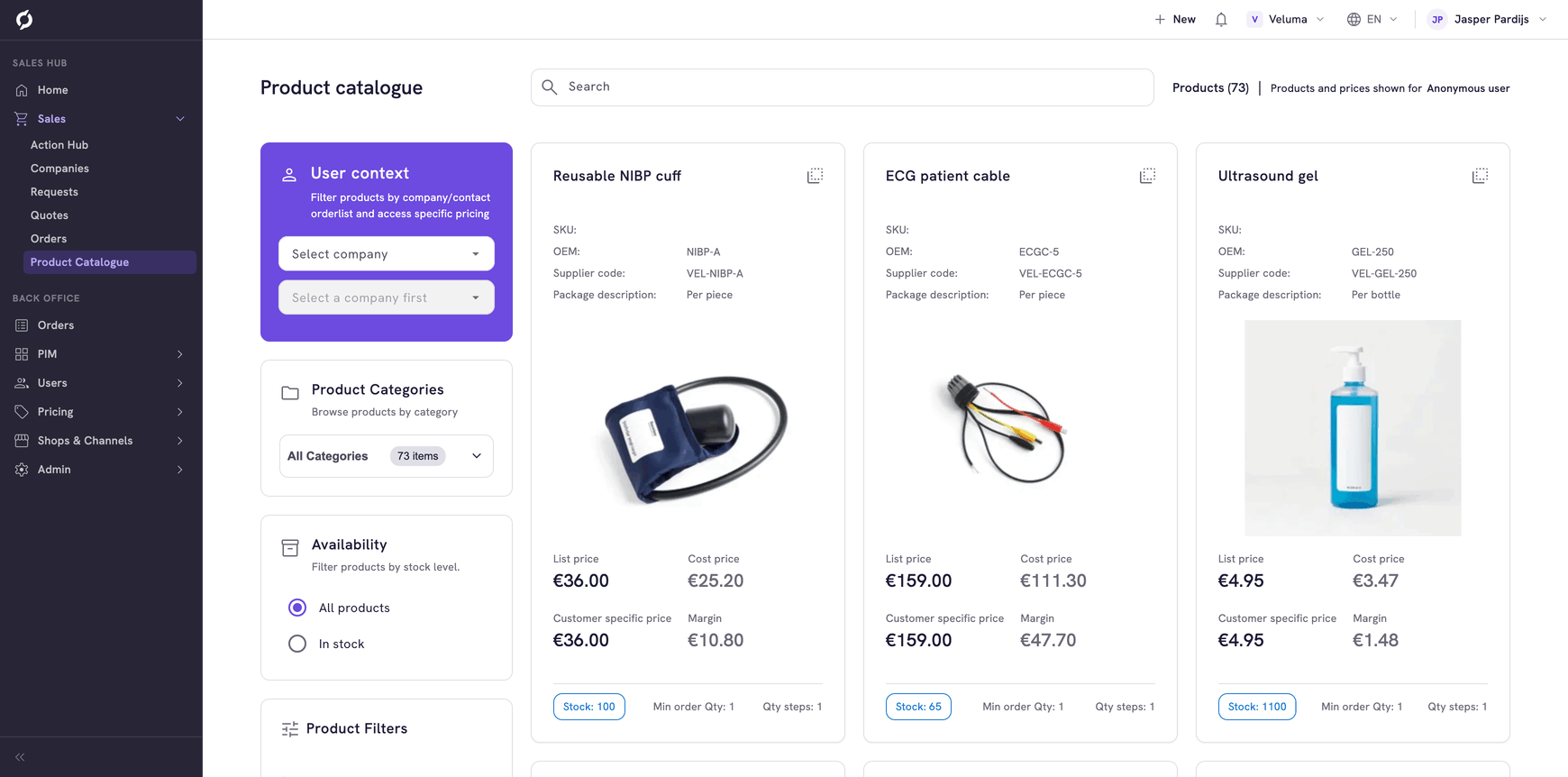
The Product Catalogue shows your products as cards, with price and stock. Choose a customer first and you see the products that customer may order and the price that customer pays.
Before you begin
You need Sales Hub access and the Product Data role.
See the prices of one customer
- Go to Sales > Product Catalogue.
- In the User context panel at the left, select the company.
- Select the contact in the list that opens by itself. This is optional, but a contact can have prices or products of their own.
The cards now show the Customer specific price, and the catalogue leaves out products this customer may not order.
The customer you selected stays selected while you browse. Check the name in User context before you read a price to someone on the phone. "Anonymous user" means no customer is selected, and you see list prices.
Click the × next to the company or the contact to remove the selection.
Find a product
- Search: type at least two characters. The search looks at the name, the SKU, the description, keywords, bar codes and the names and codes of the manufacturer and the supplier.
- Category: click the category list at the left, pick a category in the dialog that opens and you see only that category. Click the × to see everything again.
- Product Filters: tick a value, for example a material or a brand. The number behind a value says how many products match. Click Clear filters to remove them all.
- Availability: choose In stock to leave out products without stock.
The number of products above the cards follows your search and filters.
Read a product card
Prices on a card exclude VAT.
| On the card | What it means |
|---|---|
| List price | The standard price of the product |
| Customer specific price | The price for the customer in User context. Without a customer it equals the list price |
| Cost price | What your company pays for the product |
| Margin | The customer specific price minus the cost price, as an amount |
| Stock | The quantity in stock. A red 0 means no stock |
| Min order Qty | The smallest quantity a customer can order |
| Qty steps | The steps in which the quantity goes up, for example per 6 |
| SKU, OEM, Supplier code | Your own product code, the code of the manufacturer and the code of the supplier |
Cost price and Margin do not show when your environment hides cost prices.
A card with the cluster icon next to its name is a product with variants, such as sizes. Its prices and stock are those of the variant shown by default. Its SKU row shows the code of the cluster, which can be empty.
Open a product
Click the name or the image of a card. The Product Detail Page shows stock per warehouse, bulk prices and how the price of this customer was calculated.
The catalogue is for looking things up. To put a product on a quote or an order, open the quote or order and click Add multiple products. See Create a quote.