Check the stock and price of a product
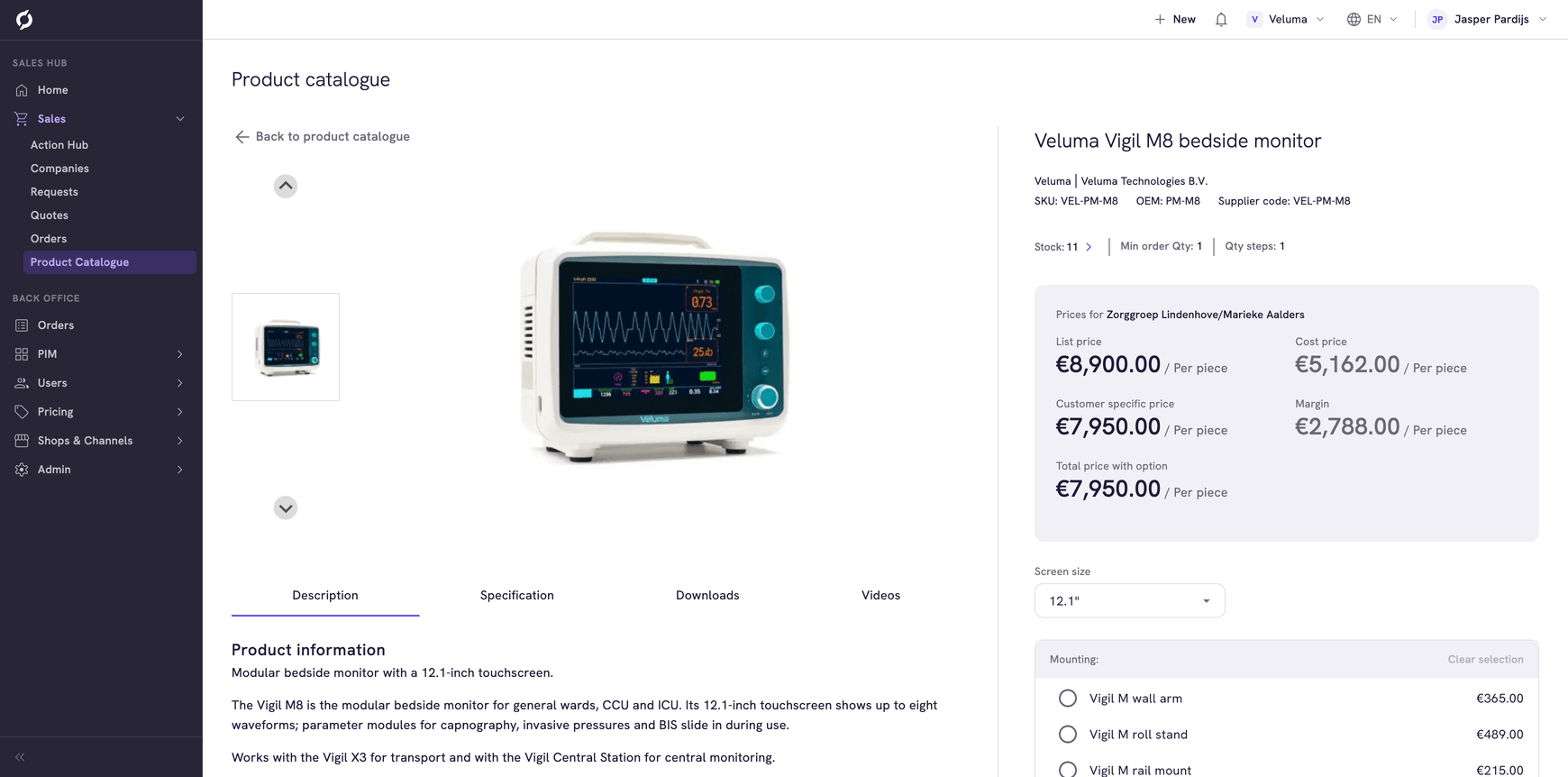
The product detail page answers what a customer asks on the phone: is it in stock, what do I pay and why that price. It also holds the description, the specifications and the downloads of the product.
Before you begin
You need Sales Hub access and the Product Data role.
Open the page
Click the name or the image of a product in the Product Catalogue. The page also opens when you click a product in the list behind Add multiple products on a quote or order.
Back to product catalogue at the top takes you back, with your search and filters as they were.
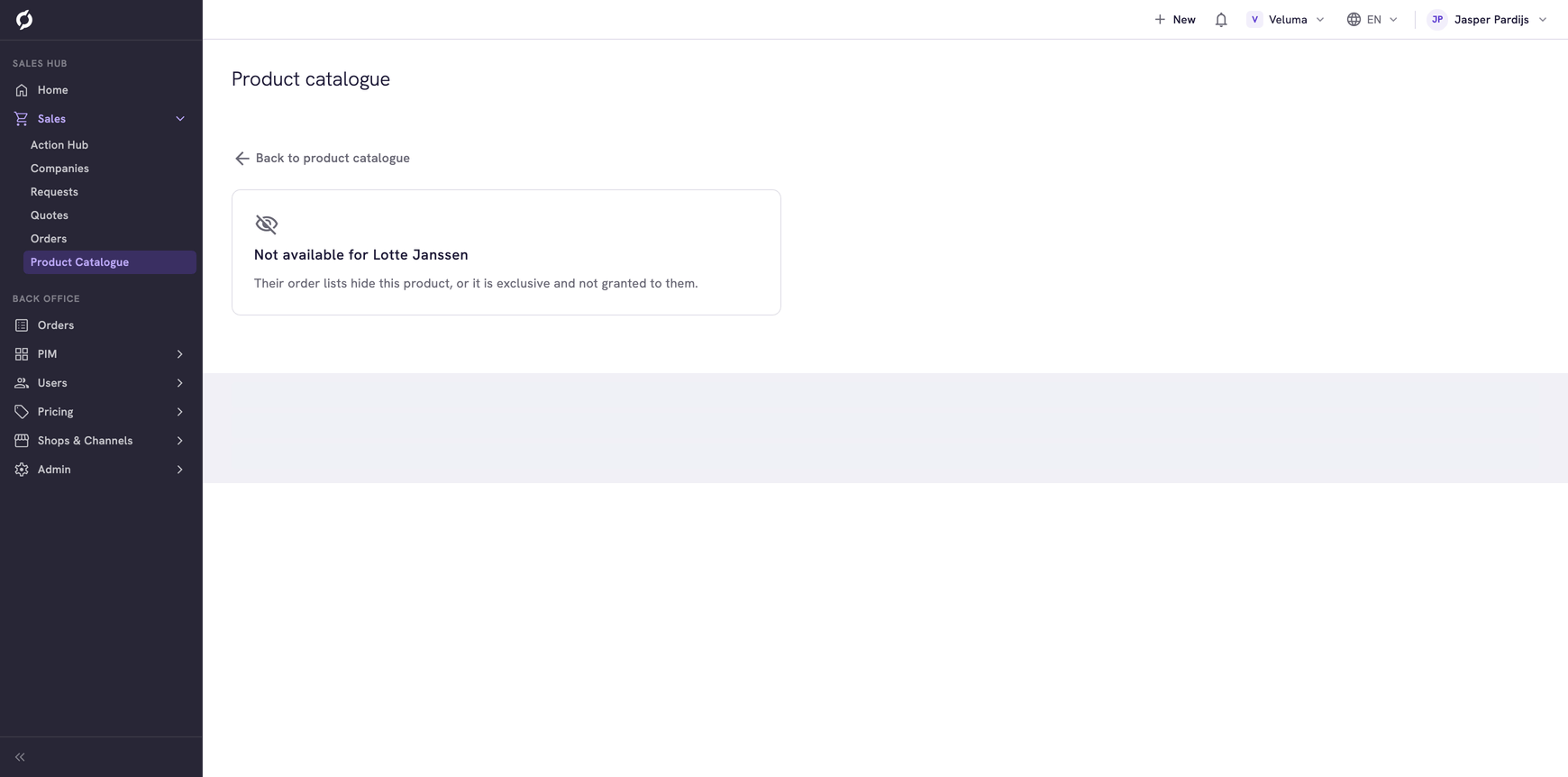
With a company or a contact selected under User context, the page shows the product as that customer sees it. When their order lists hide the product or it is exclusive to other customers, the page shows Not available for and the name of the customer. With nobody selected, an exclusive product shows Not available for anonymous users.
Check the stock
The right side of the page shows Stock, the smallest quantity a customer can order under Min order Qty and the steps in which the quantity goes up under Qty steps.
Click the Stock: line to open Stock per warehouse.
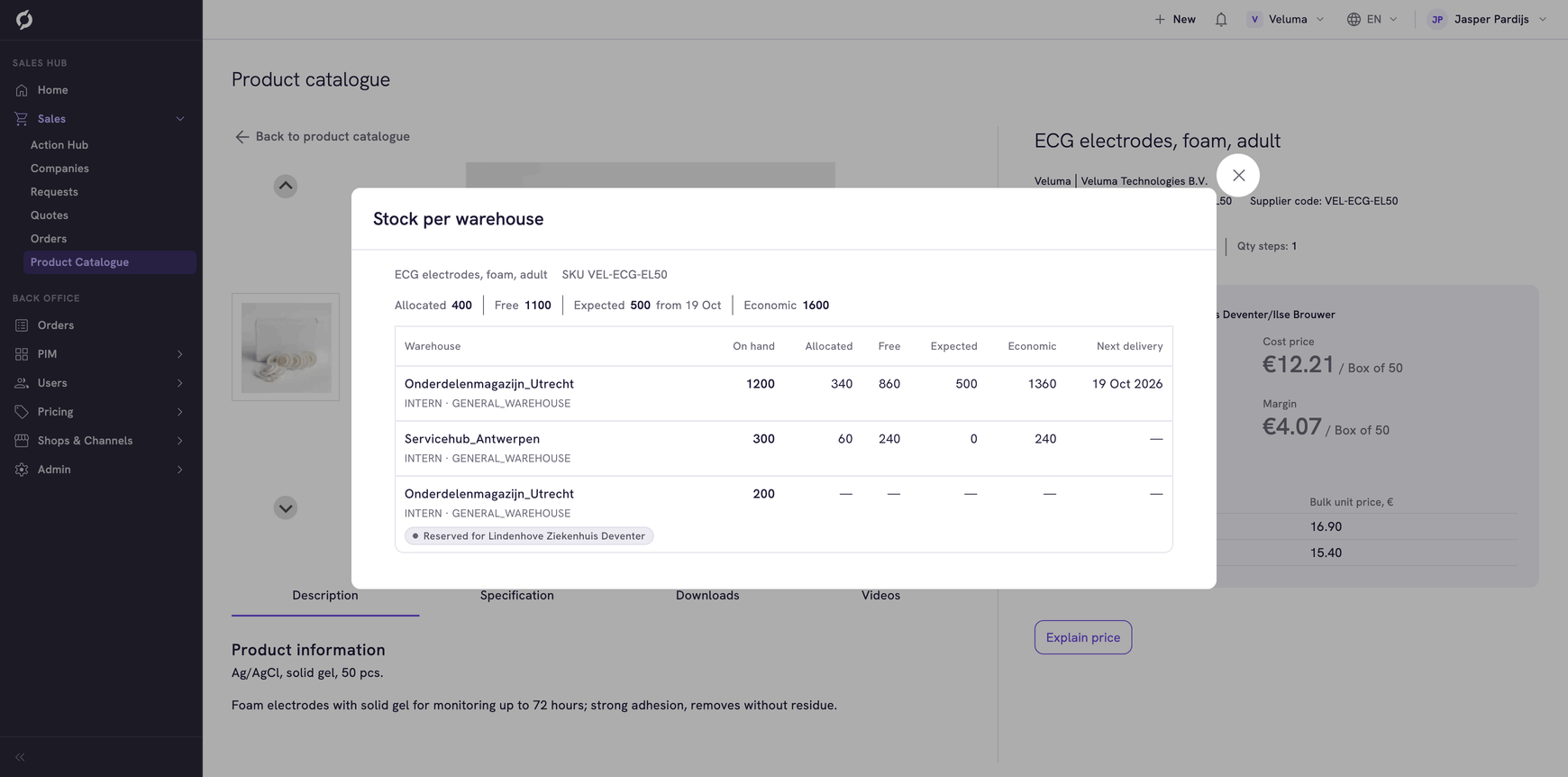
At the top are the totals Allocated, Free, Expected and Economic, when your stock data includes them. Point at a figure to read what it means.
| Column | What it shows |
|---|---|
| Warehouse | The warehouse, with the supplier and the place in it under the name |
| On hand | The quantity in that warehouse |
| Allocated, Free, Expected, Economic | The same figures per warehouse |
| Next delivery | When new stock is expected. A dash means none |
Stock reserved for the selected company shows as well, marked Reserved for. You cannot change stock here. It comes from your ERP or warehouse system.
Read the prices
The heading above the prices names the customer they are for. "Anonymous user" means no customer is selected in the catalogue. All prices exclude VAT.
| Price | What it means |
|---|---|
| List price | The standard price of the product |
| Customer specific price | The price for the selected customer |
| Cost price | What your company pays for the product |
| Margin | The customer specific price minus the cost price |
| Total price with option | For a product with extra options: the price including the options you picked |
Cost price and Margin do not show when your environment hides cost prices.
Bulk prices opens a table with the price per piece from a certain quantity. Surcharges lists extra fees on the product, such as a recycling fee.
See how a price was calculated
- Click Explain price.
- Read the dialog: it lists the price sheets and discounts that led to the price of the selected customer.
- To try another quantity or another customer, change it in the dialog and click Calculate.
A message tells you when you changed something and the result on screen is not yet worked out again.
Choose a variant
Some products come in variants, for example sizes or screen formats. Propeller calls such a product a cluster. Pick a value for each choice, for example the size. The page then shows the price, the stock and the SKU of that variant. Values that do not go together are greyed out.
A cluster can also have options, such as an extra warranty. Pick one and Total price with option adds it to the price. An option with an asterisk is required.
See what else to offer
Lower on the page, Accessories, Alternatives, Options, Parts and Related show products that go with this one. Only the groups that have products show.
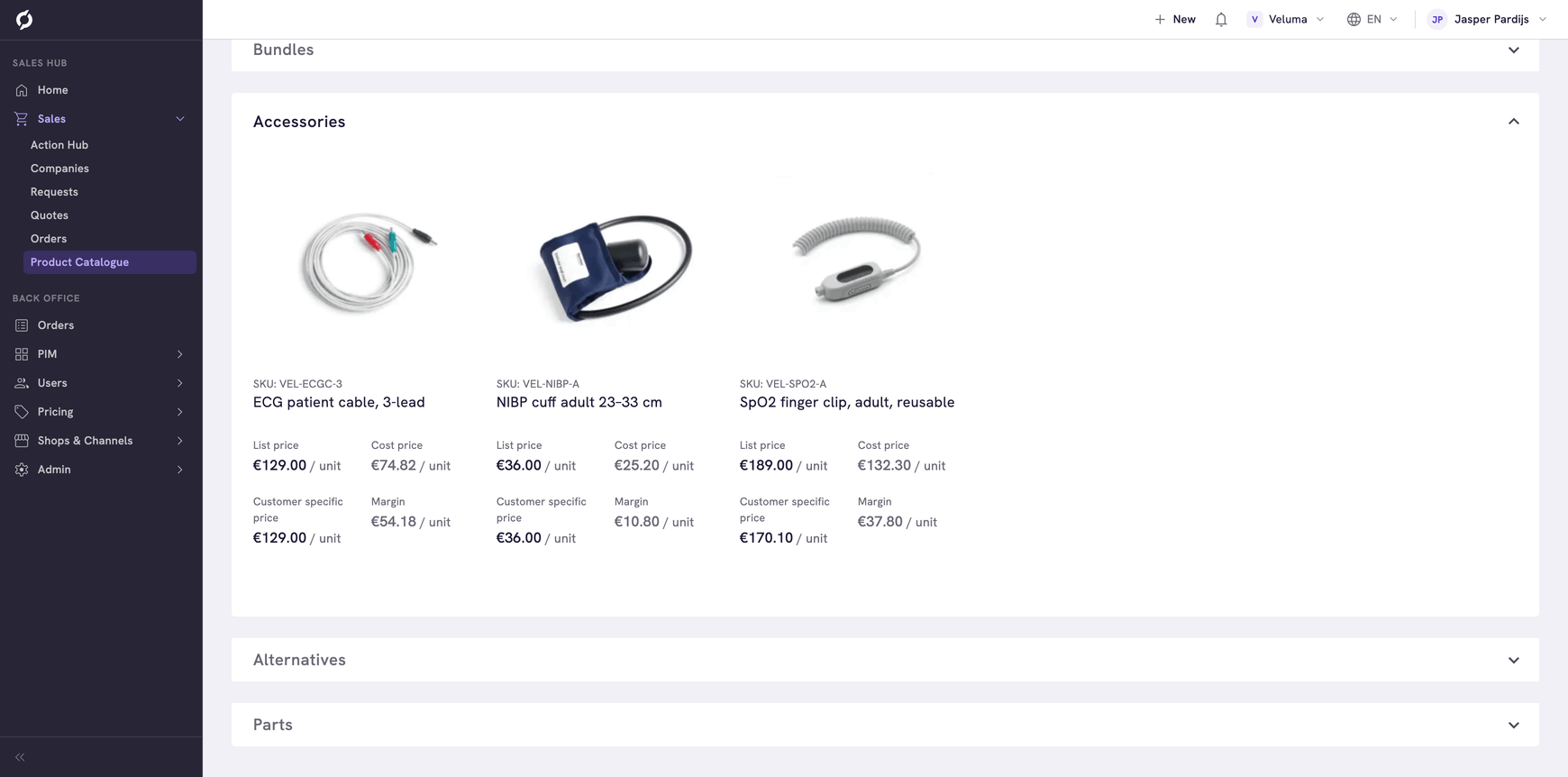
When you opened the page from a quote or an order, each of those products has an Add to quote or Add to order button.
A bundle shows as a sum: the products of the bundle, the normal price crossed out, the bundle price and what the customer saves.
Read more about the product
Under the images, four tabs hold the rest: Description, Specification with the product attributes, Downloads with documents such as a datasheet and Videos.
The Edit link next to the name opens the product in the Backoffice. It shows when you came from a quote or an order and needs Backoffice access.
Related pages
- Product Catalogue - select the customer first
- Give a discount on a quote or order