Use workflows and AI agents
An AI agent is a helper you start from the page you work on. It looks at the quote, product or list you have open and answers a question. For example, it checks whether the margin on a quote is high enough. You start an agent with the Workflows button.
Before you begin
- Agents are set up per company. You only see a Workflows button on a page when your company registered an agent for that page. No button means there is none. Ask the colleague who manages your Backoffice.
- What an agent does is decided by the workflow behind it. Read its description before you start it. Most agents only answer. Some can change the quote or order you have open.
Open the agents
Click Workflows on one of these pages. On a list it sits next to the buttons above the list.
| Page | Where |
|---|---|
| A quote, an order or a request | The editor, next to Save |
| A company | Sales > Companies, then the company |
| The companies list | Sales > Companies |
| The product catalogue | Sales > Product Catalogue |
| A product in the catalogue | Sales > Product Catalogue, then the product |
| The Action Hub | Sales > Action Hub |
| The product list of the Backoffice | PIM > Products & Clusters |
| A product in the Backoffice | PIM > Products & Clusters, then the product |
| The categories | PIM > Categories, and a category |
| Favorite lists | Users > Favorite Lists |
| Order lists | Users > Order Lists |
| Price sheets | Pricing > Price Sheets |
| Business rules | Shops & Channels > Business Rules |
| Templates | Shops & Channels > Templates, and a template |
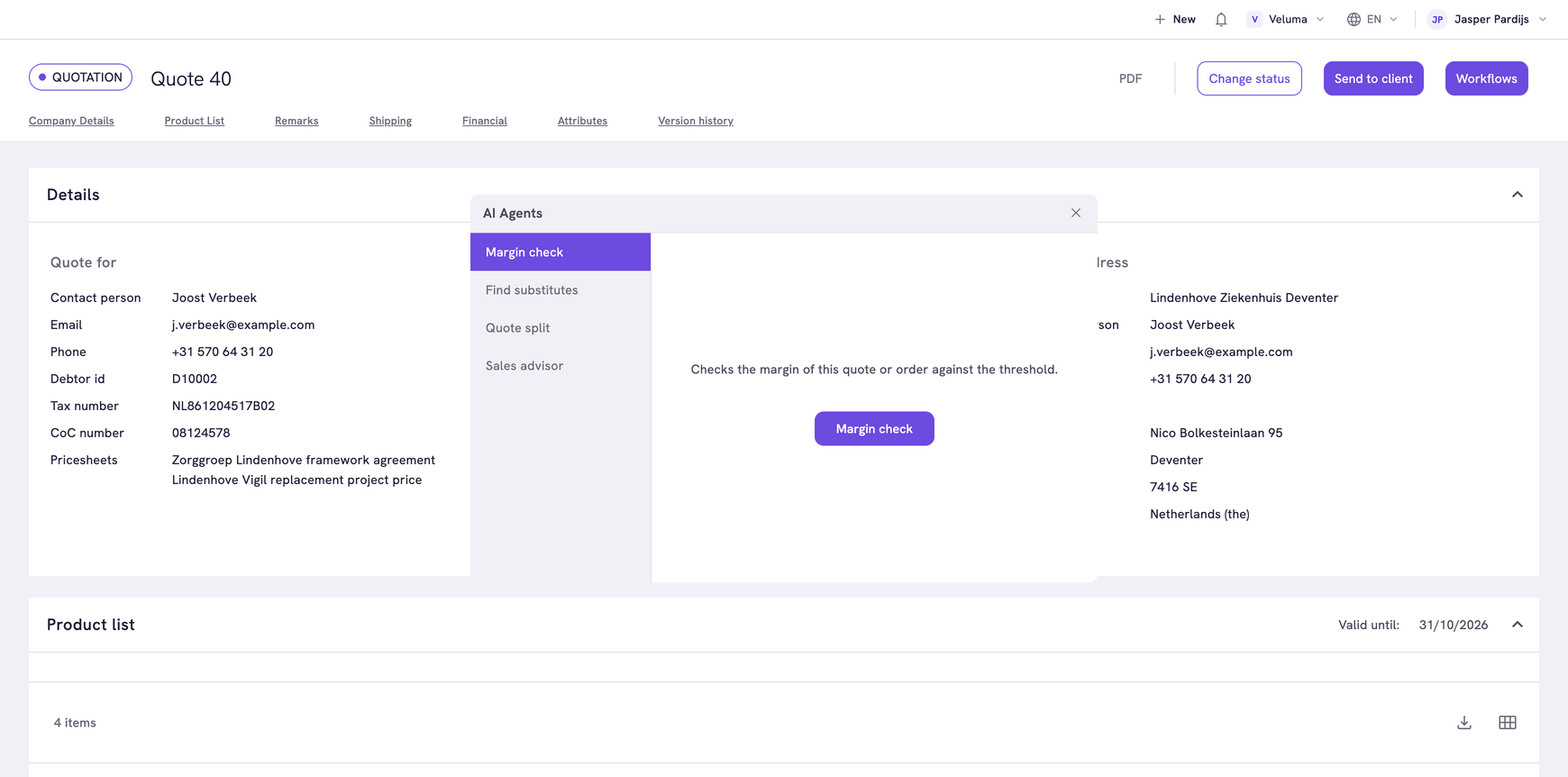
The AI Agents dialog opens. The agents for this page stand at the left. Click one to select it. You can drag the dialog aside to keep an eye on the page behind it.
Start an agent with a button
- Select the agent. Its description says what it will do.
- Click the button of the agent.
The answer shows in the dialog. With some agents you can then type a follow-up question.
Ask an agent a question
- Select the agent. It greets you with a short message.
- Type your question and press Enter or click Send.
Three dots show while the agent works. An agent that works with AI can be wrong, so check an answer before you act on it or read it to a customer.
You can switch to another agent and come back. The conversation with each agent is kept while you switch.
Related pages
- Action Hub - work that workflows prepare for you without a click
- Agent Hub - example agents your company can install
- AI Agents - register an agent in the Backoffice