Give a discount on a quote or order
You can lower the price of one line, or of the whole quote or order. You do both in the order editor while you build the quote or order.
Before you begin
- You need Sales Hub access and the Order Data role with Editor or Owner access.
- The status must allow editing. On a standard environment that is Draft Quote, Draft Order and Order.
Discount one line
Set the quantity first. A new quantity resets the sales price and the discount of that line.
- Open the quote or order and find the product in the product list.
- Type a percentage in Sales Discount, % on that line.
- Click Save.
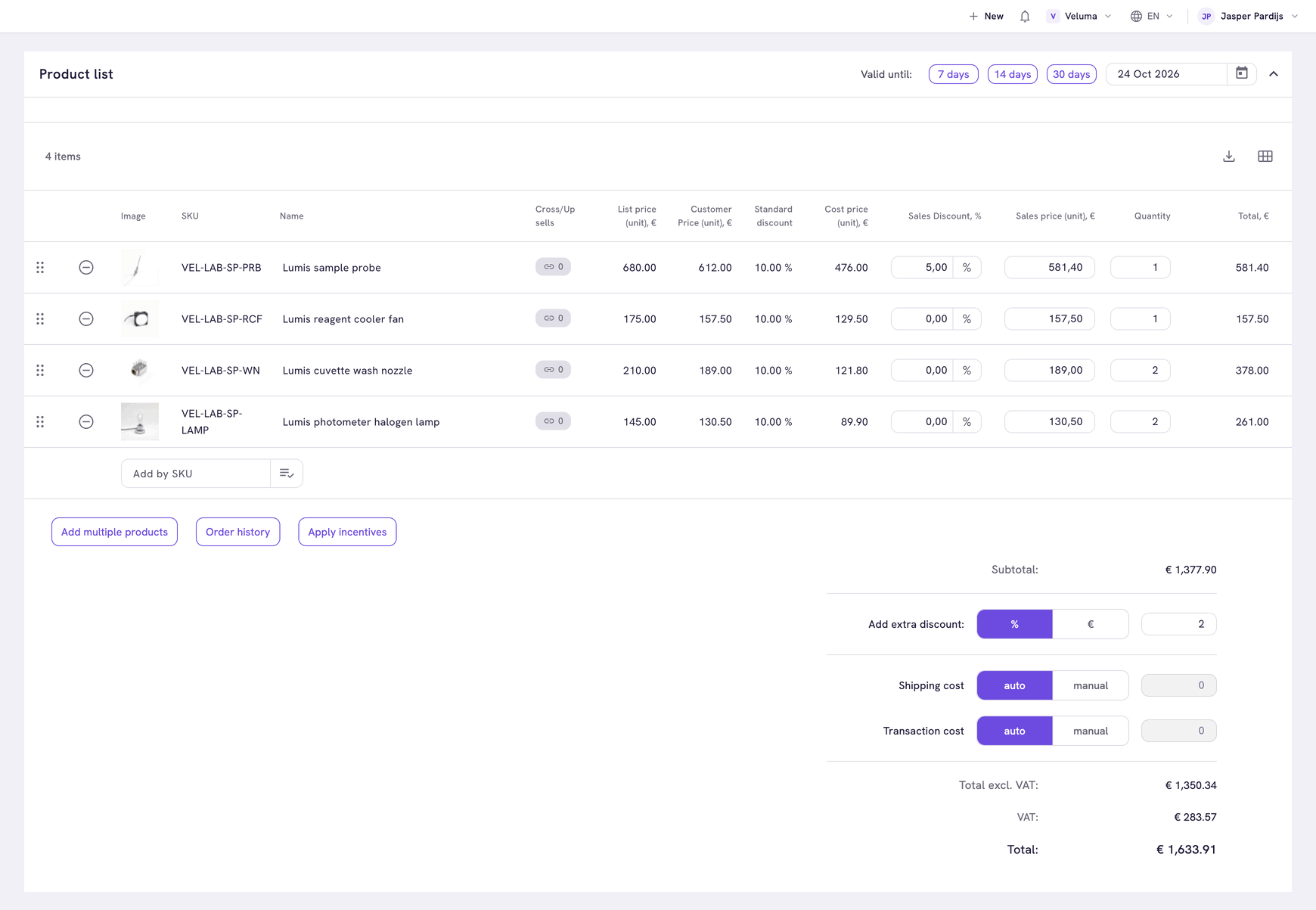
The percentage comes off the customer price, not off the list price. In the image the customer price of the first line is 612.00. A sales discount of 5% makes the sales price 581.40.
You can also type the price itself in Sales price (unit).
Discount the whole quote or order
- Under the product list, find Add extra discount.
- Click % for a percentage or € for an amount and type the value.
- Click Save.
The extra discount comes off the subtotal, after the discounts per line. In the image 2% off the subtotal of € 1,377.90 gives a total excluding VAT of € 1,350.34.
When a rule should do it for you
If the same discount applies to every order that meets a condition, for example 10% on orders above € 5,000, do not type it each time. Ask the colleague who manages promotions to set it up once as an incentive. See Incentives.
Related pages
- Use the order editor - every price column on a line
- Product Detail Page - how the price of a customer is built up