Set up promotions with incentives
An incentive is a promotion that Propeller applies by itself when an order meets your conditions: a discount, a free product or lower shipping costs.
Before you begin
You need Backoffice access and the Configuration role. To create or delete a rule you need Owner access, to change one Editor or Owner access.
Know where a promotion counts
- In the webshop promotions count by themselves, every time the cart changes.
- In the Sales Hub a sales rep clicks Apply incentives on a quote or order, once all products are on it. Products added later are not looked at. A second click gives the discount on the order total again.
- A discount code only works in the webshop. The Sales Hub has no field for a code.
Choose what the promotion gives
Go to Shops & Channels > Business Rules, click Incentives above the list and open the rule. Under THEN, choose the Action of a subrule.
| Action | What the customer gets |
|---|---|
| Give discount to order item | A discount on the lines that meet the conditions |
| Give discount to order total | A discount on the whole order |
| Give discount to cheapest item | A discount on the cheapest pieces that meet the conditions |
| Add product to bonus items | An extra product, free or at a lower price |
| Duplicate product in bonus items | Extra pieces of a product you choose, free by default |
| Duplicate cheapest in bonus items | The cheapest pieces once more, as a new line |
| Set shipping costs | Other shipping costs for this order |
| Set transaction costs | Other transaction costs for this order |
A discount on lines or on the total starts in €. Click % for a percentage.
Give a product away
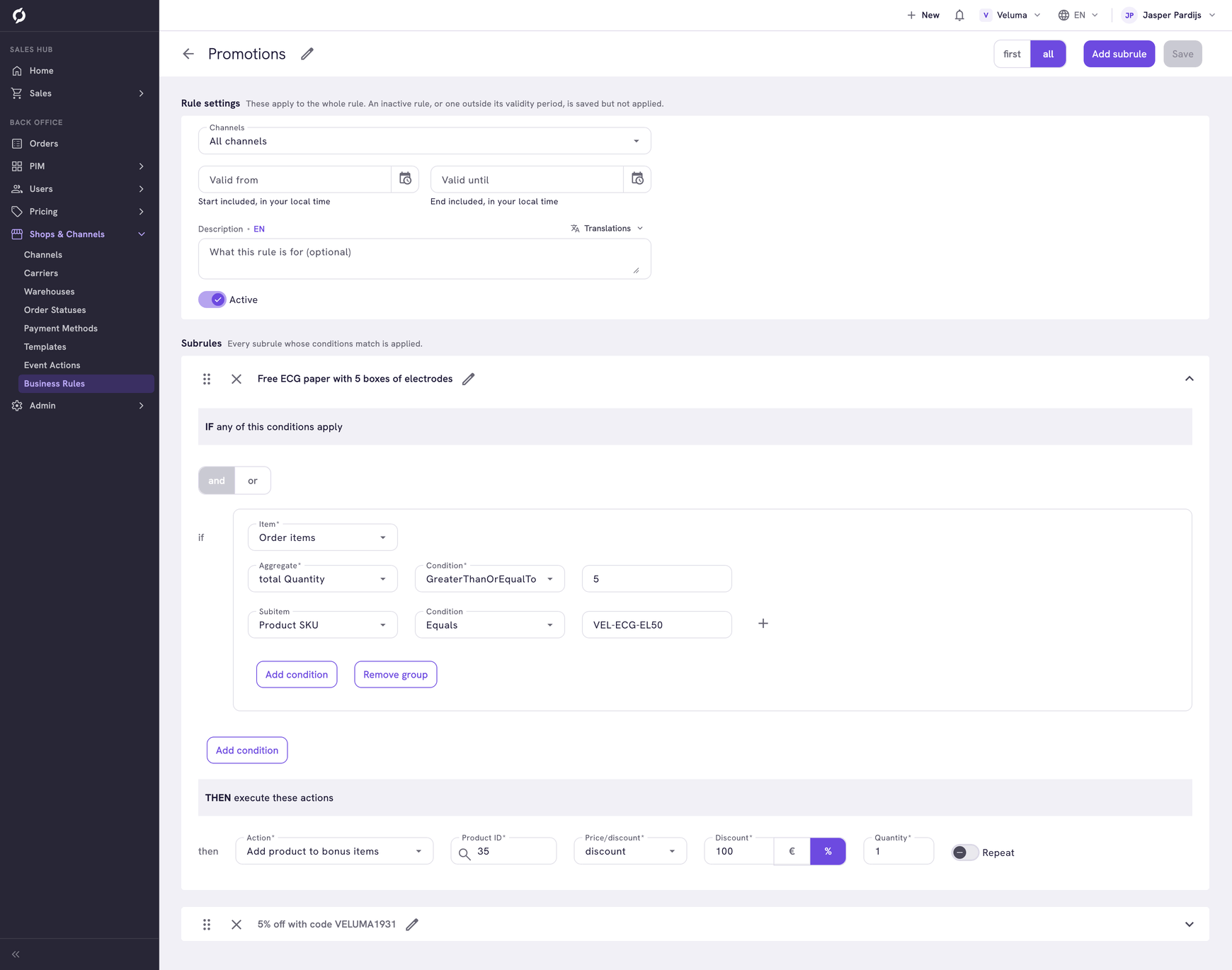
For Add product to bonus items:
- Under Product ID, click the search icon and pick the product you give away.
- Under Price/discount, choose discount and type 100 with % to make it free. Or choose price and type what the customer pays per piece.
- Type the Quantity of pieces.
The product is added to the order as an extra line.
Give the cheapest piece away
Give discount to cheapest item gives a discount on the cheapest pieces that meet the conditions, on the lines the customer ordered. Under Quantity you type how many pieces get it. The Discount starts at 100 with %, which makes them free.
Duplicate cheapest in bonus items adds the free pieces as an extra line instead. See the example Buy 3, pay for 2.
Repeat a promotion for every set
Switch Repeat on to give the promotion again for every complete set of the Order items condition. It works for the actions that add or give away pieces and for a discount in € off the total. See Give one free for every two bought.
Know how promotions add up
Every incentive rule that is true counts. In a rule on all, so does every subrule that is true.
- Percentages off the order total add up: 5% and 10% off make 15% off. With a discount in € and one in % off the total, only one counts.
- When two rules discount the same order line, the rule created last wins. For the better of two discounts, put both in one rule on first, the better one at the top.
- Conditions look at the order before discounts. A code for orders from € 250 still counts when a discount brings the order below € 250.
- A percentage off the order total is taken after the discounts on lines, without shipping and transaction costs.
- Set shipping costs and Set transaction costs replace the price of the shipping and transaction costs rules.