Find out why a business rule does nothing
You built a rule and an order comes out without the discount, the shipping cost or the carrier you expected. This page lists the causes, most common first.
Before you begin
You need Backoffice access and the Configuration role to open a rule, and Sales Hub access to test it on a quote.
Test the rule on a quote
- Go to Sales > Quotes and start a new quote for a customer. Use a quote you will not send.
- Add products until the conditions of your subrule are true.
- Look at the totals. Shipping costs, transaction costs, carriers and payment methods follow the rules at once. For an incentive, click Apply incentives first.
A rule counts from the moment you save it, so you can change it and test again straight away.
Check that the rule is on
Open the rule and look at Rule settings. A rule that is inactive or outside its validity period is saved but not applied.
- Active must be on.
- Valid from and Valid until must hold the moment of the order, or be empty.
- Under Channels, the channel of the order must be picked, or All channels.
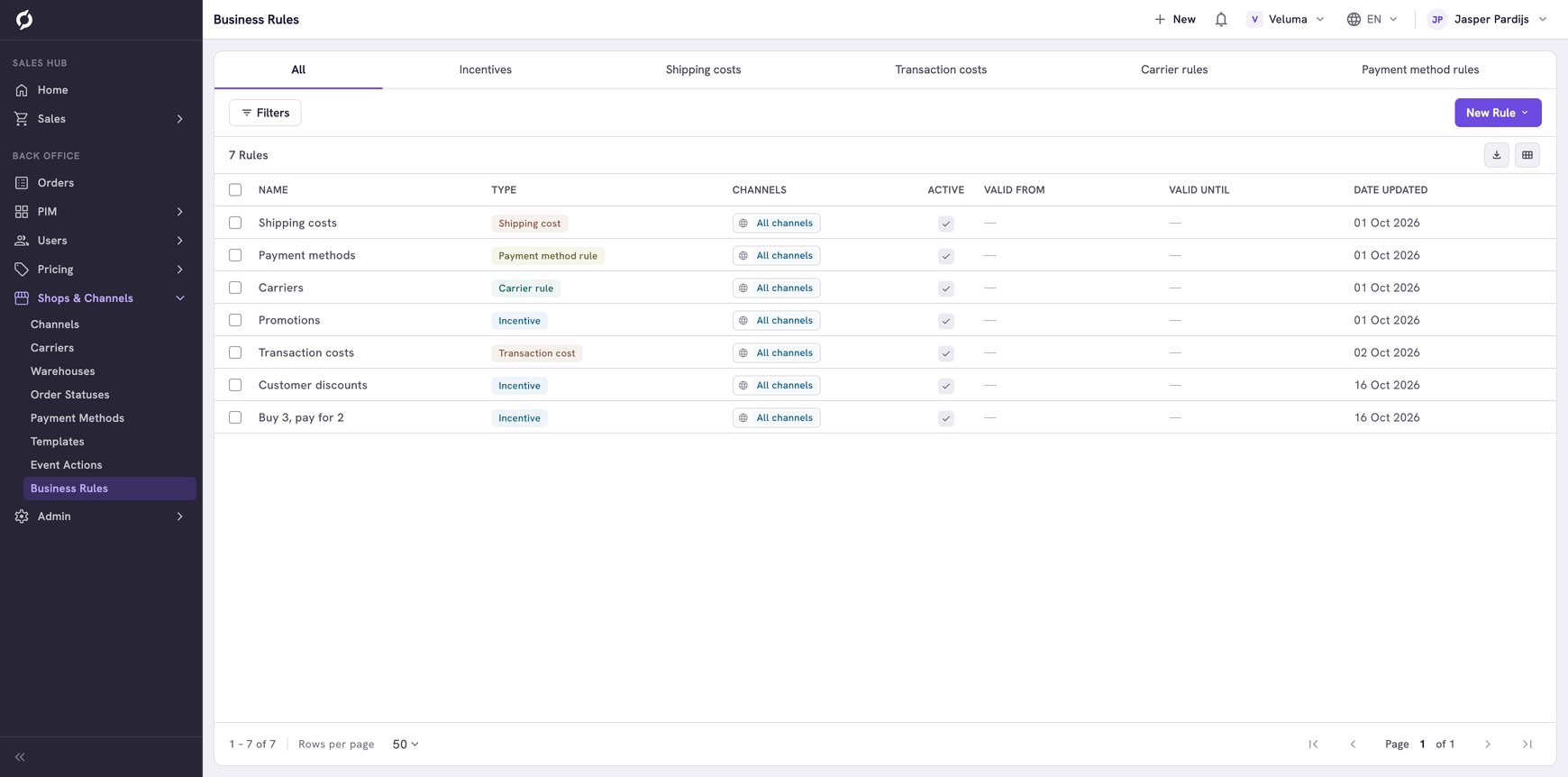
The list of rules shows Active, Valid from and Valid until, so you can check all rules at once.
Check the conditions
- The wrong count. You chose Count where you meant total Quantity. See Count the products on an order.
- Equals instead of or more. With Equals 2, an order with 3 pieces does not count.
- A value the order does not have. The SKU has a typing error. Or a typed payment method holds its name instead of its External Code.
- An attribute value that differs. A value must match exactly, capitals included. A Text value must also be in the language of the condition. Pick it from Values in use. A condition that shows Attribute not found looks at an attribute that was renamed or deleted.
- No product or company carries the value. Open the product in the PIM or the company and check that the attribute is filled in.
- A date condition. A condition on Order current date never matches. See Use a date in a condition.
- Two conditions inside Order items of an incentive. The promotion does not apply. Keep one.
- A Company ID condition saved before 15 October 2026. It only works after you open the rule and save it again.
Check the order of the subrules
With the switch on first, a subrule that is true for every order stops everything below it. Put the most specific subrule at the top.
Check the other rules of the same type
- Shipping costs and transaction costs: when two rules are true, the rule created last sets the price.
- Carriers and payment methods: what one rule offers stays offered, whatever another rule does.
- Incentives: when two rules discount the same line, the rule created last wins. A promotion with Set shipping costs replaces the price of the shipping costs rule.
Check the limits of incentives
- In the Sales Hub an incentive only counts after a click on Apply incentives. Click it once, when all products are on the quote or order.
- A discount code only works in the webshop. The webshop refuses it while the order does not meet the other conditions of the subrule.