Manage email and document templates
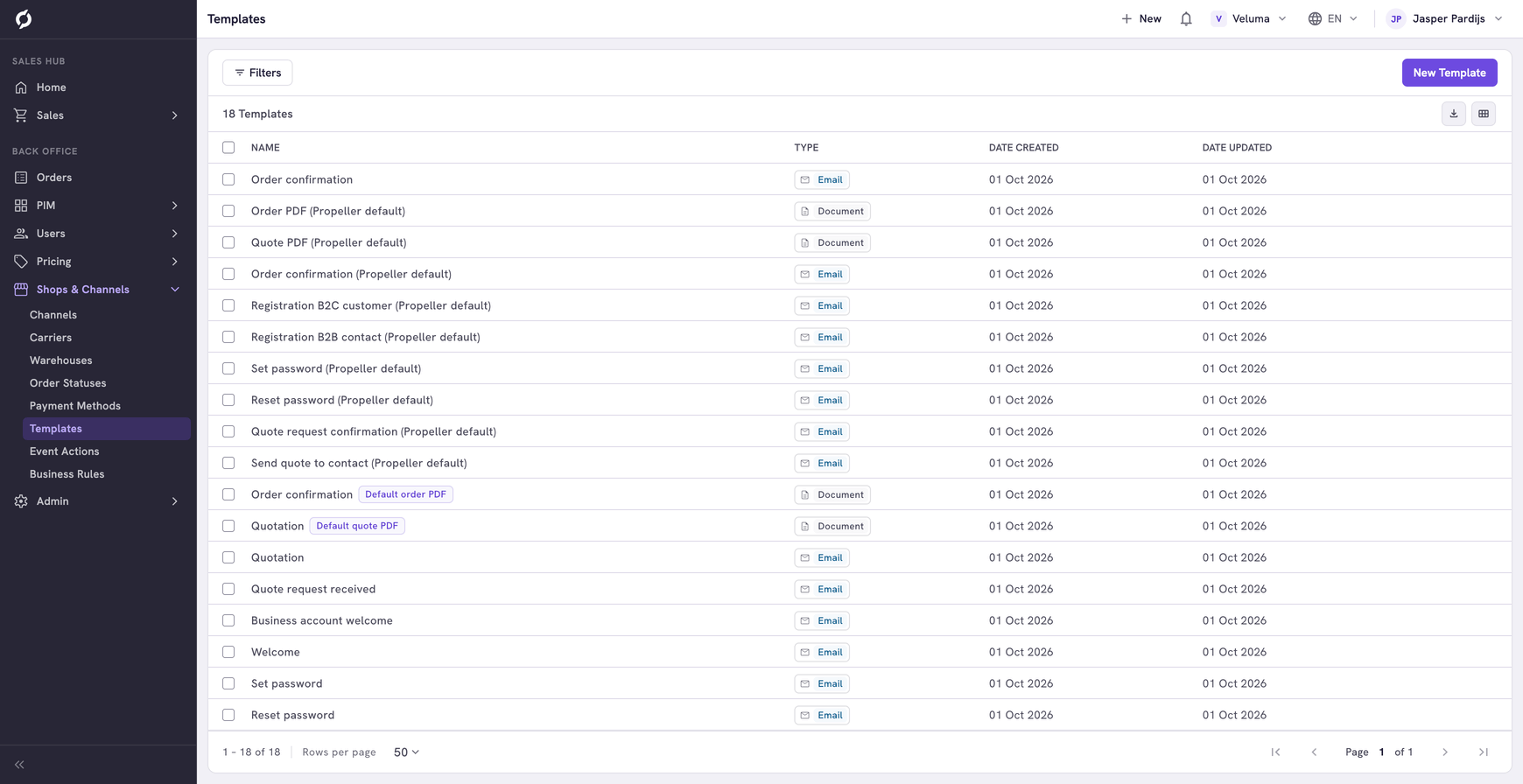
A template is the layout and text of an email or a PDF that Propeller makes, such as an order confirmation. An email template decides the subject, the sender and the text of an email. A document template decides what a PDF looks like.
Before you begin
- You need Backoffice access and the Configuration role. To create or delete a template you need Owner access.
- A template sends nothing by itself. An email only goes out when an event action uses the template. See Event Actions.
Know which part you can do yourself
| You can do this yourself | Plan this with a technical colleague |
|---|---|
| Change the subject, the sender and the recipients of an email | Change the layout and the text in the Content editor. It is written in HTML with placeholders for the data of the order |
| Choose which PDF an email attaches | Change which data a template loads, under Custom query |
| Choose which PDF the PDF button of a quote or an order opens | |
| Duplicate a template and read its error log |
Change the subject, the sender or the recipients
- Go to Shops & Channels > Templates and click the email template.
- Go to the Email section.
- Change the Subject, or the Email and Name under From.
- Click Add recipients under To, CC or BCC to add an address. Click the × on an address to remove it.
- Click Save.
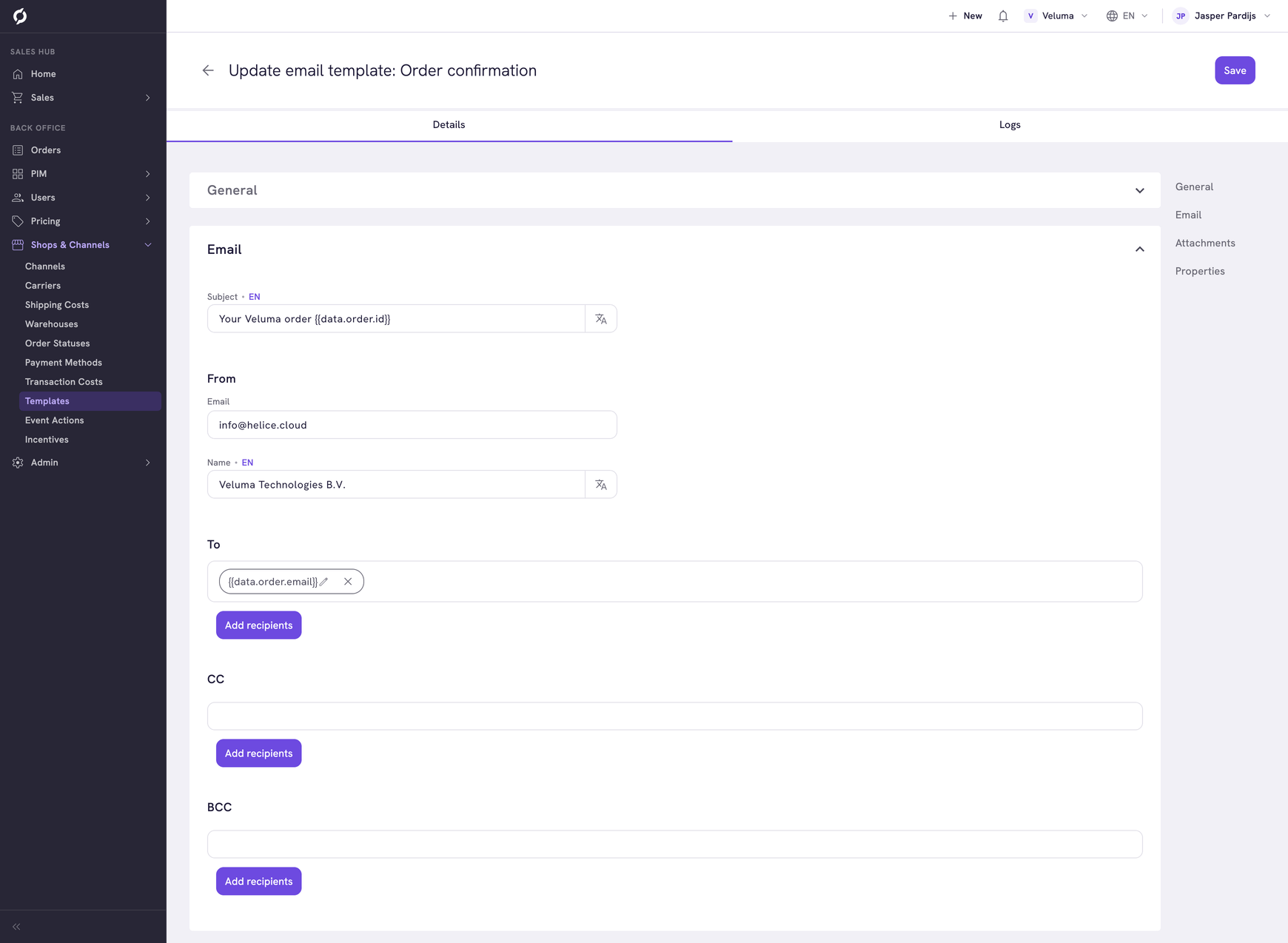
The subject has a value per language. A quote or an order confirmation goes out in the language of the contact.
In the image the recipient is {{data.order.email}}. That is a placeholder for the email address on the order, so the email goes to the customer of that order. Leave such a placeholder as it is. The subject uses one too: {{data.order.id}} becomes the order number.
Choose the PDF an email attaches
- Open the email template and go to the Attachments section.
- Click Add attachment and pick a document template.
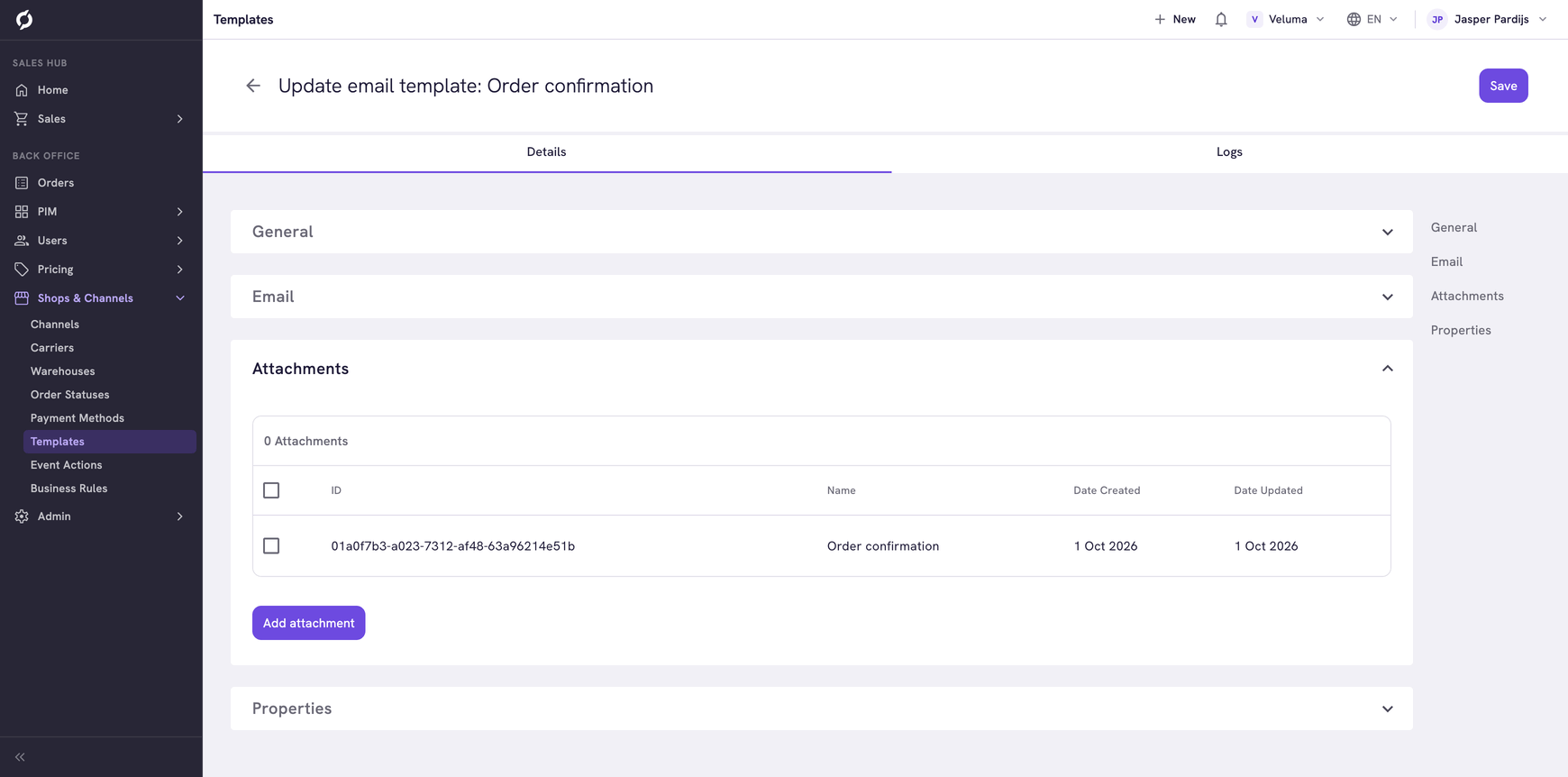
The email now carries the PDF of that document template. To take it off, tick it and click Remove.
Choose the PDF behind the PDF button
A quote and an order have a PDF button. Which document template it opens is set on the document template itself.
- Open the document template and go to the Document section.
- Switch on Default order PDF or Default Quotation PDF.
- Click Save.
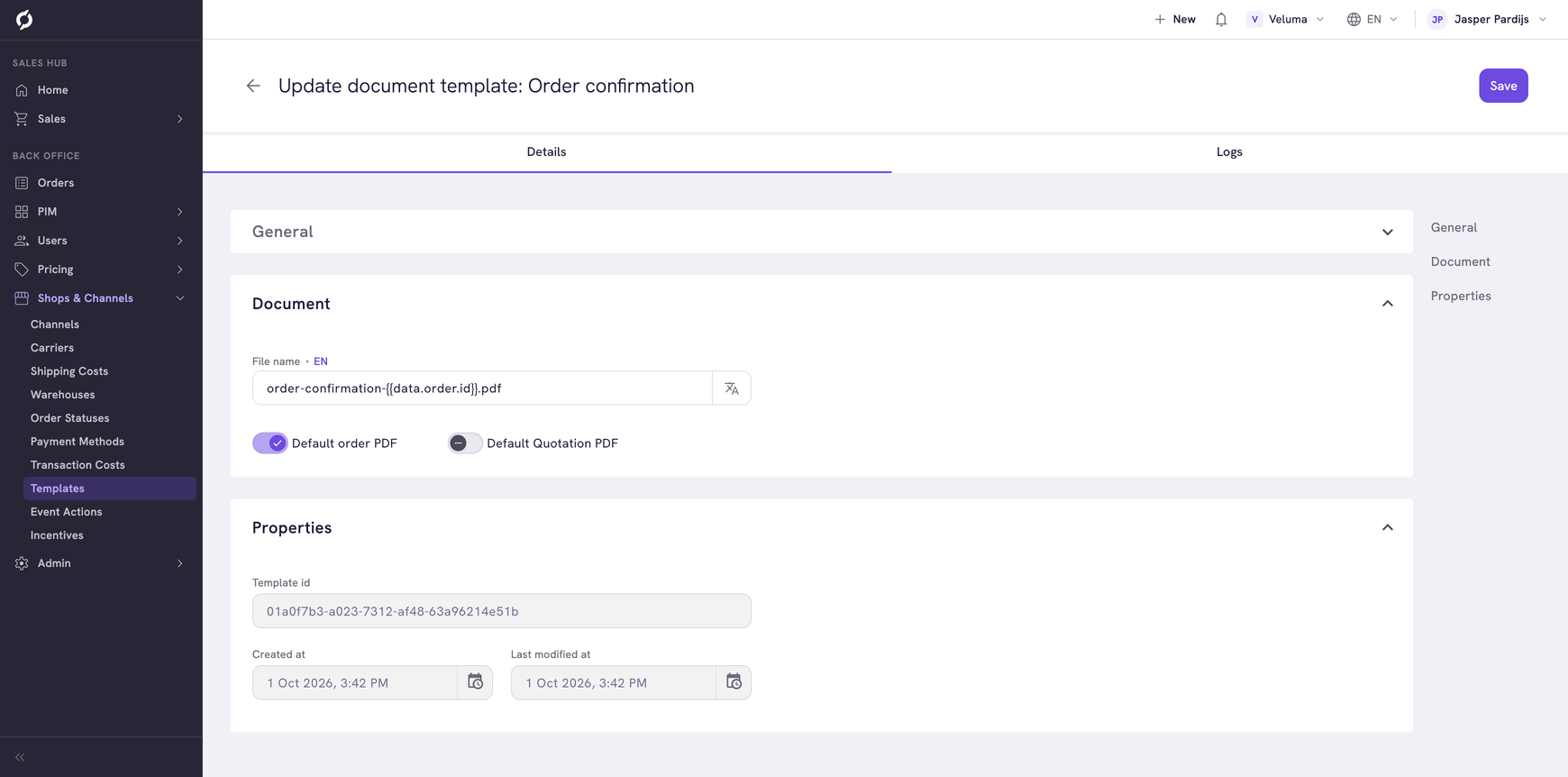
These two switches do not decide what an email attaches. That is the Attachments section of the email template. So the PDF behind the button and the PDF in an email can differ.
File name is the name the PDF file gets.
Create or duplicate a template
- To start from an existing one, click Duplicate, the copy icon at the end of its row. The copy gets "(Copy)" behind its name. A copy of an email template keeps its attachments.
- To start empty, click New Template and choose the Type, Email or Document. The type cannot be changed later. Type a Name and click Save.
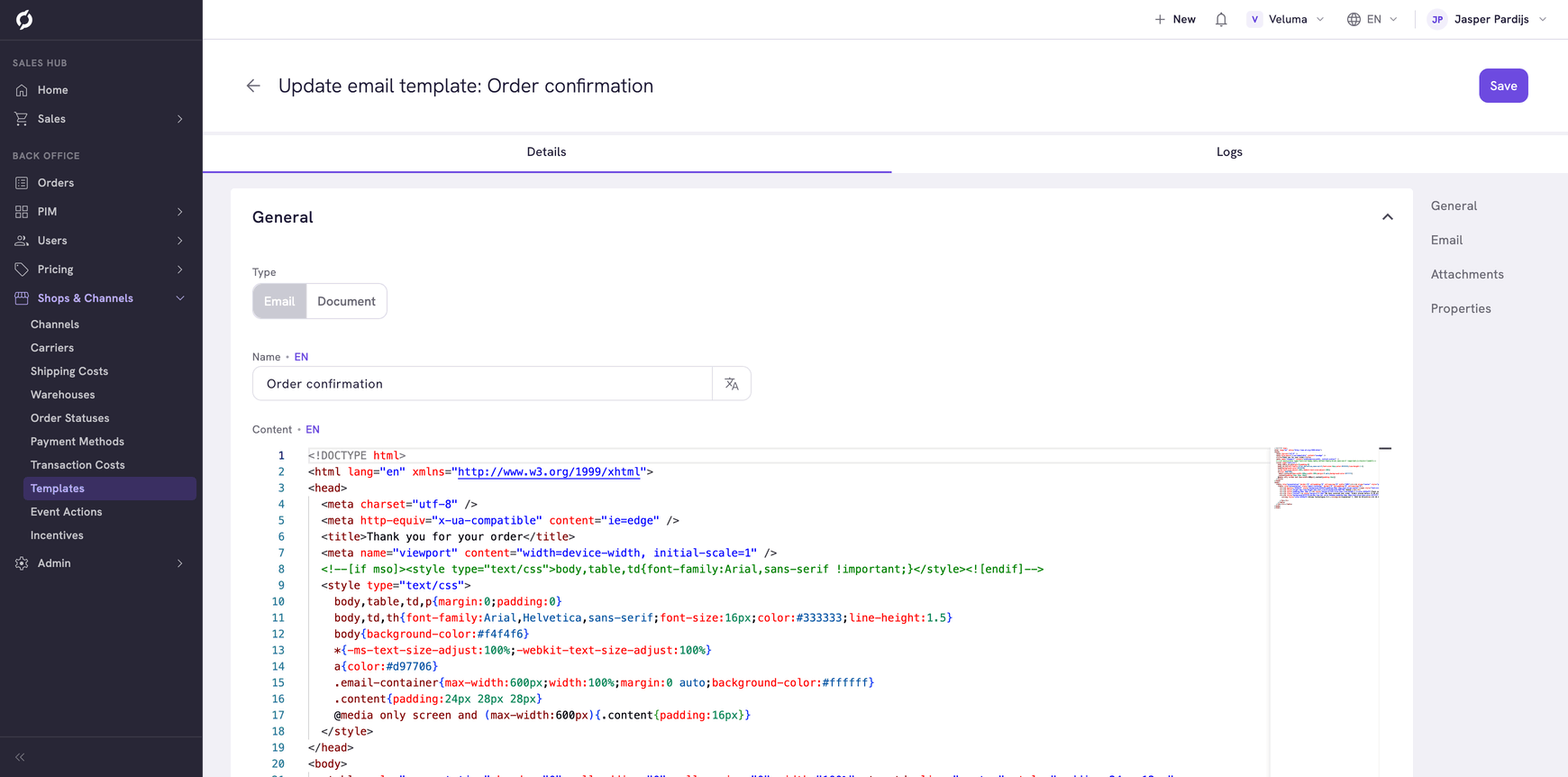
Find out why an email did not arrive
Propeller has no preview and no test button for a template. Check these in order.
- Is there an event action for the moment the email should go out, and does it use this template? See Event Actions.
- Open the template and click the Logs tab. It lists the times the template failed, with the date. Click a row for the error message.
- Pass the error message on to the colleague who made the template.
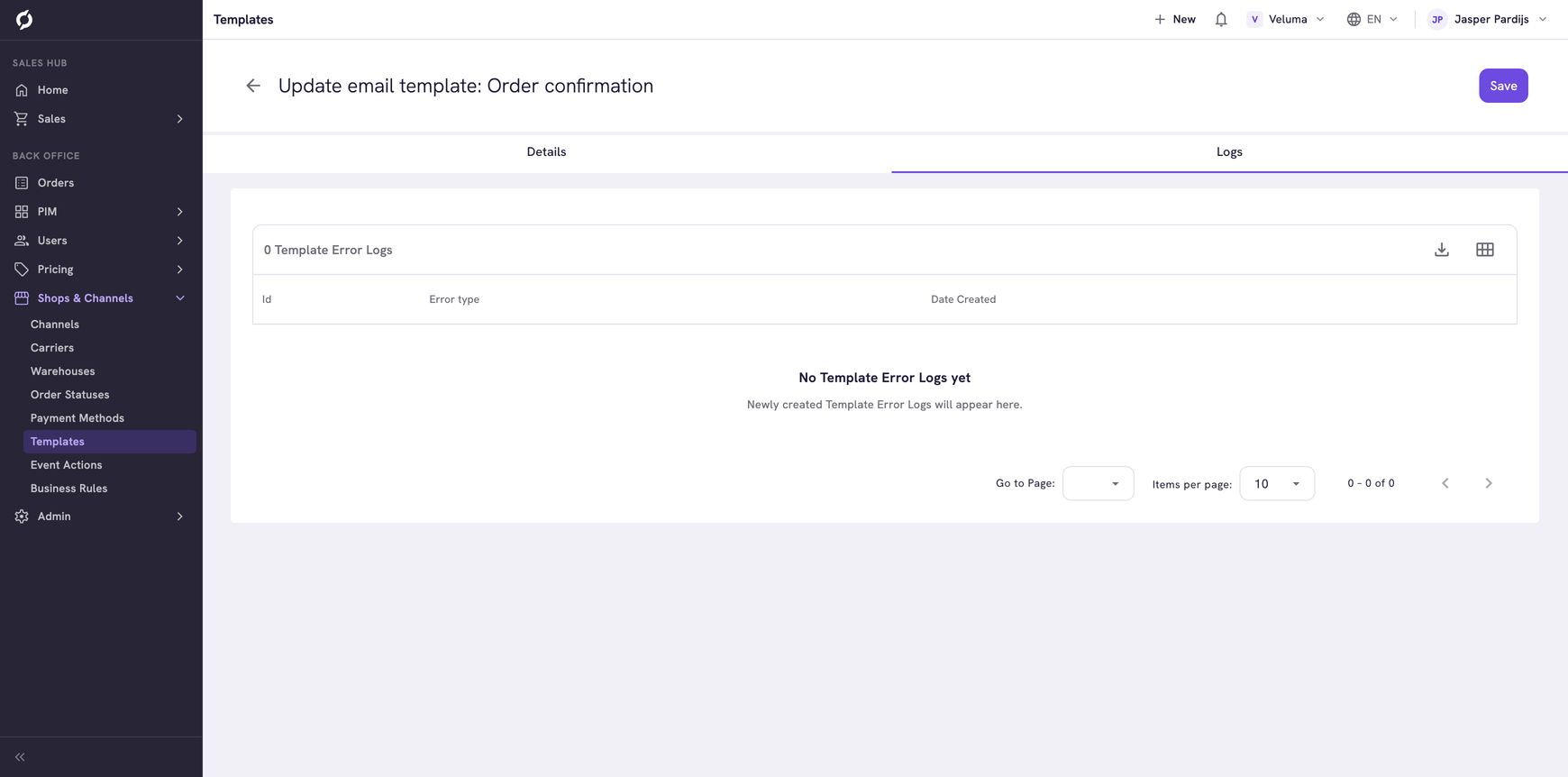
Delete a template
- Tick one or more templates in the list.
- Click Delete and confirm.
A deleted template cannot be brought back. An event action that used it sends nothing any more.
Related pages
- Event Actions - decide when an email goes out
- Create a quote - where Send to client uses a template