Set up order statuses
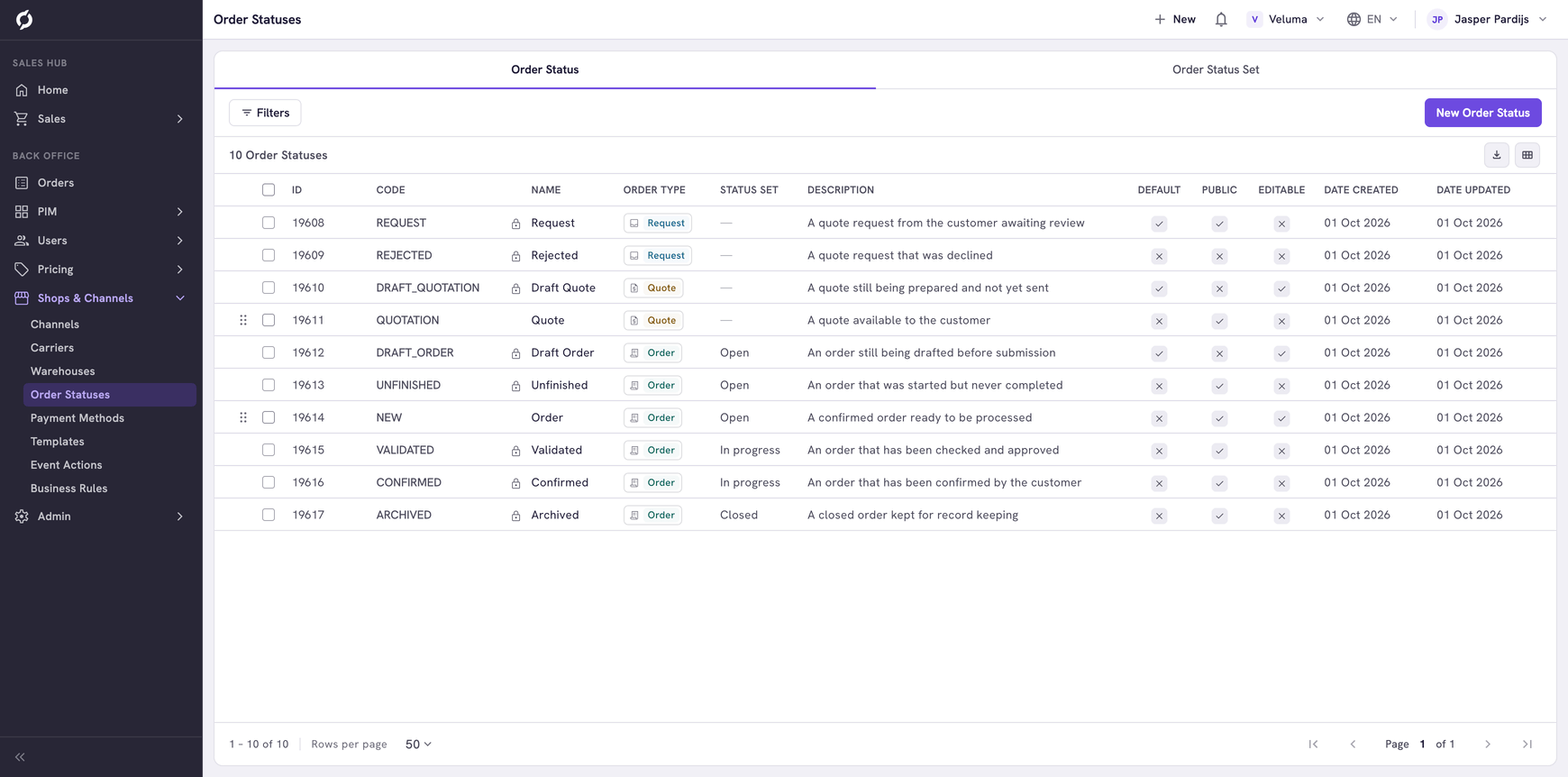
A status is the stage of a request, a quote or an order. On this page you decide which statuses exist, which status can follow which and what a status allows. You also group statuses into the groups above the lists of quotes and orders.
Before you begin
- You need Backoffice access and the Order Data role. To create a status or a status set you need Owner access.
- Read How requests, quotes and orders work for the ten statuses every environment starts with.
Know what a status decides
| Setting | What it decides |
|---|---|
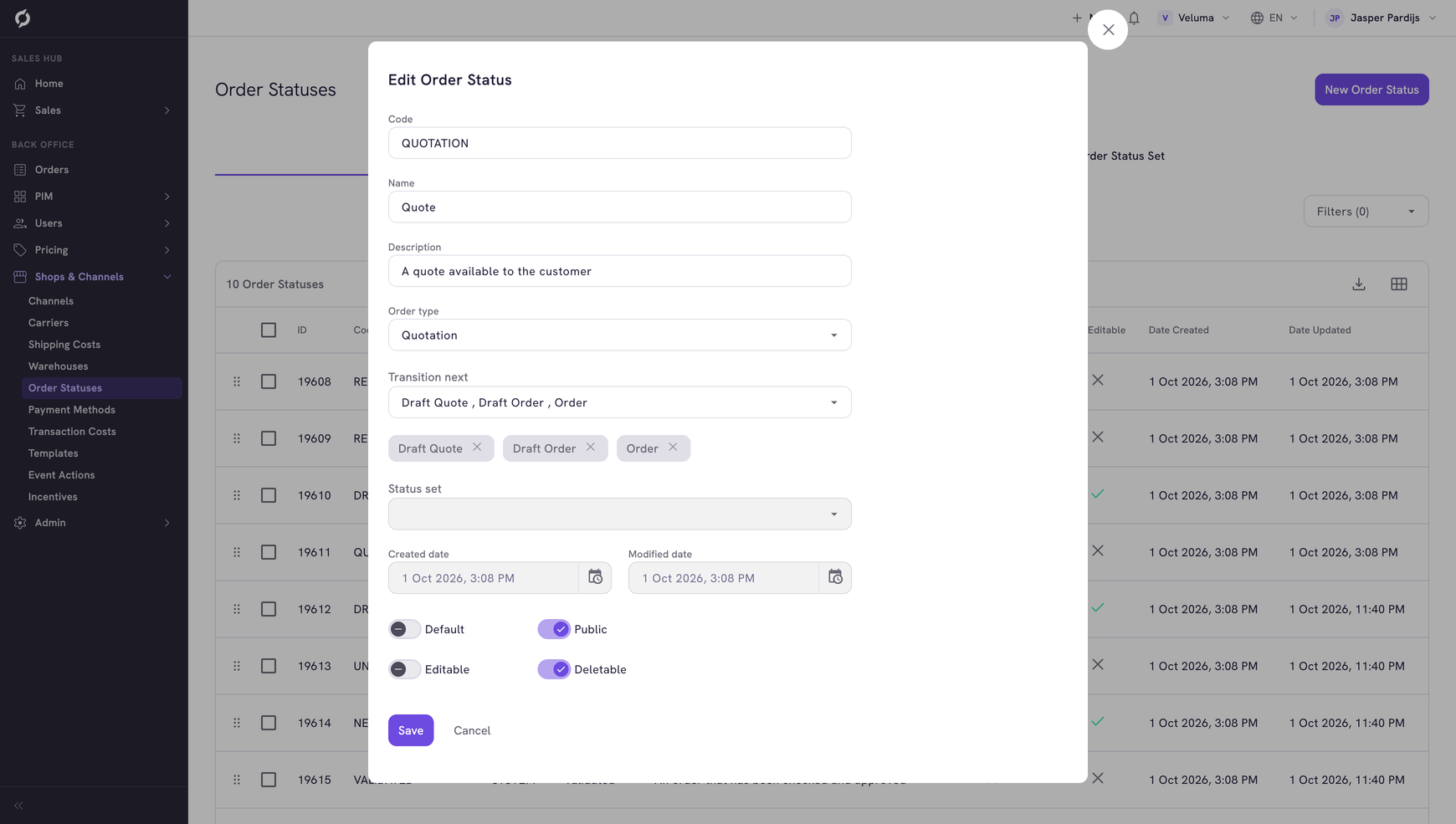
| Order type | Whether the status belongs to a request, a quote or an order. That decides in which list the record stands |
| Transition next | Which statuses can follow this one. These are the choices in the Change status dialog |
| Public | Whether the customer can see a quote or order in this status. Send to client only shows on a public status |
| Editable | Whether the lines and prices can still be changed in this status |
| Status set | The group above the lists of quotes and orders that holds this status |
A status without a next status is an end point: Change status is greyed out there.
A new quote always starts as Draft Quote and a new order as Draft Order. You cannot change that with Default.
Add a status
- Go to Shops & Channels > Order Statuses and click New Order Status.
- Type a Code in capitals, for example CANCELLED. Type a Name, for example Cancelled. Lists and the Change status dialog show the name.
- Choose the Order type.
- Under Transition next, tick the statuses that can follow.
- Set Public and Editable.
- Click Save.
The new status cannot be reached yet. Open the statuses that should lead to it and add it under their Transition next.
Change which status follows which
- Click the status on the Order Status tab.
- Under Transition next, tick or untick statuses.
- Click Save.
Statuses of the type SYSTEM are built in. A lock next to the name marks them in the list. You cannot change their code, name or switches, only their next statuses and their status set.
Group statuses
A status set is a group of statuses. The lists of quotes and orders, in the Backoffice and the Sales Hub, show it as one group above the table.
- Click the Order Status Set tab and click New Order Status Set.
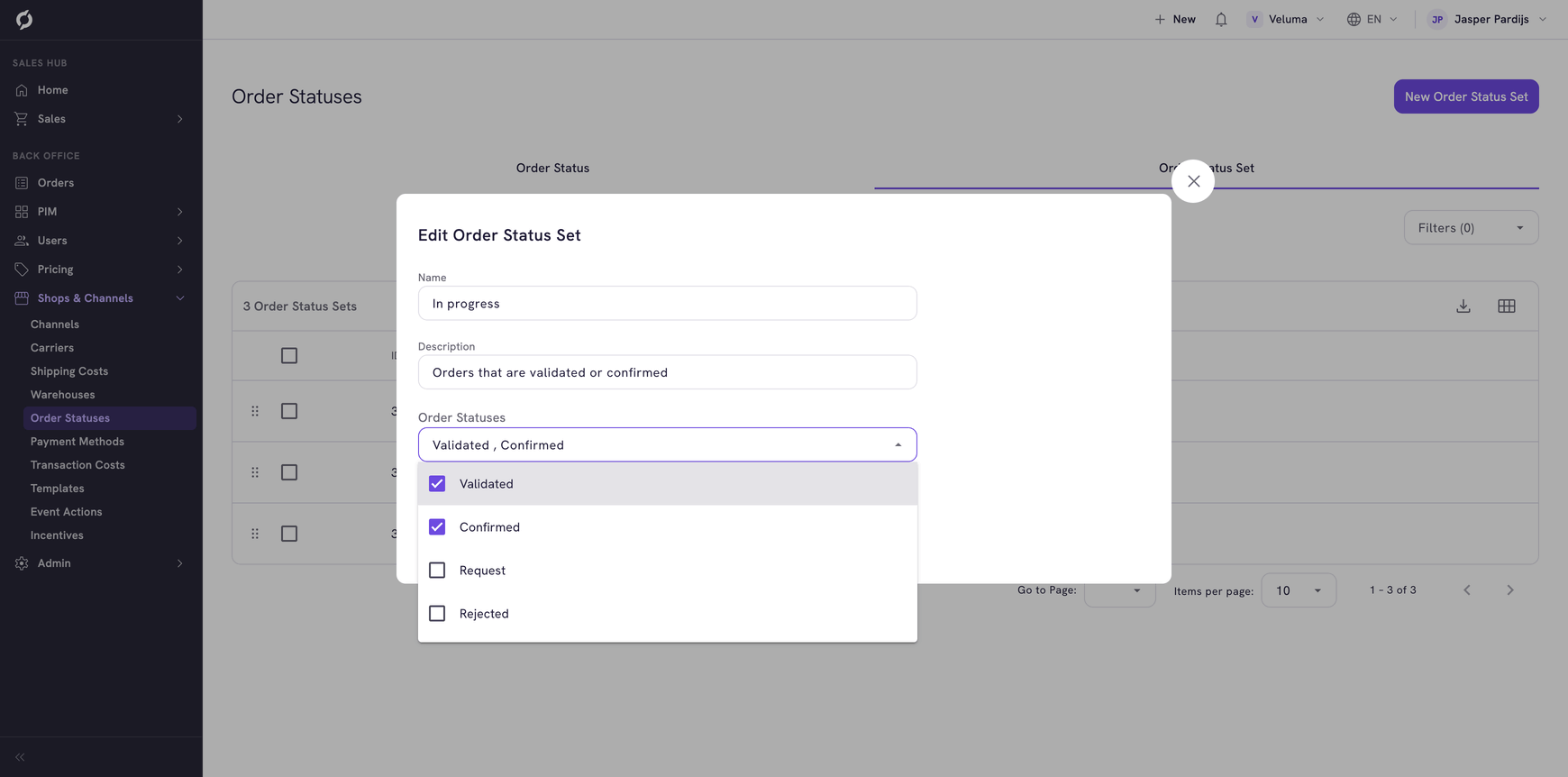
- Type a Name and a Description.
- Under Order Statuses, tick the statuses of the set.
- Click Save.
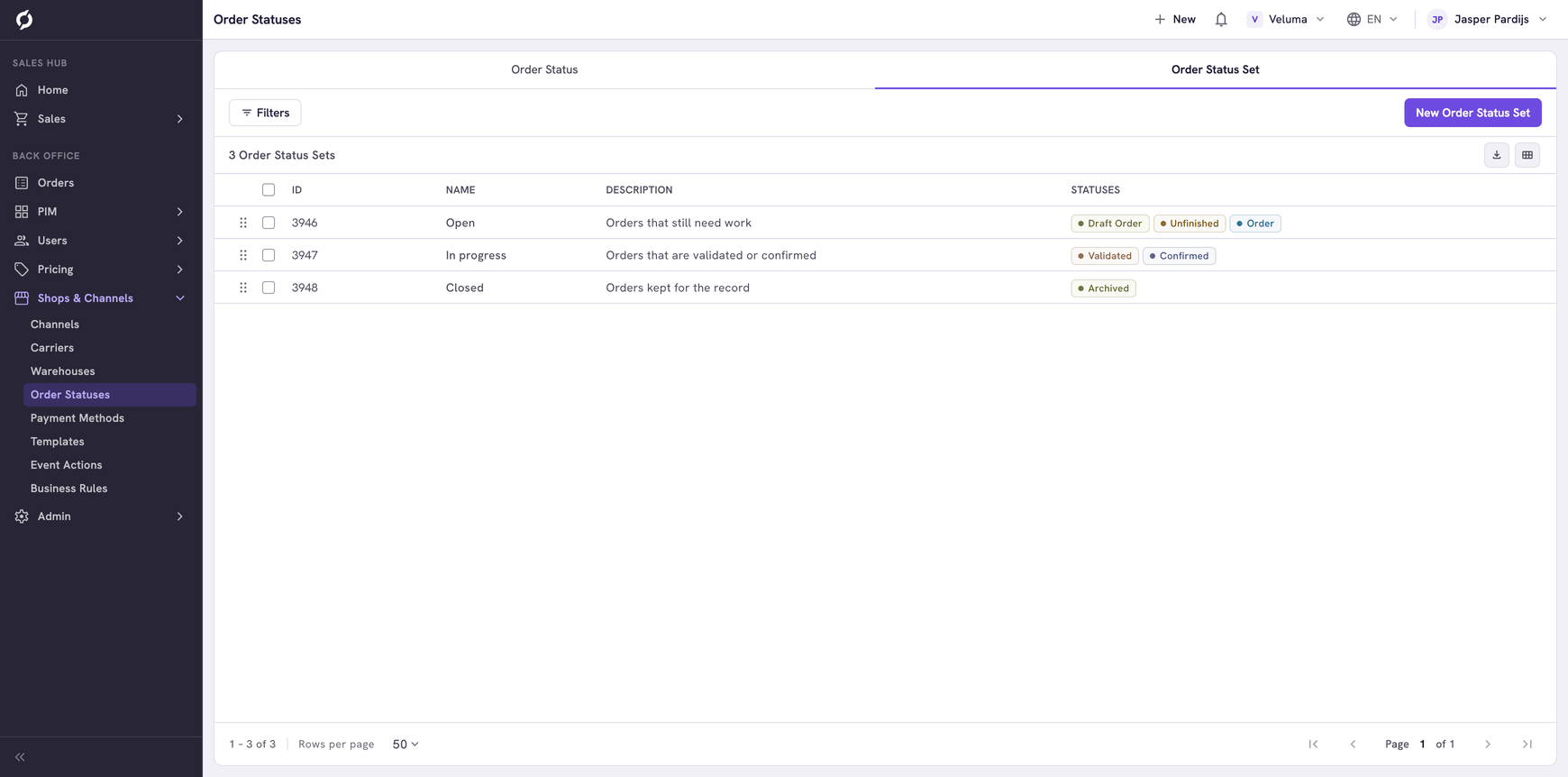
Drag a row on either tab to change the order of the list. That is not the order in which an order goes through its statuses: Transition next decides that.
Related pages
- How requests, quotes and orders work
- Change the status of a quote or order
- Manage orders in the Backoffice - the groups that status sets make