Change the status of a quote or order
A request, a quote and an order move through the statuses of your environment, for example from Draft Order to Order. You place an order, release a quote and reject a request by changing the status.
Before you begin
- You need Sales Hub access and the Order Data role with Editor or Owner access.
- Which statuses you can pick is set per environment. See How requests, quotes and orders work for the standard ones.
Change the status
- Open the request, quote or order.
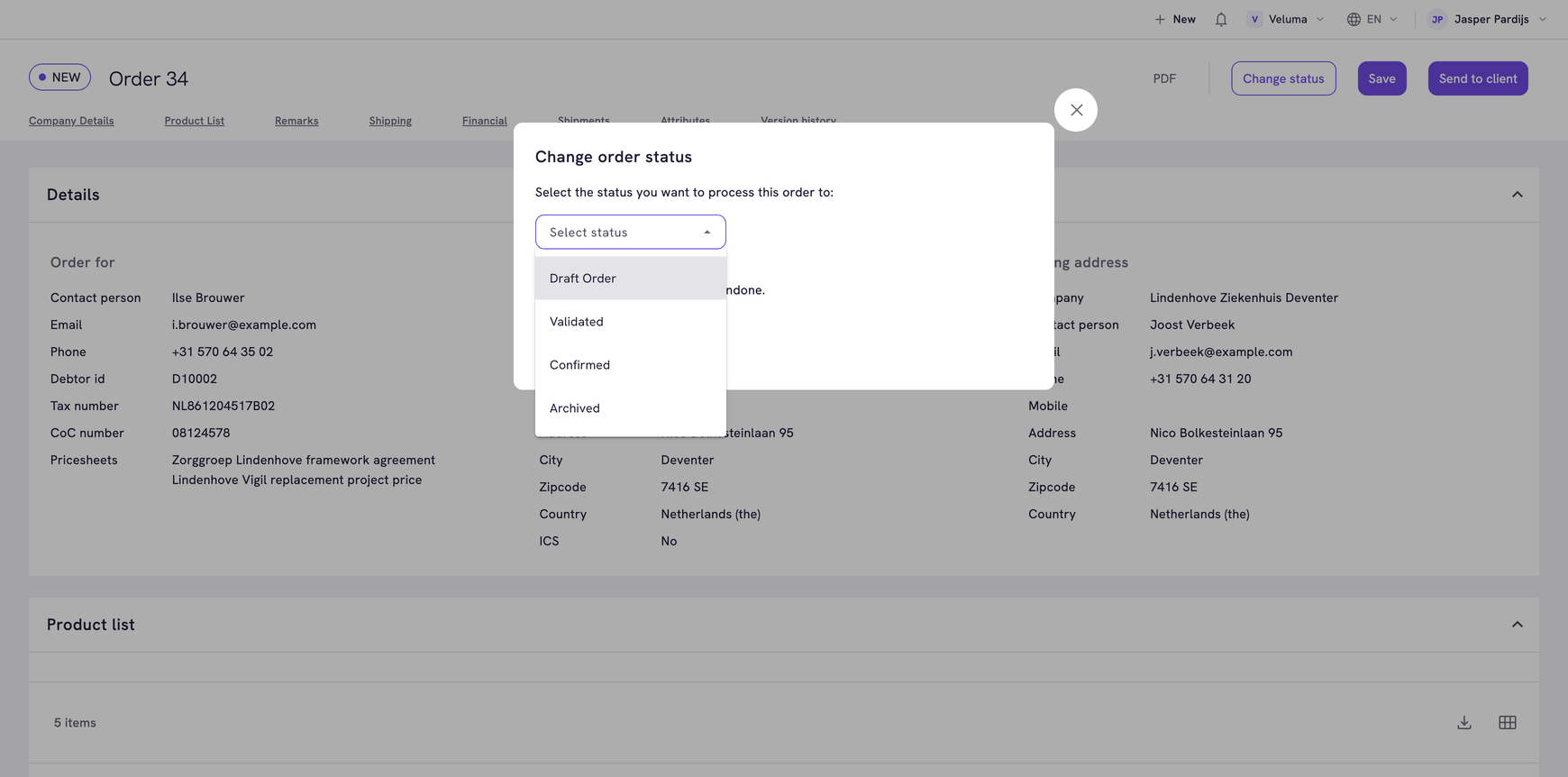
- Click Change status at the top right.
- Select the status you want to move to.
- Click Save in the dialog.
The label in front of the title and the lists now show the new status. Changes you made in the editor are saved at the same moment.
The dialog says that this cannot be undone. Whether a way back exists depends on the statuses of your environment. On a standard one an Order can go back to Draft Order, and a Validated order cannot go back.
If Change status is greyed out, no next status is set up for the current one. Ask the colleague who manages Order Statuses.
When the order is above the authorization limit
A contact can have an authorization limit: the amount this person may order without approval from their own company. When the total excluding VAT is above that limit and you move the quote or order to a status the customer can see, a second dialog opens: Authorization limit exceeded. It shows the limit and how far the order is over it.
- Click Continue to change the status anyway, for example because the customer confirmed that the order is approved.
- Click Cancel to leave the status as it is.
The limit is set on the contact. See Edit a contact or customer.
What happens after a status change
- On a status the customer can see, the customer finds the quote or order in the webshop and Send to client shows at the top right.
- The quote or the order confirmation goes out when you click Send to client. A status change alone sends the customer no email, unless your company set one up for changed orders under Event Actions.
- On the lists of quotes and orders, the order moves to the group of its new status.
Cancel an order
Move the order to the status your company uses for cancelled orders. A standard environment has no such status. Ask the colleague who manages Order Statuses to add one.
Do not delete an order to cancel it. A deleted order is gone for good, with its lines and shipments.
Related pages
- How requests, quotes and orders work
- Create an order
- Order Statuses - set up the statuses