Edit a contact or customer
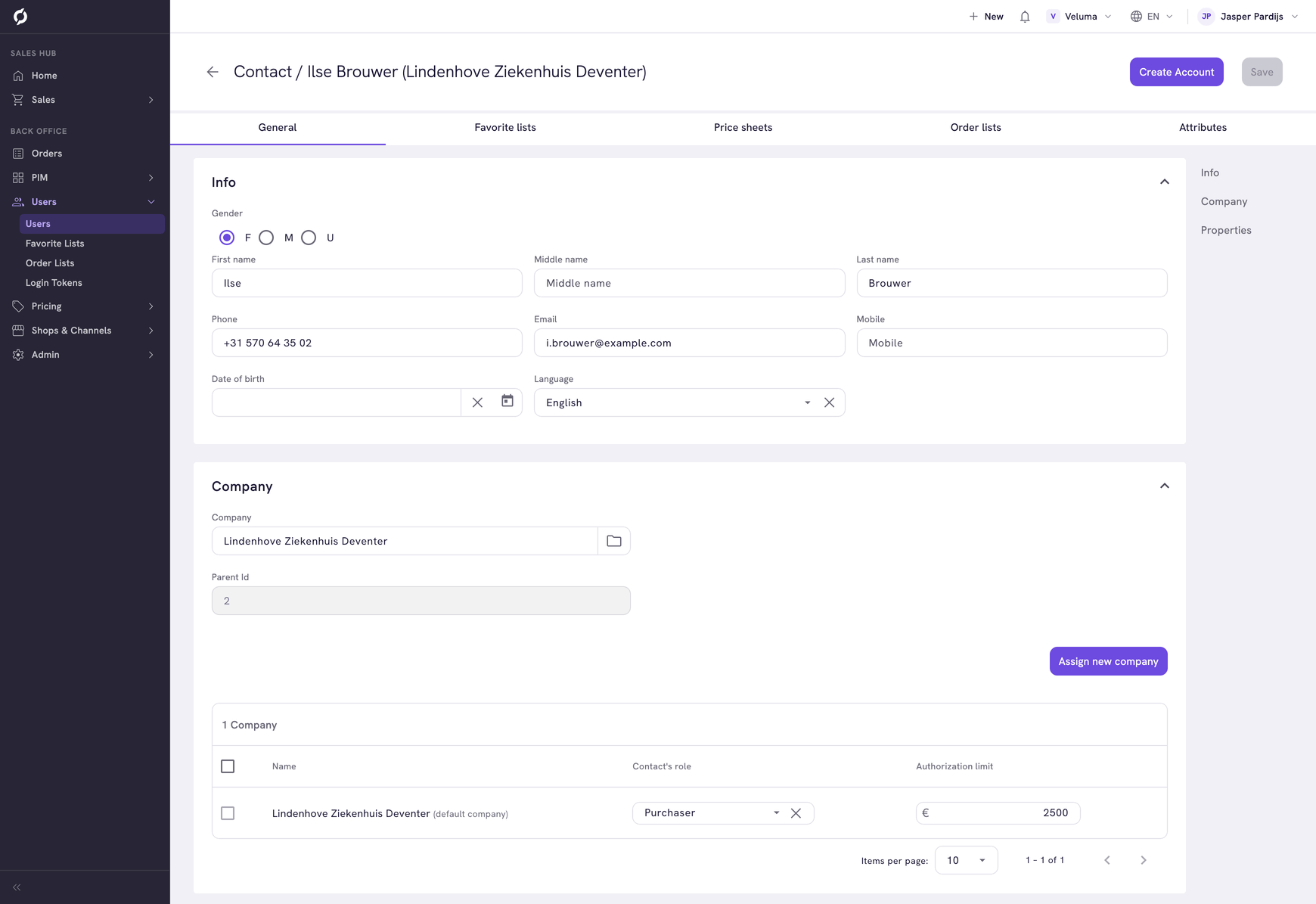
On the page of a contact or a customer you change their details, give them a webshop account, keep notes on a contact and set what a contact may order without approval. A contact orders for a company. A customer is a private person.
Before you begin
- You need the User management role, with Editor or Owner access to change something and Owner access for the webshop account.
- The tabs Favorite lists and Order lists need the Shop & channel role, the tab Price sheets the Pricing role.
Open a contact or customer
Go to Users > Users, click the Contacts (B2B) or the Customers (B2C) tab and click the row. You also get here from a company: open its Contacts tab and click the contact.
Change the details
- On the General tab, change the fields. First name and Email are required.
- Click Save at the top right.
Language is the language in which this person gets emails, such as a quote.
The Email field is locked while the person has a webshop account, because they sign in with that address.
Keep notes on a contact
- On the General tab, open Notes.
- Type the notes for your colleagues.
- Click Save at the top right.
The order editor shows these notes under Contact notes when the contact is on the order. A customer has no notes.
Give a contact or customer a webshop account
- Make sure the email address is filled in and saved.
- Click Create Account at the top right.
- If your environment has more than one channel, pick the channel the account is for.
Propeller creates the login and asks for the email in which the person sets a password. The email goes out for the channel you picked. That email is one of the emails your company sets up under Shops & Channels > Event Actions. If none is set up for it, the person receives nothing.
When the person has an account, the buttons change.
| Button | What it does |
|---|---|
| Resend invite | Sends the email to set a password again. Use it when the person lost the email or forgot the password. With more than one channel you pick the channel first |
| Delete Account | Removes the login after you confirm. The person stays in Propeller |
To change the email address of someone with an account: delete the account, change the address, save and create the account again.
Two warnings can show above the fields.
| Warning | What it means | What to do |
|---|---|---|
| Account Configuration Warning | The email address on this page is not the address the person signs in with | Change the address back to the one in the warning. Until then Resend invite does not work |
| Account Conflict Warning | The person has no account yet and someone else already has an account with this email address | Check whether this is the same person before you create an account |
Set what a contact may order without approval
The Company section of a contact lists the companies the contact orders for. Per company you set two things.
| Field | What it does |
|---|---|
| Contact's role | Purchaser can order up to the authorization limit. Authorization manager has no limit and approves the orders of purchasers |
| Authorization limit | The highest amount a purchaser may order at once. Leave it empty for no limit |
In the webshop, a purchaser who goes over the limit cannot place the order. The order waits until an authorization manager of the same company approves it.
In the Sales Hub the limit is a warning. A sales rep who moves such a quote or order to a status the customer can see gets the question whether to continue. See When the order is above the authorization limit.
Click Assign new company to let the contact order for one more company.
See the addresses, lists and prices
- A customer has an Addresses tab that works like the one of a company. See Manage the addresses. A contact uses the addresses of the company.
- Favorite lists, Price sheets and Order lists show what this person has. See See the lists and prices of the company.
- Attributes holds the fields your company added to contacts or customers.
Related pages
- Edit a company
- Manage companies, contacts and customers
- Event Actions - the emails a webshop account sends