Create and manage login tokens
A login token lets a contact or a customer into the webshop without a password. It is a code that your webshop or another system uses to sign that person in, for example when a customer comes from their own purchasing system.
Before you begin
- You need Backoffice access and the Configuration role. To change a token you need Editor or Owner access. To create one you need Owner access.
- The contact or customer needs a webshop account. See Give a contact or customer a webshop account.
- Setting up a login token is work for two. You make the token. A technical colleague or the builder of your webshop puts it to use.
warning
Whoever has the token can sign in as that person, without a password. Treat it as a password: give it an expiry date and send it only to the colleague who needs it.
Create a login token
- Go to Users > Login Tokens and click New Login Token.
- Select the contact or customer the token signs in. Leave the field empty only when the builder of your webshop asks for a token without a person.
- Set Expires at to the date and time after which the token stops working. Without a date it works for ever.
- Tick One time use if the token may be used for one sign-in only.
- Click Save.
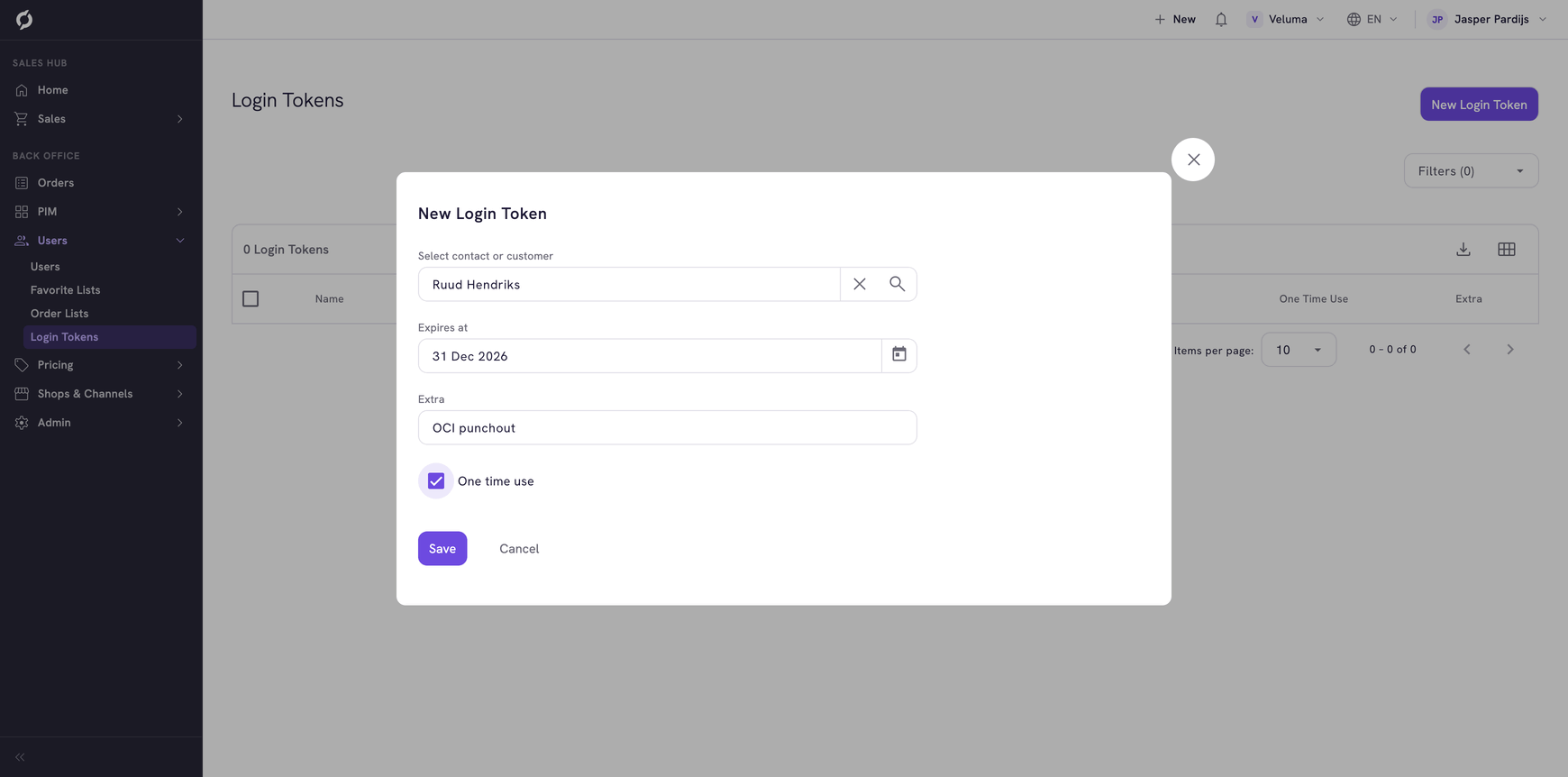
Extra is a free field for a note, for example what the token is for.
Hand the token over
- Click the token in the list.
- Next to Id, click the eye to show the value and copy it.
- Give the value to the colleague who builds the link or the connection.
The Id is the token itself.
See whether a token is used
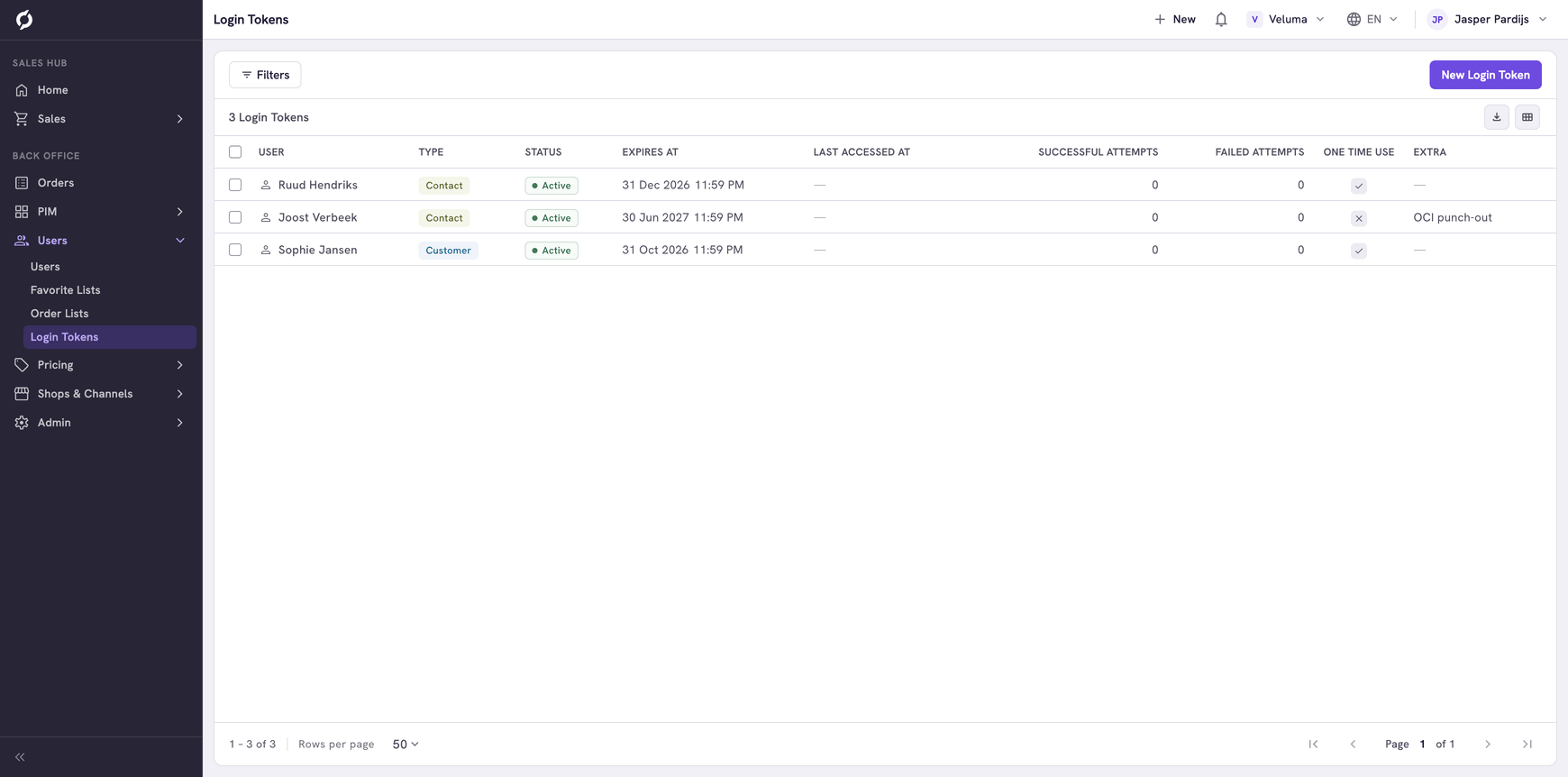
The list and the dialog show per token when it was last used, how many sign-ins succeeded and how many failed. Many failed attempts on a token that should work are a reason to delete it and make a new one.
Stop a token
- Tick one or more tokens.
- Click Delete and confirm.
The token stops working at once.
Related pages
- Edit a contact or customer
- API Keys - access for a system instead of a person