User Details

The user detail page lets you edit a company, contact or customer profile. Depending on the user type, you can manage contacts, addresses, favorite lists, price sheets, order lists and custom attributes.

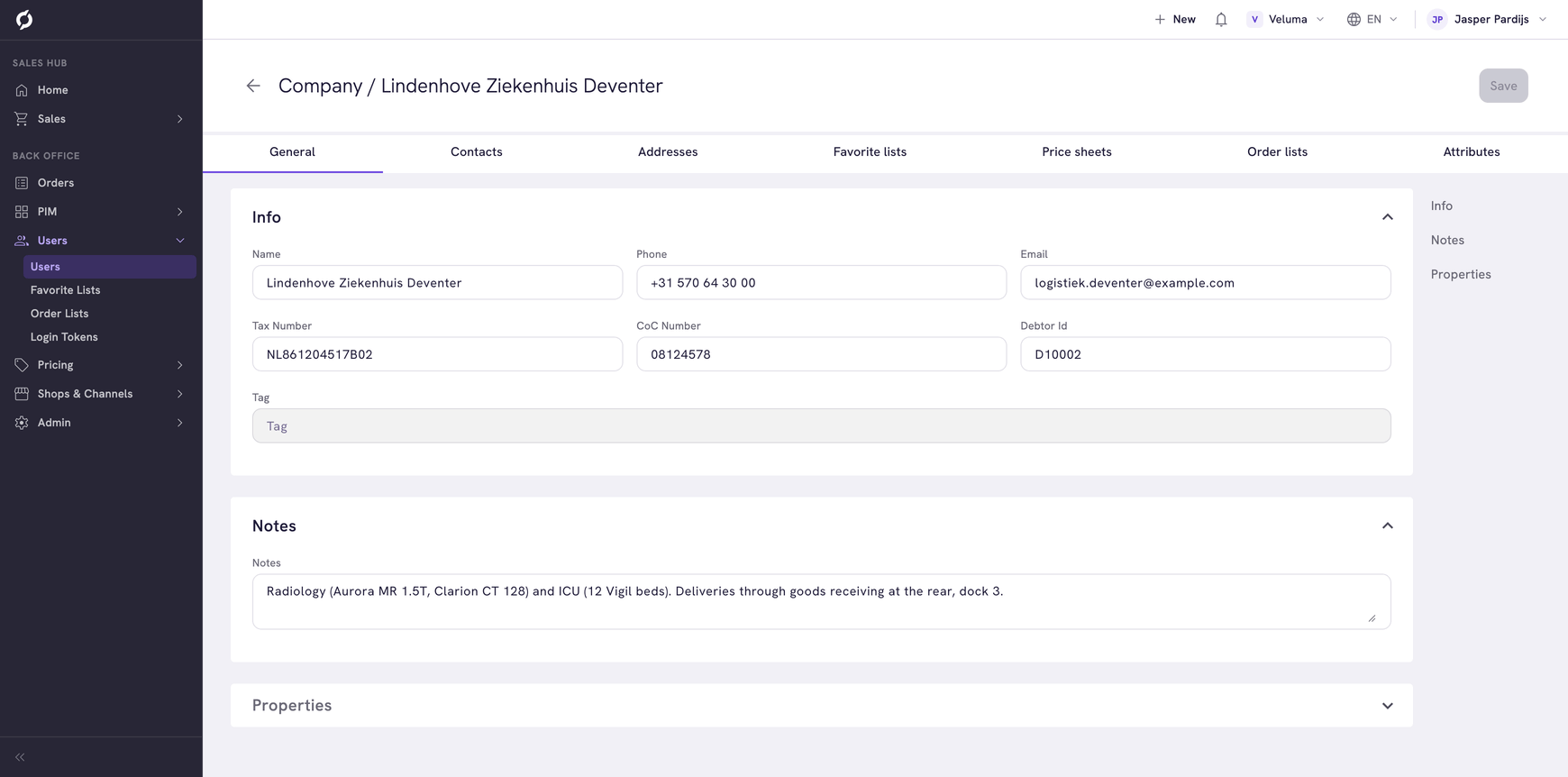
Company detail page showing the General tab with Info, Notes and Properties sections

Before you begin

  • You need the User role to view user details.
  • Editing user fields requires non-viewer access on the User role.
  • Some tabs require additional roles (see the table below).

Open a user

Navigate to Users > Users and click any row. The page header shows a Back button and a Save button. For contacts and customers, the header also includes Webshop Account controls to create an account, delete an account or resend an invitation.

Available tabs by user type

Company tabs

A company detail page has seven tabs: General, Contacts, Addresses, Favorite lists, Price sheets, Order lists and Attributes.

TabDescriptionAdditional role required
GeneralCompany info, notes and propertiesNone
ContactsContacts within this companyNone
AddressesDelivery and billing addressesNone
Favorite listsCompany's favorite product listsShop role
Price sheetsAssigned price sheetsPricing role
Order listsAssigned order listsShop role
AttributesCustom company attributesNone

Contact tabs

TabDescriptionAdditional role required
GeneralPersonal info, parent company and propertiesNone
Favorite listsContact's favoritesShop role
Price sheetsAssigned price sheetsPricing role
Order listsAssigned order listsShop role
AttributesCustom contact attributesNone

Customer tabs

TabDescriptionAdditional role required
GeneralPersonal info and propertiesNone
AddressesDelivery and billing addressesNone
Favorite listsCustomer's favoritesShop role
Price sheetsAssigned price sheetsPricing role
Order listsAssigned order listsShop role
AttributesCustom customer attributesNone

Edit general information

On the General tab, update the user's basic information. The tab is divided into collapsible sections. For companies, these are Info, Notes and Properties. Use the right sidebar to jump to a section.

Company fields

FieldRequiredDescription
NameYesCompany name
PhoneNoPhone number
EmailNoEmail address
Tax NumberNoTax identification number
CoC NumberNoChamber of Commerce number
Debtor IdNoDebtor identifier
TagNoTag label for the company

Notes (companies only)

Use the free-text notes field to add internal notes about the company.

Contact and customer fields

FieldRequiredDescription
GenderNoMale, Female or Unknown
First nameYesFirst name
Middle nameNoMiddle name
Last nameNoLast name
PhoneNoPhone number
EmailYesEmail address (disabled if linked to a webshop login)
MobileNoMobile number
Date of birthNoDate picker (cannot be in the future)
Primary languageNoSelect from available data languages

Manage parent company (contacts only)

The Company section shows the parent company. Use the picker to change it.

The Companies in Contact table lets you assign additional companies to the contact. For each company assignment you can:

  • Set the contact's role (Authorization manager or Purchaser).
  • Set an authorization limit for purchase approval workflows.
  • Remove the company assignment.
tip

Set authorization limits per contact per company. When a contact places an order that exceeds their limit, the order requires approval from an Authorization Manager before it can proceed.

Manage contacts

On the Contacts tab (companies only), view and manage contacts linked to this company.

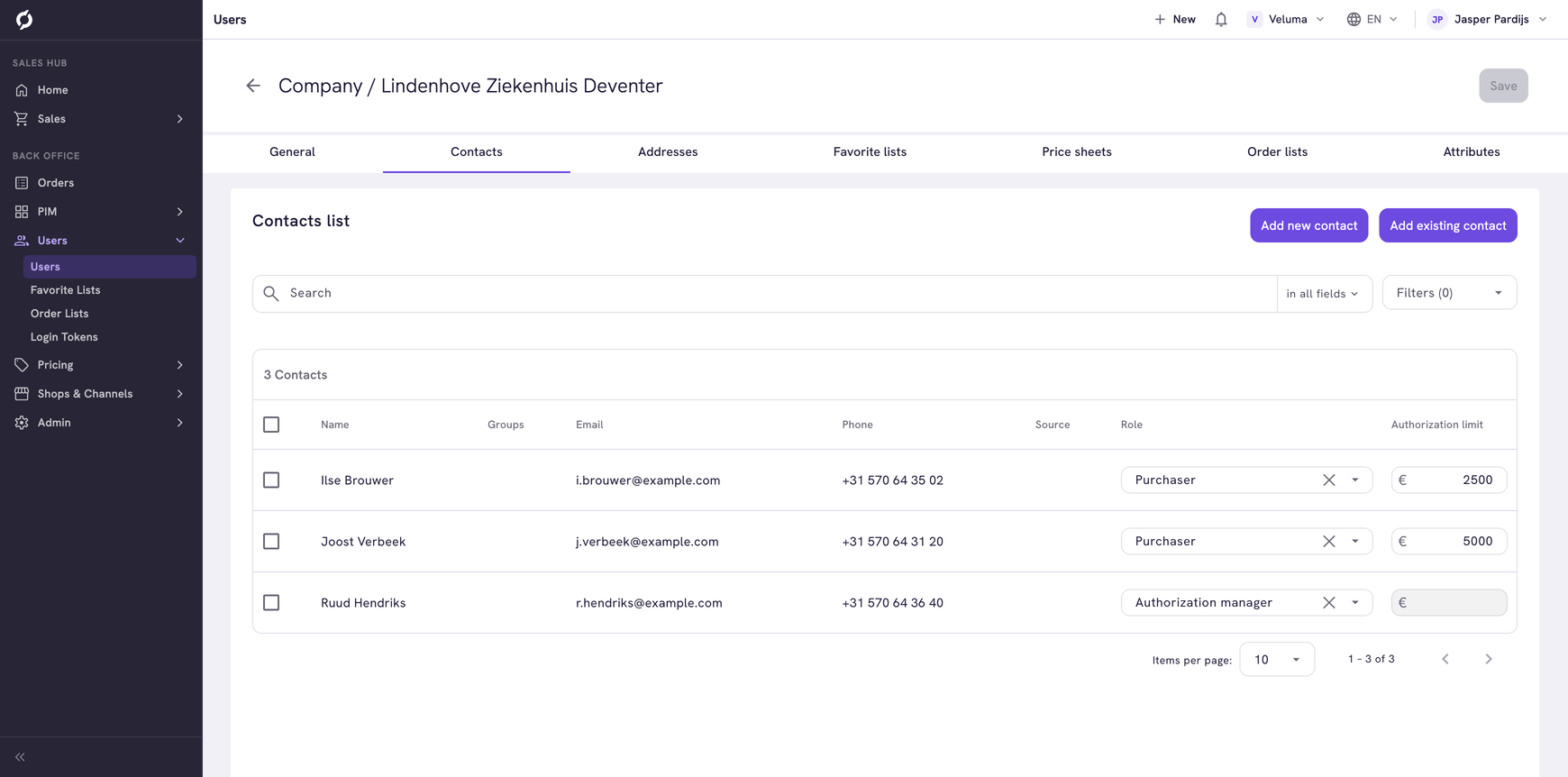
Contacts tab showing a list of contacts with authorization roles

The table shows the following columns:

ColumnDescription
PhotoContact profile picture
NameContact name
EmailContact email address
PhonePhone number
Authorization roleThe contact's role, such as Authorization manager or Purchaser

Each contact row includes edit and delete action buttons.

  1. To add a new contact, click Add new contact.
  2. To link an existing contact to this company, click Add existing contact.
  3. Use Filters to narrow the list.

Manage addresses

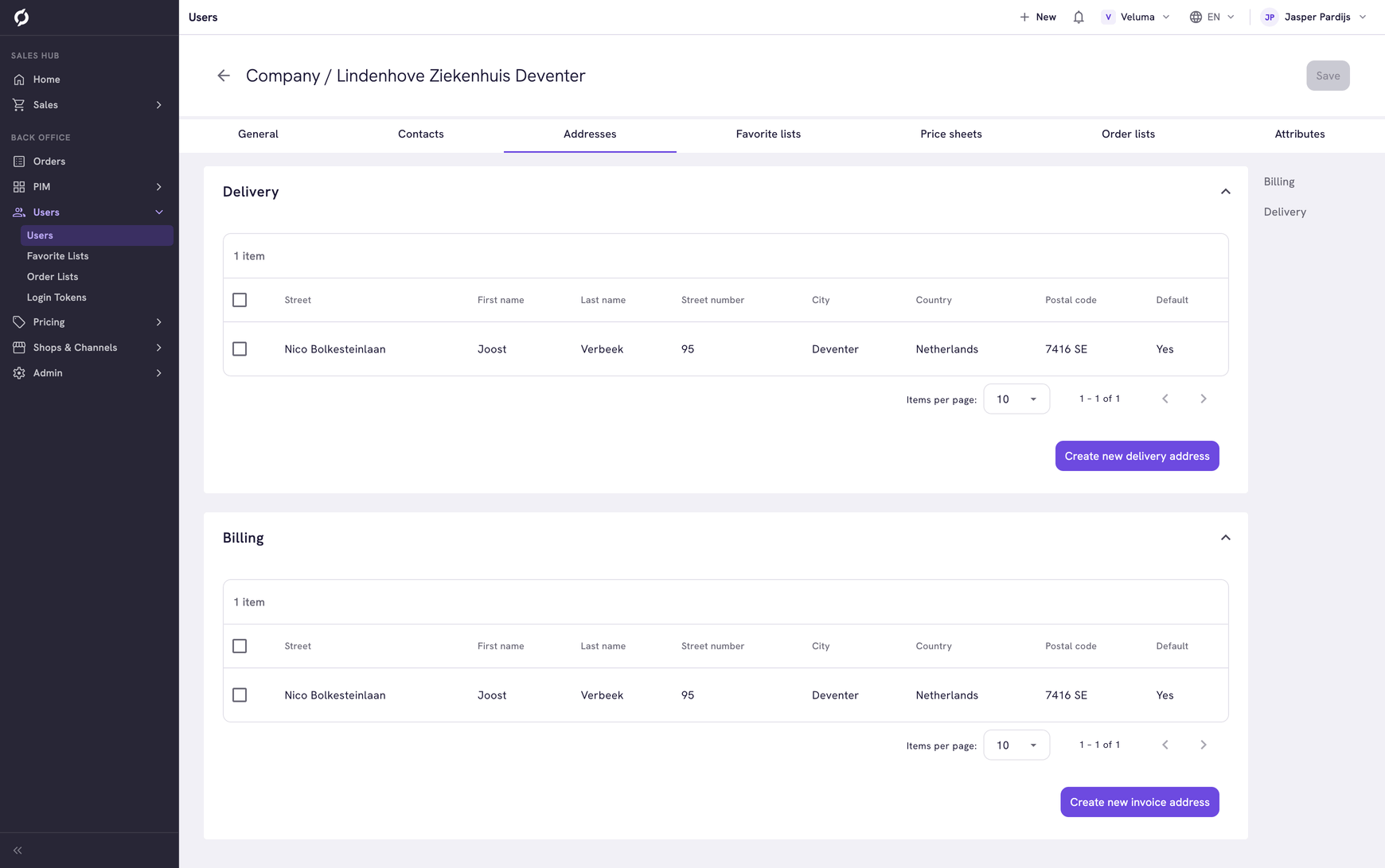
On the Addresses tab (companies and customers), manage delivery and billing addresses. The page is split into a Delivery section and a Billing section. Use the right sidebar to jump between them.

Addresses tab showing delivery and billing address tables

Each address table shows the following columns:

ColumnDescription
StreetStreet name
First nameRecipient first name
Last nameRecipient last name
Street numberHouse or building number
CityCity name
CountryCountry
Postal codePostal or zip code
DefaultWhether this is the default address

Create or edit an address

  1. Click Create new delivery address or Create new billing address to open the address editor dialog.
  2. Click any row to edit an existing address.

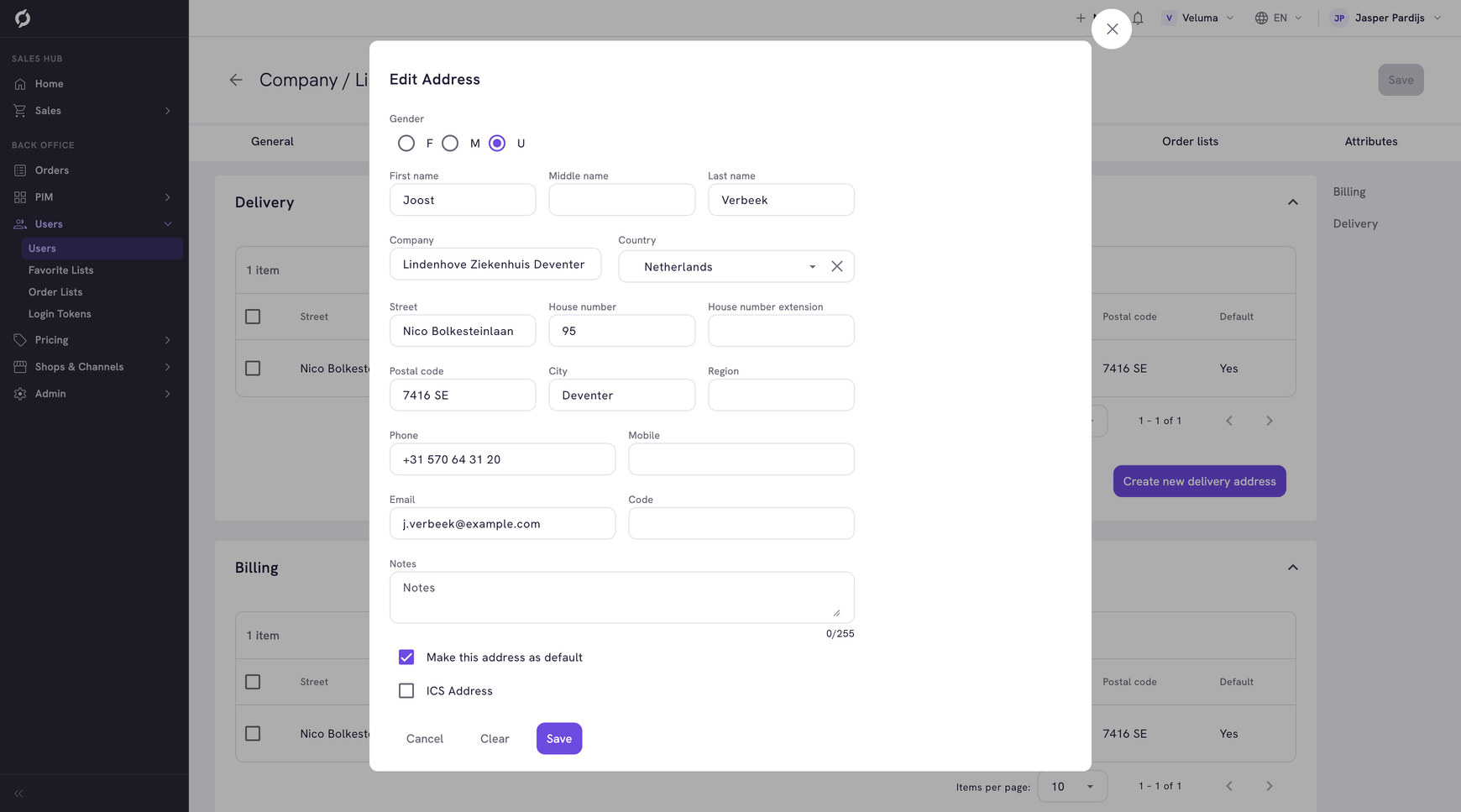
Edit Address dialog with address fields

The address editor includes the following fields:

FieldDescription
CompanyCompany name for this address
CityCity
StreetStreet name
House numberBuilding number
Postal codePostal or zip code
RegionRegion or state
Phone numberPhone for this address
EmailEmail for this address
BillingMark this address as a billing address
Make this address as defaultSet as the default address
ICS AddressMark as an ICS address
  1. Click Save to confirm your changes.

Delete addresses

  1. Select one or more addresses using the checkboxes.
  2. Click Delete to remove them.

View favorite lists

On the Favorite lists tab, view the user's favorite product lists.

Favorite lists tab showing a table of favorite lists

The table shows the following columns:

ColumnDescription
IDUnique identifier
User IDID of the user who owns the list
NameList name
SlugURL-friendly name
DefaultWhether this is the default favorite list
No. ItemsNumber of products in the list
Date CreatedWhen the list was created
Date UpdatedWhen the list was last modified

Use the search field to find lists by name. To create a new list, click New Favorite List.

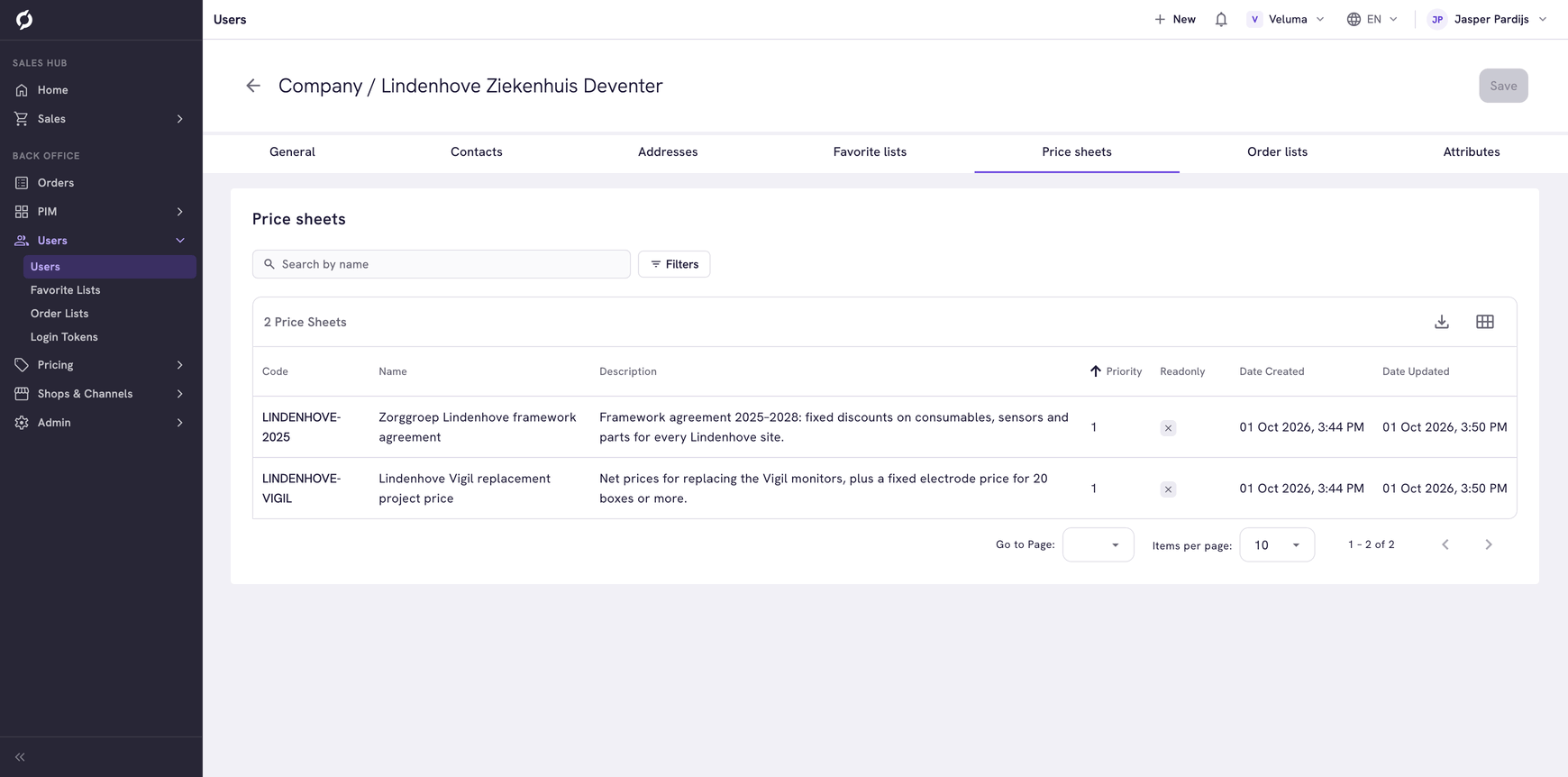
View price sheets

On the Price sheets tab, view the price sheets assigned to this user.

Price sheets tab showing assigned price sheets

The table shows the following columns:

ColumnDescription
CodePrice sheet code
NamePrice sheet name
DescriptionShort description
PriorityPriority order
ReadonlyWhether the price sheet is read-only
Date CreatedWhen the price sheet was created
Date UpdatedWhen the price sheet was last modified

Use the search field to find price sheets by name.

View order lists

On the Order lists tab, view the order lists assigned to this user.

Order lists tab showing assigned order lists

The table shows the following columns:

ColumnDescription
IDUnique identifier
DescriptionOrder list description
TypeOrder list type (for example, POSITIVE)
CodeOrder list code
ExtraAdditional information
Partner entityLinked partner entity
ActiveWhether the order list is active
No. assigned usersNumber of users assigned to the list
No. productsNumber of products in the list
Valid fromStart date of validity
Valid toEnd date of validity
Date CreatedWhen the order list was created
Date UpdatedWhen the order list was last modified

Use the search field to find order lists by code. To create a new order list, click New Order List.

Edit custom attributes

On the Attributes tab, manage custom attributes for this user type. Each attribute can be edited individually using the edit button next to it.

Attributes tab showing custom attributes