Create and send a quote
Build a quote for a contact, set its prices and send it to the customer. A new quote is a draft that the customer cannot see until you release it.
Before you begin
- You need Sales Hub access and the Order Data role.
- To start a new quote you need Owner access on Order Data and the User management role.
- The company and the contact must exist. See Companies.
Start the quote
- Go to Sales > Quotes and click New Quote. The quote opens in a new browser tab.
- If you see a Channel field, choose the channel first. It is locked once you pick the contact.
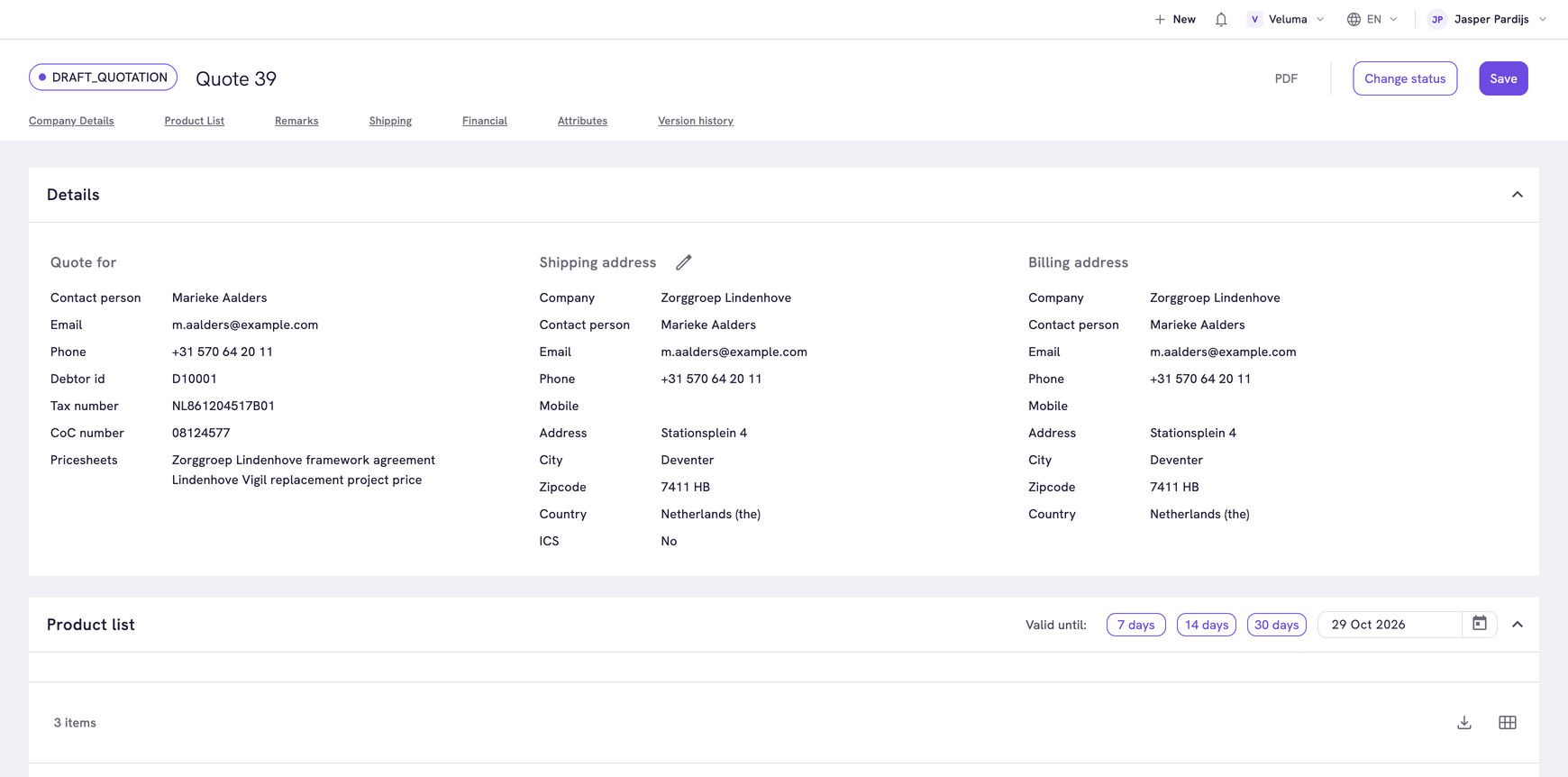
- Under Quote for, pick the company.
- Pick the contact person. The quote starts now, with the addresses and prices of this customer.
- Check the Shipping address and the Billing address and pick another address of the customer if needed.
You can also start from a contact: open the company under Sales > Companies, click Actions on the contact and choose Create Quote.
Pick the right contact before you add products. Picking another contact starts the quote again, without the products. After the first save the customer is fixed.
Add products
- Type a SKU in Add by SKU under the product list and press Enter.
- To search instead, click Add multiple products and tick the products. Then click the button at the bottom that counts them, for example Add 2 Products.
- To repeat an earlier purchase, click Order history and pick products from the earlier orders of this company.
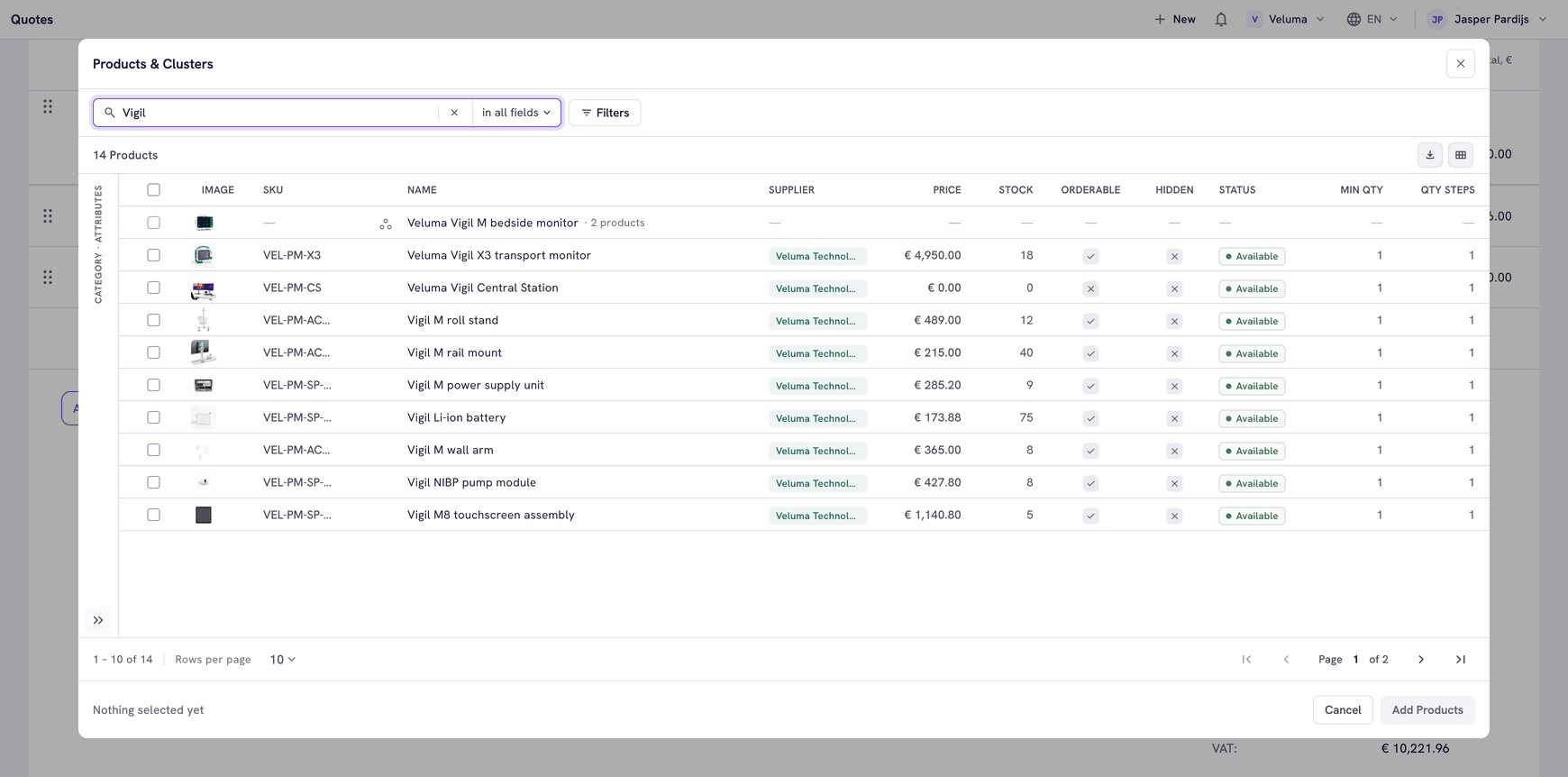
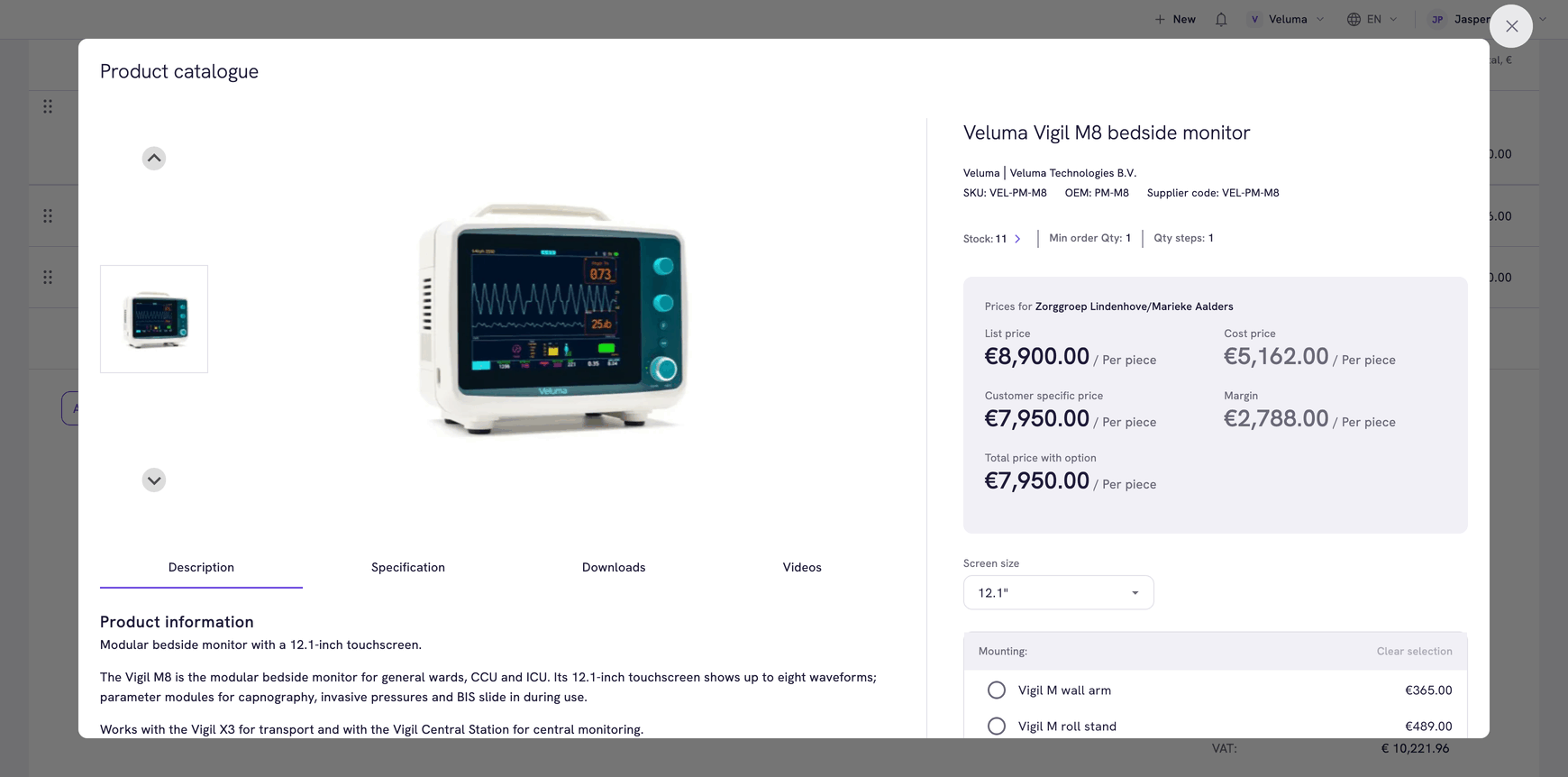
Click a product in that list to see its details, stock and the price for this customer before you add it.
Set quantities and prices
- Type the Quantity of each line.
- To lower a price, type a percentage under Sales Discount, % or the price itself under Sales price (unit). See Give a discount.
- To take a line off the quote, click the minus icon at the start of the line.
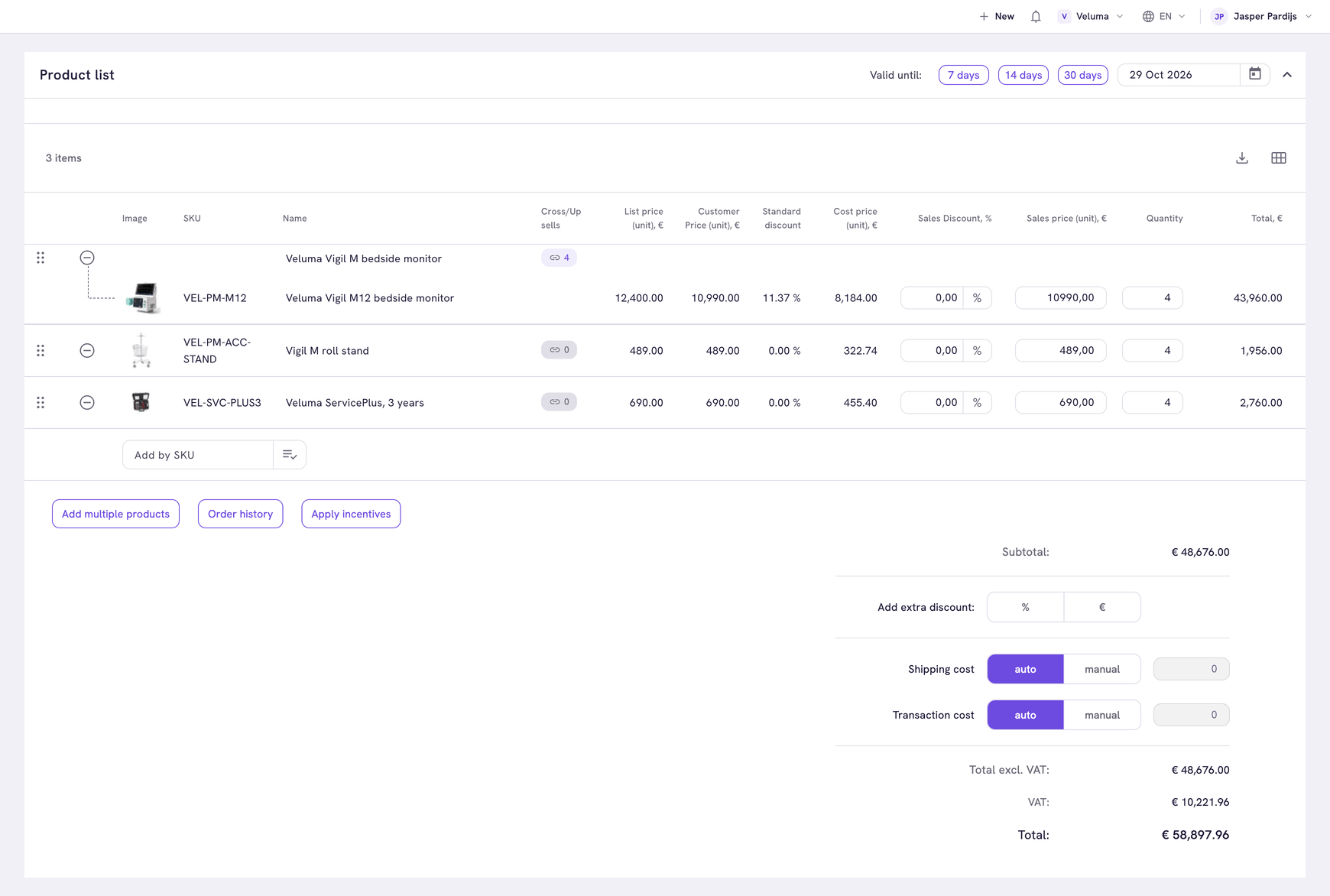
Set the quantity before the discount. A new quantity resets the sales price and the discount of that line.
Set how long the quote is valid
Above the product list, click 7 days, 14 days or 30 days, or pick a date under Valid until.
From seven days before that date the quote shows Nearly expired, after it Expired.
Every new quote can start with a standard validity, for example one week. Ask your Propeller account manager to set it.
Add remarks, a reference and shipping
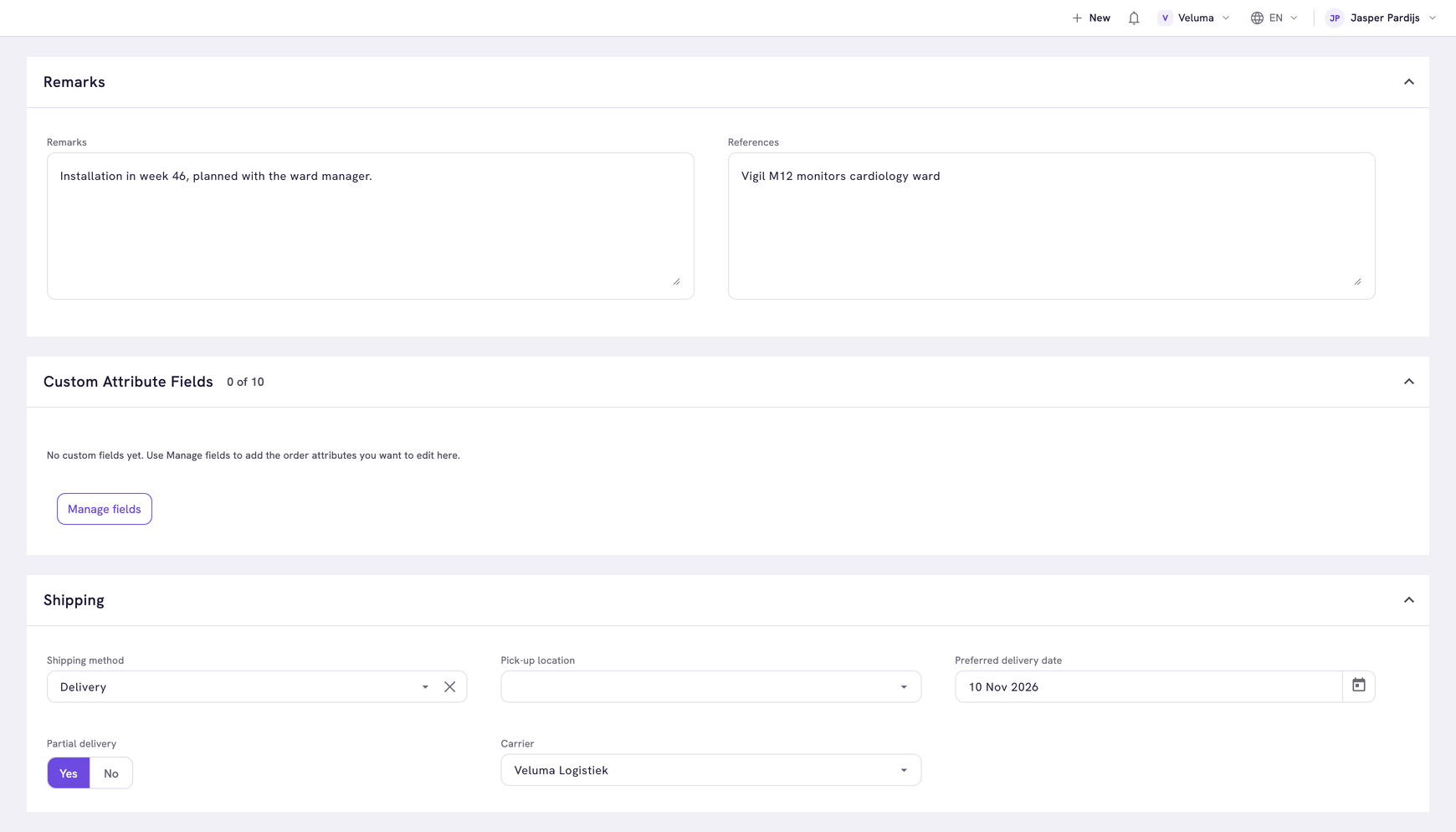
Below the product list you fill in what applies: Remarks for notes on this quote, References for the customer's own reference such as their purchase order number and Shipping for how the order will be delivered.
Save, release and send the quote
- Click Save. The quote gets a number and stays a draft. The customer cannot see it yet.
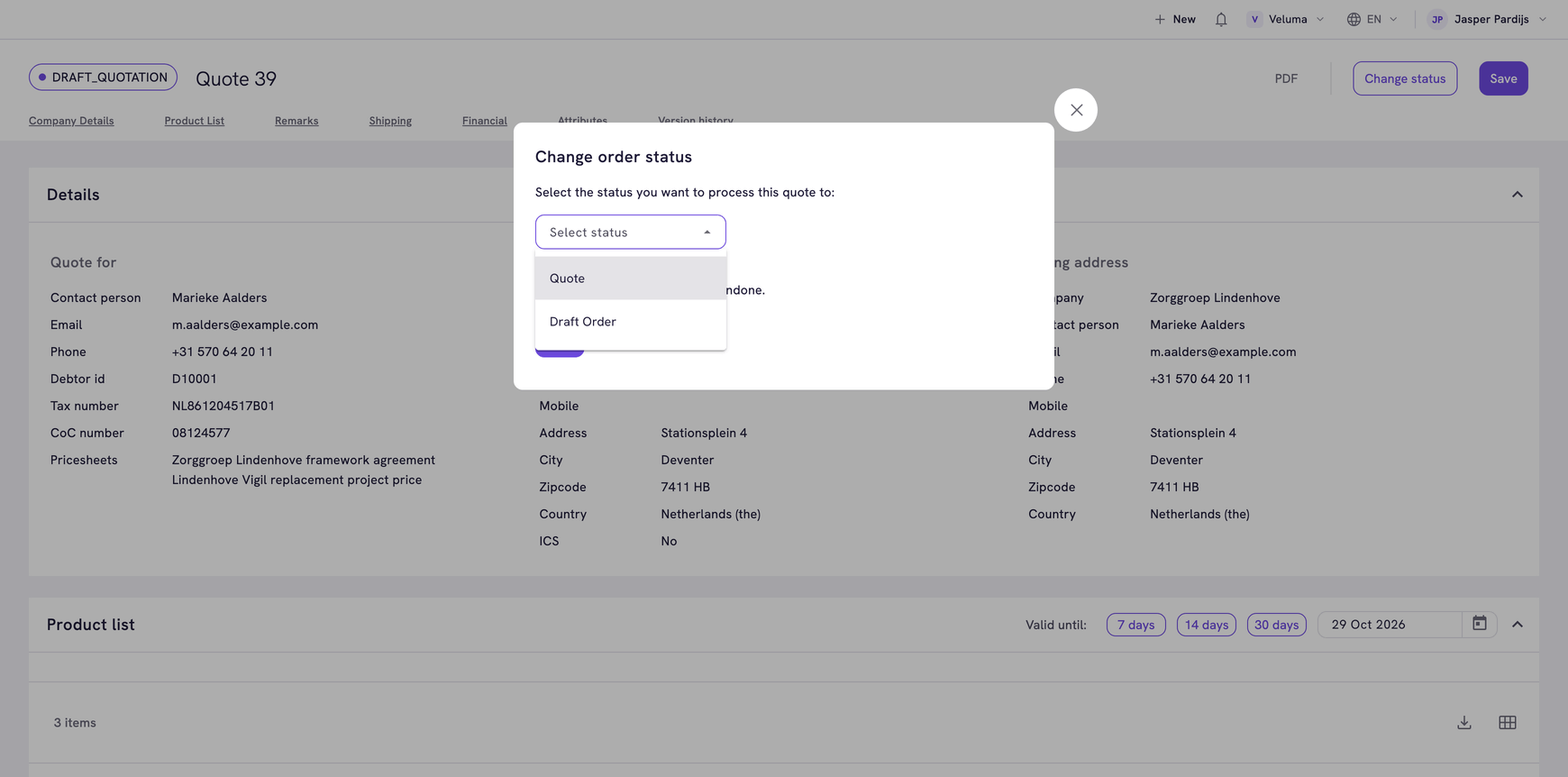
- Click Change status, select Quote and click Save in the dialog. The customer can now see the quote and you can no longer edit it.
- Click Send to client. The button changes to ✓ Sent to client.
Send to client asks Propeller to email the quote. Which email goes out is set under Shops & Channels > Event Actions. If none is set up for quotes, the customer receives nothing, also when the button shows the tick.
To change a quote after step 2, move it back to Draft Quote with Change status, edit it and release it again.
Turn the quote into an order
When the customer agrees, open the quote and click Change status.
- Select Order to place the order as it is.
- Select Draft Order if you still need to change something first.
The quote leaves the Quotes list and stands under Sales > Orders. See Create an order.
Related pages
- How requests, quotes and orders work
- Use the order editor - every column, total and section
- Follow up on a quote or order