Create an order
Enter an order for a contact, for example one that came in by phone or email. A new order is a draft. You place it by changing its status.
Before you begin
- You need Sales Hub access and the Order Data role.
- To start a new order you need Owner access on Order Data and the User management role.
- The company and the contact must exist. See Companies.
Start the order
- Go to Sales > Orders and click New Order. The order opens in a new browser tab.
- If you see a Channel field, choose the channel first. It is locked once you pick the contact.
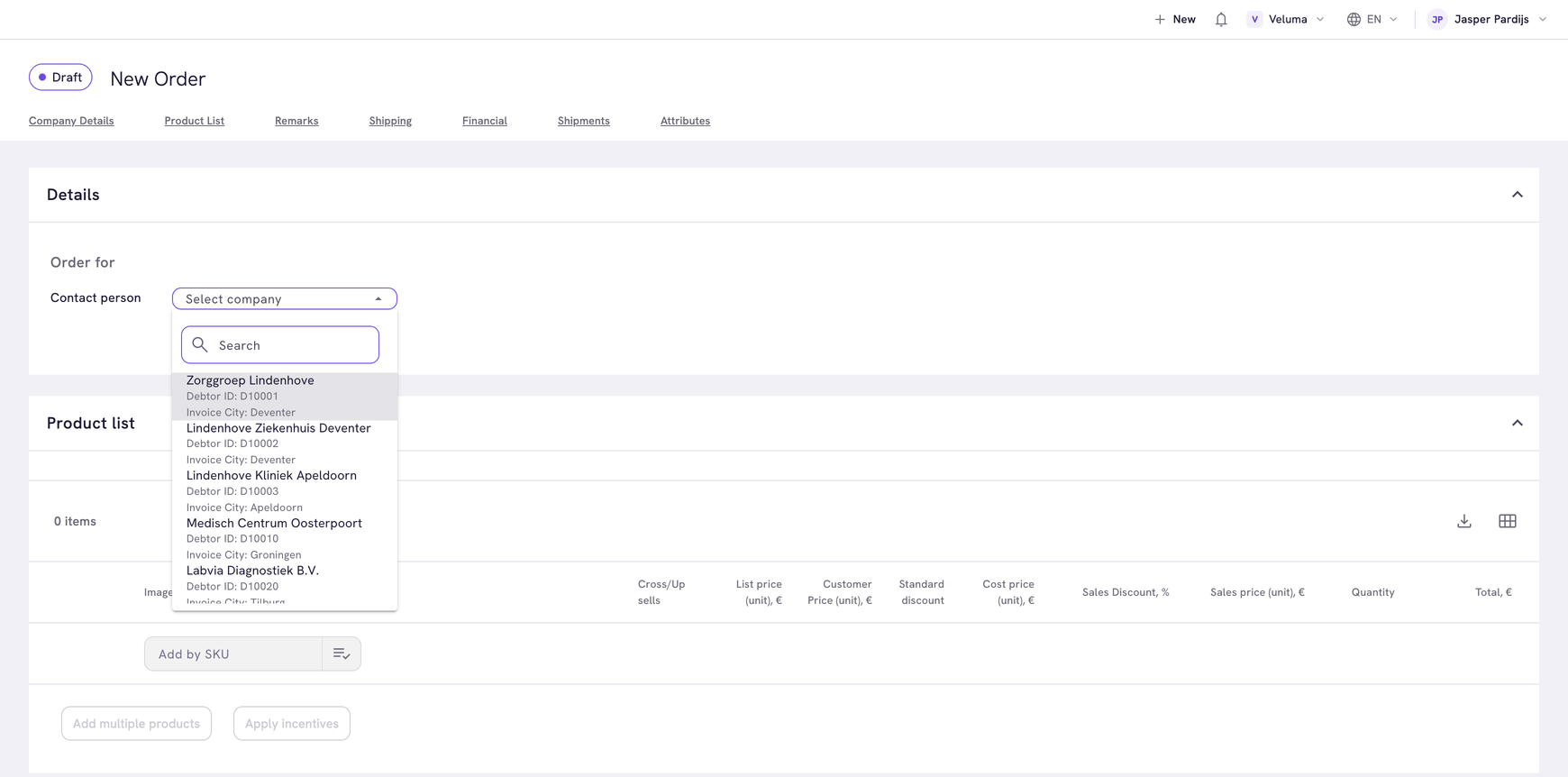
- Under Order for, pick the company. Each company shows its debtor ID and invoice city. Type in the search field to shorten the list.
- Pick the contact person. The order starts now, with the addresses and prices of this customer.
- Check the Shipping address and the Billing address and pick another address of the customer if needed.
You can also start from the customer: open the company under Sales > Companies, click Actions on the contact and choose Create Order.
Pick the right contact before you add products. Picking another contact starts the order again, without the products. After the first save the customer is fixed.
Add products
- Type a SKU in Add by SKU under the product list and press Enter.
- To search instead, click Add multiple products and tick the products. Then click the button at the bottom that counts them, for example Add 2 Products.
- To repeat an earlier purchase, click Order history and pick products from the earlier orders of this company.
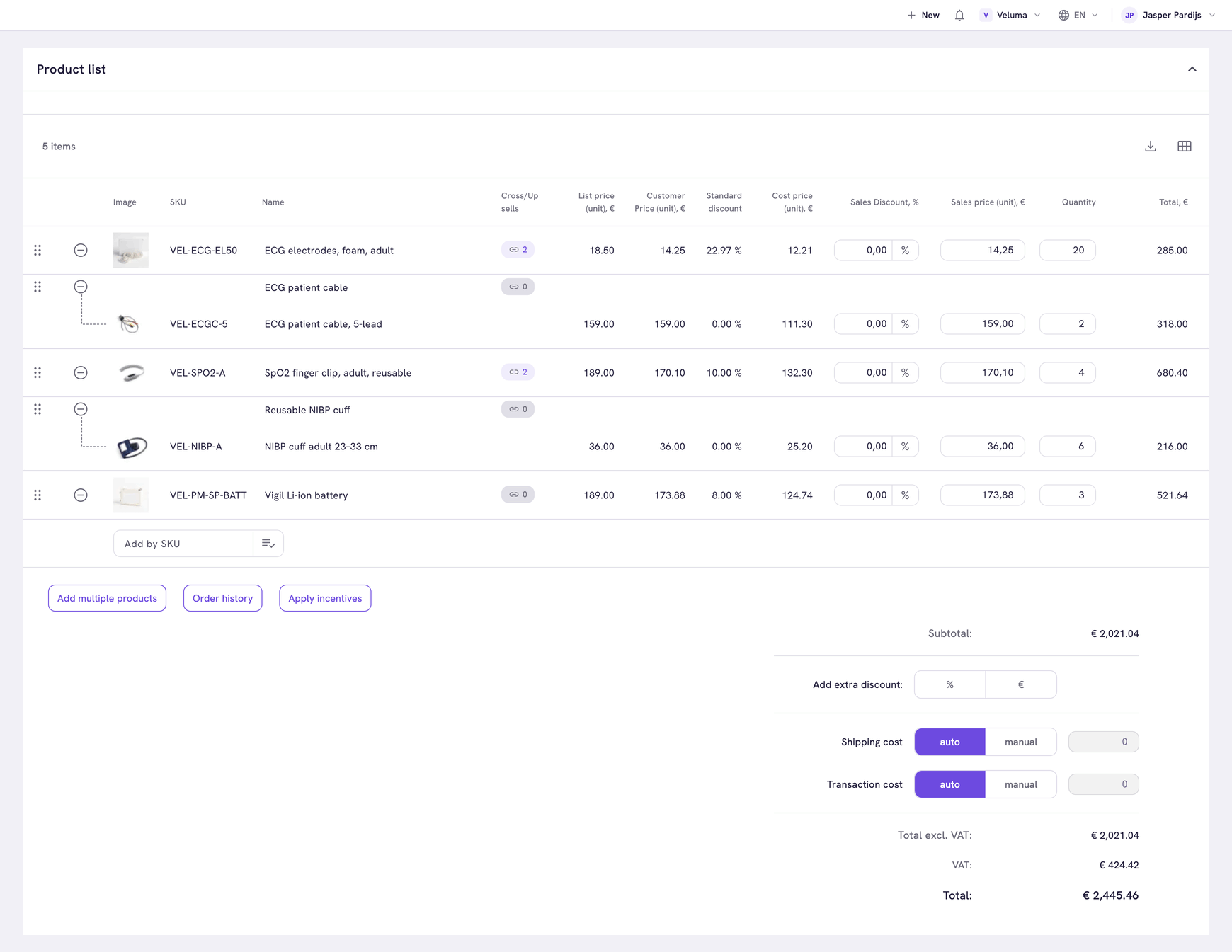
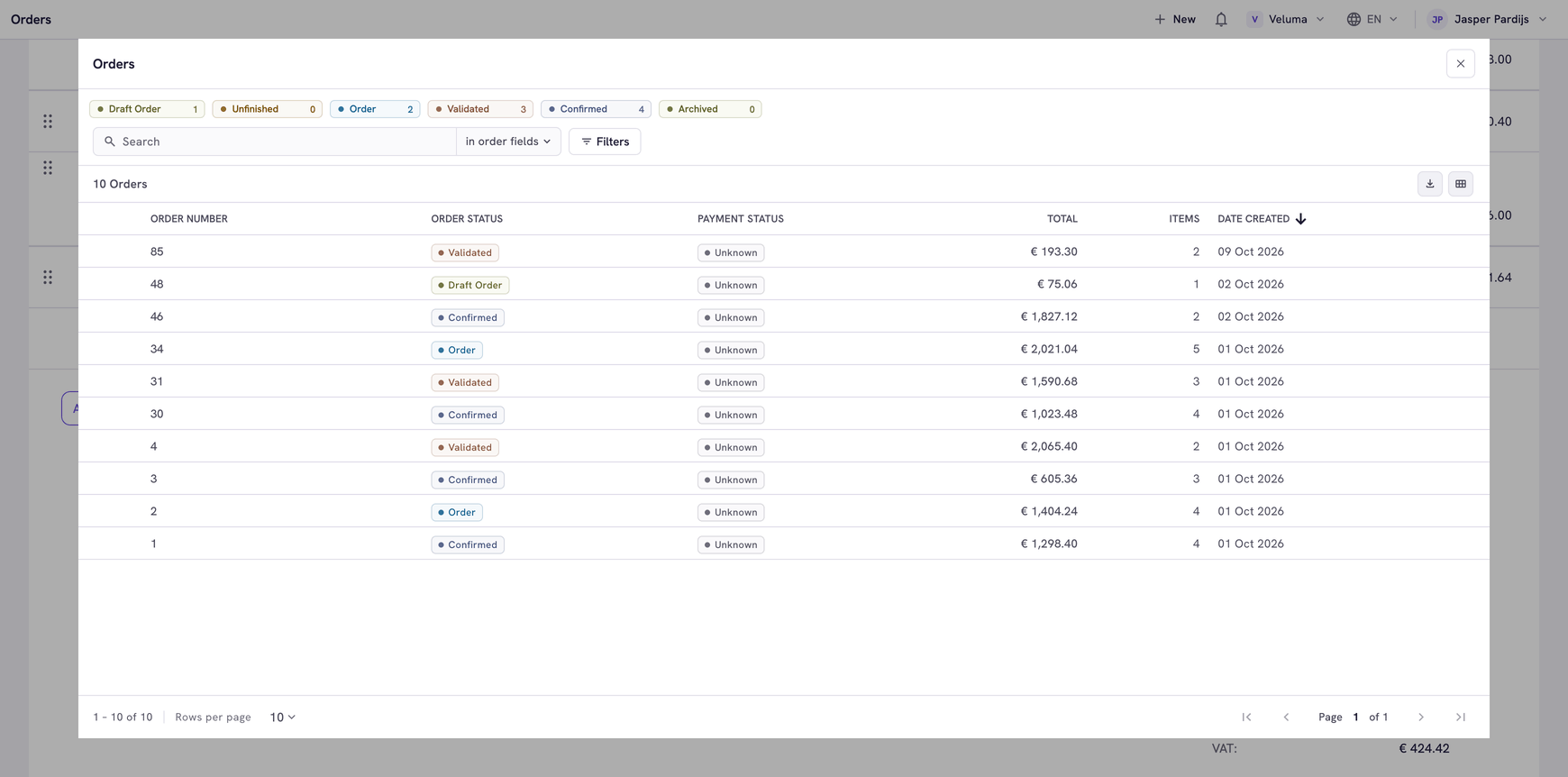
Then type the Quantity of each line. To lower a price, see Give a discount.
Add remarks, a reference and shipping
| Field | What to put in it |
|---|---|
| Remarks | Notes for this order, for example a delivery instruction |
| References | The customer's own reference, for example their purchase order number |
| Shipping method, Carrier | How the order is delivered |
| Pick-up location | The warehouse where the customer collects the order |
| Preferred delivery date | The date the customer asked for |
| Partial delivery | Whether the order may be delivered in parts |
Shipping and transaction costs are worked out for you. See Use the order editor to set them by hand.
Save and place the order
These three steps finish an order. They belong together.
- Click Save. Propeller shows "Saved successfully" and the order gets its number. It is a Draft Order: nothing is placed yet and the customer cannot see it.
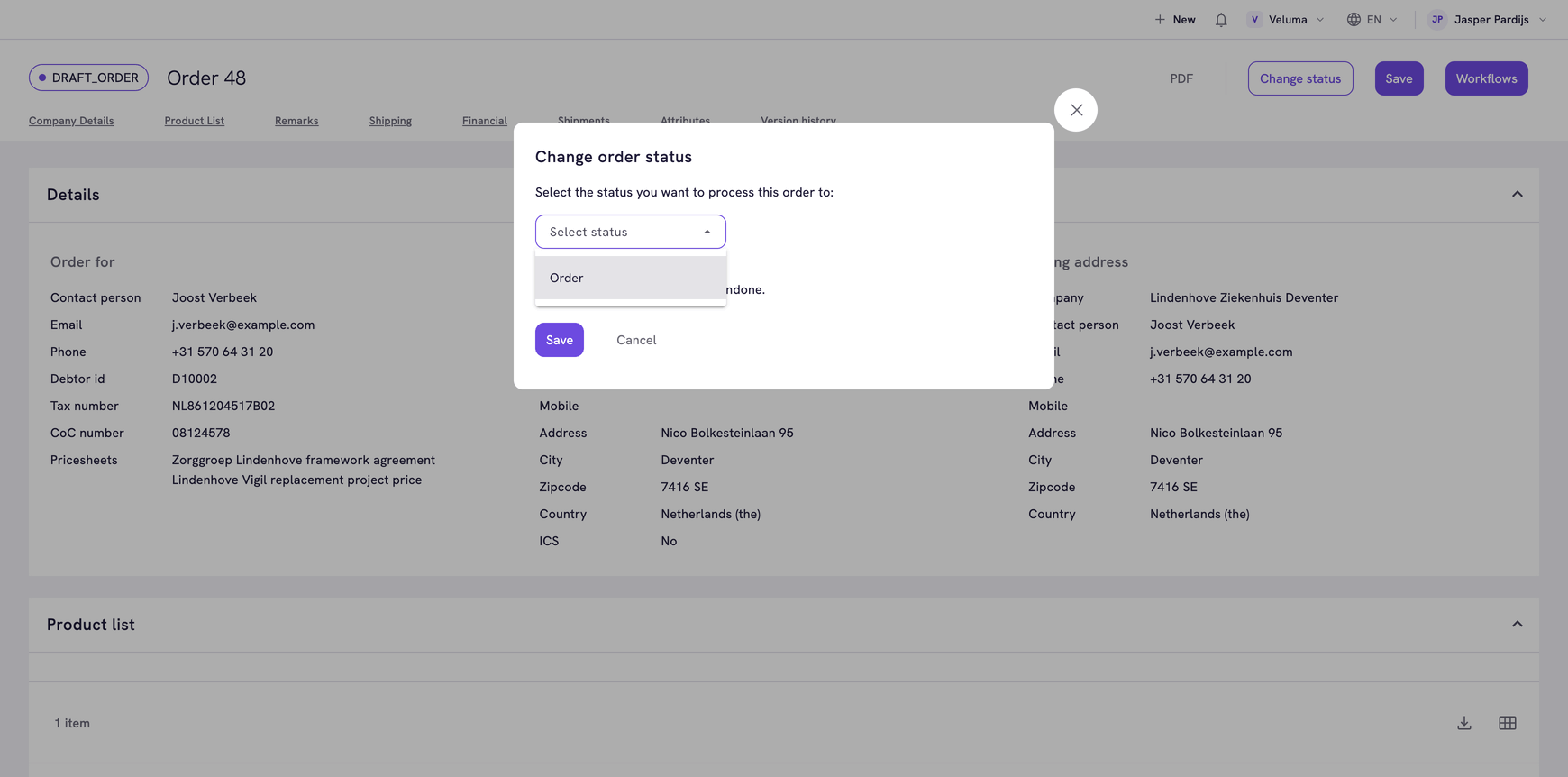
- Click Change status, select Order and click Save in the dialog. The order is placed. Its label now reads NEW.
- Click Send to client to send the order confirmation. The button changes to ✓ Sent to client.
An order needs at least one product before you can save it.
Send to client asks Propeller to email the confirmation. Which email goes out, and with which PDF, is set per environment under Shops & Channels > Event Actions. If no email is set up for order confirmations, the customer receives nothing. The button shows that the request was accepted, not that an email arrived.
Change an order later
Open the order from Sales > Orders. You can change it as long as its status allows editing. On a standard environment that is Draft Order and Order. From Validated on, the lines and prices are fixed.
Related pages
- How requests, quotes and orders work - what each status means
- Use the order editor - every column, total and section
- Follow up on a quote or order - shipments, the PDF and earlier versions