Answer quote requests
A quote request comes in when a contact asks for a price in the webshop, or when a workflow turns an email into a request. You pick the request up, turn it into a quote, check it and send it. If the contact already agreed, you turn it straight into an order.
Before you begin
You need Sales Hub access and the Order Data role. To change the status of a request you need Editor or Owner access.
Find the requests that wait
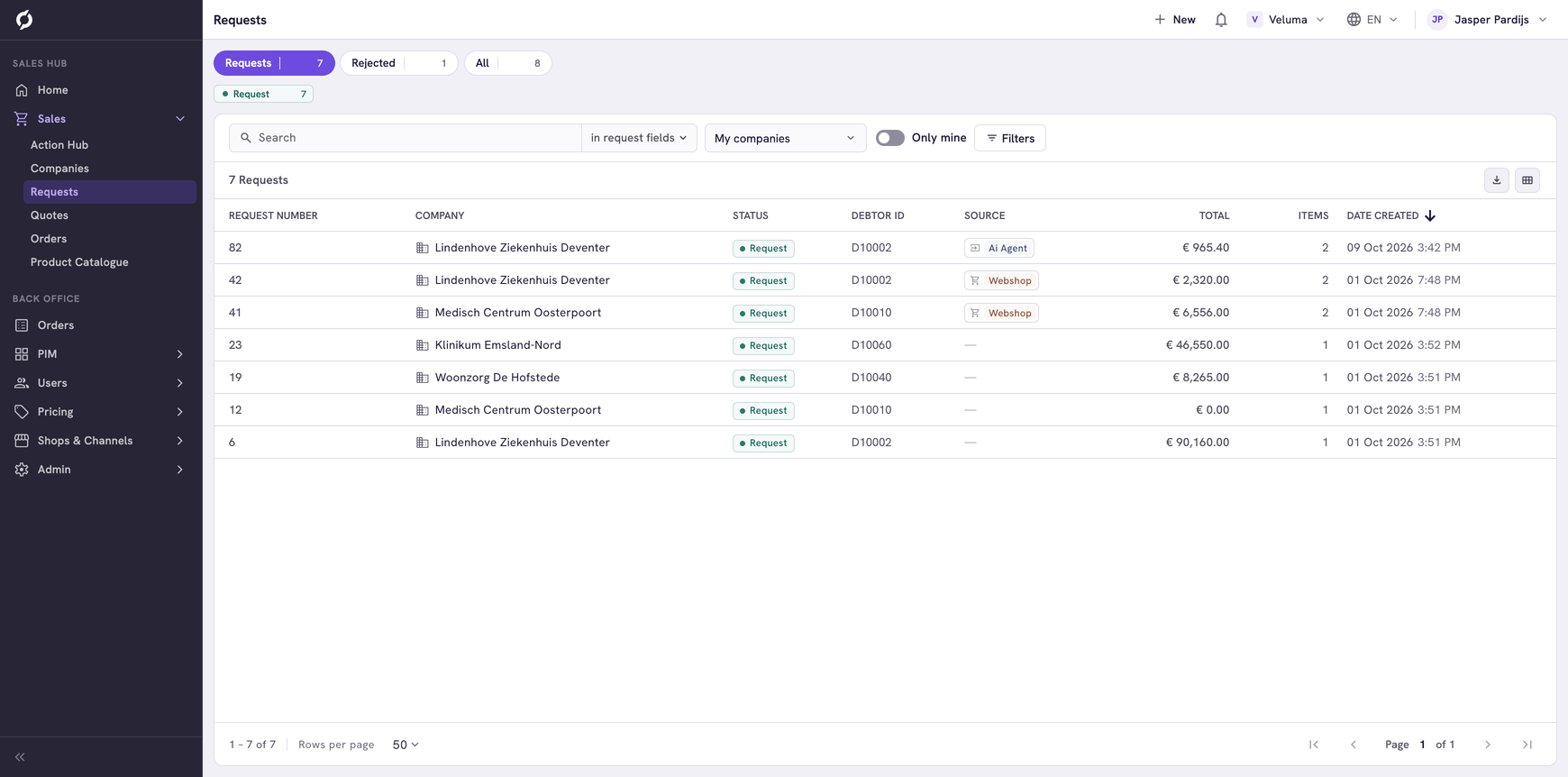
Go to Sales > Requests. The list opens on the Requests group: the requests nobody answered yet, newest first. Rejected and All sit next to it. The Home page counts the same requests under Requests waiting.
To find one request, search on its number, the company name, the debtor ID or the name of the contact. See Work with lists for search, filters and columns.
Read a request
Click a row. The request opens in a new browser tab. You see who asked, the addresses, the products and quantities and the Notes from customer.
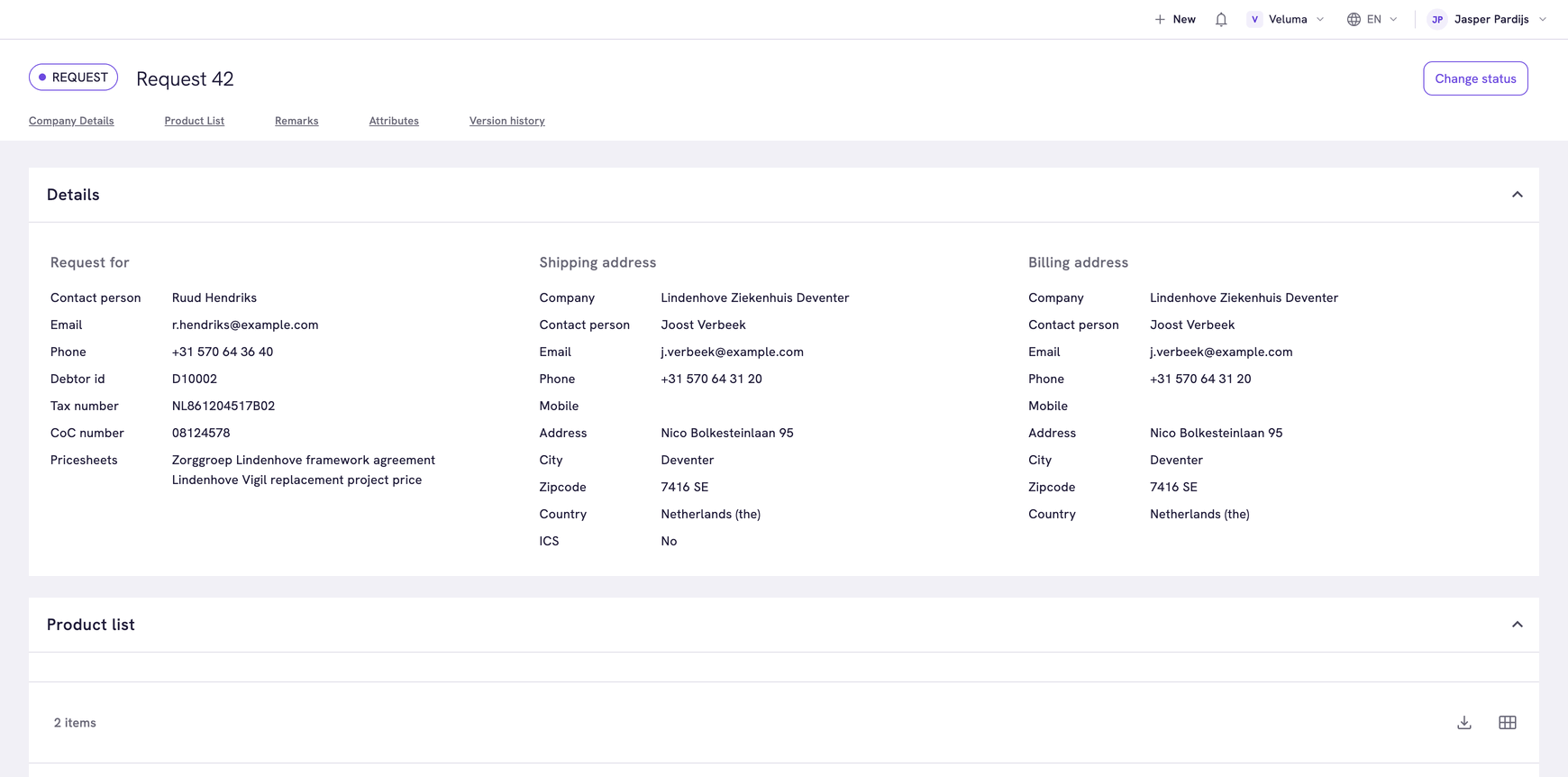
A request is read-only. To change lines or prices you first turn it into a quote or an order.
Turn a request into a quote or an order
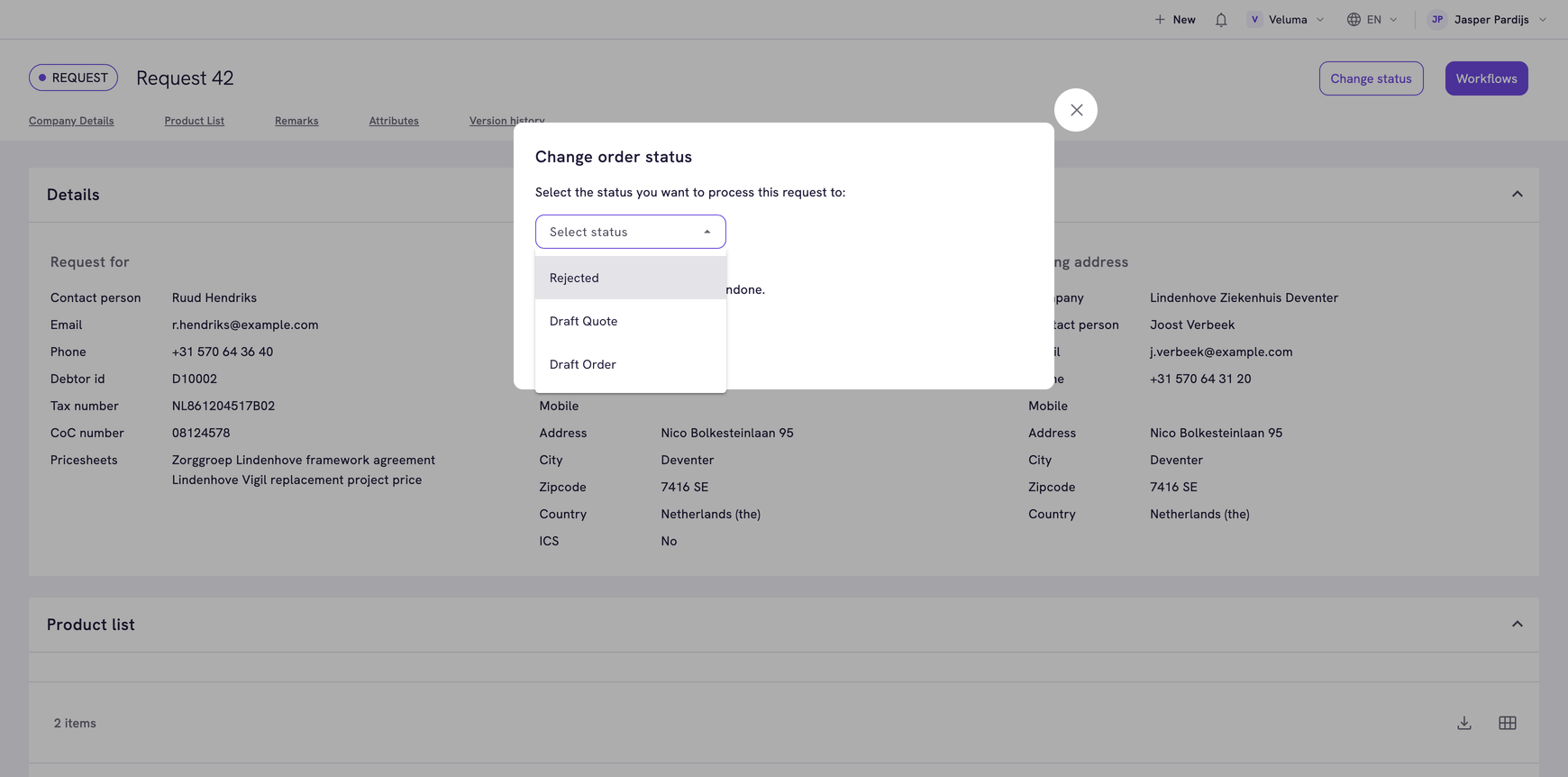
- Open the request and click Change status at the top right.
- Select Draft Quote to make a quote, or Draft Order when the contact already agreed.
- Click Save in the dialog.
The request leaves the Requests list. As a Draft Quote it now stands under Sales > Quotes, as a Draft Order under Sales > Orders. You can change it there.
- Next for a quote: check the prices and send it. See Create a quote.
- Next for an order: place it. See Create an order.
Draft Quote, Draft Order and Rejected are the choices of a standard environment. Yours can differ.
Reject a request
- Open the request and click Change status.
- Select Rejected.
- Click Save in the dialog.
The request moves from the Requests group to the Rejected group.
Propeller does not tell the customer about a rejection, unless your company set up an email for it. Let the customer know yourself.