Manage orders
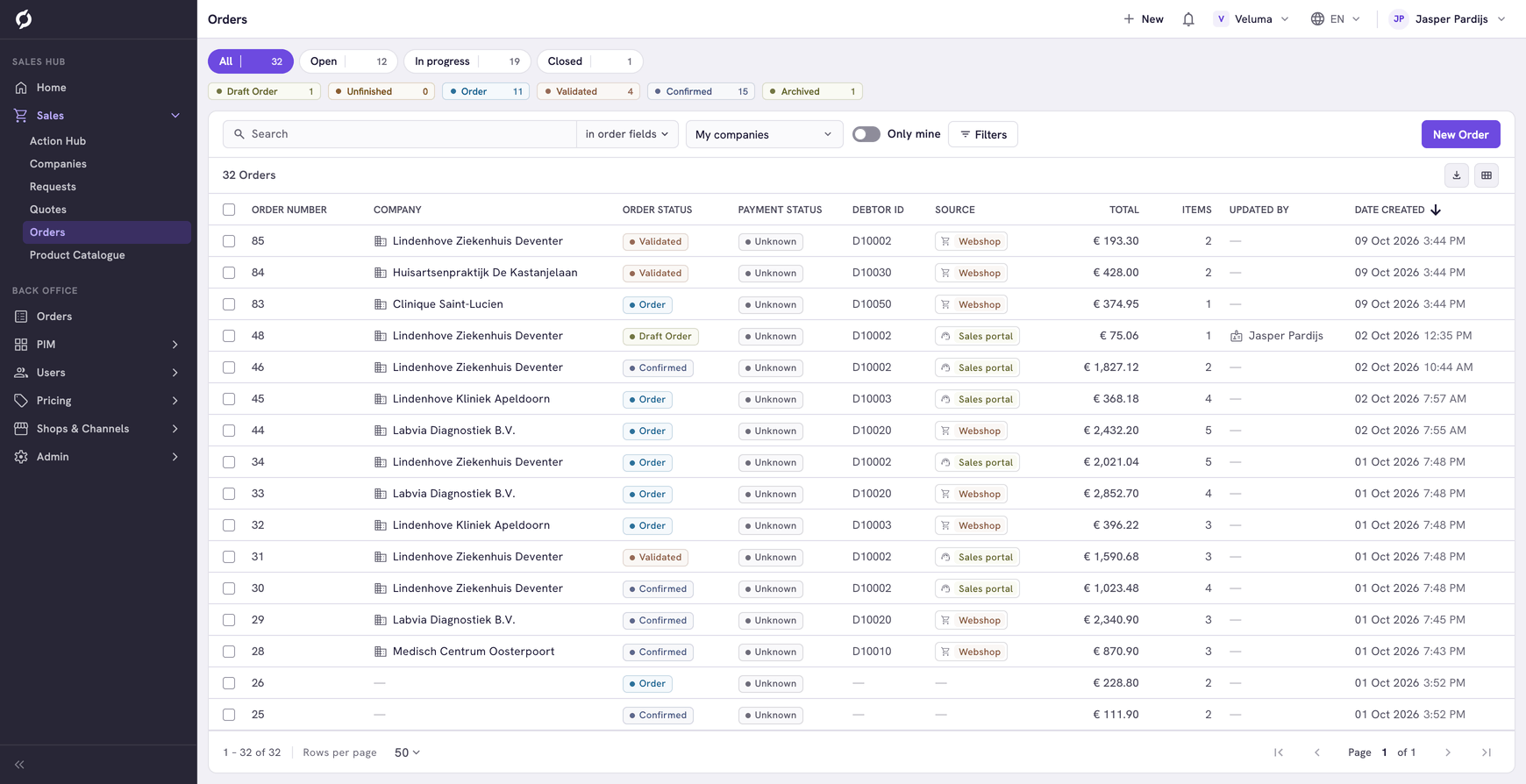
The Orders list holds every order of your environment, from the webshop and from your colleagues. Use it to find an order, to see how far it is and to start a new one.
Before you begin
You need Sales Hub access and the Order Data role. To create or delete an order you need Owner access.
Find an order
Go to Sales > Orders. The newest orders are on top. Click a row to open the order in a new browser tab.
The list shows the orders of all customers. Switch on Only mine, next to My companies, to see only those of your own customers.
To find one order, search on its number, the company name, the debtor ID, the name of the contact or the reference of the customer. See Work with lists for search, filters and columns.
Read the columns
| Column | What it shows |
|---|---|
| Order status | The name of the status, for example Draft Order or Order. See what each status means |
| Payment status | Whether the order is paid, for example Open, Pending or Paid. Unknown means nothing was recorded. You cannot change it in the Sales Hub |
| Total, € | The total of the order excluding VAT |
| Source | Where the order came from, for example Webshop or Sales portal |
| Updated By | The colleague who changed the order last |
Create an order
Click New Order at the top right. See Create an order.
Cancel or delete an order
To cancel an order, change its status. See Cancel an order. The order stays in Propeller, so you can still look it up.
Delete an order only when it should never have existed, for example a test.
- Tick one or more orders.
- Click Delete above the table and confirm.
A deleted order is gone for good, with its lines, addresses and shipments. It cannot be brought back.
Related pages
- How requests, quotes and orders work
- Create an order
- Follow up on a quote or order - shipments, the PDF and earlier versions