Choose what a business rule looks at
A condition compares one thing of a quote or an order with a value, such as the subtotal or the delivery country. This page lists what you can compare and what to fill in.
Before you begin
You need Backoffice access and the Configuration role. Read Build a business rule first.
Pick the item
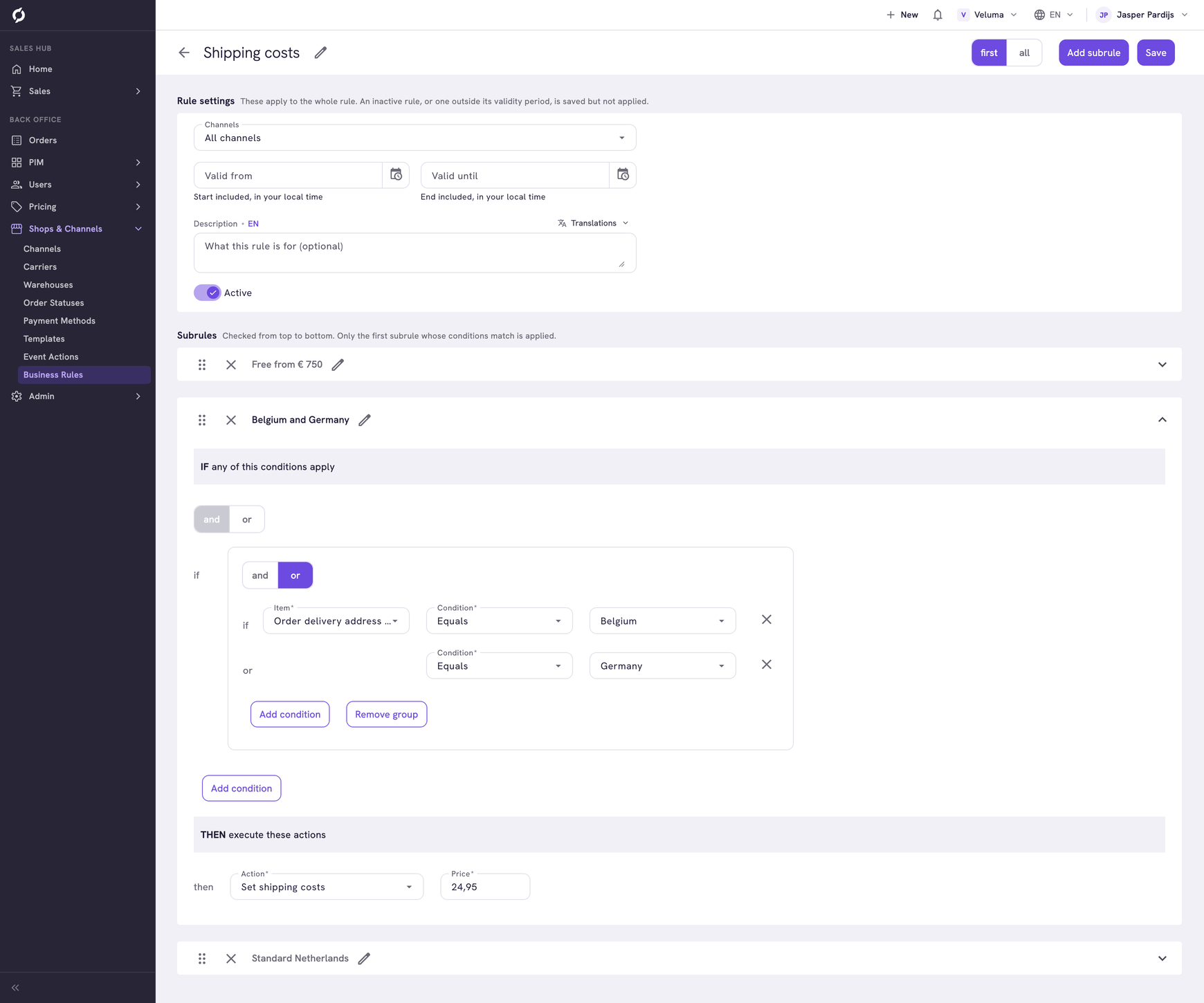
Under IF, open Item. You can use each item once per subrule.
| About | Items |
|---|---|
| The order | Order subtotal, Order actioncode (the discount code), Order current date |
| The addresses | Country, city, region and postal code of the delivery address and of the invoice address |
| Shipping and payment | Order postage shipping method, Order postage carrier, Order paymethod |
| The products | Order items. See Count the products on an order |
| The person | User type, User firstname, User lastname, User birthday, User Attribute |
| The company | Company name, Company ID, Company debtorId, Company created at, Company Attribute |
The subtotal is the sum of the lines, excluding VAT.
Pick the condition
| For | Conditions | Example |
|---|---|---|
| A number or an amount | Equals, NotEquals, GreaterThan, GreaterThanOrEqualTo, LowerThan, LowerThanOrEqualTo | Order subtotal GreaterThanOrEqualTo 750 |
| A text | Equals, NotEquals, Contains, StartsWith, EndsWith, ExistsInArray | Order delivery address postal code StartsWith 74 |
"Or more" is GreaterThanOrEqualTo. With Equals 2, an order with 3 does not count.
ExistsInArray means one of several values, separated by a comma, for example NL,BE,LU.
Fill in the right value
With Equals or NotEquals, the country, carrier, payment method, shipping method, manufacturer and supplier give you a list to pick from. Otherwise you type the value as Propeller stores it.
| Item | What to type |
|---|---|
| Country | The two letter code, for example NL |
| Payment method | Its External Code, for example IDEAL. See the Payment Methods list |
| Carrier | Its name, exactly as it is written in the Carriers list |
| User type | Contact for someone of a company, Customer for a consumer |
Count the products on an order
With the item Order items you first choose what to count under Aggregate.
| Aggregate | What it counts | A value of 2 means |
|---|---|---|
| Count | Different products | 2 different products |
| total Quantity | Pieces | 2 pieces, of one product or of two |
| total Price | The value of the products | € 2 worth of products |
One product ordered twice is one line with quantity 2. Count sees that as 1. A promotion that says "order 2 pieces" needs total Quantity.
Under Subitem you say which products count, for example Product SKU Equals a SKU. For a category use Product parent category ID or Product category path, for an attribute Product Attribute. Without a Subitem every product counts. Only the products that match get a discount.
In an incentive, keep one condition inside Order items. Add condition inside that box adds a second one. A promotion with two of them does not apply.
Use an attribute in a condition
- Choose Company Attribute, User Attribute or the Subitem Product Attribute.
- Under Attribute, type a part of the name and pick it. The list shows the kind: Text, Enum (a list of fixed values), Integer or Decimal.
- Choose the Condition. Text and Enum offer Equals, Not equals, Contains and Is one of. Integer and Decimal offer Equals, Not equals, Less than, Greater than, At most and At least.
- Fill in the Value. For Enum, pick it from the list. For Text, the field suggests the Values in use and Is one of takes values separated by a comma.
- For Text, choose the Language of the value or keep Any language.
A value must match exactly, capitals included, so pick it from the suggestions when you can. A product without a value for an Integer or Decimal attribute counts as 0, so At most 20 also takes those products. When the attribute is renamed or deleted, the condition shows Attribute not found.
Use a date in a condition
Do not use the date conditions for now. A condition on Order current date does not match any order. A rule with a Before or After condition can no longer be opened in the Backoffice once it is saved.
To limit a rule to a period, use Valid from and Valid until.