Build a business rule
This page takes you through the rule builder, from the first subrule to the settings of the whole rule. The steps are the same for every type of rule.
Before you begin
You need Backoffice access and the Configuration role. To create or delete a rule you need Owner access, to change one Editor or Owner access.
Read a rule
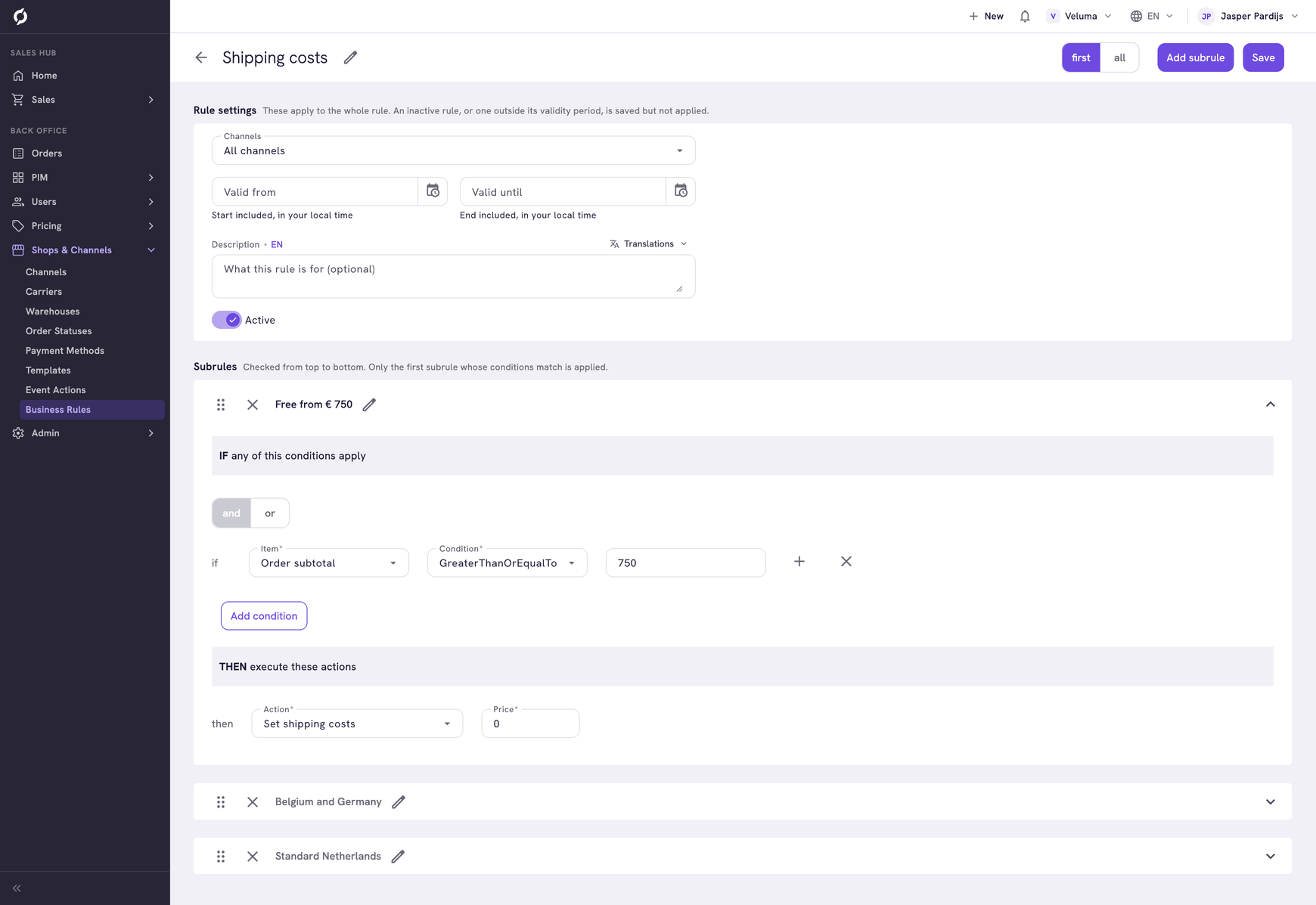
A rule is a list of subrules. Each subrule has an IF part with conditions and a THEN part with one action. In the image, the first subrule says: if the order subtotal is 750 or more, the shipping costs are 0. The whole rule is explained on Charge shipping costs.
Create a rule
- Go to Shops & Channels > Business Rules.
- Click New Rule. On All, choose the type of rule in the menu.
- Click the pencil next to Untitled rule and type a name.
- Fill in the first subrule, as described below.
- Click Save.
Nothing is stored until you click Save. The rule counts from that moment, unless you give it a later start.
Fill in a subrule
- Click the pencil next to the name of the subrule and type a name, for example Free from € 750.
- Under IF, choose the Item the rule looks at, for example Order subtotal.
- Choose the Condition and fill in the value, for example GreaterThanOrEqualTo 750.
- Under THEN, choose the Action and fill in its fields, for example the Price.
- Click Add subrule for the next one. Drag a subrule by its handle to move it up or down.
To remove a subrule, click the cross in front of its name and confirm.
Choose first or all
| Switch | What counts | Use it for |
|---|---|---|
| first | Only the first subrule that is true, from the top down | One outcome, such as one shipping cost. Put the most specific subrule at the top |
| all | Every subrule that is true | Several outcomes together, such as the carriers a customer can pick from |
A new rule starts on first.
On first, end with a subrule that is true for every order, such as Order subtotal GreaterThanOrEqualTo 0. Then no order is left without a result.
Combine conditions
Add condition adds a condition on another item. All conditions of a subrule must be true. The delivery country Netherlands with an order subtotal below 250 counts for small orders to the Netherlands only.
Each item can be used once per subrule. For more values, click + behind the condition. The values form a group with its own switch and / or. Choose or for "Belgium or Germany".
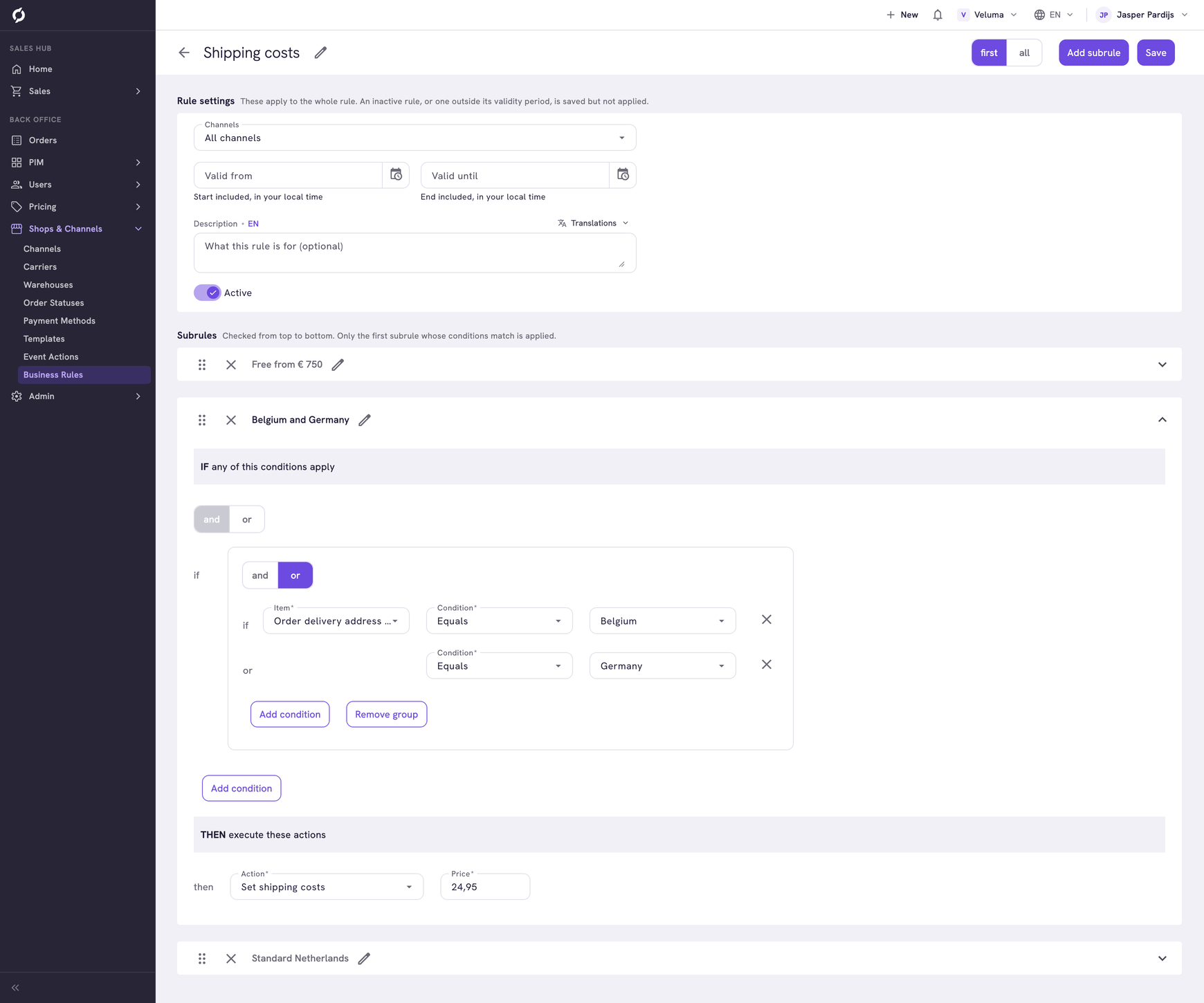
For "this or that" on two different items, such as Gold customers or orders from € 2,500, make two subrules with the same action. Every item is listed on Choose what a business rule looks at.
Limit a rule to a channel
Under Rule settings, pick one or more channels under Channels. The rule then only counts for quotes and orders of those channels. With All channels it counts everywhere.
Set when a rule counts
A rule counts while it is active and inside its validity period. Both are under Rule settings.
- Fill in Valid from and Valid until. Both moments are included, in your local time. Leave a field empty when the rule has no start or no end.
- Switch Active off to stop the rule without deleting it.
- Click Save.
A rule that is inactive or outside its validity period is saved but not applied. Use Description to note what the rule is for.
Delete a rule
- Go to Shops & Channels > Business Rules.
- Tick the rule, click Delete and confirm.
A deleted rule cannot be brought back. To check a rule, see Test the rule on a quote.