Give a channel its own catalogue
A taxonomy is a separate category tree. With more than one taxonomy, each sales channel can show its own catalogue, for example one for the B2B webshop and one for an app. If you have one webshop, you have one taxonomy and you do not need this page.
Before you begin
You need Backoffice access and the Product Data role with Owner access. To assign the taxonomy to a channel you need the Configuration role.
Read the taxonomy tiles
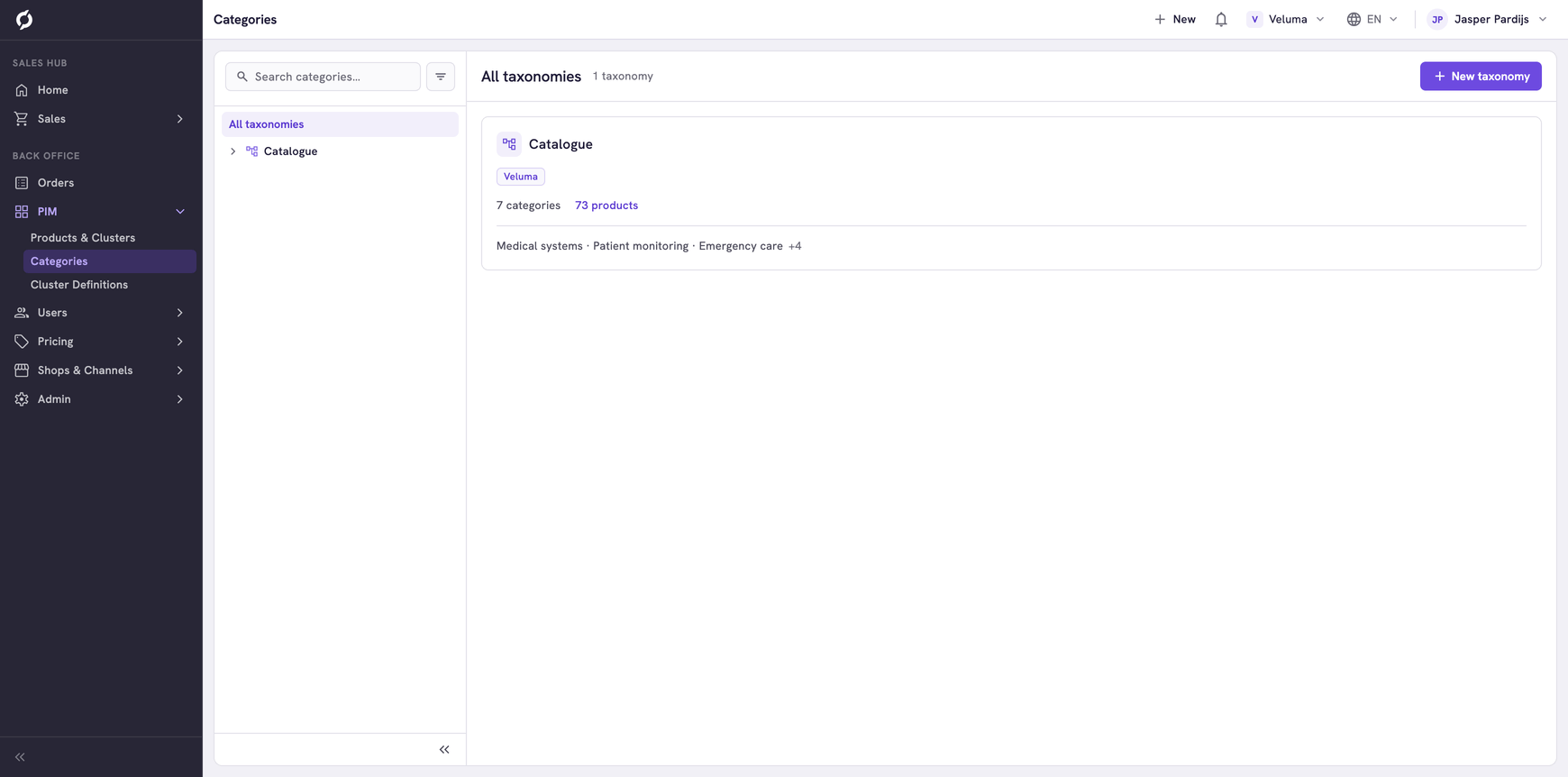
Go to PIM > Categories. The page opens on All taxonomies, with a tile for each taxonomy: its name, the number of categories and products and its first categories. A label on the tile names the channel that uses the taxonomy, or says No channel. Next to All taxonomies you see how many there are.
Create a taxonomy
- Click New taxonomy at the top right.
- Type the Name and click Create.
The taxonomy gets its own tile, with an empty tree. Add categories to it as in Manage categories.
Show the taxonomy in a channel
A new taxonomy shows nowhere until a channel uses it.
- Go to Shops & Channels > Channels and open the channel.
- Pick the taxonomy under Catalog Root.
- Click Save.
See Channels.