Manage the products in a category
A category shows the products you put in it. On this page you read how to add products to a category, how to set their order and why it matters which category is the product's own.
Before you begin
You need Backoffice access and the Product Data role with Editor or Owner access. To delete products you need Owner access.
Primary and linked categories
Every product has one category of its own, the primary category. You can also link it to other categories. It then shows in those as well.
The difference matters for prices. A category discount on a price sheet reaches a product through its primary category and the categories above that one. It does not reach a product through a linked category.
So when a customer has 12% off the category Patient monitoring, a product gets that discount only when its primary category is Patient monitoring or a category below it.
You recognise them like this:
- On the product page, a star marks the primary category. See Put the product in a category.
- In a list of products, a link icon on the image marks a product that is only linked to the category you look at.
See the products of a category
- Go to PIM > Categories and open the category.
- Click Show products.
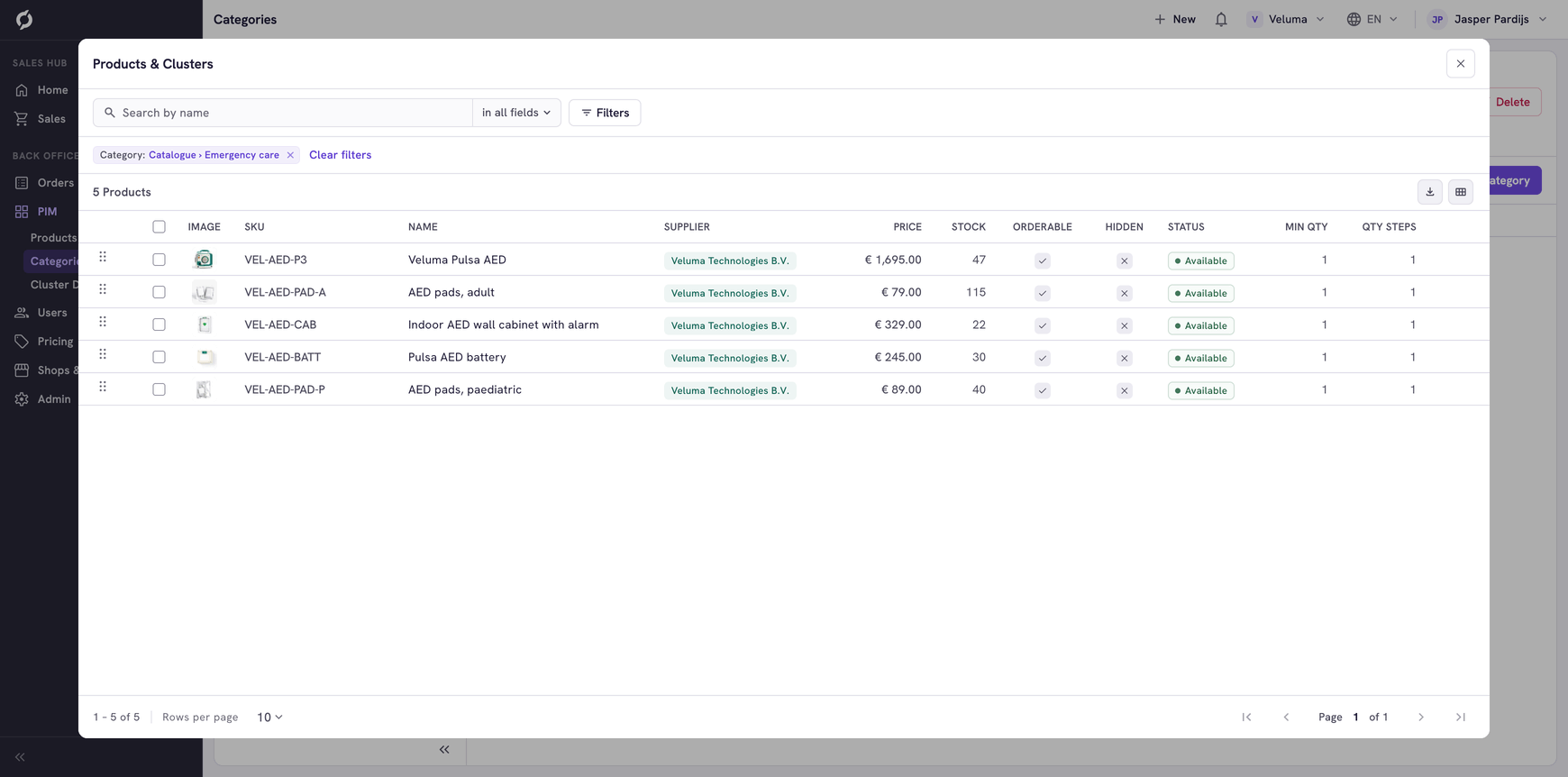
The Products & Clusters dialog opens with the products and clusters of that category. Click a product to open it.
Add products to a category
- Open the category and click Add products at the top right.
- Search and tick the products and clusters.
- Click Move products to make this category their primary category. Click Link products to show them here and leave their primary category as it is.
Set the order of the products
In the Products & Clusters dialog of the category, drag a product to its place. You can also use Move to top and Move to bottom on a row. A webshop can show the products of the category in this order.
Move, link or remove products
Tick one or more products in the dialog. The buttons appear above the list.
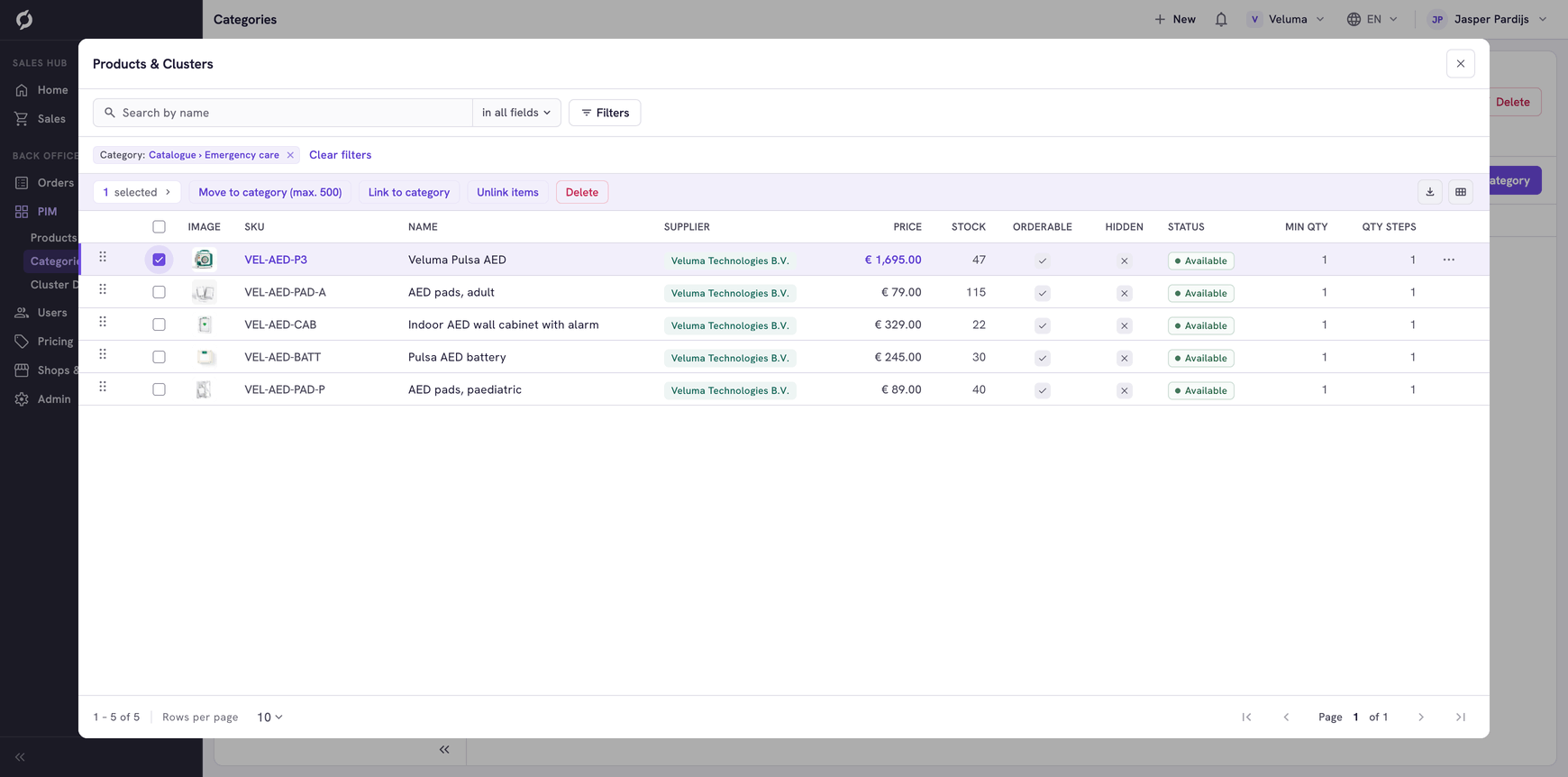
| Button | What it does |
|---|---|
| Move to category (max. 500) | Makes another category the primary category of the products. They leave this one |
| Link to category | Shows the products in one more category. Their primary category stays |
| Unlink items | Takes linked products out of this category. It does not work for products that have this category as their primary category |
| Delete | Deletes the products themselves, for good. It only works for products that have this category as their primary category |
Related pages
- Manage categories
- Price Sheets - discounts on a category
- Find and manage products