Find your way around
Propeller has a menu on the left and a bar along the top. The menu takes you to every page. The top bar holds your notifications, the environment, the language and your account. On the lists and the other pages with the new design, it also shows the name of the page at the left.
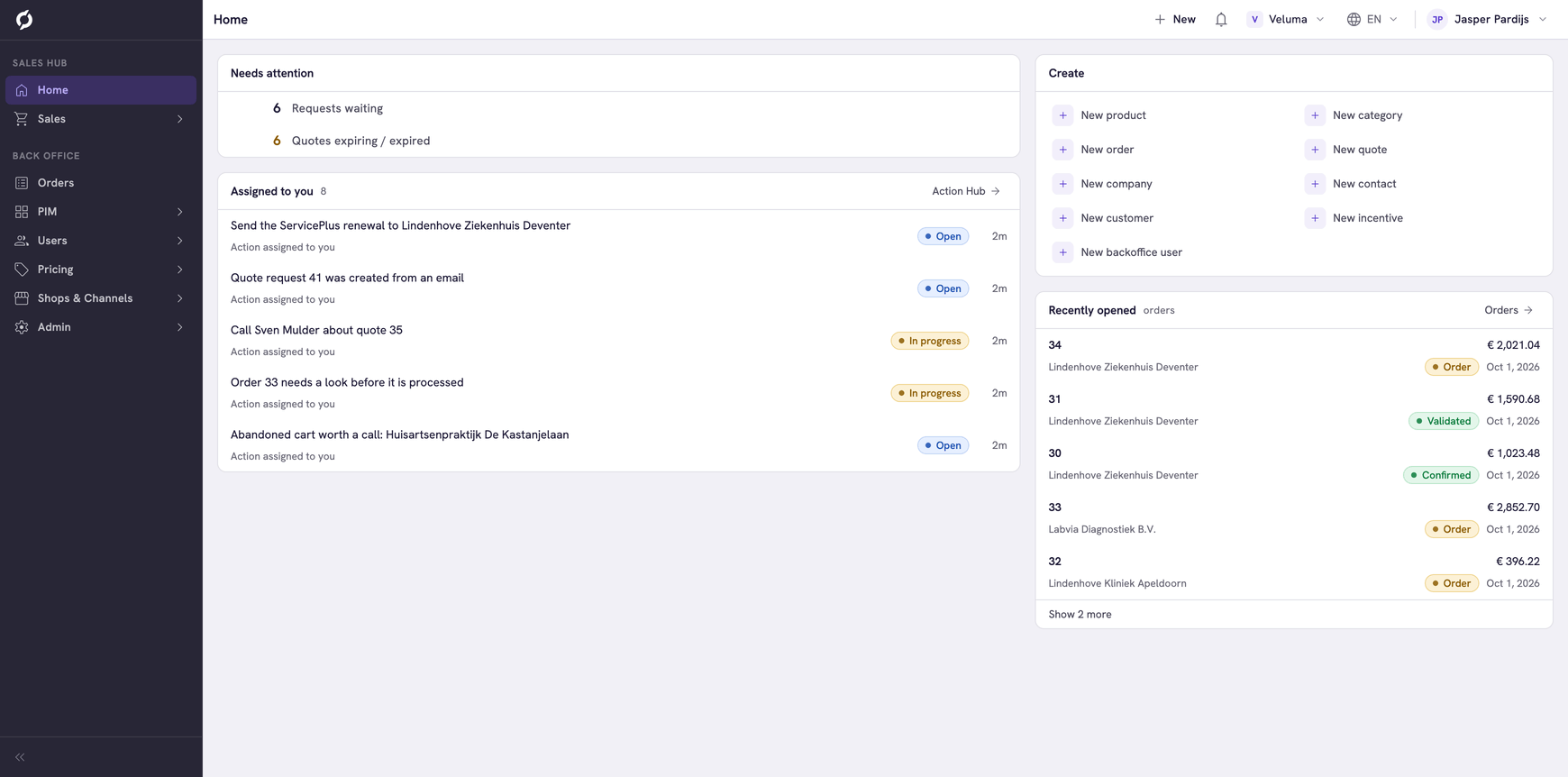
Use the menu
The menu has two parts, one for the Sales Hub and one for the Backoffice. You only see the sections your roles give you access to.
- Click a section with an arrow, for example Sales or Shops & Channels, to see its pages.
- A section without an arrow, such as Orders, opens its page straight away.
- Click Collapse menu, the double arrow at the bottom, to shrink the menu to icons. Point at an icon to see its pages.
An order, quote or request opens in its own browser tab, without the menu, so the editor gets the full width. Close that tab to go back to the page you came from.
Create something new
Click New in the top bar and choose what to create, for example an order, a quote, a company or a product. You only see the options your roles allow. The Home page has the same shortcuts under Create.
Check your notifications
The bell in the top bar shows when an action in the Action Hub is assigned to you. See Get notified about new actions.
Switch environment
An environment is one Propeller installation with its own products, customers and settings. The top bar calls it a tenant.
- Click the environment in the top bar.
- Click the one you want to work in. With more than eight, type in Search tenants… to find it.
Propeller reloads in that environment and remembers your choice for the next time you sign in, also on another computer. Unsaved changes are lost when you switch, so Propeller asks you to confirm first.
Switch language
Propeller has two language settings.
- Interface is the language of menus, buttons and labels.
- Data is the language of the content you read and type, such as product names and descriptions.
What you type goes into the data language that is selected in the top bar. Check it before you edit a product name or a description.
The two are linked until you separate them. Click the language button in the top bar and pick a language. Both follow, and the button shows its code, for example EN.
To use another language for your data:
- Click the language button in the top bar.
- Click Set data language separately at the bottom of the menu.
- Pick a language under Interface and one under Data.
The button now shows both, for example EN / FR. Click Match data to interface to link them again.
Your languages are saved with your account, so they are the same on every computer you sign in on.
A field that holds a value per language shows the language code next to its label. To fill in another language for one field, click the translations icon on that field.
A language marked interface only has no product data in your environment. Which languages are in the lists is set per environment, see Value Sets.
Edit your account settings
Click your name at the far right of the top bar and click Settings.
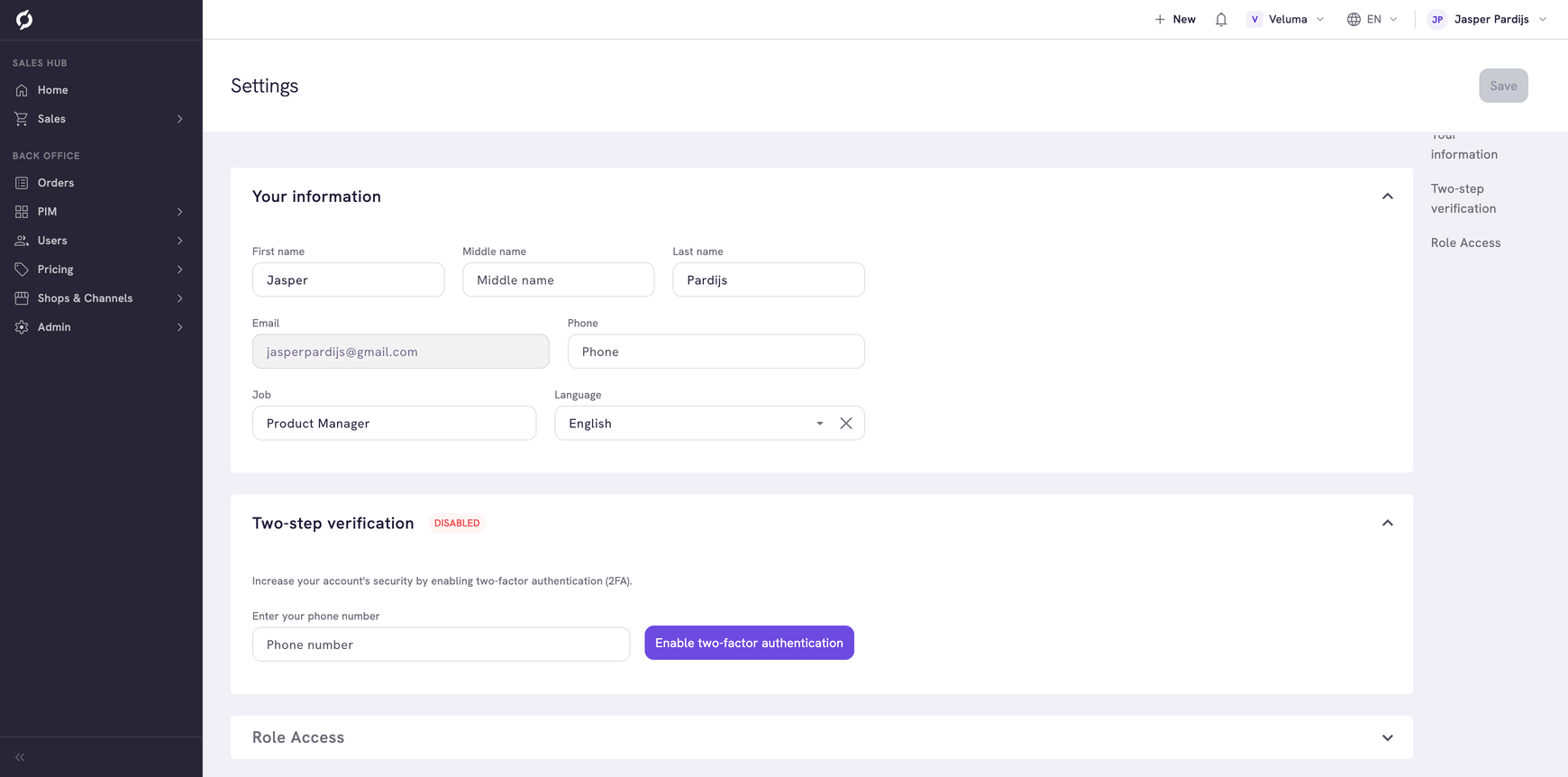
| Section | What it holds |
|---|---|
| Your information | Your name, phone, job title and the language Propeller starts in. Your email address cannot be changed here |
| Two-step verification | A code by SMS as a second step when you sign in. See Enable two-factor authentication |
| Role Access | Your roles and their access levels. Look here when a page or a button is missing |
| Environment Access | The environments you can open |
Click Save after a change under Your information.
Get help or sign out
Click your name at the far right of the top bar.
- Help Center and Developer docs open the documentation in a new tab.
- Sign out ends your session.
Related pages
- Use the Home page - the next step for a new user
- Work with lists
- Roles and permissions