Enable two-factor authentication
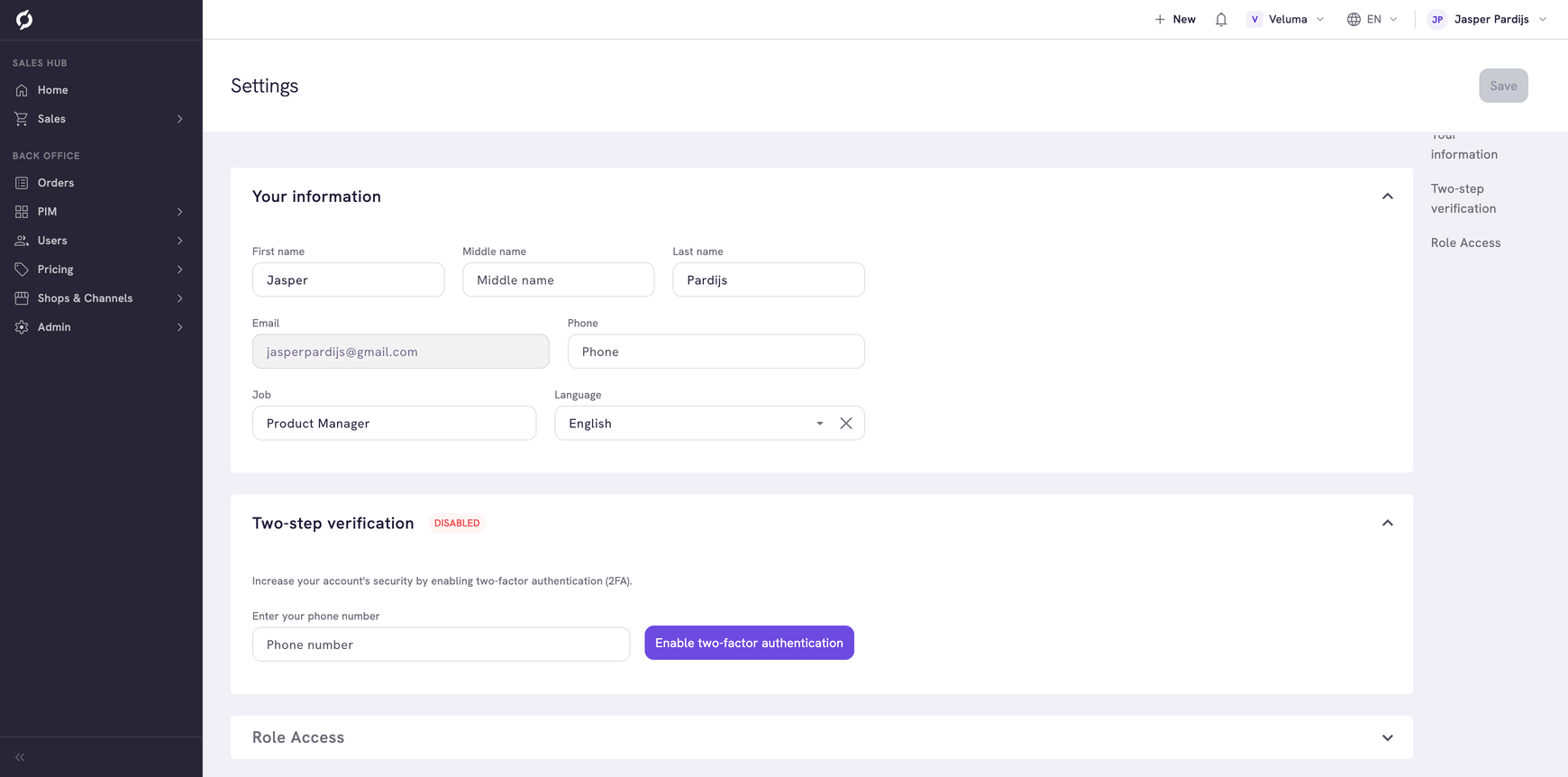
Two-factor authentication adds a second step when you sign in. After your password you type a code that Propeller sends to your phone by SMS. On the screen the setting is called Two-step verification.
Before you begin
warning
Once two-factor authentication is on, the Settings page has no option to switch it off and no field to change the phone number. Use a mobile number you will keep. If you can no longer receive codes on that number, contact Propeller support.
You need a mobile phone that can receive an SMS.
Enable two-factor authentication
- Click your name at the far right of the top bar and click Settings.
- Go to the Two-step verification section.
- Type your mobile number in the Phone number field, with the country code. For example +31612345678.
- Click Enable two-factor authentication. Propeller sends a code to that number by SMS and shows the field Verification code (sent via sms).
- Type the code of six digits and click Continue.
The section now shows the label ENABLED and the date you switched it on. From then on Propeller asks for a code each time you sign in.
If no SMS arrives, check the number and its country code. Reload the page to start again.
Related pages
- Sign in to Propeller - sign in with the code
- Find your way around - the rest of the Settings page