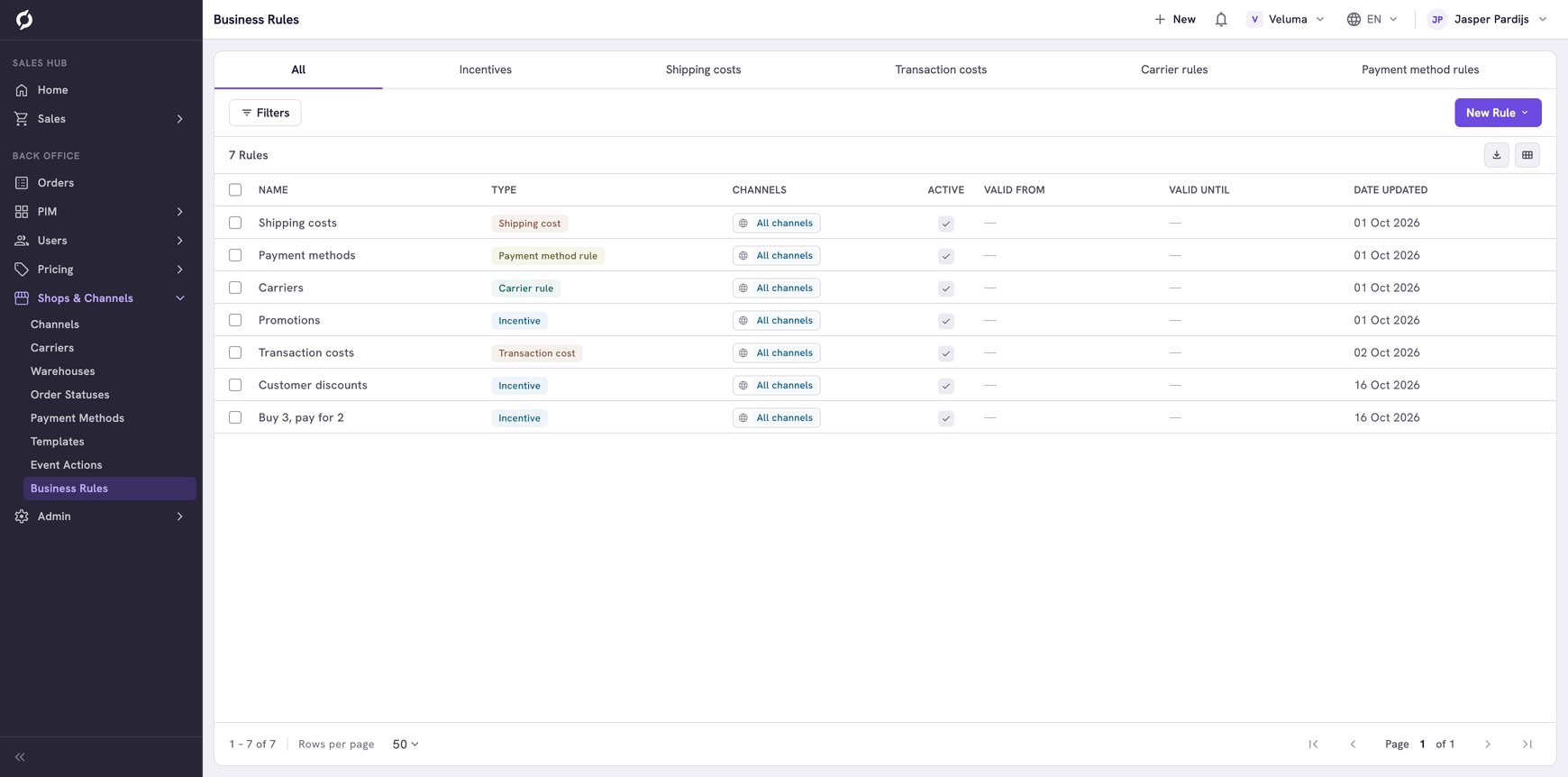
Business Rules
Business rules automate order behavior by applying conditions and actions to orders. You can use rules to control incentives, carrier selection, payment methods, shipping costs and transaction costs.
Before you begin
- You need the Configuration role to view and edit business rules.
- You need Owner access on the Configuration role to create or delete rules.
Types of business rules
Business rules are organized into five categories, each accessible from a different location in the sidebar.
Incentives
Go to Shops & Channels > Incentives to manage incentive rules that automatically apply discounts, bonus products, value points or cost adjustments to orders.

Available actions:
| Action | Description |
|---|---|
| Add product to bonus items | Adds a free or bonus product to the order. Specify the Product ID, Price/Discount type, Price, Quantity and whether to Repeat. |
Use the "Add product to bonus items" action in incentive rules to automatically add a free product when order conditions are met (e.g. "buy 10 units, get 1 free").
| Give discount to order item | Applies a discount to a specific line item | | Give discount to order total | Applies a discount to the entire order | | Add value points to order | Awards loyalty or value points | | Set shipping costs | Overrides the shipping cost calculation | | Set transaction costs | Overrides the transaction cost calculation |
The rule builder for incentives shows the same IF/THEN structure. For example, an incentive rule can check a condition like Order actioncode equals a specific value, then add a bonus product with defined pricing and quantity.

Carrier rules
Go to Shops & Channels > Carriers, then select the Carrier Rules tab.
Available actions:
| Action | Description |
|---|---|
| Set carrier to selectable | Makes a specific carrier available for the order |
Payment method rules
Go to Shops & Channels > Payment Methods, then select the Payment Method Rules tab.
Available actions:
| Action | Description |
|---|---|
| Set payment method to selectable | Makes a specific payment method available for the order |
Shipping cost rules
Go to Shops & Channels > Shipping Costs to manage rules that calculate shipping costs based on order conditions.

Available actions:
| Action | Description |
|---|---|
| Set shipping costs | Sets the shipping cost to a specific amount (Price field) |
Click a rule to open the rule builder. Each subrule defines conditions and a shipping cost action. For example, a subrule can check the order subtotal and postage carrier, then set shipping costs to a specific price.

Multiple conditions can be combined with AND/OR logic. The screenshot below shows a subrule with two conditions: order subtotal greater than or equal to a value AND order postage carrier equals a specific carrier.

Transaction cost rules
Go to Shops & Channels > Transaction Costs to manage rules that calculate transaction costs based on order conditions.

Available actions:
| Action | Description |
|---|---|
| Set transaction costs | Sets the transaction cost to a specific amount (Price field) |
The rule builder works the same way as shipping costs. Each subrule checks conditions like order subtotal and applies a Set transaction costs action with a price.

View the rules list
Each business rules page shows a table with the following columns:
| Column | Description |
|---|---|
| Rule Id | Unique rule identifier |
| Name | Rule name (localized) |
| Date Created | When created |
| Date Updated | When last modified |
Click any row to open the rule builder. Click New Rule to create a new rule.
Use the rule builder
The rule builder is a full-screen editor where you create and edit the logic for a business rule. Each rule consists of one or more subrules displayed as expandable panels that you can reorder by dragging.
Set the hit policy
In the header, use the Hit policy toggle to choose how multiple subrules are evaluated:
- First: only the first matching subrule is applied
- All: all matching subrules are applied
Use "First" hit policy when rules are mutually exclusive (e.g. tiered discounts where only one tier applies). Use "All" when a discount should apply to more than one order item (e.g. a volume discount that applies to every qualifying line in the order).
Add conditions (IF)
Conditions define when a subrule should trigger.
- Click Add condition within a subrule.
- Select an Item from the available order fields (for example, Order subtotal, Order postage carrier or Order actioncode).
- Select a Condition operator. The available operators depend on the field type:
- Text fields: Equals, Not equals, Contains, Starts with
- Number fields: Equals, GreaterThan, LessThan, GreaterThanOrEqualTo, Between
- Array fields: Contains, Does not contain
- Enter or select a Value. For carrier and payment method fields, select from a dropdown. For other fields, type a value.
You can add multiple conditions per subrule. Combine them with and or or logic using the toggle buttons.
Add actions (THEN)
Actions define what happens when the conditions match. The available actions depend on the rule type (see the tables above for each type).
- Click Add action within a subrule.
- Select the action type.
- Fill in the action parameters (for example, select a carrier, enter a price or choose a product).
Add subrules
Click Add subrule in the header to add additional subrules. Each subrule has its own set of conditions and actions. You can rename a subrule by clicking the edit icon next to its name.
Save the rule
Click Save in the header to save all changes. Use the edit icon next to the rule name to rename it (localized with language switcher).
Delete rules
- Go to the rules list.
- Select one or more rules using the checkboxes.
- Use the delete action.
- Confirm the deletion.
Related pages
- Carriers - manage carrier definitions
- Payment Methods - manage payment method definitions