Make a favorite list for a contact
A favorite list is a saved list of products for one customer, for example the products a ward reorders every month. You make it for a contact, so the contact can reorder quickly in the webshop.
Before you begin
- You need Sales Hub access and the roles Shop & channel and Product Data. The standard roles of a sales rep do not include Shop & channel, so ask the colleague who manages your Backoffice users if you cannot open the page.
- To create, change or delete a list you need Owner access on Shop & channel.
- A favorite list is not the same as an order list. An order list limits what a customer may order. See Order Lists.
Open the favorite lists of a contact
- Go to Sales > Companies and click the company.
- Click Actions on the row of the contact.
- Click Favorite lists.
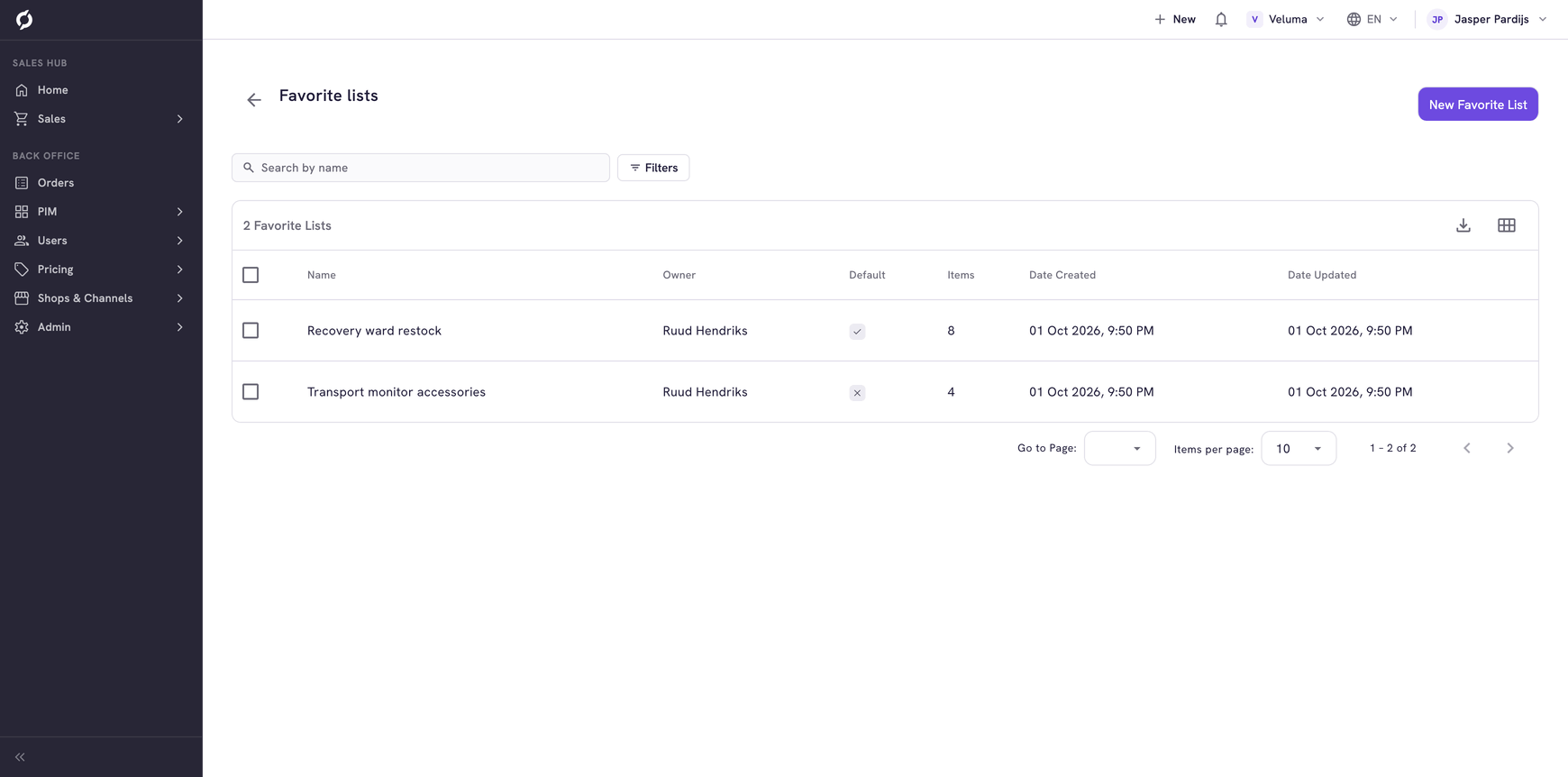
You see the lists of that contact. Default says which one is the main list.
Create a list
- Click New Favorite List. Propeller creates a list called "New favorite list" for this contact and opens it.
- Type a Name that the customer will recognise, for example "Monthly ward order".
- Set Default to Yes if this is the main list of the contact.
- Click Save.
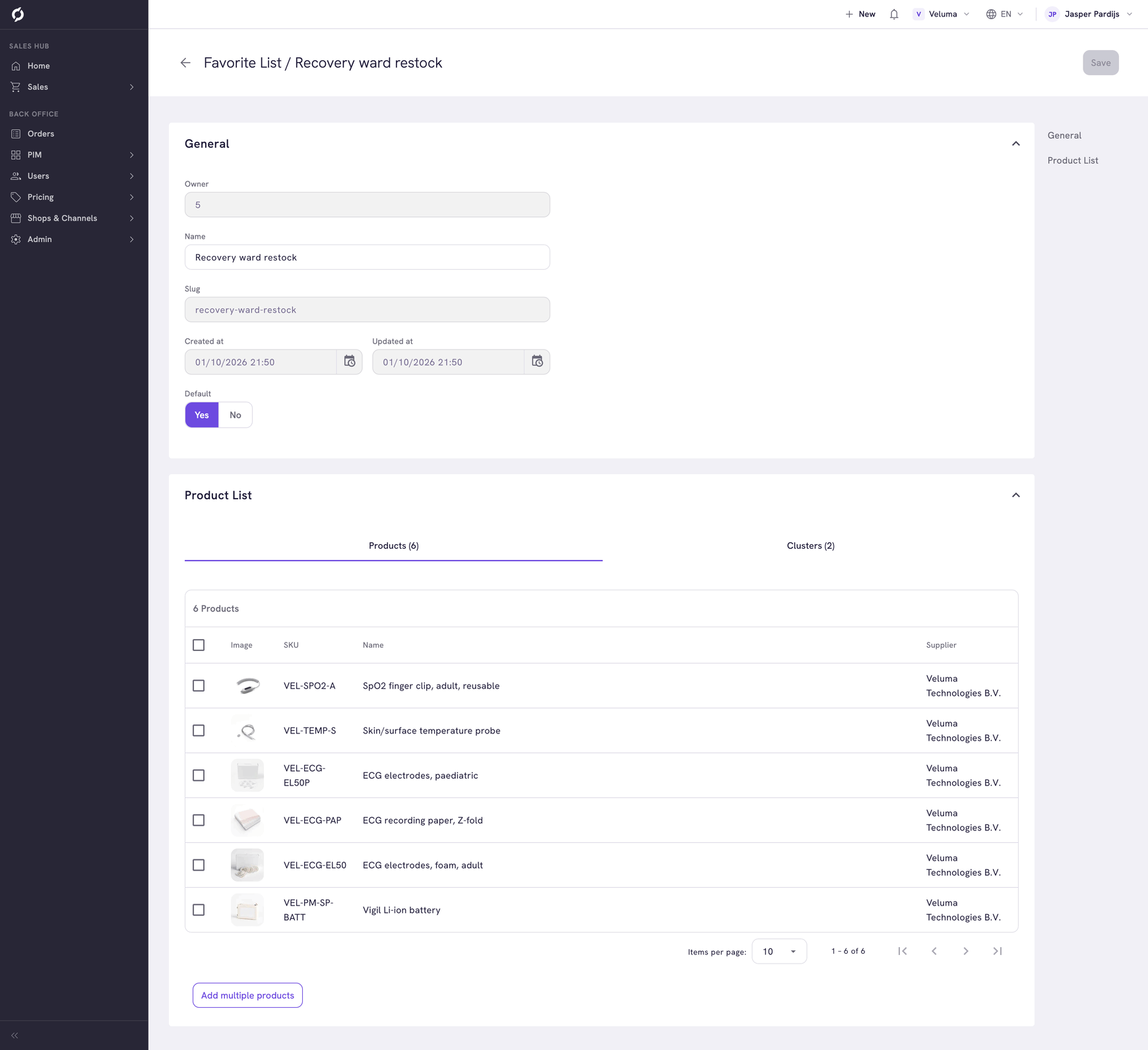
The list belongs to this contact from the start. That cannot be changed later.
Add products to a list
- Open the list and go to the Products tab. Use the Clusters tab for products with variants.
- Click Add multiple products.
- Search and tick the products.
- Click the button at the bottom that counts them, for example Add 2 Products.
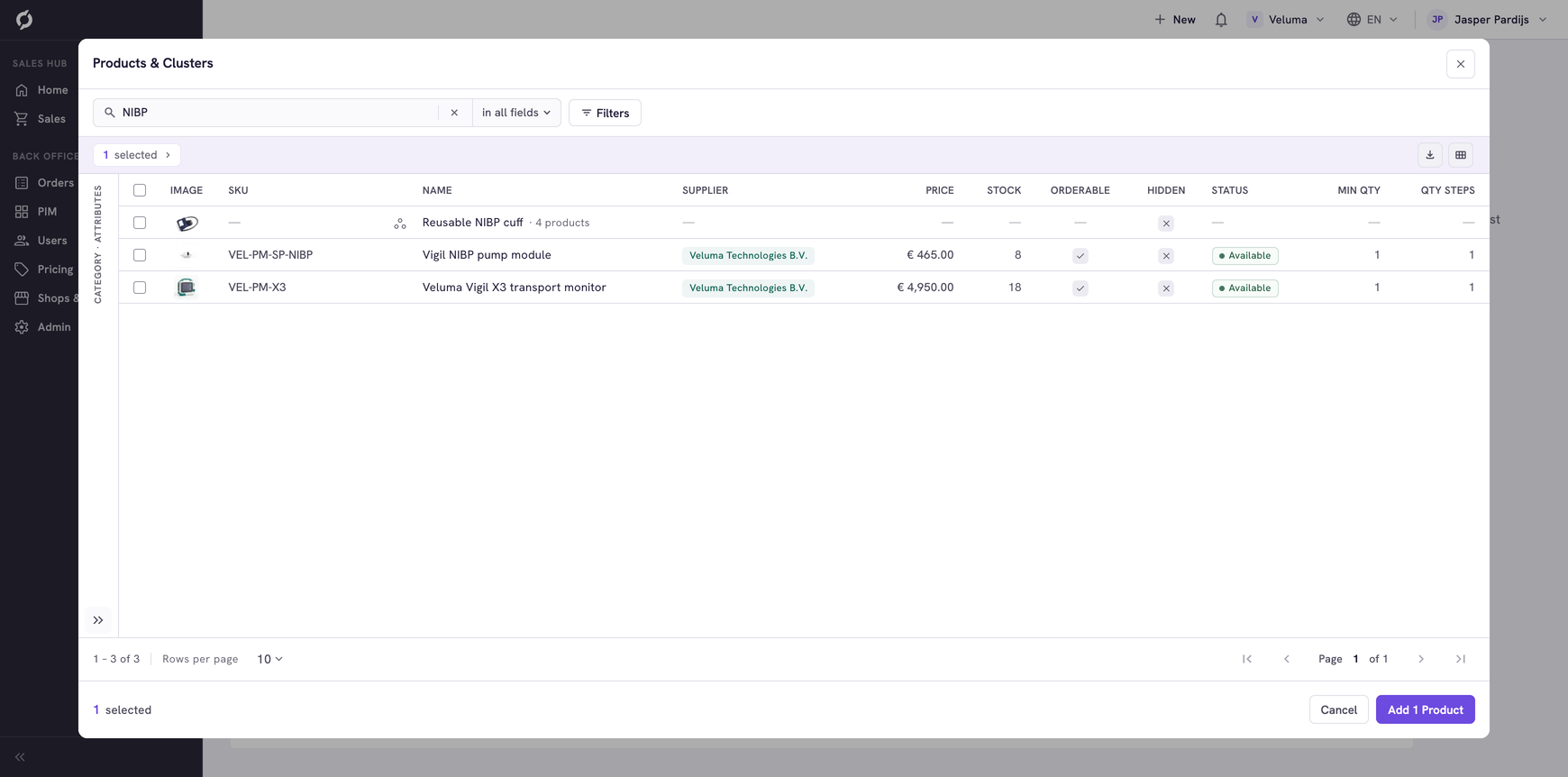
The products are on the list at once. You only need Save for the name and the Default switch.
To take products off, tick them, click Remove selected products and confirm.
A click on a product row opens that product in the Backoffice, which needs Backoffice access. Use the tick boxes to work with the rows.
Delete a list
- Open the favorite lists of the contact.
- Tick the list, click Delete and confirm.
A deleted list cannot be brought back.
Where the list is used
The contact finds the list in the webshop, when your webshop shows favorite lists. The order editor of Propeller does not use them. To repeat an earlier purchase on a quote or order, use Order history in the editor.
Related pages
- View a company
- Favorite Lists in the Backoffice - all lists of all customers in one overview