View a company
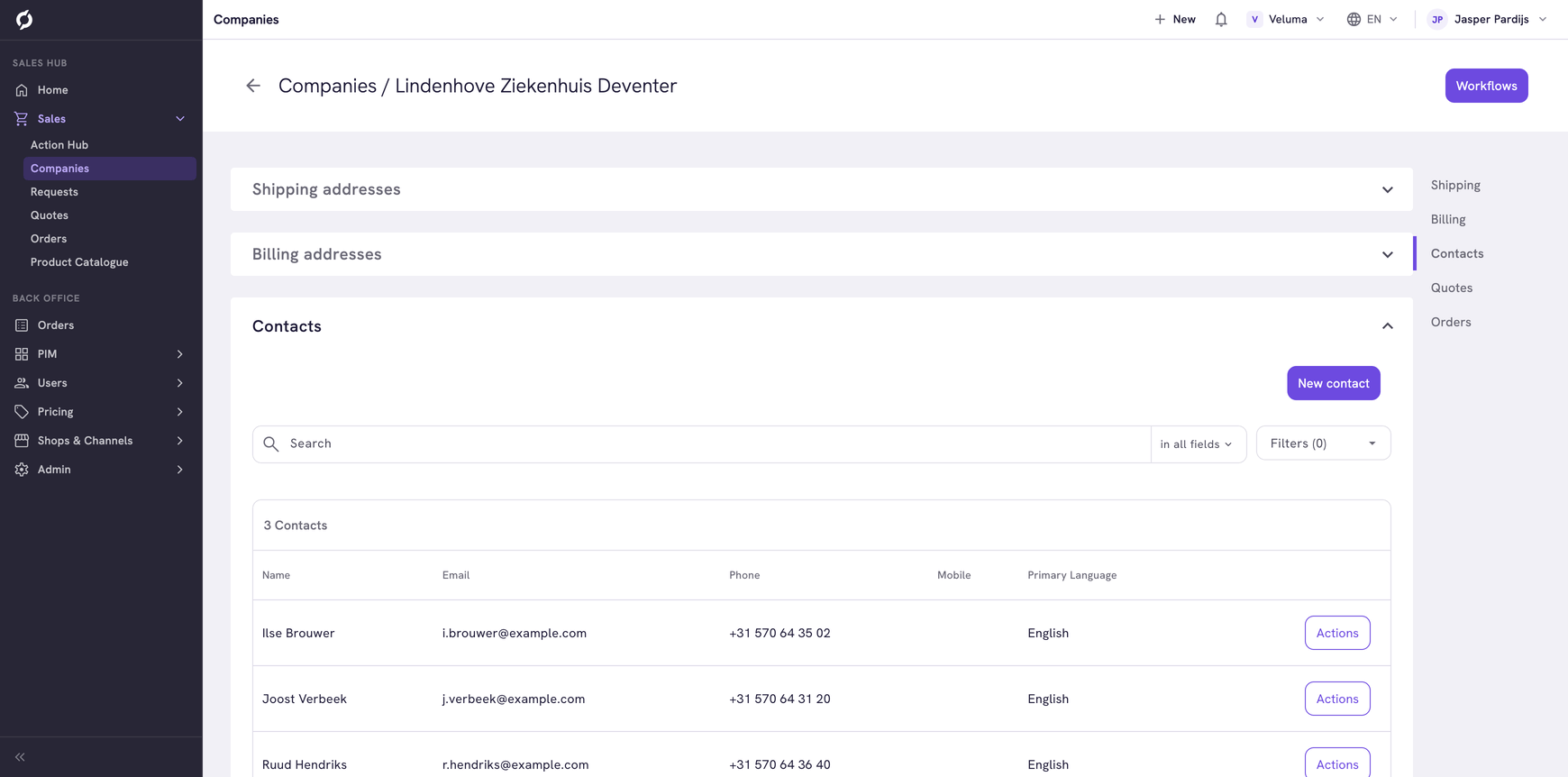
The company page shows the addresses, contacts, quotes and orders of one company. From a contact you start a quote or an order, open their favorite lists and give them a webshop account.
Before you begin
- You need Sales Hub access and the User management role.
- To start a quote or an order you need Owner access on Order Data.
- To add a contact or manage a webshop account you need Owner access on User management.
Open a company
- Go to Sales > Companies.
- Click the company.
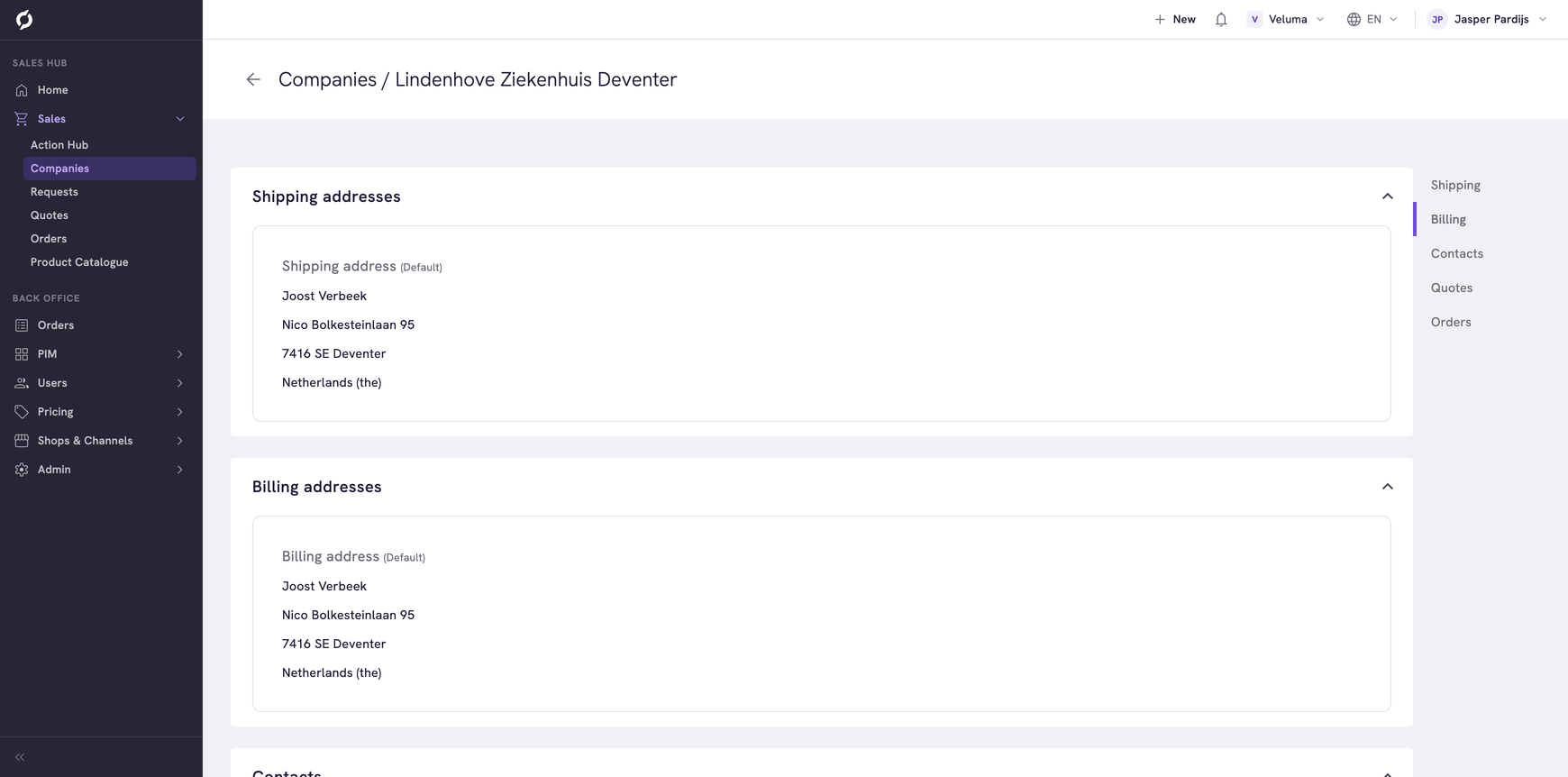
The page has five sections: Shipping addresses, Billing addresses, Contacts, Quotes and Orders. Click a heading to open or close a section, or use the links at the right to jump to one.
You look things up on this page. To change the name or an address of the company, a colleague with Backoffice access opens the company under Users > Users. See Edit a company.
Start a quote or an order for a contact
- Find the contact in the Contacts section.
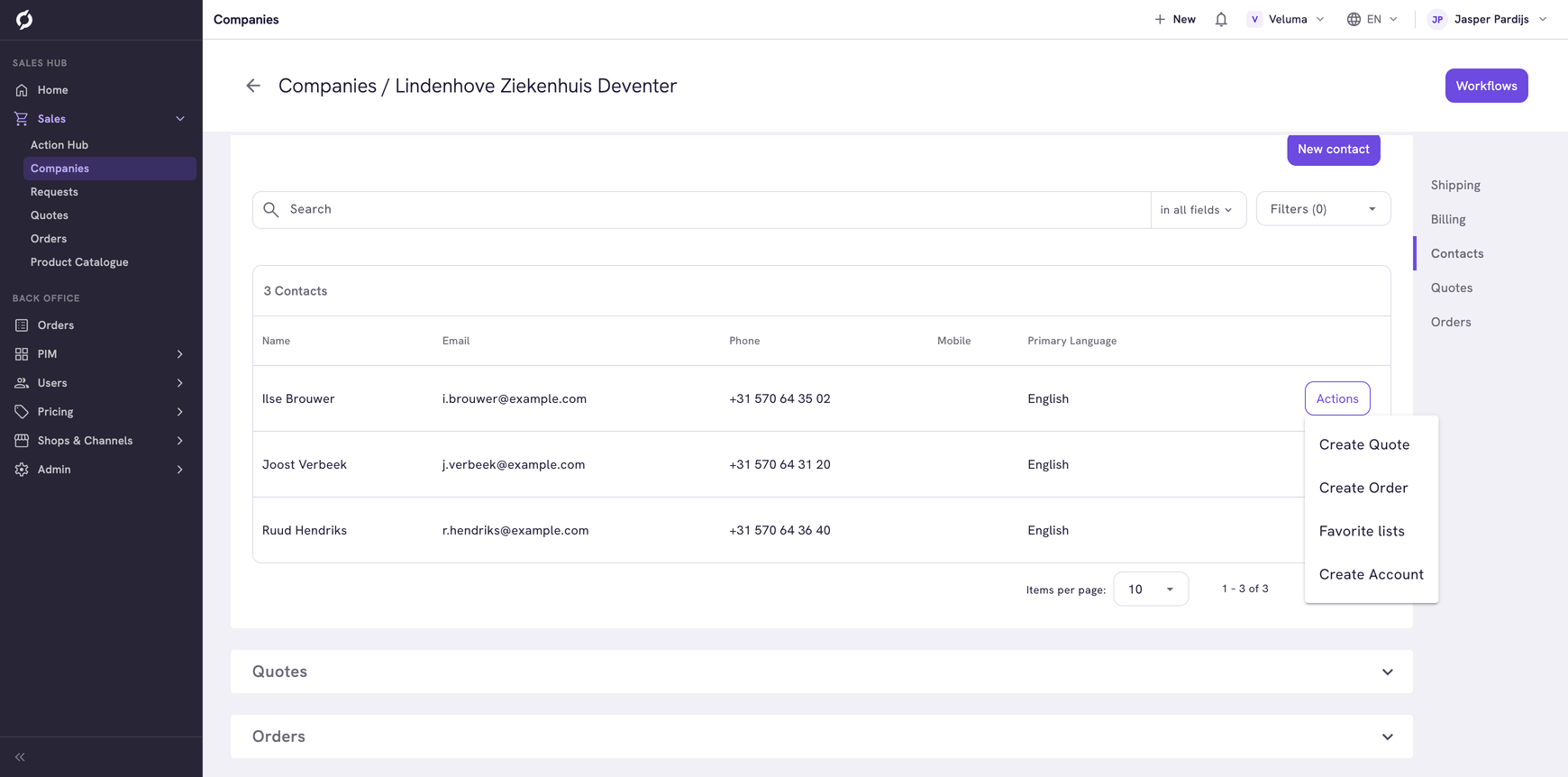
- Click Actions on that row.
- Click Create Quote or Create Order.
- If your environment has more than one channel, pick the channel the quote or order belongs to.
The editor opens with the company, the contact and their addresses filled in. See Create a quote or Create an order.
Add a contact
- Click New contact at the top of the Contacts section.
- Propeller creates a contact called "New contact" straight away and opens its page.
- Fill in the name and the email address and click Save. See Edit a contact or customer.
Give a contact a webshop account
A contact needs an email address before you can do this.
- Click Actions on the row of the contact.
- Click Create Account.
- If your environment has more than one channel, pick the channel the account is for.
Propeller creates the login and asks for the email in which the contact sets a password. The email goes out for the channel you picked. That email is one of the emails your company sets up under Shops & Channels > Event Actions. If none is set up for it, the contact receives nothing.
For a contact who already has an account, the menu shows two other choices.
| Choice | What it does |
|---|---|
| Resend invitation | Sends the email to set a password again. Use it when the contact lost the email or forgot the password. With more than one channel you pick the channel first |
| Delete Account | Removes the login after you confirm. The contact stays, with their quotes and orders |
Resend invitation is greyed out when the email address of the contact is not the address they sign in with. Change the address back first.
See the favorite lists of a contact
Click Actions on the row of the contact and click Favorite lists. See Favorite lists of a contact.
See the quotes and orders of the company
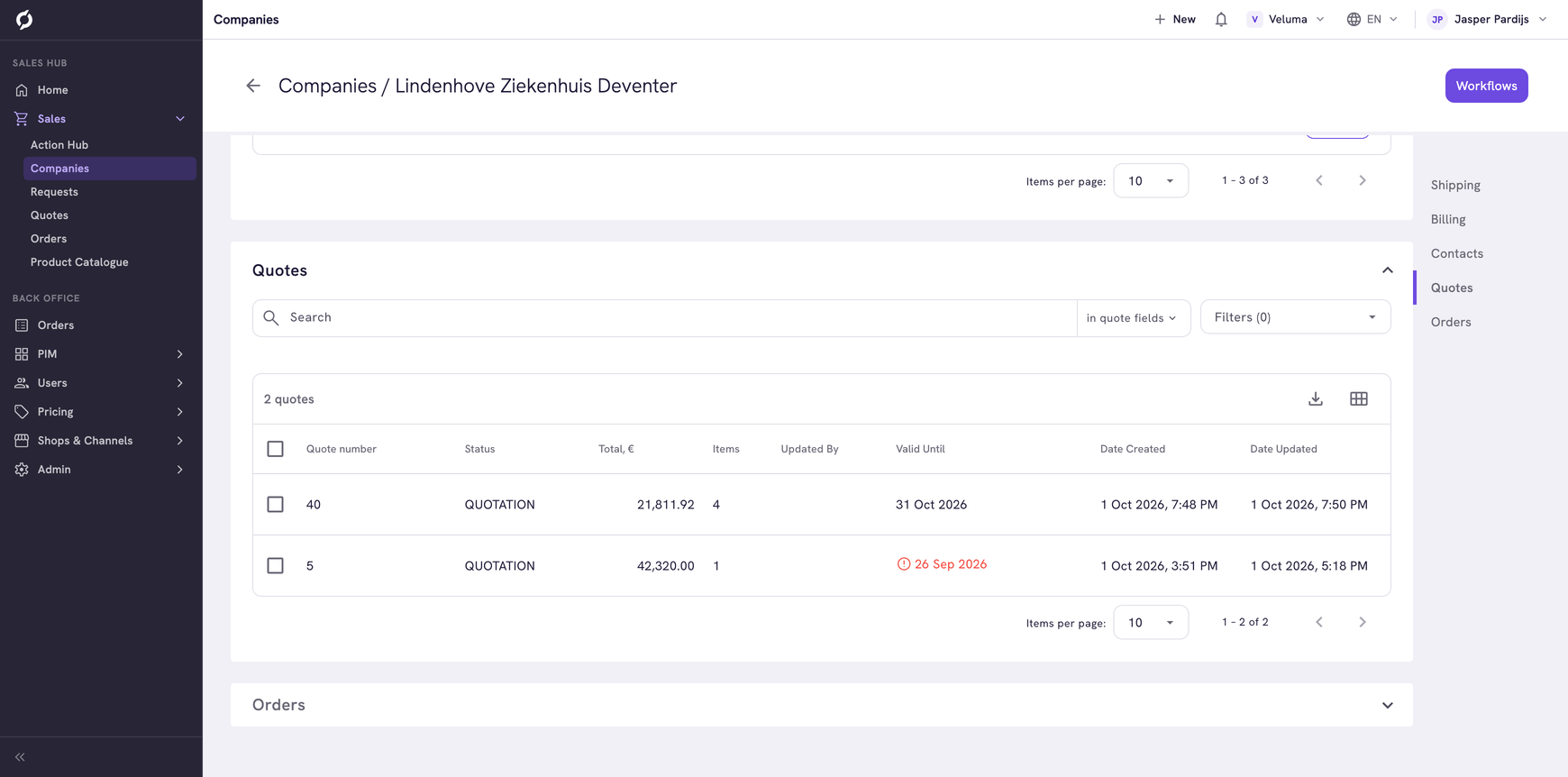
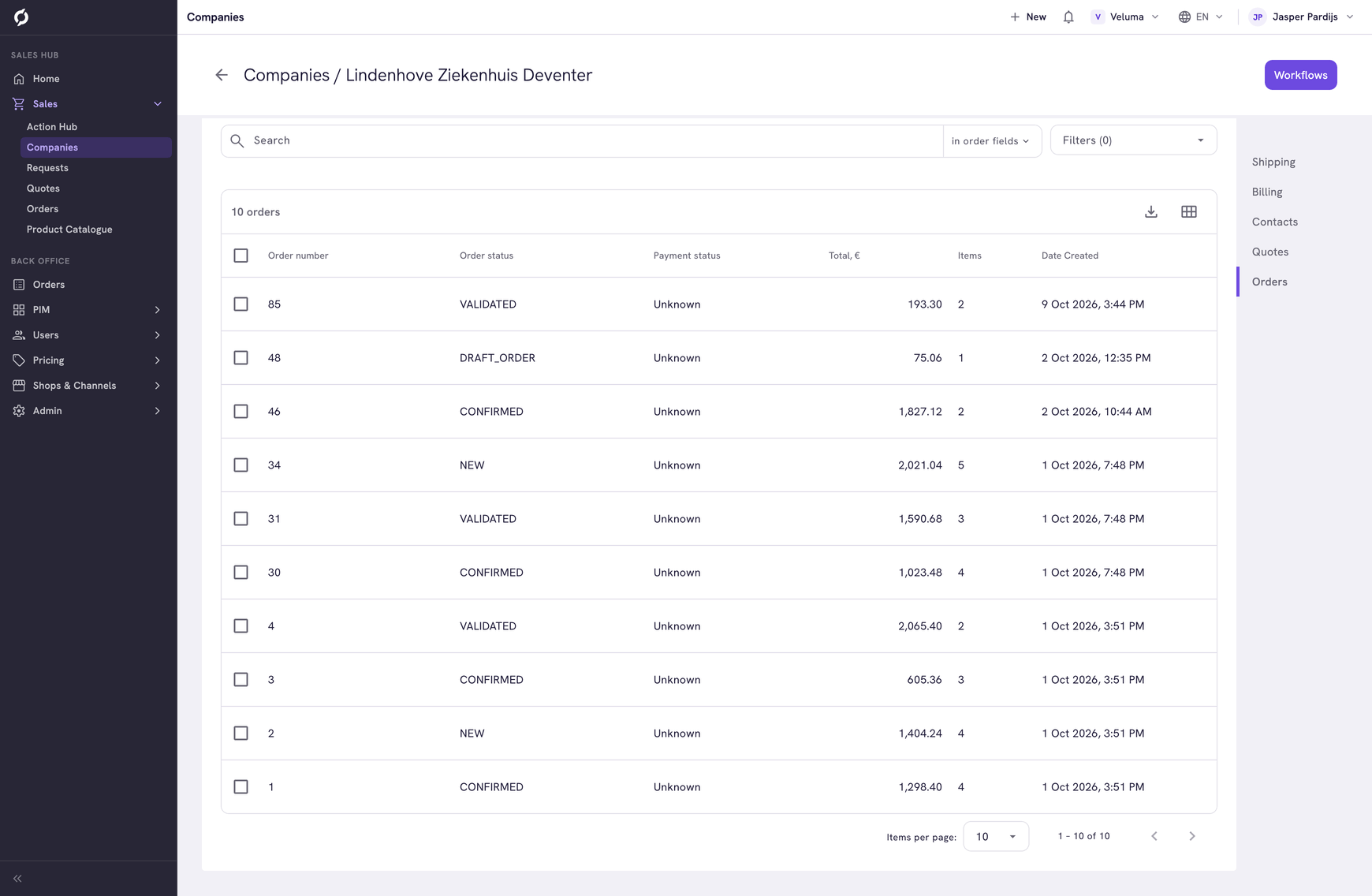
Click Quotes or Orders to open that section. The list loads when you open it. Click a row to open the quote or order.
See the addresses
Shipping addresses and Billing addresses show every address of the company. The default address of each kind carries the label Default.
Related pages
- Manage companies - find or add a company
- Create a quote
- Workflows & AI Agents - the Workflows button on this page