Easier business rules with more options and new lists
· 6 min read

Business rules are easier to manage and do more: plan a rule for a set period, switch it off without deleting it, check an attribute by name and use three new promotions. The lists of the Backoffice and the Sales Hub have a new design, and a contact has notes that show in the order editor.
New Features
- Business rules that do more. Every rule starts with its Rule settings: its channels, Valid from, Valid until, a description and Active. Plan a rule ahead with its dates or switch it off without deleting it. A rule that is inactive or outside its validity period is saved but not applied. A condition can check an attribute that you pick by name, and for a text attribute it suggests the values in use. See Set when a rule counts.
- Three new promotions. Give discount to cheapest item and Duplicate cheapest in bonus items give the cheapest pieces away: as a discount on their own lines or as extra bonus lines. Use them for a promotion such as "buy 3, pay for 2". You set how many pieces, how much off and whether it repeats. Duplicate product in bonus items adds free pieces of a product you choose, unless you set a smaller discount. See Give the cheapest piece away.
- Business rules are easier to manage. All five types of rule are now under Shops & Channels > Business Rules: incentives, shipping costs, transaction costs, carrier rules and payment method rules. This screen takes the place of the separate menu items for shipping costs, transaction costs and incentives. Choose All or one type above the list. The list shows which rules are Active and their Valid from and Valid until. On All, New Rule asks which type of rule you want. On the Carriers and Payment Methods screens, Carrier rules and Payment rules take you to the rules for them. See Set up business rules.
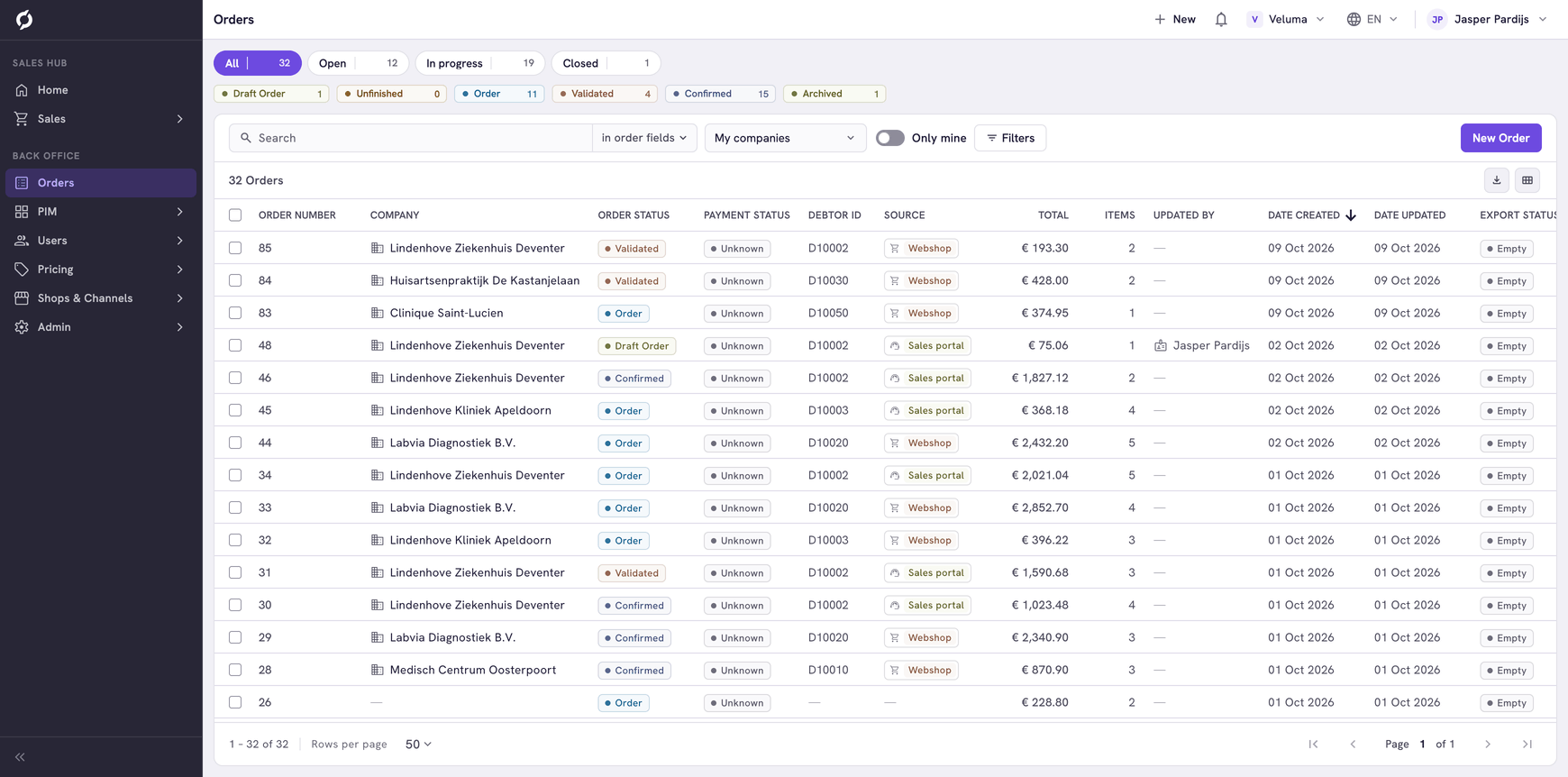
- A new design for the lists. The lists you open from the menu, in the Backoffice and the Sales Hub, fill the screen. The search, My companies, Filters and the buttons of the screen sit in one row above the table. The column headings stay in view while you scroll, and the page controls stay at the bottom, with Rows per page. When you select rows, the row above the table counts them and offers what you can do with them. The name of the screen is now in the top bar. See Work with lists.
- Filters in a panel inside the list. Click Filters to open them next to the rows. A filter works as soon as you set it, and the number of results follows. The filters you set show above the table: remove one with its × or all of them with Clear filters. Several lists offer more filters than before.
- Status groups on the order lists. The lists of requests, quotes and orders show their statuses above the table, each with the number of orders in it. The statuses of each order status set form a group, for example Open, In progress or Closed. Click a group or a status to see only those orders. See Orders.
- Categories and attributes next to the products. In PIM > Products & Clusters the left side shows the Category tree above the Attributes. Click a category to see its products and those of its subcategories. The attributes offer the values of the products found, each with its number. See Products.
- Notes on contacts. A contact has a Notes panel on its General tab, the same as a company. The order editor shows the notes of the contact of the order under Contact notes, cut to three lines with Show more. See Edit a contact.
- The margin of each order line. In the order editor, add the Margin amount column with the Table editor to see what each line earns: the line total minus the cost price times the quantity. A line without a cost price or without a price shows a dash, and pointing at it tells you why. See Use the order editor.
- The Workflows button in more places. Your company can now offer agents in the product catalogue and on a product page, in the Action Hub and on a product and categories in the PIM. In the Backoffice they can also show on price sheets, business rules, templates, favorite lists and order lists. The Workflows button shows where an agent is registered. See Use workflows and AI agents.
- Webshop invites for the right channel. When your environment has more than one channel, Create Account and Resend invitation for a contact ask which channel the email is for. See Give a contact a webshop account.
Improvements
- Wider and narrower columns. On the lists you open from the menu, drag the edge of a column heading to make the column wider or narrower. Each row stays on one line, and the list keeps the widths you set. See Work with lists.
- Add multiple products remembers the class. On a quote or an order, Add multiple products opens on the Class you filtered on last.
- Default values of attributes show as defaults. An attribute that only has its default value shows it with a dashed Default tag. Point at the tag: the default is not saved on the product. Business rules use it, while price sheets, search filters and integrations ignore it. See Attributes.
- No more value points. The incentive action that added value points to an order is gone. A rule that still uses it opens without an action until you choose another one.
Bug Fixes
- Admin > Agents opens when you load it directly, for example from a bookmark, instead of showing "Couldn't load Agents".
- In the order editor, the saved addresses of the customer stay available after you save an order.
- Attribute filters in the product catalogue and the PIM find products again in environments with many attributes. This fix has been live since 14 October.
- A list you come back to is filtered by the filters it shows.
- The Workflows dialog closes when you leave its screen, instead of staying open over the next one.