Your settings follow you to every computer and expansion of business rules
· 4 min read

Your columns, languages, last environment and Action Hub filters are now saved with your account, so Propeller looks the same on every computer you sign in on. Business rules can check the attributes of an order and its lines. You can make a product exclusive, so only the customers you choose can see and order it. The order lists show the time and stay up to date while you work in another tab.
New Features
- Your settings follow you. Propeller saves your settings with your account instead of in the browser. Sign in on another computer and you find the same columns and column widths on each list, the same interface and data language, the Action Hub filters you chose and the environment you last worked in. Per environment it also keeps My companies, which notifications you have seen, the orders under Recently opened and the class that Add multiple products opens on. Two people who share a computer no longer share these settings. See Work with lists and Find your way around.
- Business rules on order attributes. A condition can check an attribute of the order with Order Attribute. Under Order items, OrderItem Attribute checks an attribute of an order line. A rule can then give a discount or set the shipping costs for, say, a project code on the order. See Choose what a business rule looks at.
- Exclusive products. You can offer a product to some customers only, such as a product you make for one customer. Set Exclusive to Yes on the Description tab of the product or cluster, then put it on an order list of the new type Exclusive. Only the companies, contacts and customers on that list can see and order it. The rest of their catalogue stays as it is. An info icon next to Exclusive tells how many Exclusive order lists give the product to customers and warns you when nobody can see it. You can filter the product list on Exclusive and the order lists on the type Exclusive. See Offer a product to some customers only.
- The product page as your customer sees it. When you select a company or a contact under User context in the Product Catalogue, the product page shows the product as that customer sees it, with their order lists applied. A product the customer cannot see shows Not available for and the name of the customer instead of loading without end. With nobody selected, an exclusive product shows Not available for anonymous users. A product that no longer exists shows Product not found. See Check the stock and price of a product.
Improvements
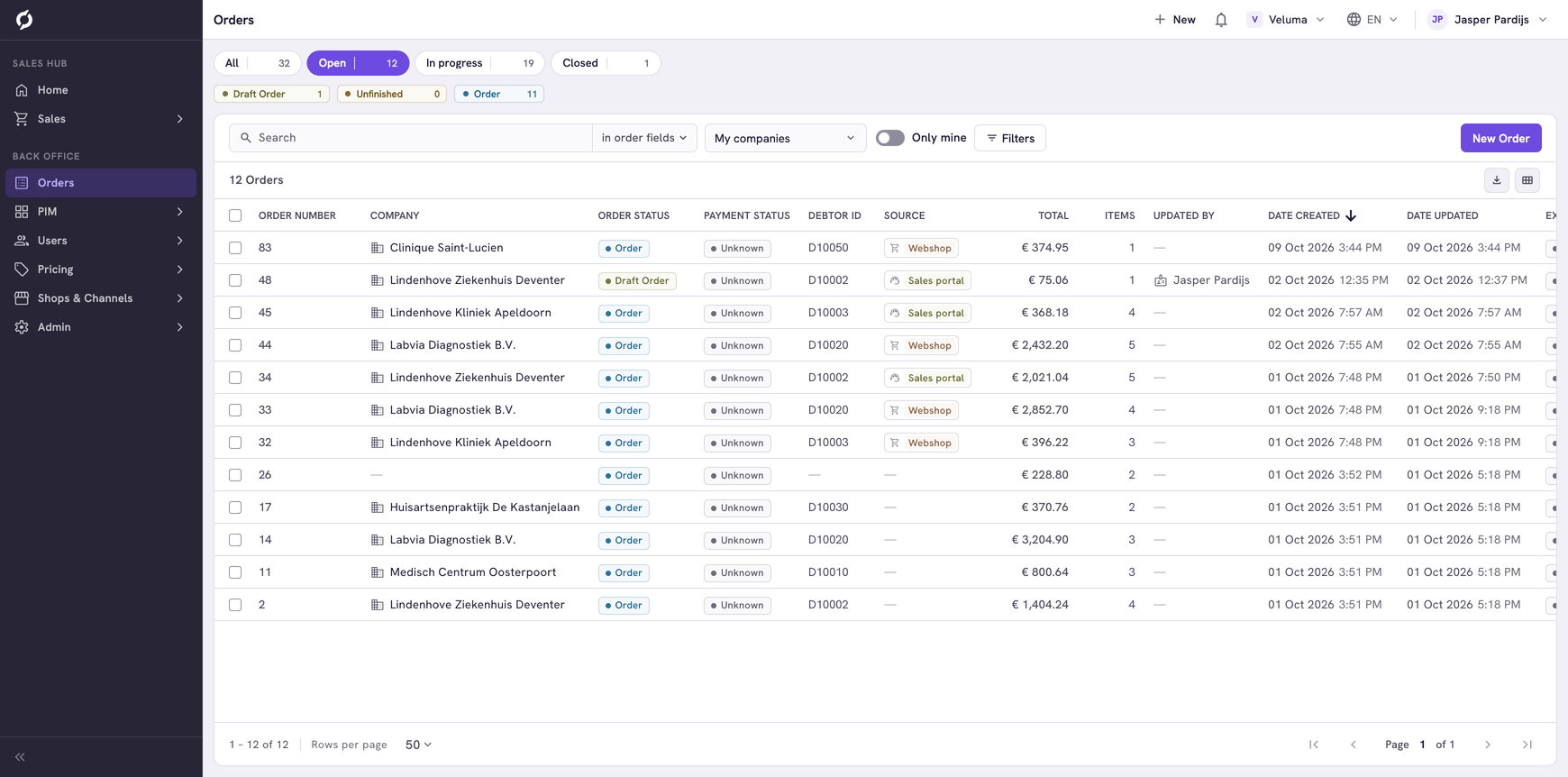
- The time on the order lists. On the lists of requests, quotes and orders, the date columns such as Date created and Date updated show the time after the date. Valid until of a quote stays a date. See Orders.
- Order lists stay up to date. When you save or delete an order in another tab, the order lists you have open load again in the background and count their status groups again. An order moves to its new status group without a reload of the page.
- Lists you come back to stay current. A list you return to shows its rows at once and checks for changes in the background.
- Filters in every products dialog. Every dialog in which you pick products has the panel with the categories and the attribute filters, folded on the left. Unfold it to narrow the list.
Bug Fixes
- With Editor access you can change an existing API key or login token, instead of only reading it.
- When you leave a warehouse with unsaved changes and click Discard, the changes are no longer saved.